
Migration et installation steps
Step 1 - XR Center 1.22 Installation
-
Stop the XR Center and SkyPrep Agent 1.21 services from the Windows Services manager
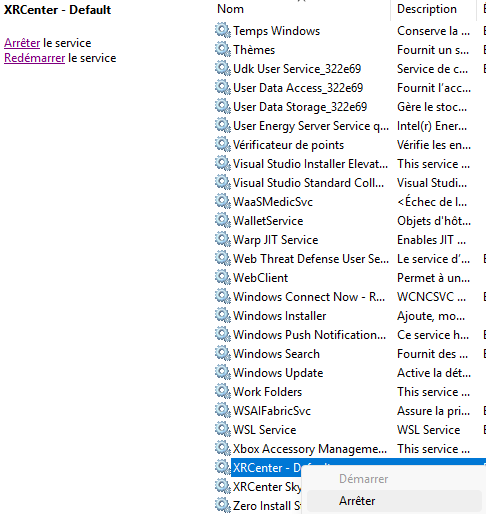
-
Install the XR Center 1.22 services and proceed until the software launches after the license retrieval step.
→ Refer to the XR Center Install - IT documentation XR Center Install - IT | Step 2 Start XR Center
→ The installer will ask you to uninstall XR Center 1.21 — please accept.
Step 2 - ArangoDB to PostgreSQL Migration Setup
-
Once XR Center 1.22 has successfully launched, stop the XR Center 1.22 service from the Task Manager (and not from Windows Services).
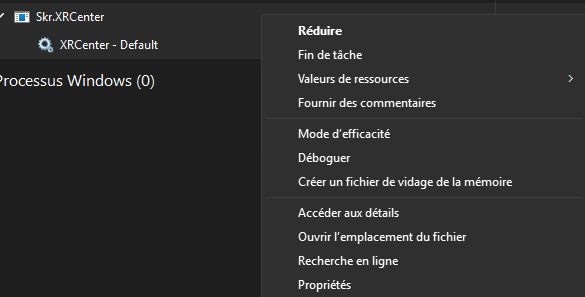
-
From the Windows Services manager, disable the automatic startup of the
XRCenter - Defaultservice.
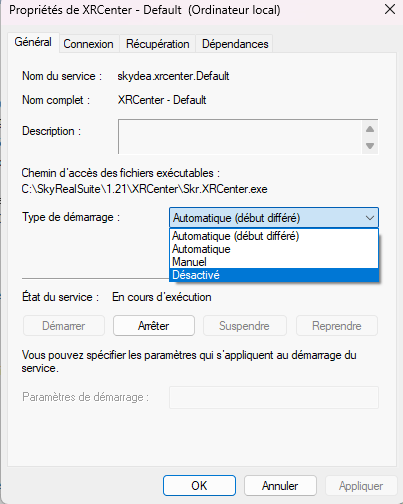
-
Verify that:
-
The ArangoDB service is still running in Windows Services
-
PostgreSQL is active in the Task Manager
-
Once these checks are completed, you can launch the Migration Tool from a CMD terminal.
Follow the instructions displayed in the terminal.
⚠️ Important: Do not modify the PostgreSQL database connection string.
-
Start the database migration process and let it run until completion.
Step 3 - Finalizing the 1.22 Installation
-
Once the migration has been completed successfully, resume and finalize the XR Center 1.22 installation.
→ Follow the XR Center Install - IT documentation. XR Center Install - IT | Step 3 Configure XR Center