
What is a Collaborative Session?
A collaborative session connects multiple Skyreal VR users to the same simulation. The goal is to allow users to interact in the same VR environment around a product. Users can add annotations, manipulate objects, and work together in real time.
How Does It Work?
To start a collaborative session, one computer running Skyreal VR acts as the server (host). Other computers connect as clients.
Requirements
-
All computers must be able to communicate on the same network. If collaborating between different locations, set up a VPN connection (or contact your IT department).
-
All computers must use the same simulation files, achieved by either:
-
Placing the simulation files on a shared folder accessible to all computers, OR
-
Copying the simulation files to every computer (slower to deploy but loads faster in Skyreal VR).
-
Starting a Collaborative Session
With Skyreal VR Legacy
Start the Server
-
One computer will run as a server. It is recommended to use an Ethernet connexion for the server.
-
Start Skyreal VR and Create Session: Start a collaborative session of Skyreal VR. You are hosting the server, other users can join your session using the same map.
-

-
Send your IP address to the other users.
Join as a Client
-
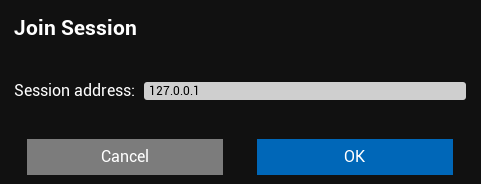
Start Skyreal VR and Join Session: Join an existing session on the network. You need to enter the IP address of the session. (You must have the exact same map)
-
Set the server IP address
Using Deck / XR Center
If you are using the Deck + XR Center setup, you can start collaborative sessions directly from the Experience Homepage:
-
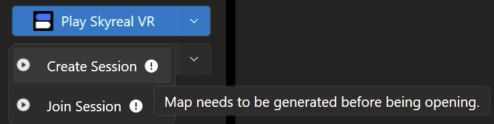
Click on the arrow next to Play Skyreal VR button to create a collaborative session on the Host PC
-
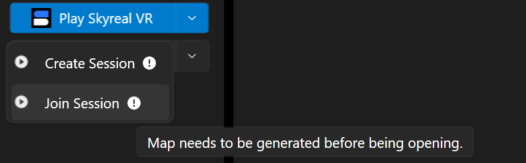
Click on the arrow next to Play Skyreal VR button to Join collaborative session on the Client(s) PC
-
Other users can join existing sessions
-
Warning : The map need to be reprepared to be launch in Collaboration Mode and like legacy mode, you need to be on the same version of Skyreal VR
Troubleshooting
-
Connection fails — Ensure all workstations are on the same network or VPN.
-
Firewall blocking — Your firewall must allow UDP connections through port 7777 (or your custom port). You can add the Skyreal VR executable as an exception:
\\Skyreal VR\\Binaries\\Win64\\Skyreal VR-Win64-Shipping.exe. -
Port conflict — Check if port 7777 is used by another service:
FOR /F "usebackq tokens=4 delims= " %i IN (`netstat -ano ^|find "7777"`) DO @tasklist /fi "pid eq %i" | find "%i"
If another service is using the port, change the port in Skyreal VR\\Config\\DefaultEngine.ini:
[URL]
Port=your_port
-
VOIP issues — If VOIP cannot connect, the previous session may not have closed properly. Either change the VOIP port in Skyreal VR settings (must be done for every collaborator) or restart your session to free the port.