Prerequisite: Please complete Getting started – UE Dev environment before using this guide.
Open Powershell/Pwsh within the directory \ressources\SkrExtensionScripts\scripts (no more requiring admin userrights). Call the Build-Repository.ps1 using commandline: ./Build-Repository.ps1
Once it's done, you should have inside the Output directory:
-
Builddirectory that contains the packaged extensions. -
Installdirectory that contains the marketplace packages.
Note: If the build fails due to a cooking error, the simplest solution is to open your ".uproject" in Unreal Editor, run the cook process via Platforms > Windows > Cook Content, and fix any errors directly within Unreal Editor.
Deploy inside the marketplace
To deploy extensions to production, publish them to the XR Center Marketplace. This ensures the extension is distributed, versioned, and available to all target workspaces.
-
Sign in to the XR Center ITAdmin portal.
-
From the left sidebar, open Extensions.
-
Click Upload extension.
-
Select and upload the previously generated ".SkrMkt" package files located in
Output/Install.
Warning: Make sure to increment the build counter for each new build. If you do not update the build counter, XR Center will not upload the new version (an extension with the same build counter already exists). To change the build counter, open the Variables.json file and increase the value of VersionBuildCounter.
Local deployement of extensions
During active development, you typically won’t push test builds to the XR Center Marketplace. Publishing there is optimized for production releases and can be slow/heavy to iterate on. Instead, developers use local workflows to iterate quickly: swap or override the extension on their machine, reload it in Skyreal VR, and repeat until the change is validated. The sections below outline several convenient, developer‑friendly ways to load and update an extension locally so you can test changes in seconds rather than minutes.
Method 1 — SkrExtensions.json (Startup)
Edit the SkrExtensions.json file in the Skyreal VR directory. Reference extensions in the plugins JSON array, using either full or relative paths.
Sample SkrExtensions.json file:
{
  "api": 1,
  "plugins": [
    "C:/{YourPath}/MyExtension.uplugin",
    "../{YourLocalRelativePath}/MyOtherExtension.uplugin"
  ]
}
Method 2 — Command Line Argument (Startup)
Pass the path to an extensions JSON file as a startup argument:
-extensions="c:/{YourPath}/{filename}.json"
The JSON you pass to -extensions uses the same schema as the SkrExtensions.json shown in Method 1, so you can reuse that structure in a separate file for command-line startup.
Method 3 — Load at Runtime via Command
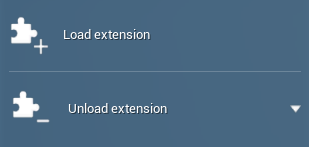
Add the Load Extensions command to the desktop menu. When clicked, a file picker opens for selecting the .uplugin file.
Method 4 — Load at Runtime via Blueprint
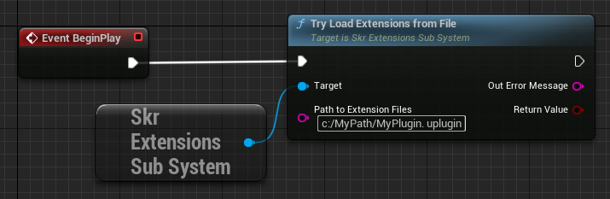
Call TryLoadExtensionsFromFile in the SkrExtensionsSubSystem from your blueprint code.