This page describes the minimum steps required to create and test a SkyReal VR extension.
The following pages provide detailed instructions for creating commands, tools, environments, UI extensions, inputs, and other extension features.
Create the Unreal plugin
-
Open the Unreal project used to develop your extension.
-
Open Edit → Plugins.
-
Select Add or New Plugin.
-
Choose the Content Only template.
-
Enter a name for the extension, for example
MyFirstExtension. -
Complete the plugin information and select Create Plugin.
The plugin name will also be used in Variables.json, so make sure it is unique and keep the same spelling everywhere.
Configure the extension in Variables.json
Open Variables.json at the root of the extension repository.
Add the exact plugin name to the ExtensionsPlugins array:
"ExtensionsPlugins": [
    "MyFirstExtension"
]
Keep any existing entries in the array.
This list determines which Unreal plugins are built and packaged as SkyReal VR extensions. If the extension depends on other extensions, they must also be included in the configuration.
Debug within the Editor using an XR Center license
You can use a license from XR Center to launch SkyReal directly from an Unreal Editor extension project.
-
Start
Deck.exeand sign in. -
Open the appropriate workspace.
-
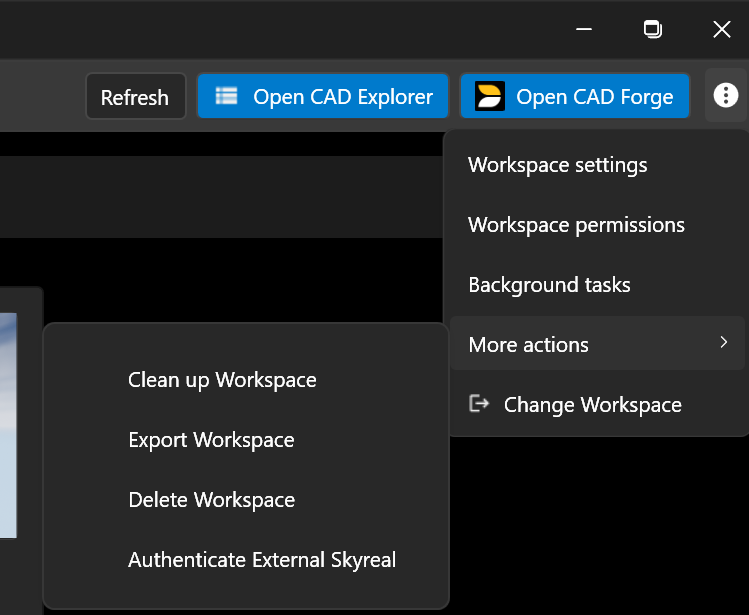
Open the … menu in the upper-right corner.
-
Select More actions.
-
Select Authenticate External Skyreal.
-
Start SkyReal from the extension project in Unreal Editor.
Deck starts a local SkyReal license server using the XR Center licenses available to the current user in the selected workspace.
This makes it possible to run and test SkyReal directly from an extension project, without rebuilding and installing the extension after every change.