
Manikins
Skyreal VR includes a manikin system based on MetaHuman: posture editing, vision field and MSD analysis (RULA). In your extension, you can:
-
place and pose manikins in your Unreal levels;
-
add your own manikin appearances;
-
extend the MSD analysis with your own ergonomic rules.
Before you start: enable the SkrManikinDataModelPlugin and SkrUtilities plugins in your project.
Add a manikin to a level
-
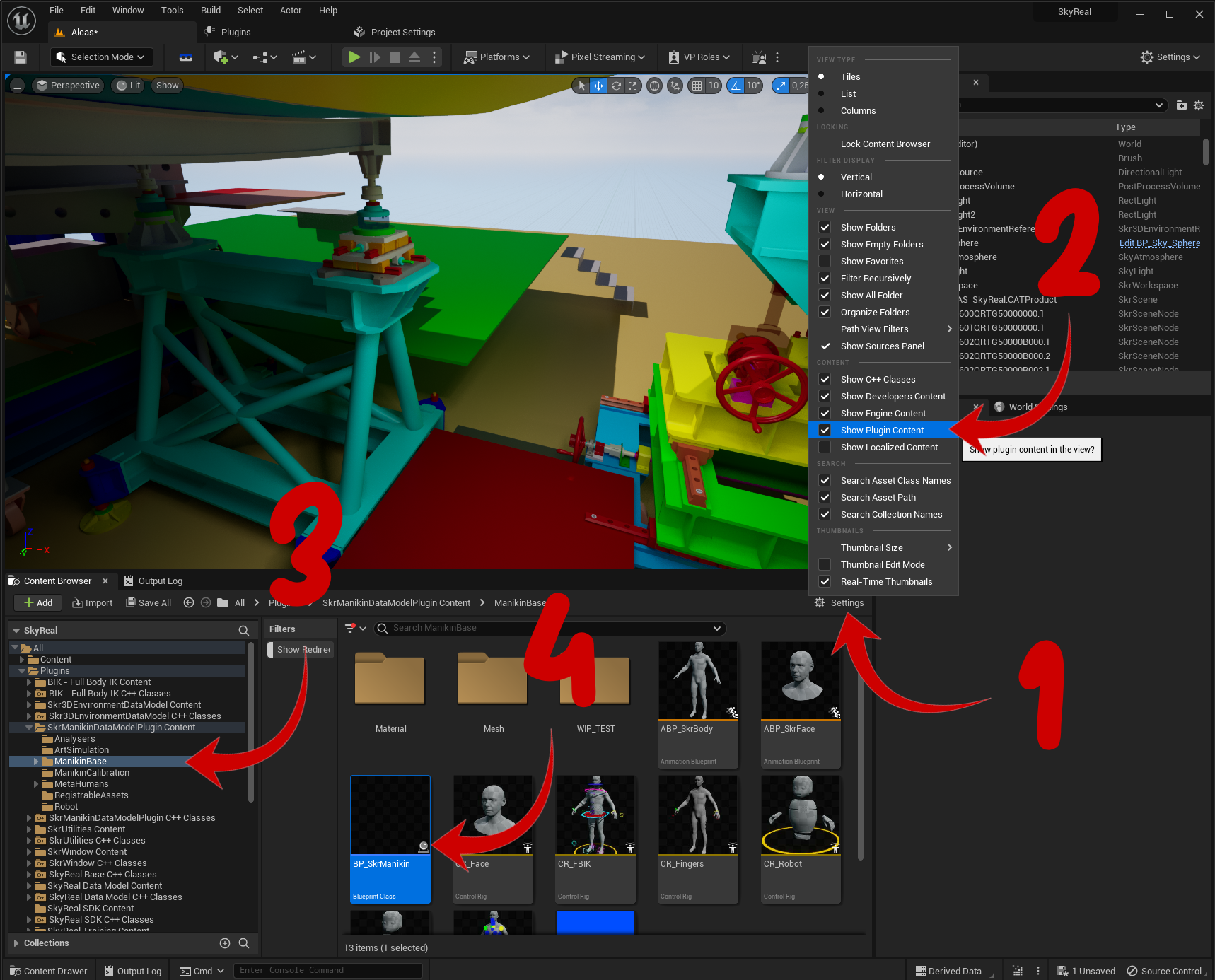
In the Content Browser, open Settings and tick Show Plugin Content.
-
Go to SkrManikinDataModelPlugin Content › ManikinBase and drag BP_SkrManikin into the viewport.
-
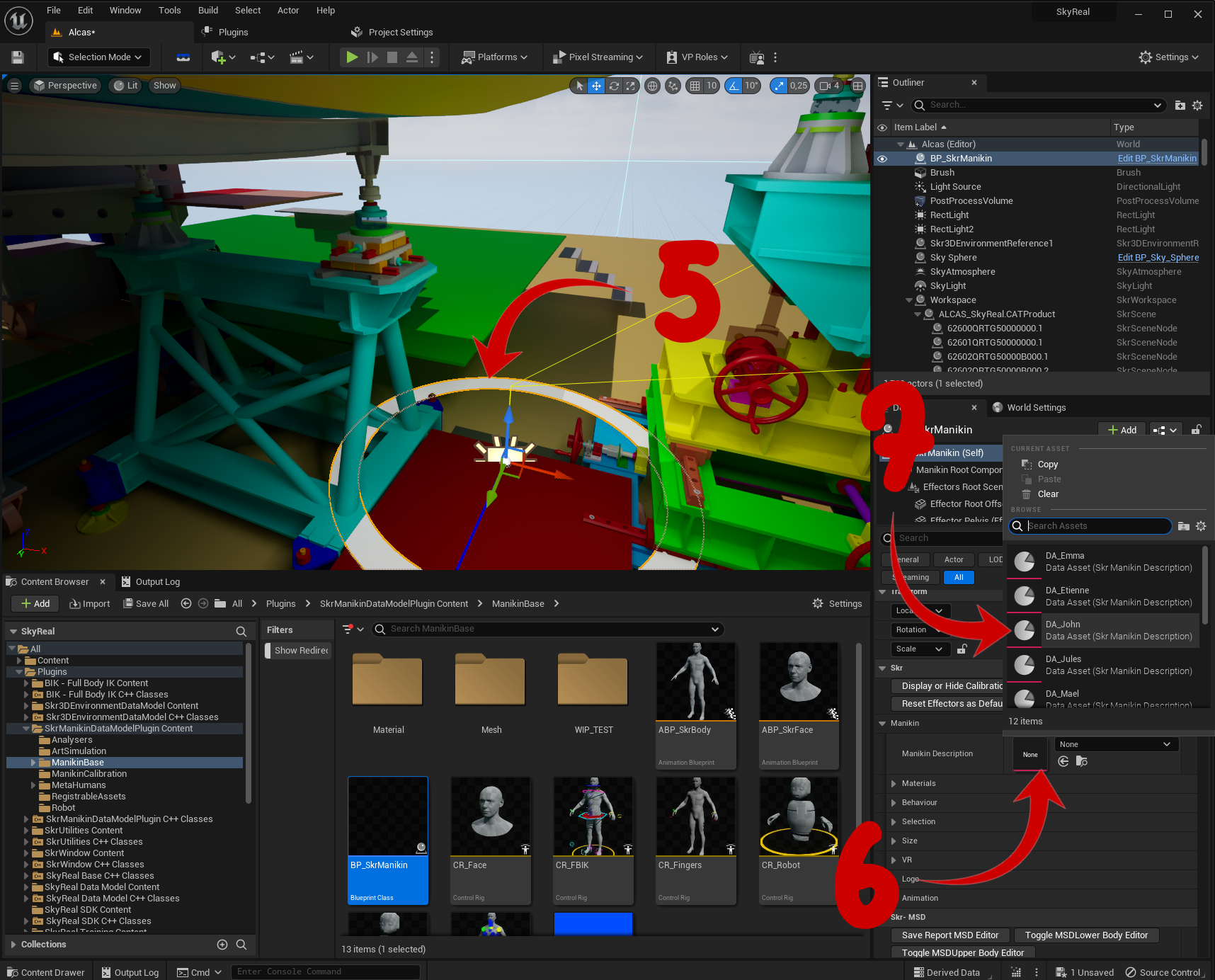
Select the manikin. In the Details panel, under Skr › Manikin, set Manikin Description to choose its appearance.
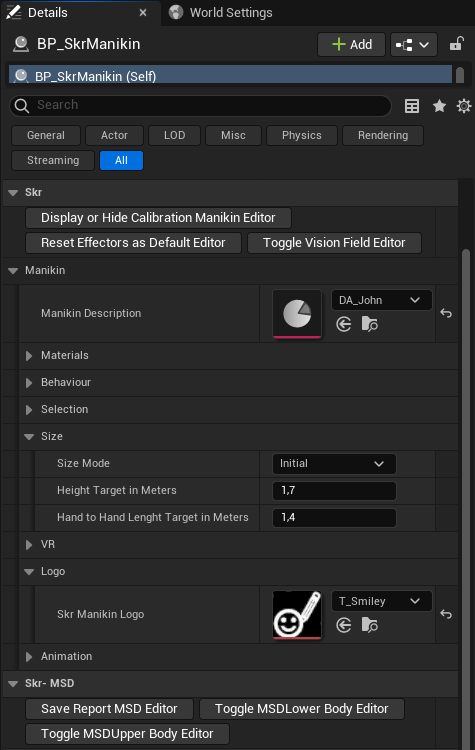
The Details panel also gives you:
|
Setting or button |
What it does |
|---|---|
|
Size Mode |
Initial keeps the MetaHuman height. Fixed uses the target height you set. |
|
Logo |
Logo displayed on the manikin's back. |
|
Display or hide Vision Cone |
Shows the manikin's field of vision (green light). |
|
Toggle MSD |
Shows or hides the MSD indicators on the body. |
|
Generate MSD Report |
Writes a JSON report in your project's |
Pose the manikin
Move the effectors to set the posture, make a hand grab an object, and place the fingers with sockets: see Postures.
Add your own manikin appearance
A manikin appearance is a MetaHuman converted into a Skr Manikin Description data asset.
-
Create an extension plugin with a
RegistrableAssetsfolder. -
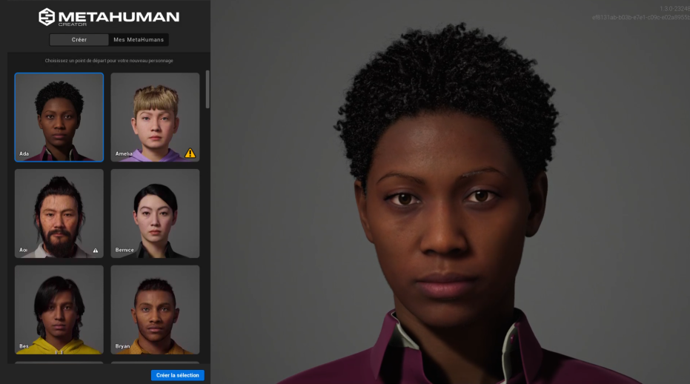
Create a MetaHuman on metahuman.unrealengine.com (Epic Games account required).
-
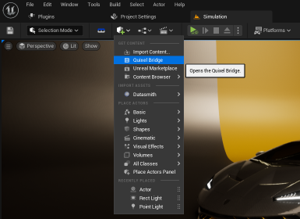
In your project, open Quixel Bridge and sign in with your Epic Games account (top right).
-
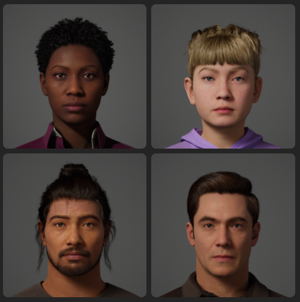
In the MetaHumans tab, download your MetaHuman and add it to your project. It appears in the
MetaHumansfolder of your project content.
-
Move your MetaHuman's folder (not the
Commonfolder) into your extension's content. -
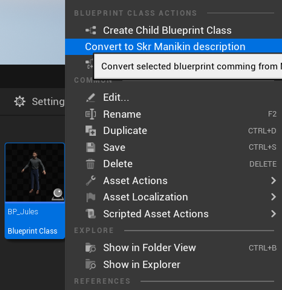
Right-click the MetaHuman Blueprint and select Convert to Skr Manikin description. A data asset is created next to it.
-
Move this data asset to
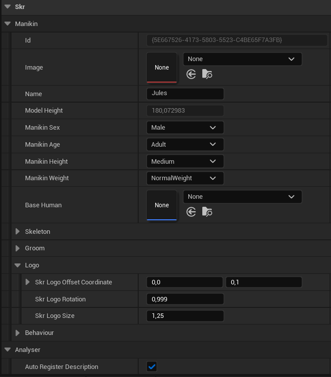
RegistrableAssets, open it, fill Image and Name, and tick the auto-register option.
-
Cook and package your extension.
-
MetaHumans use shared assets from
Content/MetaHumans/Common, which Skyreal VR must also have. Copy the cooked folderSaved\Cooked\Windows\<YourProject>\Content\MetaHumans\Commoninto<Skyreal VR>\Content\MetaHumans, and choose Merge to keep the existing files.
Add your own MSD analysis
If the default RULA scores do not match your company's ergonomic standards, add your own analyser: see Analysers.