
Configs
Your extension can remember user preferences between sessions: a tool option, a panel position, the last choice made… You declare which variables to keep, and Skyreal loads and saves them for you.
Add a config in 3 steps
-
Create a Blueprint whose parent class is SkrBaseConfig. Tick Config Variable on each variable to save.
-
Declare it with a SkrConfigDescription data asset in your extension's
RegistrableAssetsfolder. -
Use it from any Blueprint with Try Get Registered Object From Main Container.
How it works
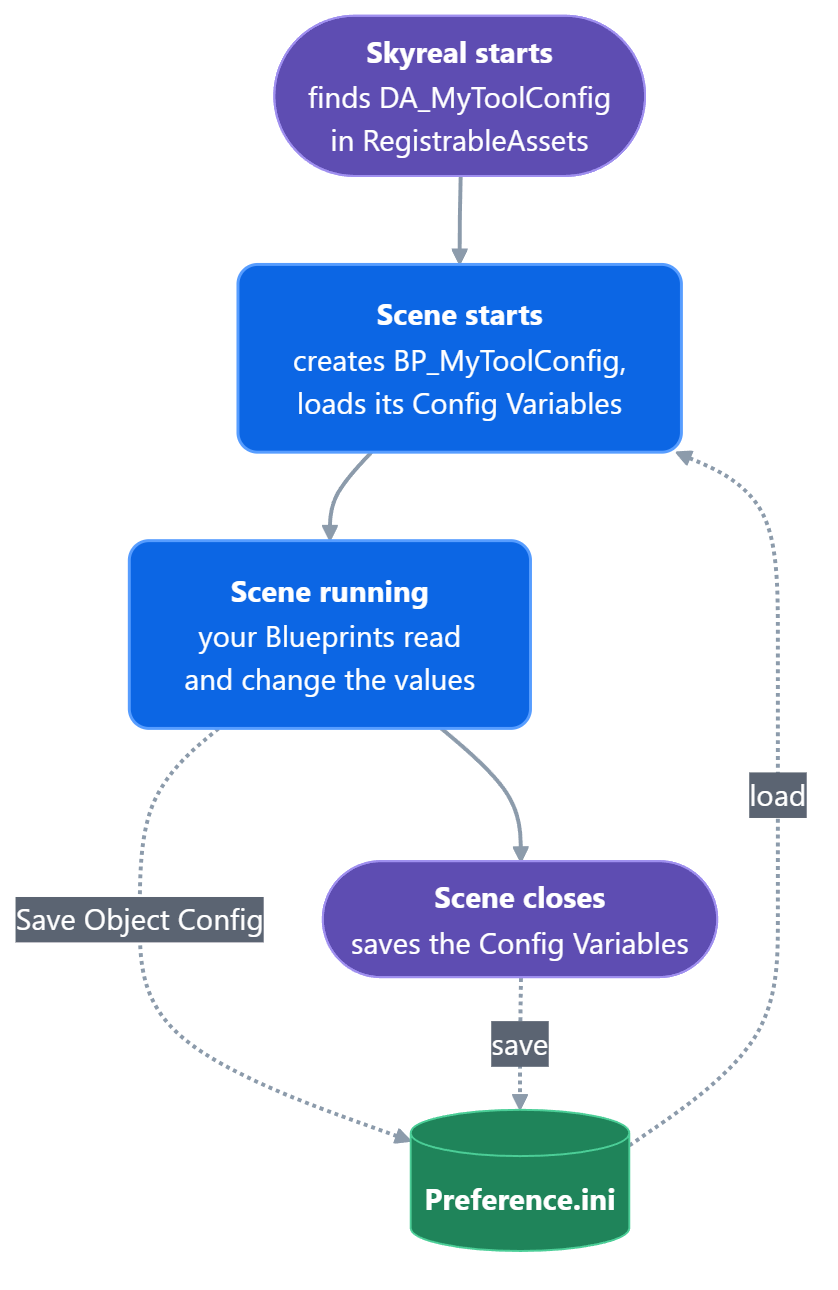
You never load or save the file yourself: Skyreal does it when the scene starts and when it closes.
Step by step
1. Create the config Blueprint
-
In the Content Browser: Blueprint Class › All Classes › SkrBaseConfig. Name it, for example,
BP_MyToolConfig. -
Add your variables. For each one to save, tick Config Variable in the Details panel (Advanced section).
-
Set the default values: they are used until the user changes them.
Prefer simple types: Boolean, Integer, Float, String, Enum, Vector, Transform.
2. Declare it
-
Right-click › Miscellaneous › Data Asset › SkrConfigDescription. Name it, for example,
DA_MyToolConfig. -
Save it in your extension's
RegistrableAssetsfolder. -
Set Config Class to
BP_MyToolConfig.
This data asset is an auto-registrable data asset: you can require a launch argument or a license token. When the condition is not met, the config is not created. See Auto-registrable data asset.
3. Read and change the values

-
Try Get Registered Object From Main Container with Class =
BP_MyToolConfig. The output is already of your type: no cast needed. Check Is Result Valid first. -
Read and set the variables like on any Blueprint.
-
Save Object Config writes the values to disk right away. Without it, they are saved when the scene closes, so a crash loses the changes.
-
Load Object Config reloads the values from disk.
Good to know
-
Only Config Variables are saved. The other variables are reset at every scene start.
-
The config lives for one scene. Do not keep it in a variable across scenes: get it again after a scene change.
-
Use your exact Blueprint class to get the config, not its parent class.
-
Values are local to the user's computer. They are not shared in a collaborative session.
-
Do not rename or move the config Blueprint once released. Values are stored under its path: users would lose their saved values.
The values are stored on the user's computer, in %LOCALAPPDATA%\Skydea\skr\<Major>.<Minor>\Preference.ini (for example C:\Users\<user>\AppData\Local\Skydea\skr\2.6\Preference.ini). Each Skyreal version has its own file. For a Skr2Go project, the file is <SkyReal>\Config\EmbededUserConfig\Preference.ini. Each config has its own section, named after the Blueprint path:
[/MyExtension/Config/BP_MyToolConfig.BP_MyToolConfig_C]
SnapDistance=5.000000