
A command is an action that can be launched by a user in SkyReal VR. The command Blueprint implements the behavior, while a command description Data Asset defines how the command is registered and displayed.
Command Structure
A custom command is composed of two main assets:
-
SkrSdkCommand Blueprint — Contains the command logic, lifecycle events, input handling and optional user interfaces.
-
SkrSdkCommandDescription Data Asset — Registers the command and defines its name, icon, category, compatibility and release status.
Creating a New Command
-
In your extension plugin, create a Blueprint Class that inherits from SkrSdkCommand.
-
In the extension's RegistrableAssets directory, create a Data Asset that inherits from SkrSdkCommandDescription.
-
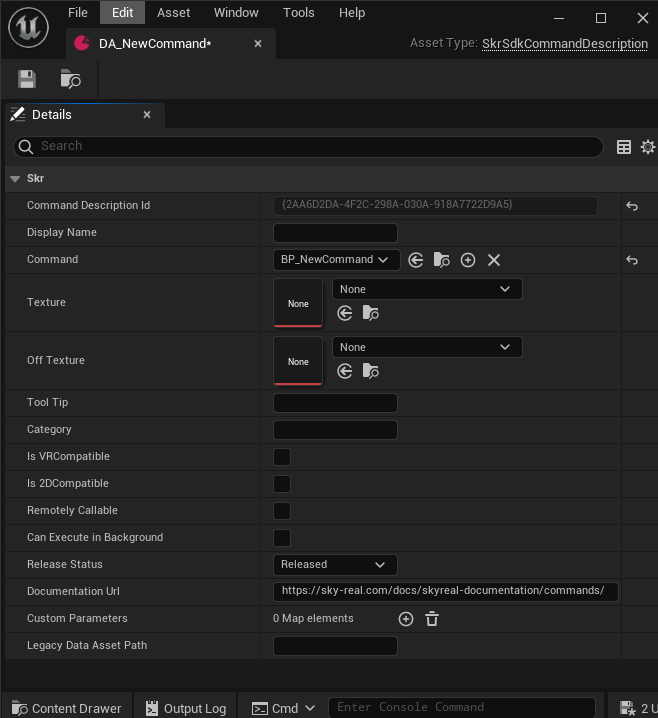
In the command description, set Command to the command Blueprint created in the first step.
-
Configure at least:
-
Display Name
-
Texture
-
Category
-
Is VR Compatible and/or Is 2D Compatible
-
Release Status
-
-
Save both assets and start SkyReal VR to test the command.
Command Description Properties
The most useful command description properties are:
-
Display Name — Name shown to the user.
-
Command — Blueprint class instantiated when the command is launched.
-
Texture and Off Texture — Icons used by the interface.
-
Tooltip — Short description displayed in the UI.
-
Category — Group in which the command is displayed.
-
Is VR Compatible — Allows the command to run in VR mode.
-
Is 2D Compatible — Allows the command to run in desktop mode.
-
Remotely Callable — Makes the command available to remote command systems.
-
Can Execute in Background — Allows it to run without replacing the current command. A background command must be instantaneous.
-
Release Status — Controls whether the description is automatically registered.
-
Documentation URL — Optional link to the command documentation.
The command description is registered according to its Release Status:
-
Released, Beta and Alpha are registered in all builds.
-
Development is registered during development, but not in Shipping packages.
-
Hidden is not registered.
Setting Command Properties
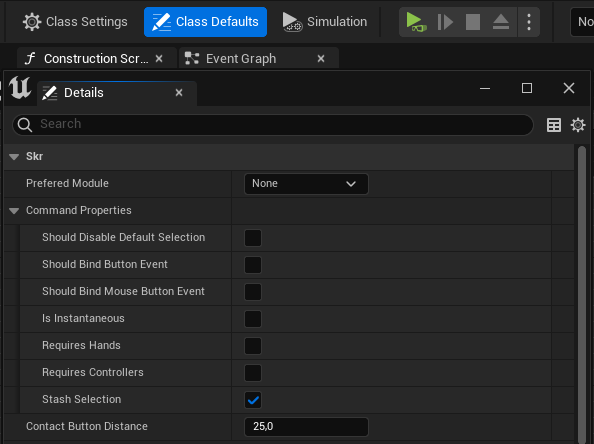
Open the command Blueprint and go to Class Defaults > Details > Skr > Command Properties.
The available properties control the default behavior of the command:
-
Is Instantaneous — The command runs once and is canceled automatically after On Launched.
-
Should Disable Default Selection — Temporarily disables the standard SkyReal selection behavior.
-
Stash Selection — Preserves the current selection while the command is running and restores it when the command exits.
-
Should Bind Button Event — Enables the VR controller button events exposed by the command.
-
Should Bind Mouse Button Event — Enables the desktop mouse button events exposed by the command.
-
Requires Hands — Prevents execution when hand tracking is unavailable.
-
Requires Controllers — Prevents execution when VR controllers are unavailable.
Implementing Command Behavior
-
Open the command Blueprint.
-
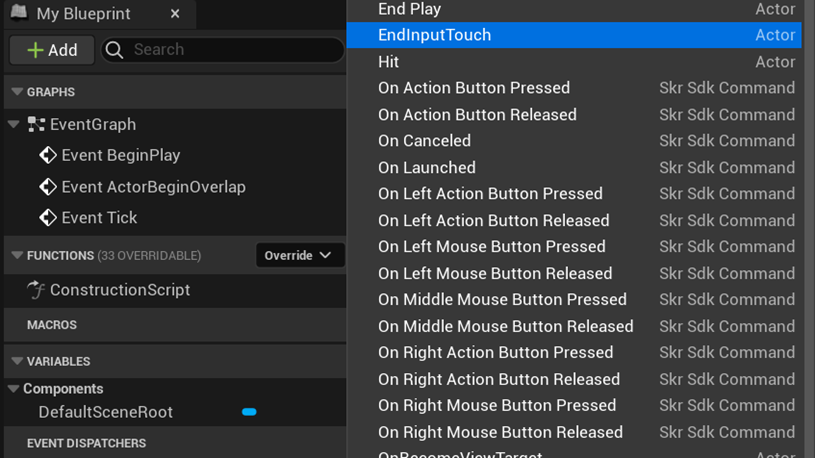
In My Blueprint, use Override in the Functions section.
-
Override On Launched to implement the main behavior. The event receives the command parameters created by the command manager.
-
Override On Canceled to clean up actors, bindings or temporary state created by the command.
-
Override additional functions when required:
-
Can Execute Command — Returns whether the command can currently start.
-
Can Exit Command — Returns whether the running command may be replaced or canceled.
-
On Action Button Pressed/Released — Handles VR controller input when Should Bind Button Event is enabled.
-
On Left/Right/Middle Mouse Button Pressed/Released — Handles desktop input when Should Bind Mouse Button Event is enabled.
-
Call Raise Cancel Command Event when a non-instantaneous command needs to request its own termination. SkyReal then performs the normal cancellation and cleanup sequence.
Adding a User Interface
A command can run without a custom interface. When an interface is required, create the appropriate widget for the target context and reference it from the command Blueprint.
VR Context
VR command interfaces can be displayed through the SkyReal tablet or bracelet interface.
For a customizable command tab:
-
Create a Widget Blueprint that inherits from SkrCustomizableCommandWidget.
-
In the Designer's Skr > Customizable Command category, configure the tab button label, size, materials and visibility.
-
Override Event Post Command and Command Description Init. At this point, Related Command and Related Command Description are available and can be used to bind the interface to the command.
-
Override On Refresh UI if the widget must react when the command calls Refresh UI.

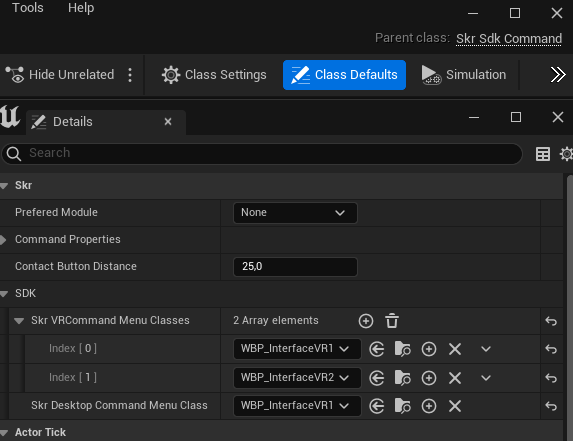
A command may also define Skr Tablet Widget Class in Class Defaults > Details > Skr > SDK. In VR mode, the command manager creates this panel when the command starts and closes it when the command exits.
Desktop Context
For a desktop command interface, create a Widget Blueprint that inherits from SkrCommandWidget. Use Event Post Command and Command Description Init to access the related command and bind the UI.
Assign the widget to Skr Desktop Command Menu Class in Class Defaults > Details > Skr > SDK.
Adding UI to the Command
After creating the widgets, open the command Blueprint and assign the relevant widget classes under Class Defaults > Details > Skr > SDK.
Launching a Command with the Command Manager
The SkrSdkCommandManager creates, validates, launches and cancels commands.
For most Blueprint use cases, call Create And Launch Command With Default Params and provide the registered command description. The manager:
-
Creates the command Blueprint.
-
Builds its default parameters.
-
Checks the active VR or desktop context.
-
Calls Can Execute Command.
-
Cancels the current command when necessary.
-
Launches the new command.
Use Create And Launch Command when you need to provide custom command parameters.
The Force Exit input allows the manager to replace a running command even when its Can Exit Command function returns false. Use it only when forced cancellation is intentional.
Common Issues
The command does not appear in SkyReal VR
-
Check that the SkrSdkCommandDescription asset is inside RegistrableAssets.
-
Make sure Display Name and Command are configured.
-
Check that Release Status is not Hidden. A Development command is also excluded from Shipping packages.
-
Check that the extension and all its dependencies are present in SkrExtensions.json.
The command cannot be launched
-
Make sure the correct VR or 2D compatibility option is enabled.
-
Check the result of Can Execute Command.
-
If another command is running, check whether it can exit or whether Force Exit should be used.
-
If Requires Hands or Requires Controllers is enabled, make sure the required tracking devices are available.
Input events are not triggered
-
Enable Should Bind Button Event for VR controller events.
-
Enable Should Bind Mouse Button Event for desktop mouse events.
-
These events are not bound for instantaneous commands.
The command UI is empty or cannot access the command
-
Perform command-specific initialization in Event Post Command and Command Description Init, not in the widget's initial construction event.
-
Check that the widget is assigned to the correct command property.
An asset is missing at runtime
All assets used by the command must belong to the extension or one of its declared extension dependencies. References to Engine assets or assets from Unreal plugins that are not packaged as SkyReal extensions are not guaranteed to be available at runtime.