
UE Editor — Skyreal VR Plugin
The Skyreal Editor Plugin adds a panel to the Unreal Editor to prepare a Skyreal scene: create and cook a map, fix the product tree, optimize materials and collisions, and import CAD files.
Before you start: enable the SkrUEE plugin (Skyreal Unreal Editor Extension) in your project.
Open the panel
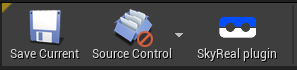
In the Level Editor toolbar, click the SkyReal extension button (tooltip: Open Skyreal Editor Plugin). You can dock the panel anywhere. Its actions are grouped in five sections: Scene, Product tree, Optimization, Import and Info.
Scene
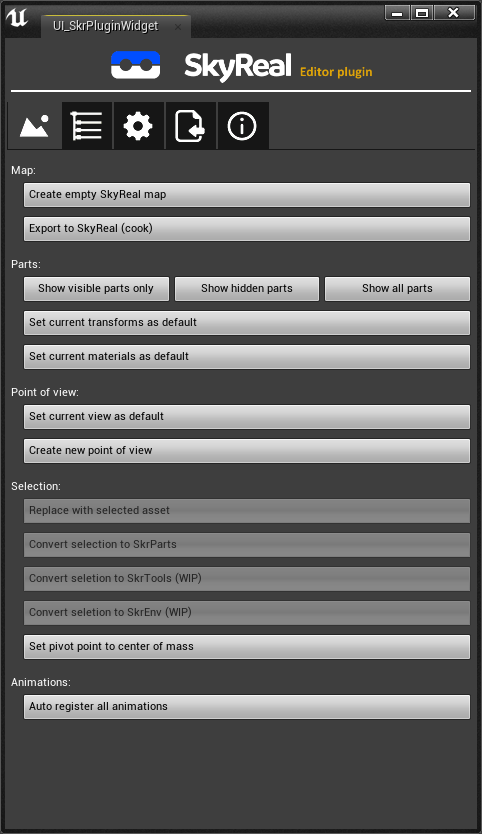
Map
|
Button |
What it does |
|---|---|
|
Create empty SkyReal map |
Creates a new map with a basic light and the scene assets Skyreal VR needs. |
|
Export to SkyReal (cook) |
Cooks the map so that Skyreal VR can load it. |
Parts
|
Button |
What it does |
|---|---|
|
Show all parts |
Makes every part visible in the editor. |
|
Show hidden parts |
Shows the parts that are hidden in the CAD. |
|
Show visible parts only |
Hides in the editor the parts that are hidden in the CAD. |
|
Set current transforms as default |
Saves the current transform of every part as its default. The reset parts positions command goes back to it. |
Point of view
|
Button |
What it does |
|---|---|
|
Set current view as default |
Creates a point of view at your current location and makes it the view Skyreal VR starts with. |
|
Create new point of view |
Creates a point of view at your current location. |
Selection
|
Button |
What it does |
|---|---|
|
Replace with selected asset |
Select actors in the level and a Static Mesh in the Content Browser: every selected actor uses this mesh. Handy to swap a part in bulk. |
|
Convert selection to SkrParts |
Turns the selected static mesh actors into Skyreal parts. |
|
Set pivot point to center of mass |
Moves the pivot of the selected part to its center of mass. |
Animations
|
Button |
What it does |
|---|---|
|
Auto register all animations |
Adds all your Level Sequences to the animation list of the Skyreal controller. |
Product tree
|
Button |
What it does |
|---|---|
|
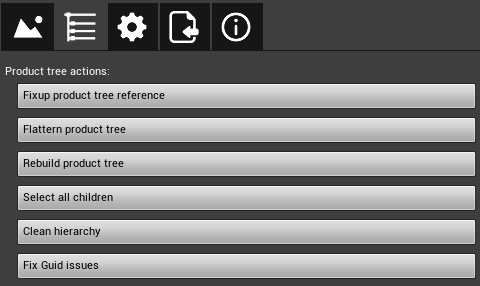
Fixup product tree reference |
After you reorganize the World Outliner, updates the parent, children and GUID of every part from the editor hierarchy. |
|
Flatten product tree |
Attaches every scene node and part directly to its scene. |
|
Rebuild product tree |
Rebuilds the CAD product tree in the World Outliner, from the parent and children of the parts. |
|
Select all children |
Select a scene node first: selects its whole hierarchy. |
|
Clean hierarchy |
Removes empty children and loops from the hierarchy. |
|
Fix Guid issues |
Fills the GUID of the parts where it is empty or invalid, for example parts added in Unreal. Skyreal needs it to save the scene. |
Optimization
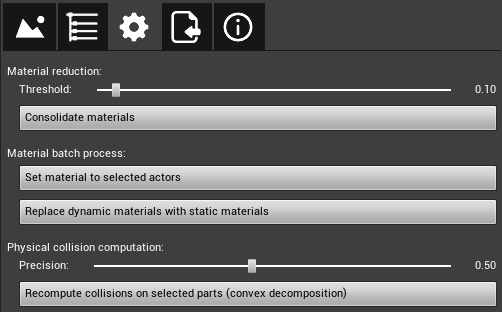
Materials consolidation
Set a threshold, then click Consolidate materials: materials whose colors are close enough are merged.
⚠️ Save your work first: Unreal can crash during this operation, especially with many materials.
Material batch process
|
Button |
What it does |
|---|---|
|
Set material to selected actors |
Select actors in the level and one material in the Content Browser: the material is applied to every material slot of these actors. |
|
Replace dynamic materials with existing static materials |
Skyreal uses dynamic materials by default. Replaces them with the static materials they come from. |
|
Replace dynamic materials with generated static materials |
Same, but generates the static materials. |
Physical collisions
Set the precision, select parts, then click Compute physics convex decomposition: their collisions are recomputed from their meshes.
Import
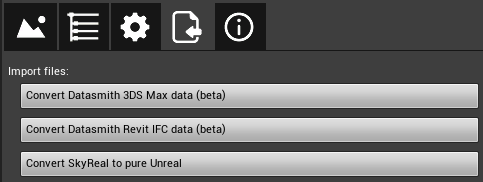
Import CAD into a SkyReal scene imports CAD files and turns them into a Skyreal scene, with its parts and product tree.
Cook the map
After changing a map in Unreal, cook it so that Skyreal VR can load it. Save all first, then use one of these:
-
Export to SkyReal (cook) in the Scene section of the panel;
-
the Platforms › Windows › Cook Content menu of Unreal;
-
the Unreal cook command line.
For a SkyPrep project, the result is in Saved\Cooked\Windows\Simulation\Content. Files that are not Unreal assets, such as videos, are not cooked: copy them to the output folder yourself.
Info
Links to the online documentation, the support website and the Skyreal website.