
SkyReal VR environments are built from one or more Unreal Levels loaded as layers. An environment preset groups these layers and can expose configurable parameters automatically in the right panel.
Environment Structure
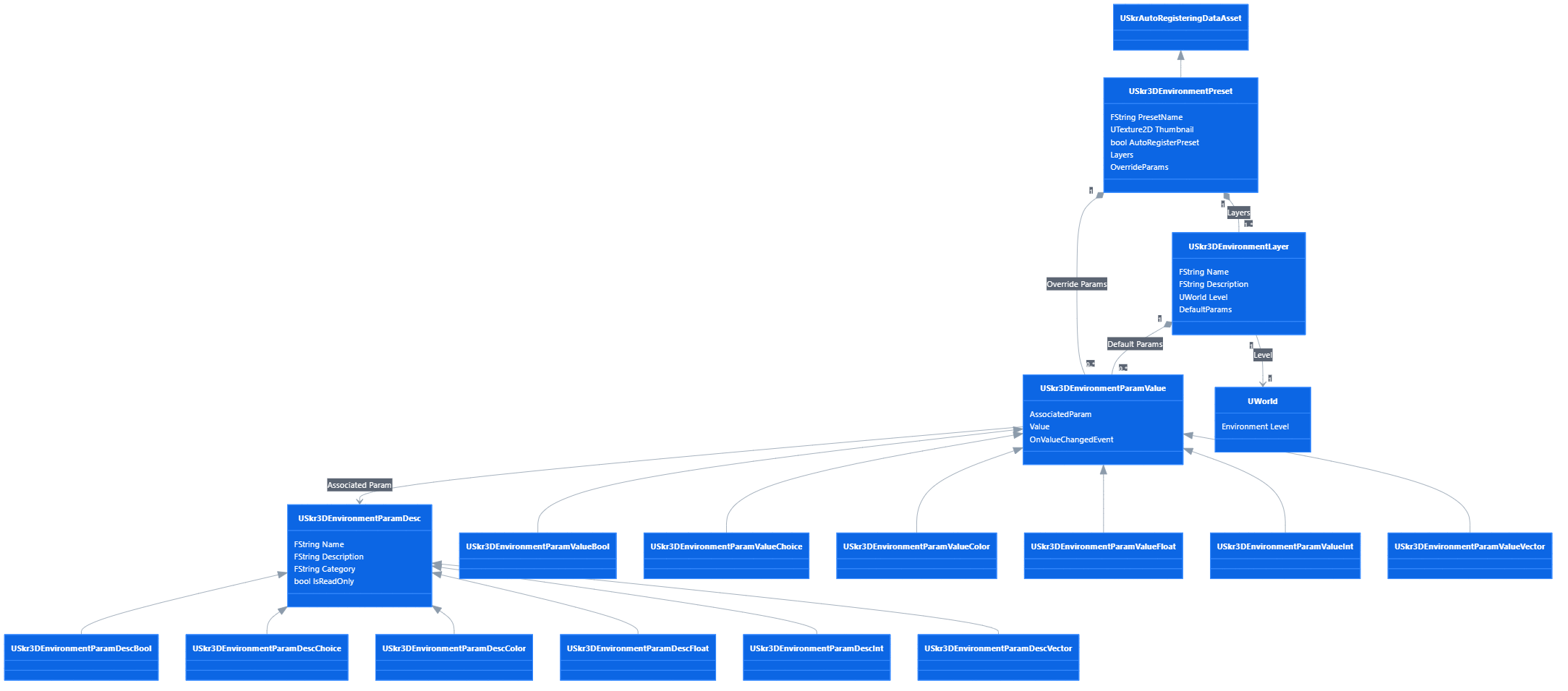
An environment is composed of the following assets:
-
Skr3DEnvironmentPreset — The environment displayed and selectable in SkyReal VR. It contains the layers and any preset-level parameter overrides.
-
Skr3DEnvironmentLayer — A part of the environment backed by an Unreal Level. A preset can contain one or more layers.
-
Skr3DEnvironmentParamDesc... — Describes a parameter, including its name, category, description, default value and type-specific options.
-
Skr3DEnvironmentParamValue... — Stores a value for a parameter description. It can be used as a layer default or as a preset override.
Only the preset must be placed in the RegistrableAssets directory. Layers and parameter assets are referenced by the preset and should be stored elsewhere in the extension.
Creating a New Environment
-
Create an extension plugin with a RegistrableAssets directory.
-
Create the Unreal Level that will contain your environment inside the extension plugin.
-
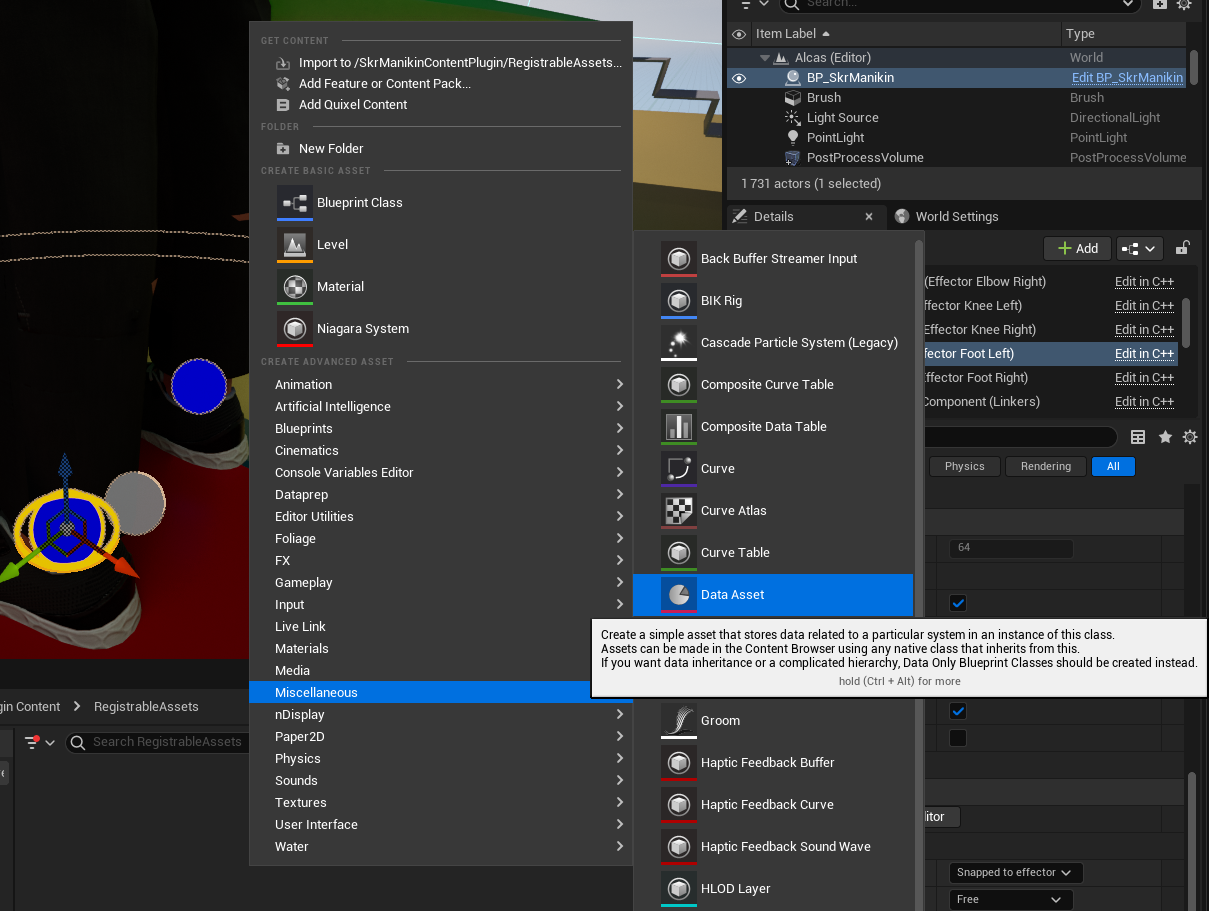
Outside RegistrableAssets, create a Data Asset that inherits from Skr3DEnvironmentLayer.
-
Configure the layer:
-
Set its Name and Description.
-
Assign your environment Level to the Level field.
-
Add parameter values to Default Params if the layer exposes configurable behavior.
-
-
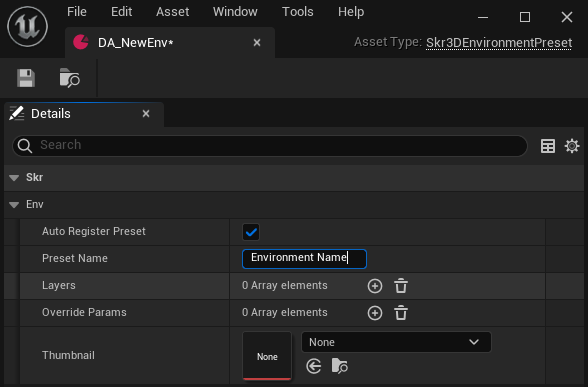
In RegistrableAssets, create a Data Asset that inherits from Skr3DEnvironmentPreset.
-
Configure the preset:
-
Set its Preset Name and Thumbnail.
-
Add the layer Data Asset to Layers.
-
Make sure Auto Register Preset is enabled.
-
-
Start SkyReal VR and select the new environment to test it.
Note: SkyReal VR maps already provide a skybox and lighting. If your environment requires specific lighting, you can modify or replace them from the environment Level Blueprint.
Adding Parameters
Environment parameters are automatically displayed in the right panel, allowing users to configure the active environment.
The following parameter types are available:
-
Bool
-
Choice
-
Color
-
Float
-
Int
-
Vector
To add a parameter:
-
Outside RegistrableAssets, create a Data Asset that inherits from the required Skr3DEnvironmentParamDesc... class.
-
Configure its Name, Description, Category, default value and any type-specific options. For example, Float and Int parameters can define minimum and maximum values, while Choice parameters define a list of possible values.
-
Create another Data Asset that inherits from the matching Skr3DEnvironmentParamValue... class.
-
Set Associated Param to the description created in the previous step.
-
Set the required Value.
-
Add the value asset to the layer's Default Params array.
The parameter will be added to the automatically generated environment UI when the layer is loaded.
Overriding a Parameter in a Preset
To use a different value for a specific preset:
-
Create another value asset of the same type.
-
Reference the same parameter description in Associated Param.
-
Set the required value.
-
Add the value asset to the preset's Override Params array.
Preset overrides are applied after layer defaults and therefore replace the corresponding default values.
Reacting to Parameter Changes
Blueprint logic can bind to On Value Changed Event on the runtime parameter value. The event is triggered whenever SkyReal VR updates that value, including replicated updates.
Loading an Environment from Blueprint
Users pick the environment in SkyReal VR. To load one from your extension:
|
Node |
Role |
|---|---|
|
Load Environement From Name (Framework Connector) |
Loads the preset whose Preset Name matches, for every user of the session. |
|
Get Current Environment (Framework Connector) |
Returns the name of the active environment. |
For more control, get the environment manager with Skr 3D Environment Subsystem › Get Manager. Check Is Manager Ready first, or wait for On Manager Initialized Event. The manager provides:
-
Get Current Environment Preset and Get All Existing Presets;
-
Get Param Value In Environment From Param Desc, to read the runtime value of a parameter and bind to its On Value Changed Event (see above);
-
On Environment Loaded Event, called when an environment has finished loading.
Deprecated Registration Methods
Older extensions registered environments as Skr3DEnvironment Actors with:
-
SkrController > Environmnents To Add -
the Framework Connector Add Environement and Remove Environement nodes.
They still work for compatibility but are deprecated. Create a Skr3DEnvironmentPreset in RegistrableAssets instead, as described above.
Common Issues
The preset does not appear in SkyReal VR
-
Check that the Skr3DEnvironmentPreset asset is inside RegistrableAssets.
-
Make sure Auto Register Preset is enabled.
-
Check that the extension is present in SkrExtensions.json and that its dependencies are also listed.
The environment Level is not loaded
-
Check that the Level is assigned to the layer's Level field.
-
Check that the layer is referenced in the preset's Layers array.
A parameter does not appear in the UI
-
Check that its value asset has a valid Associated Param.
-
Check that the value is referenced by Default Params or Override Params.
-
Make sure the parameter description and value use matching types.
An asset is missing at runtime
All content used by the environment must belong to the extension or one of its declared extension dependencies. References to Engine assets or assets from Unreal plugins that are not packaged as SkyReal extensions are not guaranteed to be available at runtime.