
In Skyreal VR, you review your CAD model in immersive 3D: you move parts, change colors, hide elements, add cables, pipes or marker shapes, and place tools and manikins.
Back To CAD is a standalone application which brings all of this back into your original CAD. It reads what you did in Skyreal VR and applies it to your CAD file, so the decisions made during the review do not have to be redone by hand.
What it can apply
-
Product structure: moves of parts and sub-assemblies, color changes, hidden parts, parts sent to the trash.
-
Designs: cables, pipes, boxes, spheres, planes.
-
Tools, from the Skyreal library or imported by the user.
-
Manikins.
-
Tickets, depending on the CAD software used.
How to use Back To CAD
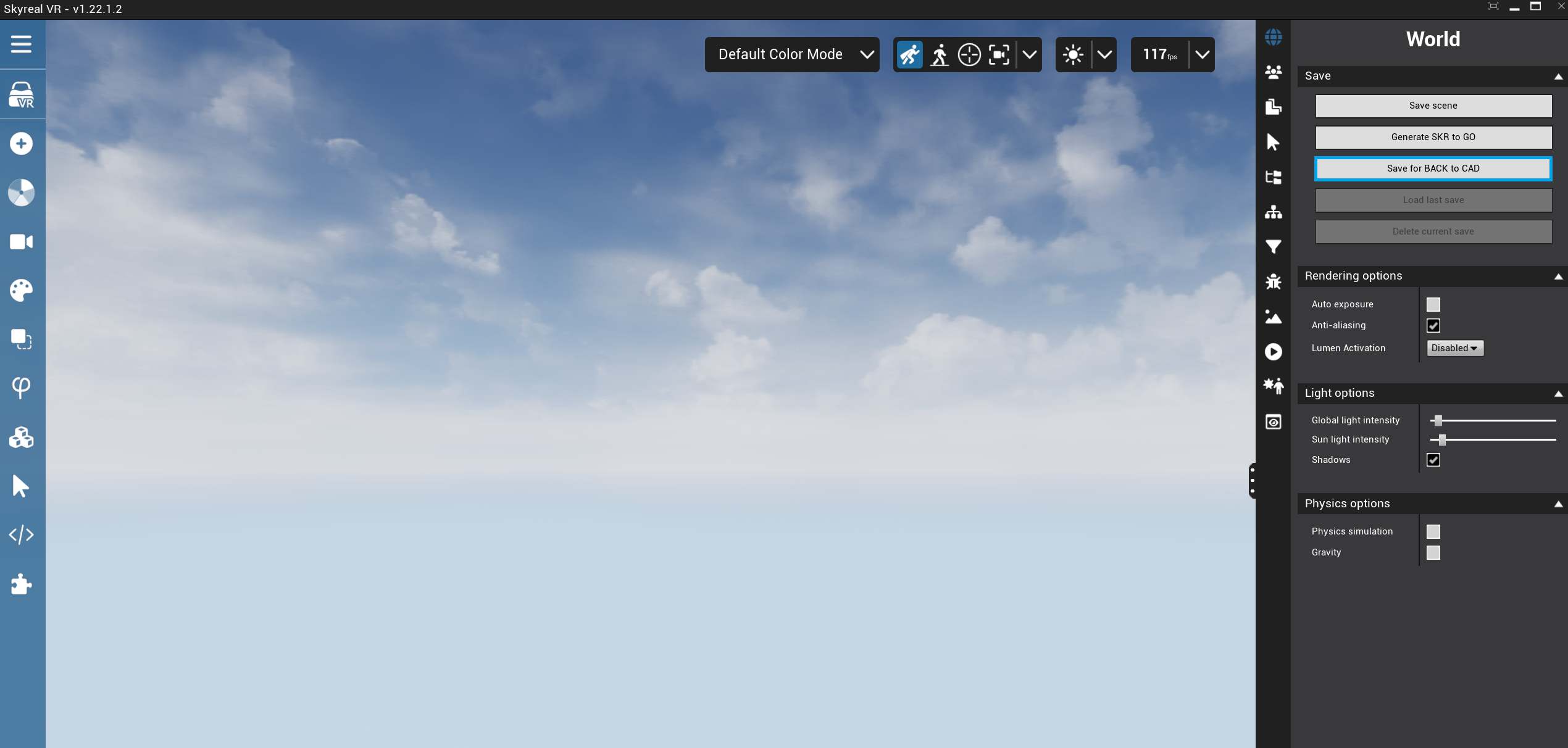
Step 1 – In Skyreal VR
Back To CAD needs two files: a starting point and an end point.
-
When your map starts, click "Save for Back to CAD". This is the starting point.
-
Rename the file right away to "Initial Session File". If you do not, the next save overwrites it.
-
Work in Skyreal: moves, colors, hiding, designs, tools, manikins.
-
When you are done, click "Save for Back to CAD" again. This second file is your modified JSON.
Speicific Rules:
-
If you rotate the whole map for visual comfort, save after the rotation for your Initial File and before your real modifications. Otherwise the rotation is recorded as an intended transformation and ends up in the CAD.
-
From Skyreal 1.22.3, the JSON is correct. Between 1.21 and 1.22, an intermediate version probably produces an incorrect JSON. Update Skyreal first in that case.
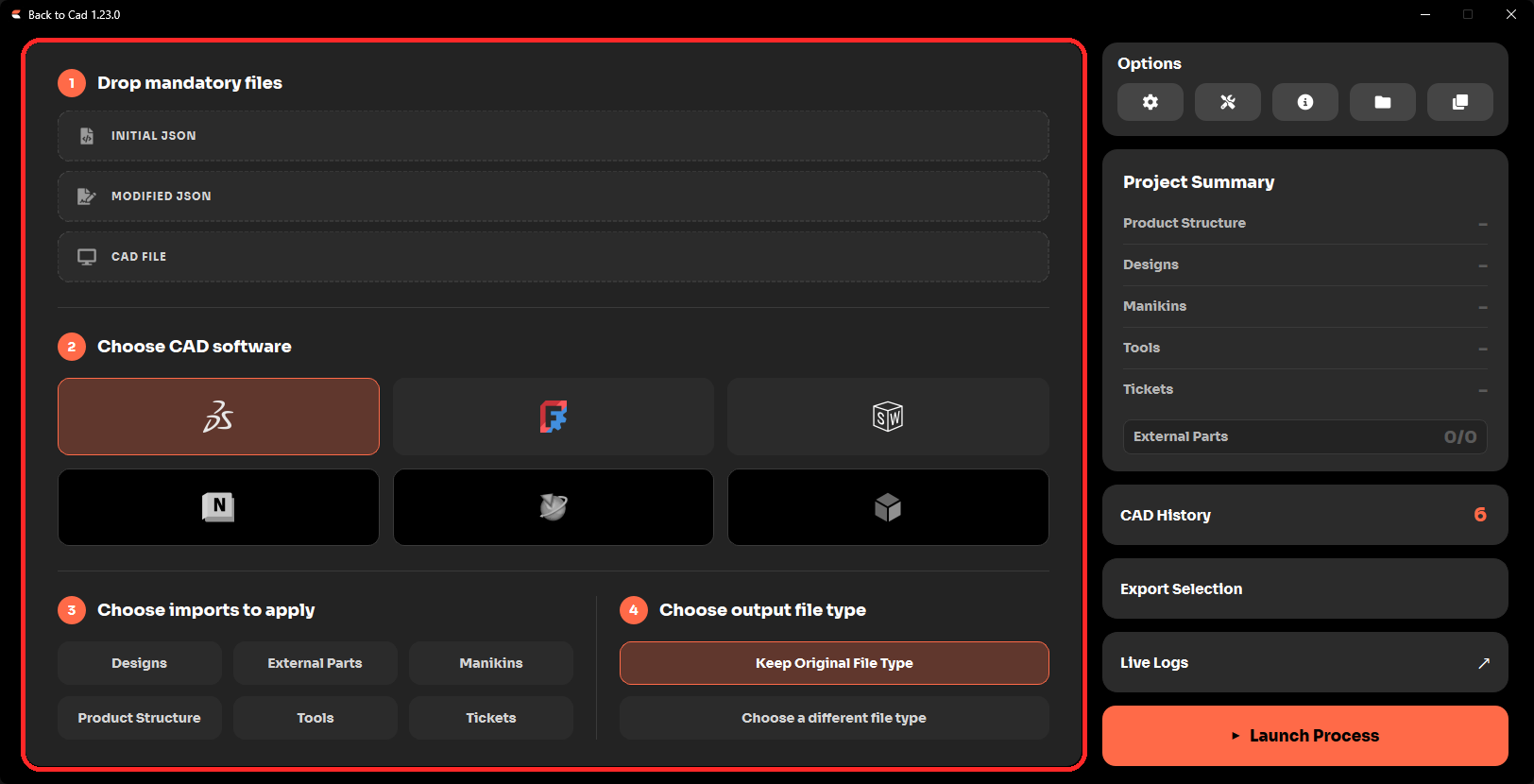
Step 2 – In Back To CAD: files and choices
Files to drop:
-
Initial JSON
-
Modified JSON
-
CAD file: required.
Choices:
-
CAD software:
-
CATIA : .CATProduct, .CATPart, .3dxml, .step, .stp
-
SolidWorks : .sldasm, .sldprt, .step, .stp
-
FreeCAD : .step, .stp, .FCStd, .iges, .igs
-
-
Modifications to apply:
-
Designs
-
External Parts
-
Manikins
-
Product Structure
-
Tools
-
Tickets.
-
-
Export type: the format of the output file (see Step 4).
Example: you want to apply only the moves and colors, and ignore the manikins and tools.
Tick Product Structure and leave the other families unticked.
If your model uses external parts (parts that are not in the CAD file), add them with the "External Parts" button in the Project Summary.
Step 2b – Check your files before launching
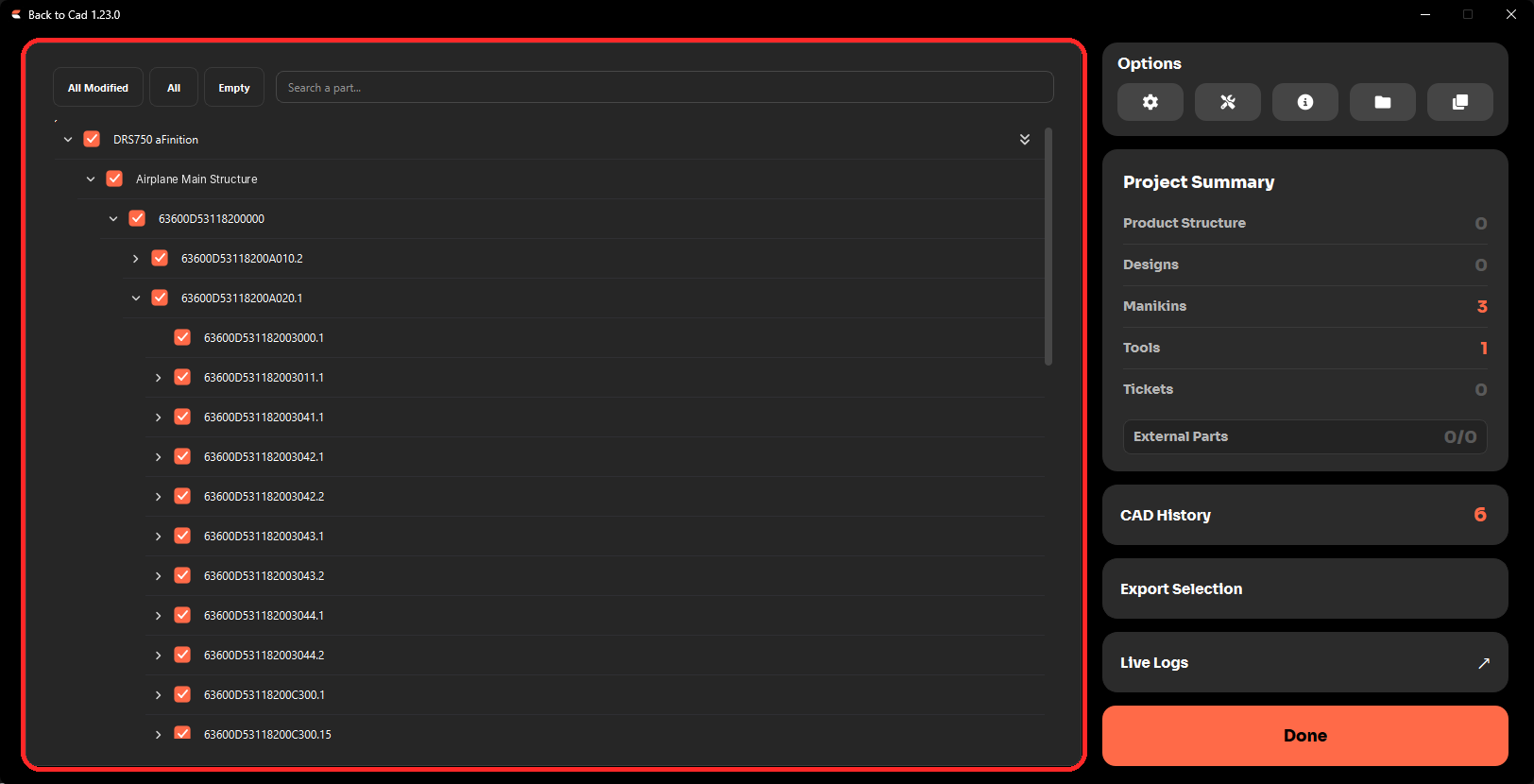
Project Summary shows the number of items found per category. Compare it with what you did in Skyreal.
If everything shows 0, or the numbers are far from what you did, you probably dropped the wrong file. Also if GUIDs in both JSON don’t match, Export Selection will appear in red explaining the mistake.
Then click "Launch Process".
Step 3 – Optional processes
Export Selection
Export only part of the model. The "Export Selection" button lets you choose the components to keep in the output file. Nodes that are only hierarchy levels stay in the tree as context but are not counted in the totals.
Duplicate
Export duplicates. The "Duplicate" button (Options card) switches between the Back To CAD interface and the Duplicate interface. Only the left part changes.
Duplicate is currently a side extension of Skyreal, connected to Back To CAD. The goal is to merge the two tools in the future.
You need:
-
a source CAD model;
-
a JSON in Duplicate format;
-
CATIA or FreeCAD.
The process finds the source part of each group, recreates the requested occurrences and applies the transformations from the JSON.
In Duplicate mode, Settings, Tools, Infos and Report are hidden, and Export Selection is disabled.
Duplicate JSON example (neutral):
{
  "Duplicates": [
    {
      "Group": "Bracket Duplicates",
      "Children": [
        {
          "Id": "dup-001",
          "Transform": [1,0,0,200, 0,1,0,0, 0,0,1,0, 0,0,0,1]
        },
        {
          "Id": "dup-002",
          "Transform": [1,0,0,400, 0,1,0,0, 0,0,1,0, 0,0,0,1]
        }
      ]
    }
  ]
}
Keys:
-
Duplicates: the list of groups. Required, and it cannot be empty.
-
Group: the group name. It must be unique. The source part is found by removing the trailing word "Duplicates": the group "Bracket Duplicates" duplicates the part "Bracket".
-
Children: the list of occurrences to place. At least one per group.
-
Id: a label for the occurrence.
-
Transform: 16 numbers, a 4x4 matrix. The last four values must be 0, 0, 0, 1.
-
InstanceName: optional name of the created occurrence.
In the example, the two children are placed 200 and 400 units along X (the unit follows your model).
Reports: "Report" button (Export Viewer > Conversion Reports).
Step 4 – Review and save
Output Review
At the end of processing, Output Review lists the applied modifications. If "See Original in Output Review" is enabled (Settings > General), the original state of each modification is shown for a before/after comparison. Elements in error are flagged. Review them before validating.
Output file
Choose the folder, the name and the format.
-
CATIA: .CATProduct, .CATPart, .3DXML, .step/.stp, .igs/.iges, .cgr, .wrl, .stl (CATPart only), .model, .vda (CATPart only), .jt (license required)
-
SolidWorks: .sldasm, .sldprt, .step/.stp, .igs/.iges
-
FreeCAD: .FCStd, .step/.stp, .iges/.igs, .brep, .stl, .obj, .ply, .off, .amf, .3mf, .glb, .gltf, .wrl, .x3d
Native format to keep working in your CAD software. STEP to exchange with a third party.
Protection against file loss
If a file with the same name already exists, it is not deleted before the export. It is set aside under the name <file>.btc-backup.
Example:
Engine_Bay-BackToCad.CATProduct               your previous file
        |  export starts
        v
Engine_Bay-BackToCad.CATProduct.btc-backup    previous file set aside
Engine_Bay-BackToCad.CATProduct               new file being written

Export succeeds:  the .btc-backup file is deleted.
Export fails:     the new file is removed and the previous one is restored.
If a .btc-backup file remains after an abrupt interruption (crash, machine shutdown), it is your previous version. Rename it to recover it.
End of processing
The CAD software stays open only if "Keep CAD open after process" is enabled. Otherwise, Back to CAD closes the CAD software it opened itself.
Abort
Abort stops processing and also closes the CAD software that was launched, like an "End task". Save your own work before starting.
External Process
Configure a custom tool
Use it when a tool used in Skyreal is not in the supplied library. You provide your own CAD file for that tool.
Back to CAD first looks in its Skyreal library. Only if the tool name from the JSON is not found there does it look in your "Imported Tools" folder. A Skyreal library tool always takes priority over a custom tool with the same name.
Folder
-
In Back To CAD: Tools button > Tools Library > "Open Imported Tools folder".
-
Recommended location (per-user, works even when the installation is read-only):
%APPDATA%\BackToCad\Imported Tools -
Alternative: set the environment variable
BACKTOCAD_USER_TOOLSto a folder of your choice. -
An "Imported Tools" folder next to BackToCad.exe is also read. Old "User_Tools" folders are still read, with the lowest priority.
Files
Name the file exactly like the tool in Skyreal. Case, spaces, _ and - are ignored. Sub-folders are accepted.
Formats read per CAD software, best first:
-
CATIA: .CATPart, .CATProduct, .cgr, .3dxml, .stp/.step, .igs/.iges
-
SolidWorks: .SLDPRT, .SLDASM, .stp/.step, .igs/.iges
-
FreeCAD: .stp/.step, .FCStd, .igs/.iges
A native file of your CAD software is preferred. A STEP file works in the general case and on every CAD software: provide one if you use several.
Optional preview: an image with the same name (.png or .jpg), shown in the Tools Library.
Example folder for a tool named "My Hammer":
%APPDATA%\BackToCad\Imported Tools\
    My Hammer.stp
    My Hammer.png
    user_tools.json
Modeling rules
-
Unit: millimeters.
-
Origin: on the working point of the tool (tip, jaws or handle pivot, depending on the tool).
-
Length of the tool along the +Z axis.
If your file is not oriented this way, fix it with a "correction" in user_tools.json instead of editing the CAD file.
user_tools.json (optional)
Place it in the Imported Tools folder. A template named user_tools.example.json is created automatically in that folder: copy it to user_tools.json and adapt it.
Use it when:
-
the Skyreal name cannot be a file name (for example Wrench 1/2", because "/" and quotes are forbidden);
-
the same tool appears under several spellings;
-
the tool is badly oriented in the file.
Example:
{
  "version": 1,
  "tools": [
    {
      "skyreal_name": "My Hammer",
      "source": "My Hammer",
      "aliases": ["Hammer (custom)", "Custom hammer"],
      "correction": {
        "rotation_deg": [0, 0, 90],
        "translation_mm": [0, 0, 0]
      },
      "note": "Rotated 90 deg about Z"
    }
  ]
}
Keys:
-
skyreal_name: the exact name of the tool as it appears in the Skyreal JSON. Required.
-
source: the name of the CAD file in the folder, without extension. If omitted, skyreal_name is used.
-
aliases: other names under which the tool can appear. Optional.
-
correction: reorients the tool. rotation_deg is [rx, ry, rz] in degrees. translation_mm is [x, y, z] in millimeters. Keep [0, 0, 0] if the tool is already correctly oriented.
-
note: a free comment.
-
image: name of an image in the folder. Optional.
Check
-
The tool appears in the Tools Library, marked as imported.
-
On the next process, the Live Log states for each tool whether it was resolved and with which file.
-
"No usable Imported Tools file" means no file in a format readable by your CAD software is present. See the formats above.
-
If the tool is placed the wrong way round, adjust the correction.
Get my log
The log shows what happened during a process. There are three places to get it.
Live Logs
-
Right-hand column, "Live Logs" card.
-
Filters: All Logs, CAD, Modifications, Warnings / Errors, plus a search bar.
-
"Clear" empties the display. The saved file is not deleted.
Saved log files
Each process creates several dated files: a full log and category logs with the same date.
ALL - <date and time>.txt
CATIA - <date and time>.txt
Manikin - <date and time>.txt
Default folder (paste it into Windows Explorer):
%LOCALAPPDATA%\BackToCad\logs
The folder is set in Settings > Log/Export > "Debug / Logs Folder".
The level of detail is set in "Log Level" (DEBUG, INFO, WARNING, ERROR). For a diagnosis, set DEBUG, run the process again, then collect the files.
Edit my own JSON
The Skyreal JSON is a text file. You can edit it by hand to remove elements you do not want to reach the CAD, without redoing the session in Skyreal. This also saves processing time: an element removed from the JSON is not processed.
Structure
{
  "api_version": "1",
  "product_structure": { "nodes": [ ... ] },
  "design": {
    "cables": [...], "pipes": [...], "boxes": [...],
    "spheres": [...], "planes": [...]
  },
  "manikins": [ ... ],
  "tools":    [ ... ],
  "tickets":  [ ... ]
}
-
product_structure: the model tree.
-
design: cables, pipes, boxes, spheres and planes.
-
manikins: the manikins.
-
tools: the tools.
-
tickets: the tickets.
Each section is optional. A missing section is not processed.
The skr_world field of an element can be Visible, Hidden or Trash.
Example 1 – Remove a design
Neutral example with three cables. Cable2 is in the Trash world, so it is of no use in the CAD. Removing it saves processing time.
Before:
"design": {
  "cables": [
    {
      "id": "AAAA0001",
      "display_name": "Cable1",
      "skr_world": "Visible",
      "absolute_transformation": [1,0,0,0, 0,1,0,0, 0,0,1,0, 0,0,0,1],
      "radius": 8.0,
      "color": { "r": 0.9, "g": 0.2, "b": 0.2 },
      "local_points": [
        { "local_point": [0.0, 0.0, 0.0] },
        { "local_point": [100.0, 0.0, 50.0] },
        { "local_point": [200.0, 40.0, 50.0] }
      ]
    },
    {
      "id": "AAAA0002",
      "display_name": "Cable2",
      "skr_world": "Trash",
      "absolute_transformation": [1,0,0,0, 0,1,0,0, 0,0,1,0, 0,0,0,1],
      "radius": 8.0,
      "color": { "r": 0.2, "g": 0.2, "b": 0.9 },
      "local_points": [
        { "local_point": [0.0, 0.0, 0.0] },
        { "local_point": [-100.0, 0.0, 30.0] }
      ]
    },
    {
      "id": "AAAA0003",
      "display_name": "Cable3",
      "skr_world": "Visible",
      "absolute_transformation": [1,0,0,0, 0,1,0,0, 0,0,1,0, 0,0,0,1],
      "radius": 8.0,
      "color": { "r": 0.2, "g": 0.8, "b": 0.2 },
      "local_points": [
        { "local_point": [0.0, 0.0, 0.0] },
        { "local_point": [0.0, 120.0, 60.0] },
        { "local_point": [0.0, 240.0, 60.0] }
      ]
    }
  ]
}
After: delete the whole Cable2 block, from its { to its }, and the comma that follows it.
"design": {
  "cables": [
    {
      "id": "AAAA0001",
      "display_name": "Cable1",
      ... (unchanged) ...
    },
    {
      "id": "AAAA0003",
      "display_name": "Cable3",
      ... (unchanged) ...
    }
  ]
}
If you delete the last cable of a list, also delete the comma after the second-to-last one. To remove all cables, leave an empty list: "cables": []
Check: the Project Summary now shows 2 designs instead of 3.
Example 2 – Remove a tool
Delete the whole block of the tool (neutral example, fictional names).
Before:
"tools": [
  { "name": "Tool A", "absolute_transformation": [ ... 16 values ... ] },
  { "name": "Tool B", "absolute_transformation": [ ... 16 values ... ] },
  { "name": "Tool C", "absolute_transformation": [ ... 16 values ... ] }
]
After, with Tool B removed along with its comma:
"tools": [
  { "name": "Tool A", "absolute_transformation": [ ... ] },
  { "name": "Tool C", "absolute_transformation": [ ... ] }
]
To keep no tool: "tools": []
Example 3 – Remove a whole section
To skip the manikins, use an empty list:
"manikins": []
Same for "tickets": [] and, inside design, "pipes": [], "boxes": [], "spheres": [], "planes": []. An empty list is valid and safer than deleting the key.
Avoid by hand
-
Changing
idvalues. -
Deleting nodes of
product_structure: parts are linked by theparentfield. Removing a parent without its children breaks the tree. To export fewer parts, use Export Selection.
If in doubt, load the edited file in Back To CAD and read the Project Summary and the Live Log (filter "Warnings / Errors"). If the file is invalid, the error says why.
Summary: scope of Back To CAD
Function: transfers the changes made in a Skyreal VR session into the source CAD file, by applying the difference between the initial and modified states, in CATIA V5, SolidWorks or FreeCAD.
Supported elements:
-
product structure: moves, color changes, hidden parts, parts sent to the trash;
-
designs: cables, pipes, boxes, spheres, planes;
-
tools, from the Skyreal library or imported;
-
manikins;
-
tickets, depending on the CAD software.
Current limitations:
-
Complex Design elements are present in the JSON but are not used.
-
The result is always saved to a new file. The source file is not modified.
-
Navisworks, NX and Creo are displayed in the interface but unavailable.
-
The result depends on the quality of the JSON: Skyreal 1.22.3 minimum recommended.