
Skyreal VR works with most existing VR devices. This page lists all supported devices and links to their setup guides.
Head Mounted Devices (HMDs)
HMDs are the most common way to work in VR. Most HMDs should work with Skyreal VR. Follow the manufacturer's installation guide for your device:
-
HTC Vive / Vive Pro / Vive Pro 2 / Vive Pro Eye
CAVE and Powerwall
A CAVE is a large system with ultra-high resolution displays that show stereoscopic 3D images. A Powerwall uses a single display. Both are coupled with a tracking system to provide an immersive VR experience.
Prerequisites:
-
Deck / XR Center Launch sessions through Deck (standalone or connected to XR Center).
-
Cave Daemon Must be installed on every computer running a cave node (including the master PC if it is also a node).
Can I use custom input devices?
Yes. Skyreal VR supports custom input devices through VRPN (Virtual Reality Peripheral Network). You can configure custom button and axis mappings in the VRPN configuration file. Additionally, you can create custom .ini input files in the Skyreal VR/Config/Input directory.
What tracking systems are supported for CAVE?
Skyreal VR supports tracking through VRPN, which is compatible with most professional tracking systems including:
-
ART (DTrack)
-
OptiTrack (Motive)
-
Vicon
-
Any VRPN-compatible tracking system
Vive Trackers
Vive Trackers allow you to track parts of your body and enhance your VR experience. Skyreal VR supports Vive Trackers and Vive Ultimate Trackers (since version 1.19).
Prerequisites:
-
Vive Trackers supported by your HMD
-
Steam VR
Setup summary:
-
Open Steam VR (HMD and base stations should already be set up).
-
Plug the tracker into a USB port - Steam VR should detect it.
-
Unplug the tracker, then plug in the wireless USB dongle.
-
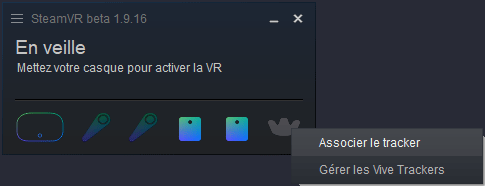
Right-click the tracker icon in Steam VR and select Associate Tracker.
-
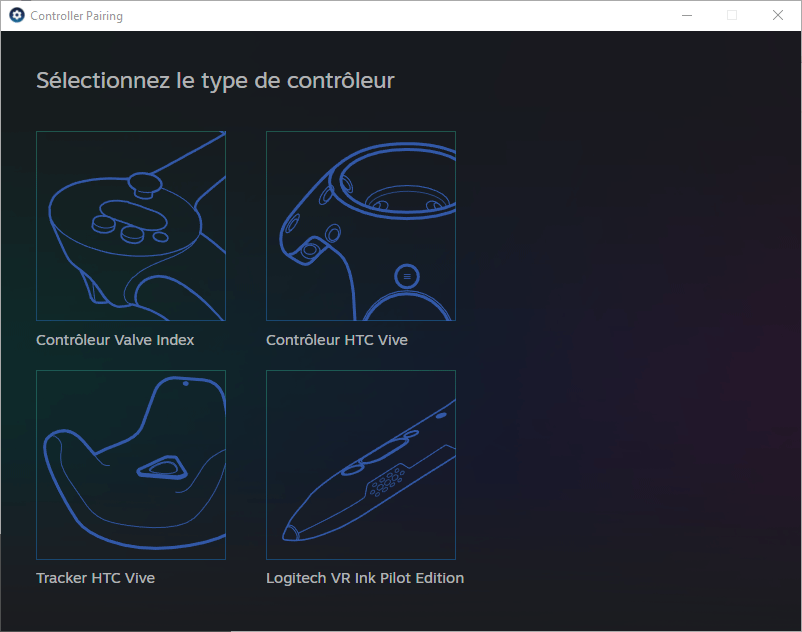
Select HTC Vive Tracker and follow the on-screen instructions.
-
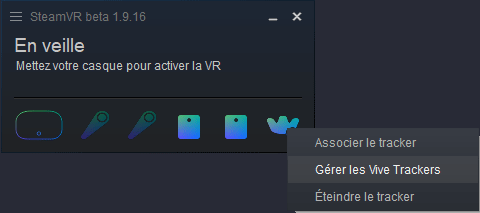
Once connected, right-click the tracker icon and select Manage Vive Trackers.
-
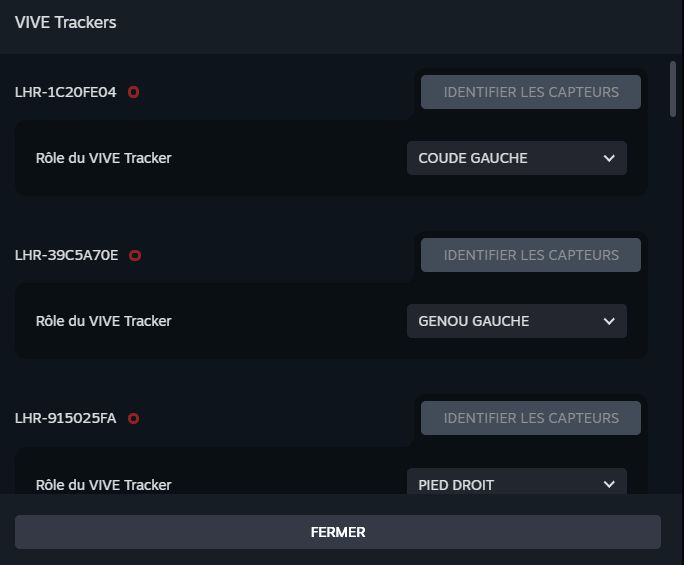
Assign a role for each tracker in the dropdown menu. Do not set any tracker to Disabled.
-
Repeat for additional trackers.
Custom Inputs
You can customize Skyreal VR inputs by creating a .ini file in the Skyreal VR/Config/Input directory. The file should start with:
[/Script/SkrBase.SkrConfigInput]
Move Commands
|
Command |
Description |
|---|---|
|
|
Move forward/backward with the right hand |
|
|
Move forward/backward with the left hand |
|
|
Strafe right/left with the right hand |
|
|
Strafe right/left with the left hand |
|
|
Increase movement speed |
|
|
Decrease movement speed |
Interaction Commands
|
Command |
Description |
|---|---|
|
|
Open VR menu with the right controller |
|
|
Open VR menu with the left controller |
|
|
Execute VR action with the right controller |
|
|
Execute VR action with the left controller |
|
|
Select all parts in the scene |
|
|
Exit VR |