
Left Menu Commands
The command menu is located on the left side of the desktop interface. It is always visible, but you can expand it to view the submenu names by clicking the Expand/Collapse button at the top of the bar. The default command menu should look like the screenshot below; however, it is fully customizable.
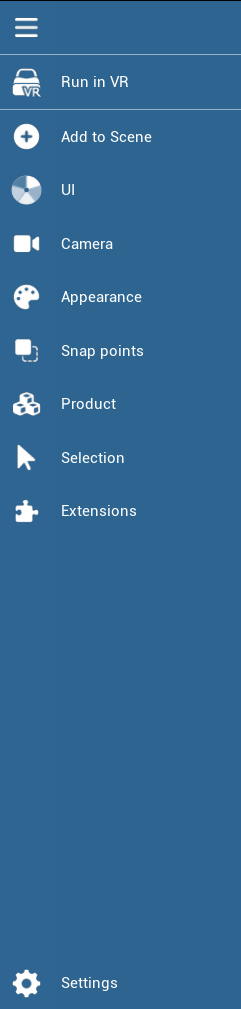
The default Command menu contains the following tabs:
|
Icon |
Menu |
Content |

|
Run in VR |
It is from here that you can launch the VR mode by clicking on Run in VR |

|
Add To Scene |
Drop different types of Skyreal’s elements into the scene. |
|
UI |
Change Desktop and VR interfaces, hide/show the watch |

|
Camera |
Take screenshots, create views or add Picture in Picture windows to the viewport |

|
Appearance |
Modify some appearance features of actors in your simulation, and also provides some global appearance settings. |

|
Snap Points |
Create features, which will allow you to snap back objects to their original position after having moved them. |

|
Product |
Display object information, as well as load and save your simulation. |

|
Selection |
Use some selection tools. Selections and groups created in this menu will remain active if you enter VR mode. |

|
Extensions |
See all extension’s features added to the experience (Desktop tab will show only desktop commands and VR tab only VR commands) |

|
Settings |
The Skyreal VR options, you can customize user interfaces to your liking. |
Right Menu Commands
The details panel is located on the right side of the desktop interface. To open it, click the button in the middle-right of your screen or press the Tab key.

|
Icon |
Menu |
Content |

|
World |
Modify several general settings of your simulation. |

|
Collab |
Check collaboration settings. See online users and interact with them. |

|
Configurations |
Create snapshots of the current scene |
|
|
Selection |
View the information and change some settings of the objects in your simulation |

|
Hierarchy / Scene Tree |
View the tree of your experience. |

|
Working Tree |
Create a typed folder hierarchy with custom parameters and link any selected part or component to a chosen folder. |

|
Filters |
Apply a list of actions to the parts that fit the rules |

|
Issues |
Creation and Edition of Issues |

|
Environments |
Modify the environment of your experience |

|
Animations |
Capture animations from scene objects and replay them anytime. |

|
Ergonomic Flow |
Create and manage a comprehensive report that includes MSD scores, images, comments, and a summary of potential issues. |

|
Spectator View |
Preset the spec view that allows a user to navigate the scene while another user is in VR. |