
Desktop Interface
Upon opening your Skyreal VR simulation, you will begin in the Desktop Interface, as shown below:
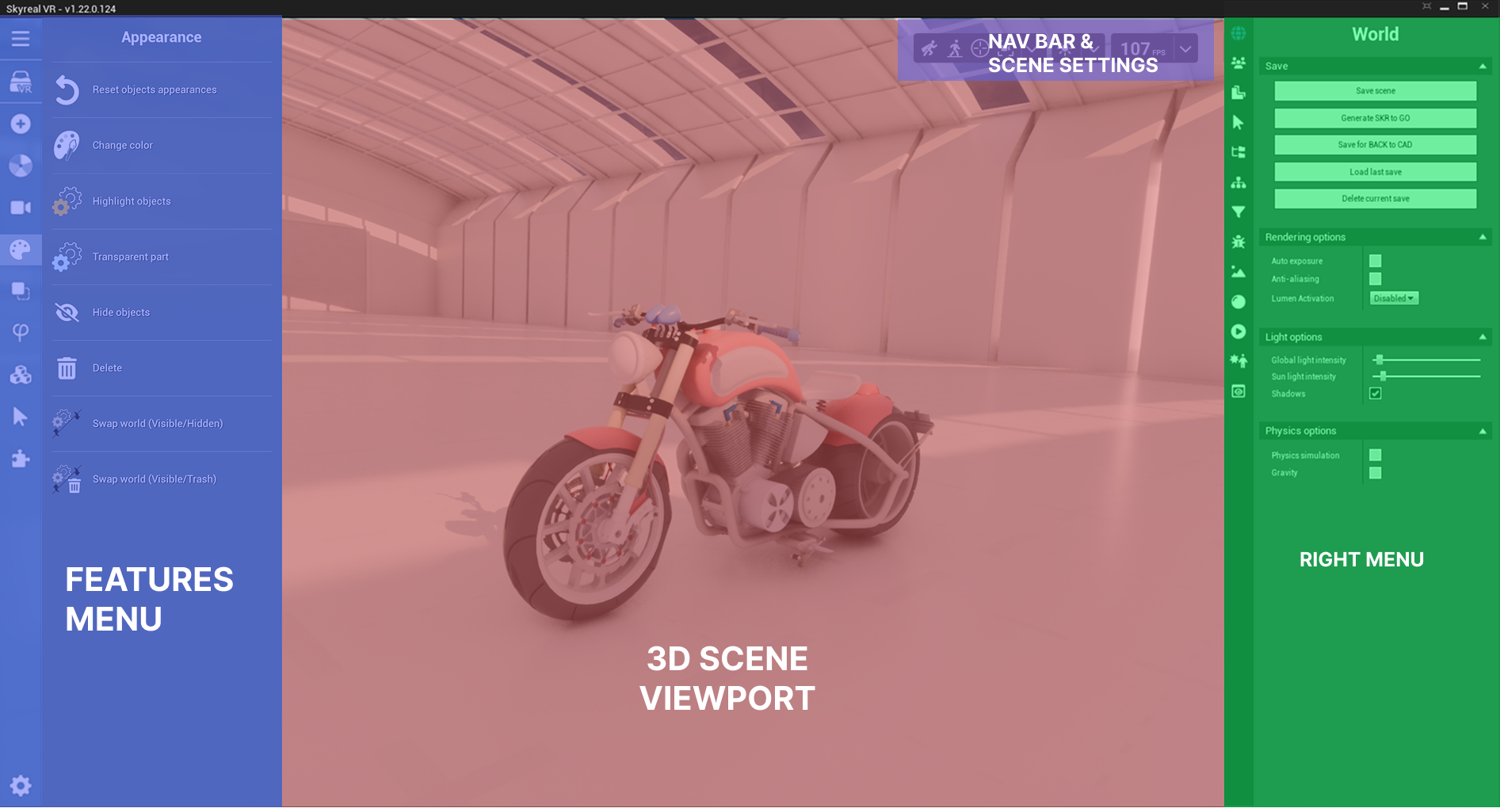
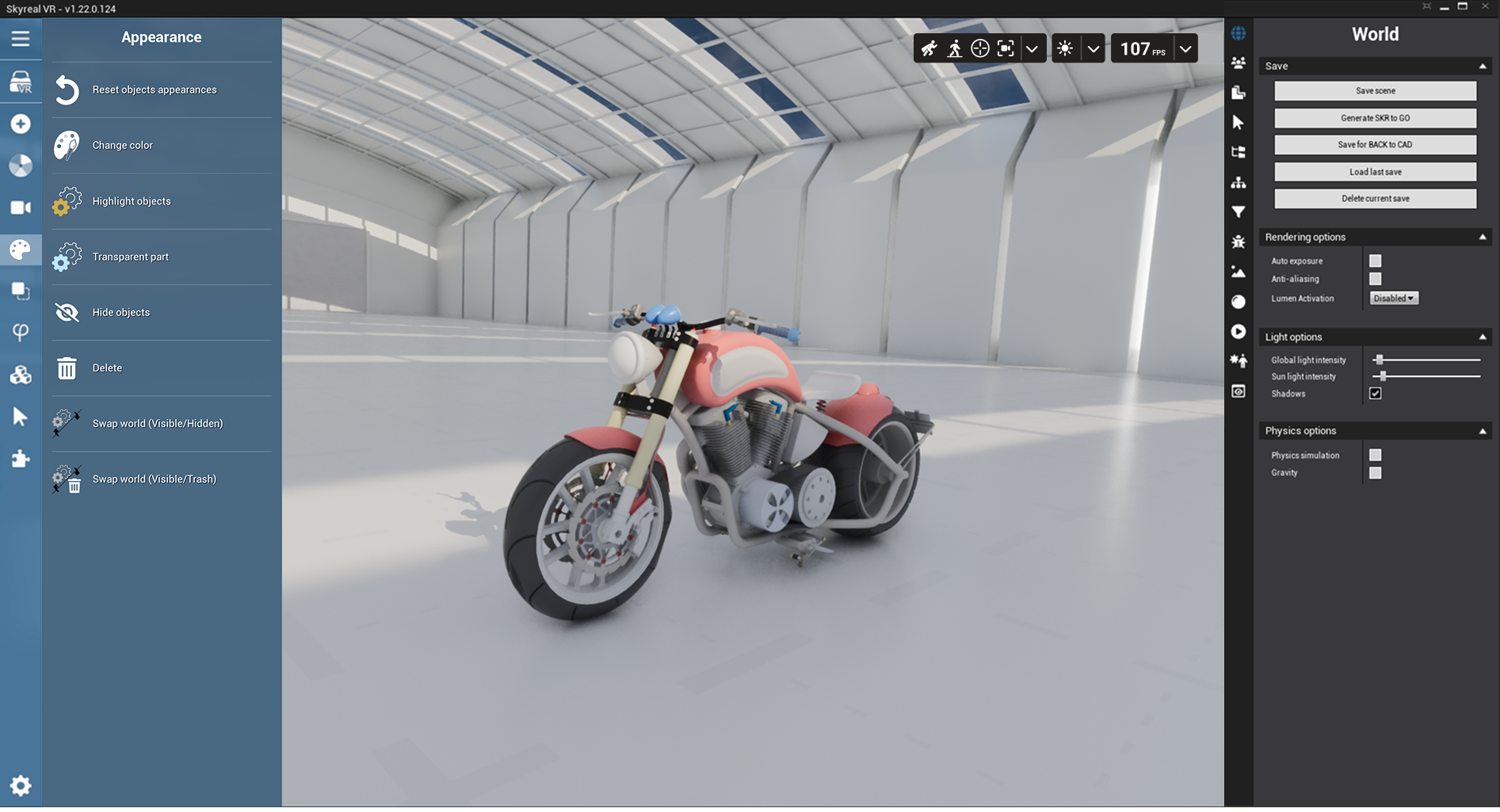
This interface is divided into three parts:
Left Features Menu: It provides access to several Skyreal VR commands. It is possible to customize this menu so that it fits your needs.
Main 3D viewport: navigate through the model and select parts
Right Menu: It displays information regarding the parts, the scene and the product tree, and offers some advanced features like a filtering system and animation controls.
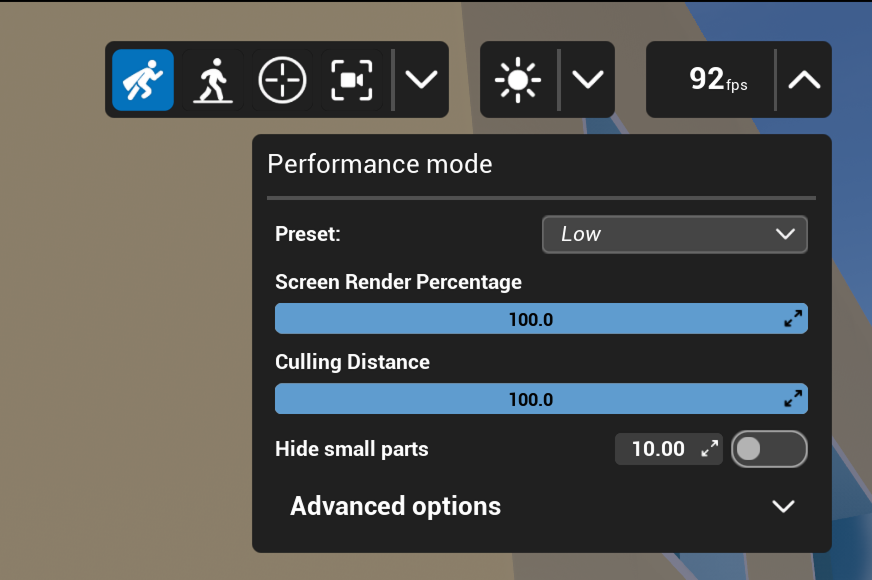
You can also the find Navigation Bar and Performance Settings buttons on the top right corner of the viewport:
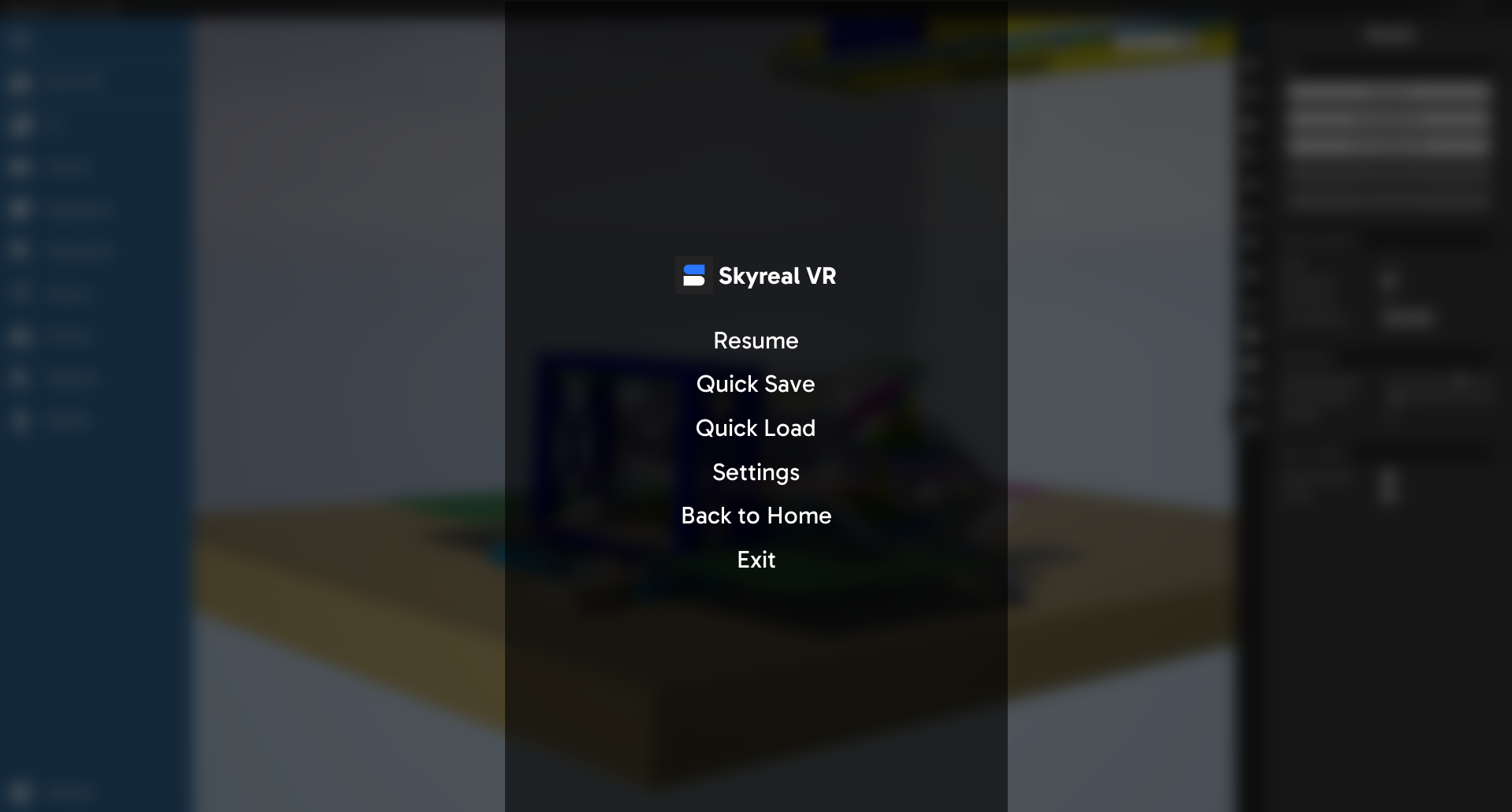
Pressing the ESC button give acces to some quick actions and Skyreal’s VR general Settings (setup and keybindings)
VR Interface
When using the VR mode, Skyreal VR offers several ways to launch commands to display information or interact with objects in VR.
VR Watch and Tablet
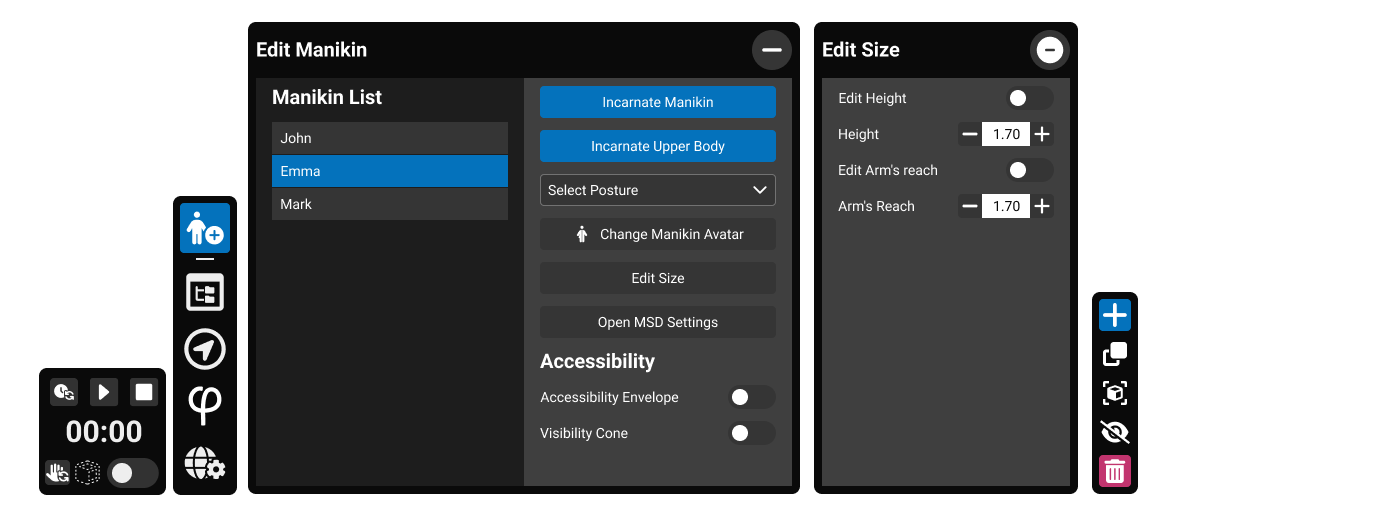
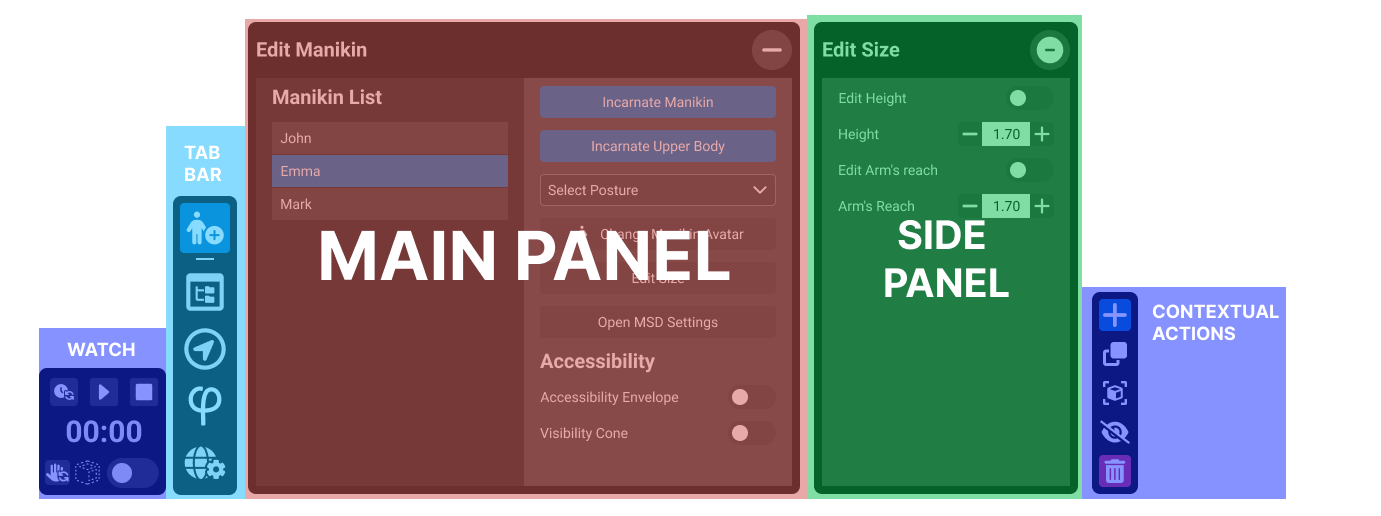
The Tablet is the central interaction hub within SkyReal’s functionalities. It allows users to launch or edit any feature, as well as interact with 3D elements directly in the VR environment. By default, the tablet is attached to the user’s hand, but it can also be made to float in front of the user and can be summoned or dismissed as needed.

The interface is divided into a user's watch, a toolbar, and some feature-specific panels with quick access buttons. All interactions are performed using VR controllers
Pie Menu
You can use the Pie menu to launch commands.
To open the Pie-Menu in VR, rapidly press the pie menu button, or press and maintain the pie-menu button to use the on your controller.
Once you are comfortable with the default Skyreal VR menu, you can create your own pie menu.
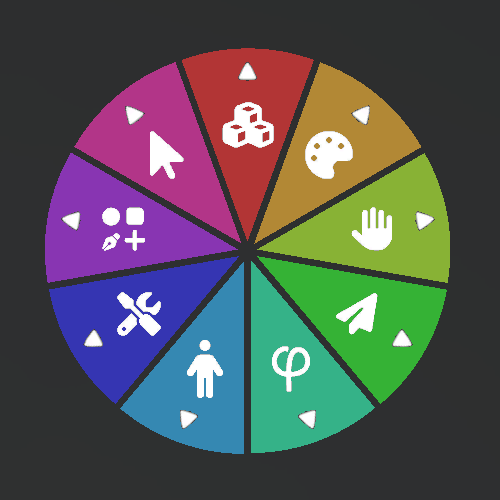
The Pie menu is composed of several slices that can be of different type:
Sub Menu slices: Used to display a sub-pie menu. They have a white arrowhead near their border.
Command slices: Used to execute a VR action in Skyreal VR.
Command Toggle slices: Used to execute a VR toggle action in Skyreal VR. Toggle slices have two icons: enabled and disabled (The enabled icon will be displayed when the command is enabled, and vice-versa for when the command is disabled).