
Tablet Structure
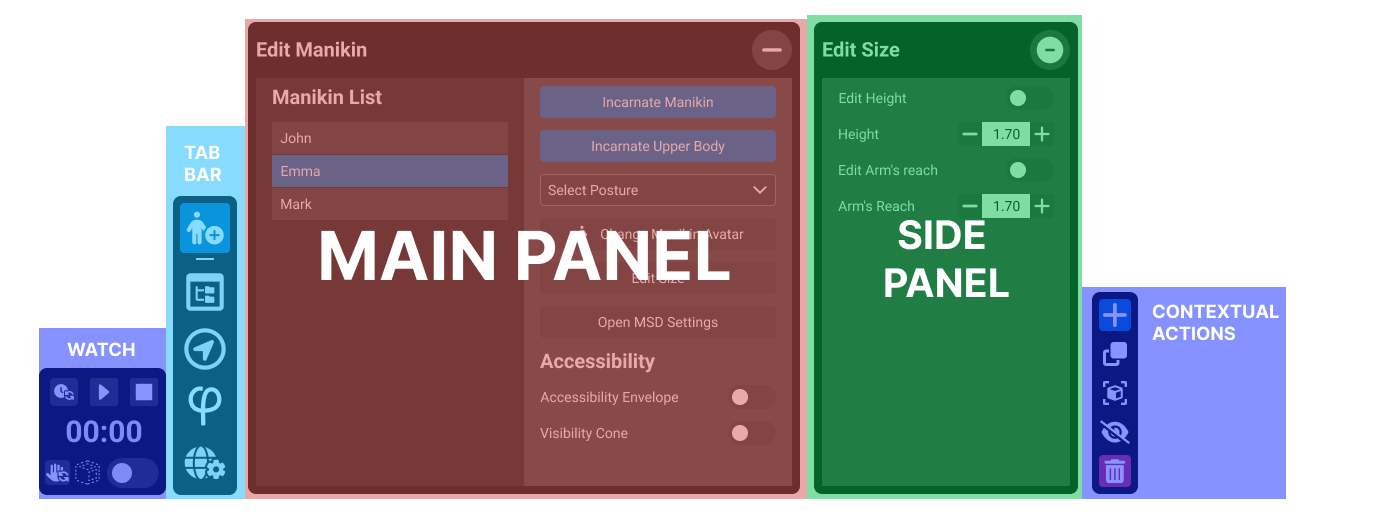
Watch
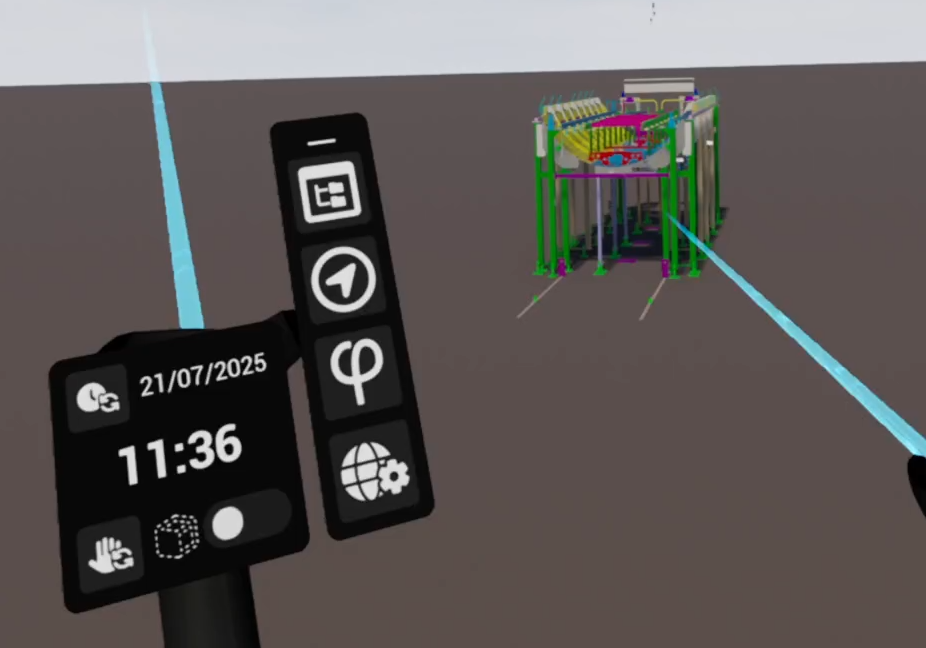
The Watch can be accessed at any time during the VR session. It not only serves as the base for the Tab Bar and Tablet, but also provides its own dedicated features.
Switch to Chronometer Transforms the Watch interface into a chronometer, which can be started, paused, or stopped.
Change Hand Switches the dominant hand used for both the Watch and the Tablet.
Transparent Mode If the Tablet or Pie Menu are blocked due to a crowded 3D scene, this option makes obstructing elements transparent, allowing precise selection.
Retrieve Tablet Appears when the Tablet is detached from the Watch. Tapping this button recalls the Tablet and reattaches it to the user’s hand.
Panels and Context Actions
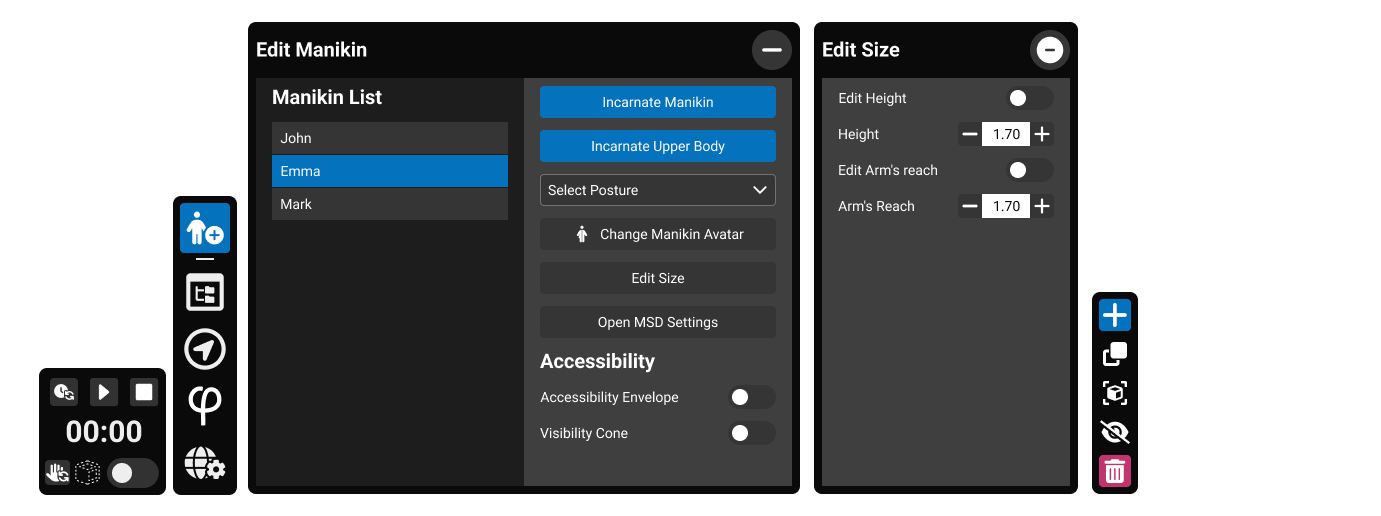
Panels occupy the central area of the tablet and provide detailed controls for the feature launched from the Pie Menu. Each panel is structured into lists, property editors, and action buttons.
User can point and on every item to interact with it.
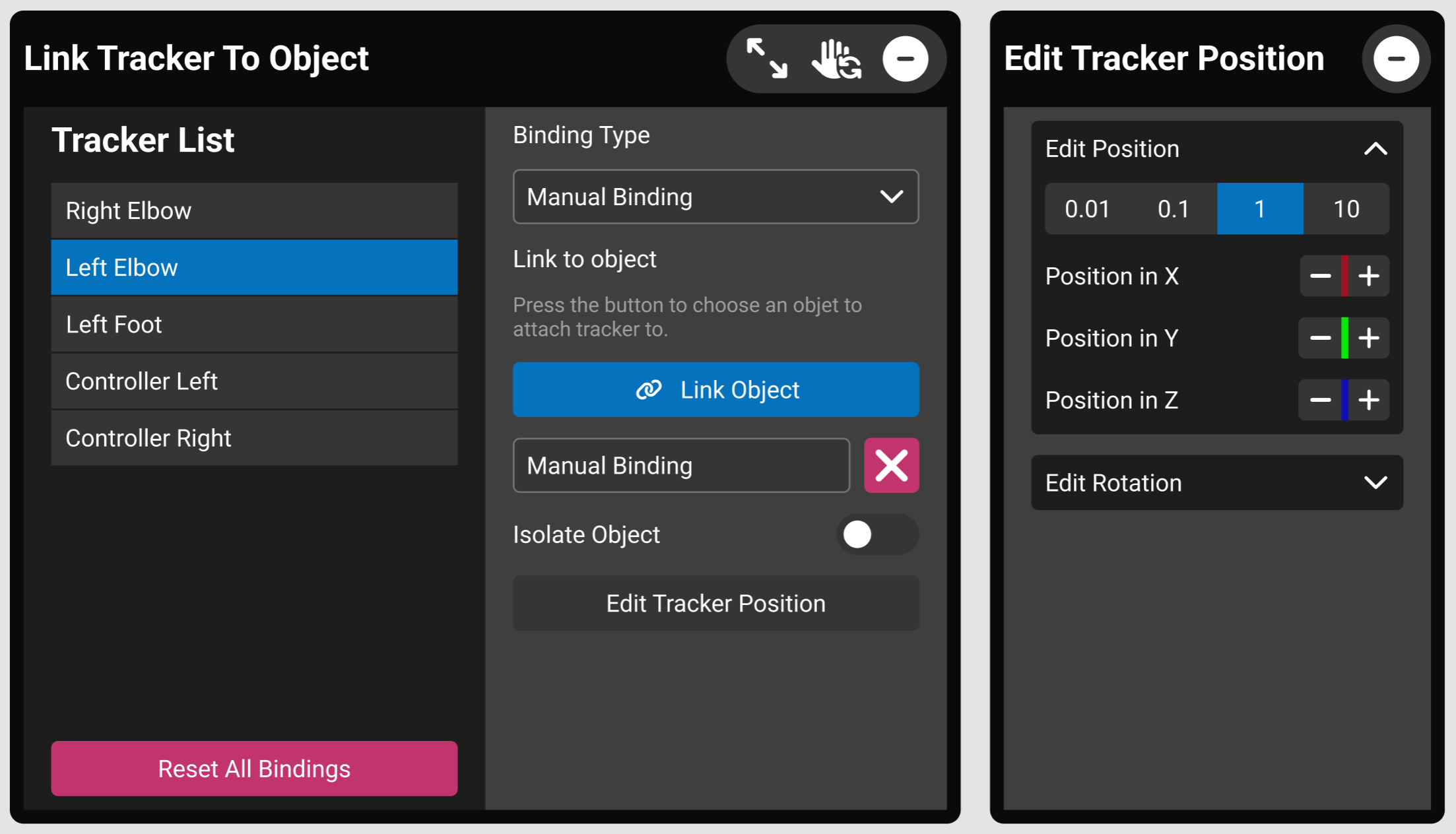
When a panel is active, contextual action buttons appear on the right edge of the tablet. These include operations like show, hide, lock, create or delete.
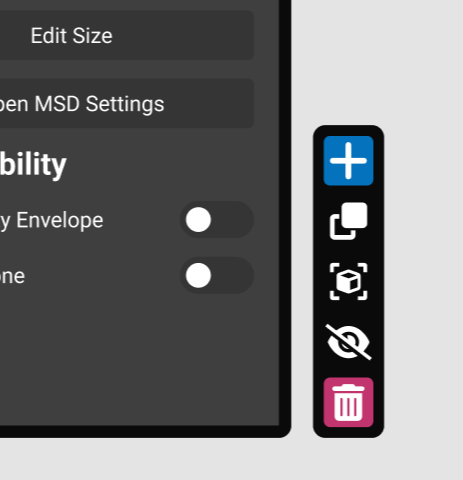
Closing Panels:
Use the close button (top-right of the panel) or re-tap the active toolbar icon to dismiss a panel.
The Exit button can be used to close the tablet.
The Tablet display can be disabled by using the "Toggle Tablet Visibility" command.
Toolbar or Tab bar (Left Side)
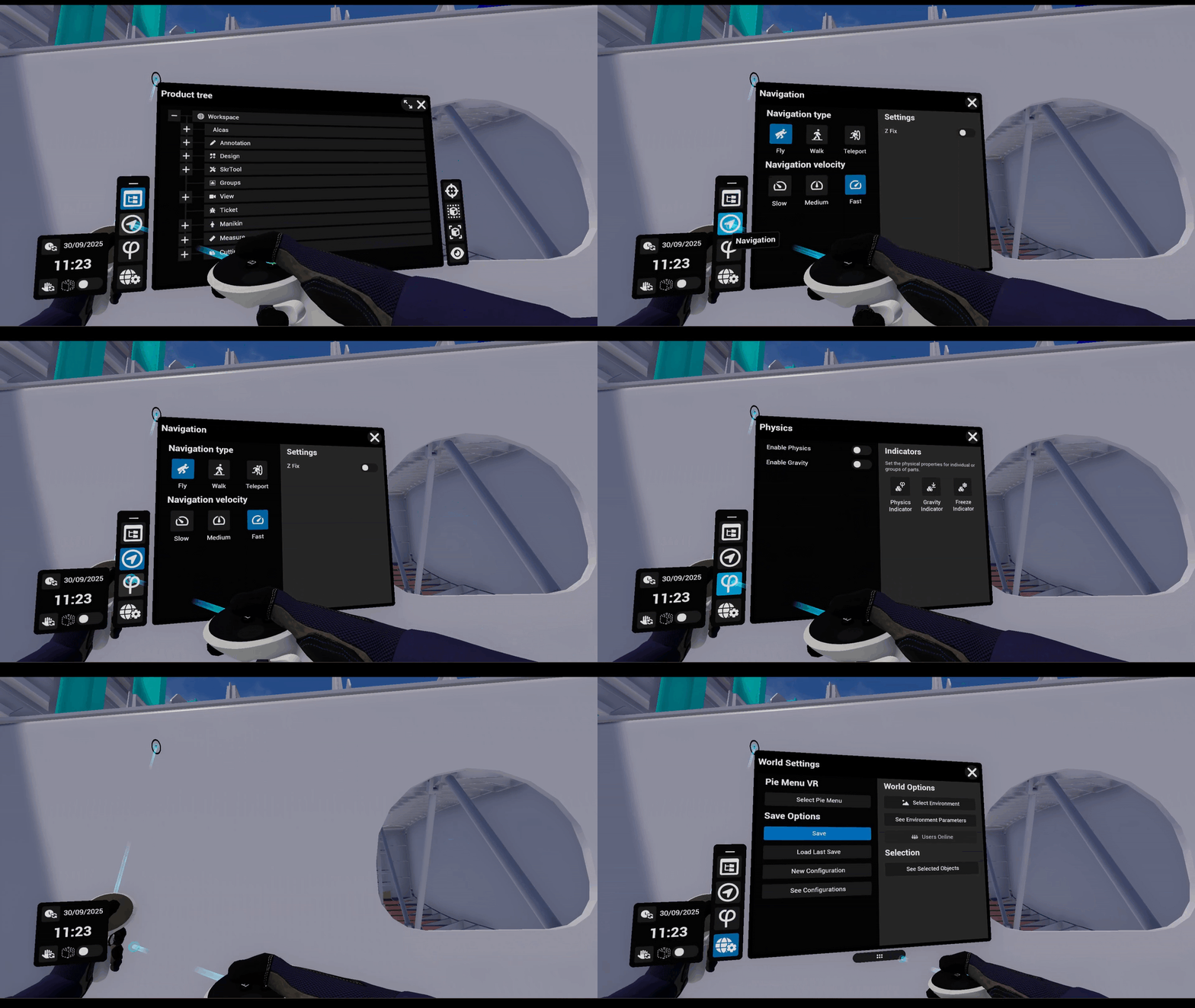
The vertical toolbar contains the main feature shortcuts. This shorcuts can be accesible at any time, even while using other feature. Each button opens a corresponding panel for more detailed configuration. Single tap → Opens the associated feature panel and Active button highlights when its panel is open.
Product Tree
-
Give access to the Product Tree where all 3D components and assemblies prepared are listed. This hierarchy reflects the organization of your root CAD product and selections made in the product structure are automatically replicated in the 3D, or viceversa, enabling efficient selection of entire subassemblies.
-
The Extend button can be used to switch the tablet to a bigger panel. ( )
Extensions List
-
If installed, this tab will display all commands imported from every installed extension.
Navigation
-
Change the navigation mode (walk, fly or teleport)
-
Change the movement speed.
World Settings
-
The user can choose and edit options like the Pie Menu, Save, Configurations, Environment and Parts Selections.
How to use the Pie Menu?
Using the Laser Pointer
To open the Pie Menu, press and release the designated menu button on your controller. To close it, press the same button again while the menu is open.
Once the Pie Menu is active, you can interact with any pie slice using the two laser pointers from your controller. Simply point a laser at the desired slice and click trigger to select it.
If a pie slice shows a small arrow, it means a sub-menu is available. Click the slice to open the sub-menu. If both lasers are pointing at different slices, the slice targeted by the most recent laser will be selected.
The Pie Menu also features a central button labeled "Close" or "Back." To execute the indicated action, click this central button with one of your lasers.
By Hand Movements
To navigate the Pie menu keep pressed the pie menu button on your controller, and while pressed, move the controller on which you are pressing the pie menu button so that it hovers the desired slice. There are now two options:
-
If the desired slice has a white arrowhead near its border, move the controller towards its edge. Once you reach the border of the slice, a submenu will appear.
-
Otherwise if the desired slice doesn’t have a white arrowhead near its border, release the pie menu button and the command associated to the slice will be executed (see Command execution below for more detail).
If the pie menu is not in a convenient place you can move it pressing the index trigger.
Command slices are executed on selected parts. This means that you need to select the parts you want to work on before executing the command.
⚠ If no parts are selected, some commands like "Reset Part Position" will be applied on every part.
Pie Menu Configuration
Skyreal VR offers three preset menus, each tailored to specific use cases: Engineering, Manufacturing Validation, and Marketing. These menus are available in both the VR and desktop interfaces, ensuring a seamless experience across platforms.
You can also make your own custom pie menus.
Pie Menu Configurations by Use Cases
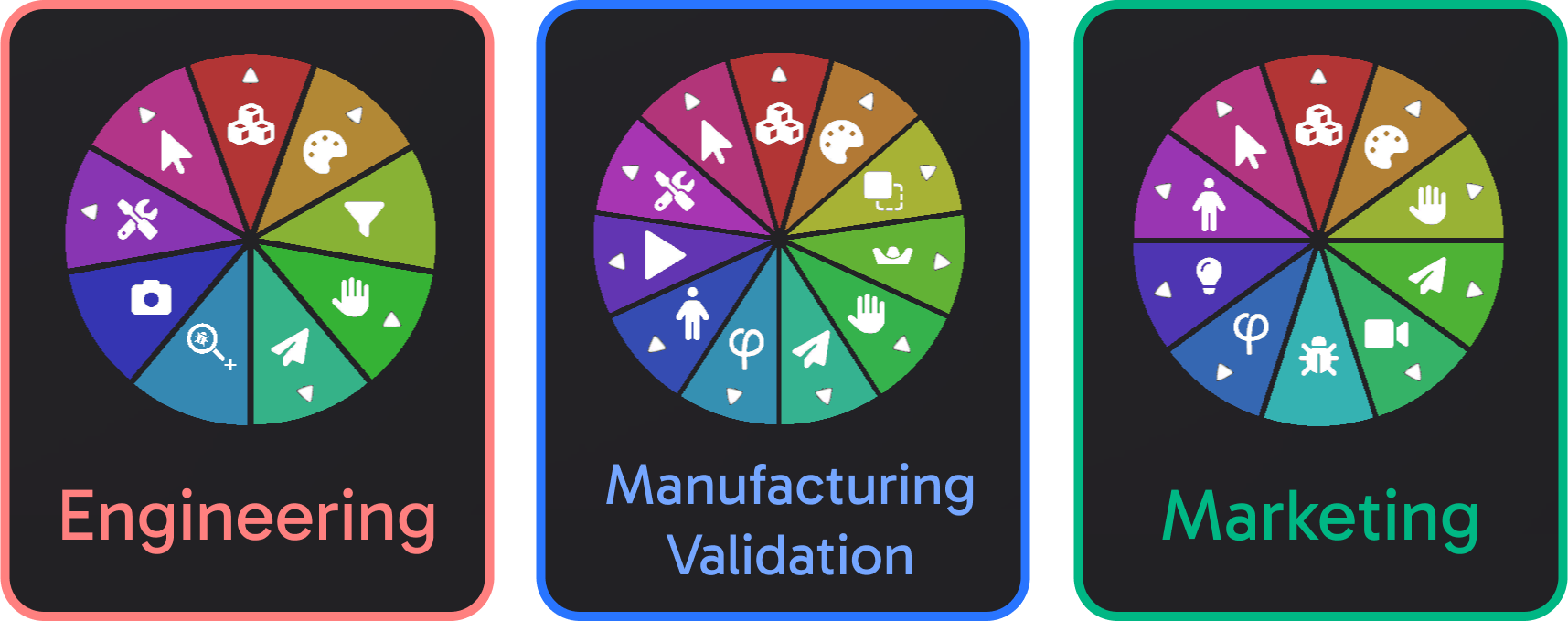
The Default Pie Menus list includes a variety of preconfigured setups designed for specific use cases and user types. These menus are:
Manufacturing Validation Designed to simulate processes, address ergonomics issues, and identify risks, ensuring a more reliable production environment.
Engineering Tailored to create a VR work environment that meets the essential requirements for efficient design reviews.
Marketing Helps create your product showcase with options for different product configurations and delivers spectacular rendering outputs.