Desktop Navigation
Skyreal VR currently offers different Desktop navigation modes: Fly, Walk, CATIA V5, and Snap To.
By default, Skyreal VR opens in CATIA V5 navigation mode.
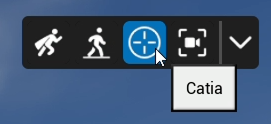
To change the navigation mode, click the desired Navigation button in the top-right corner of the main viewport.
Fly Navigation
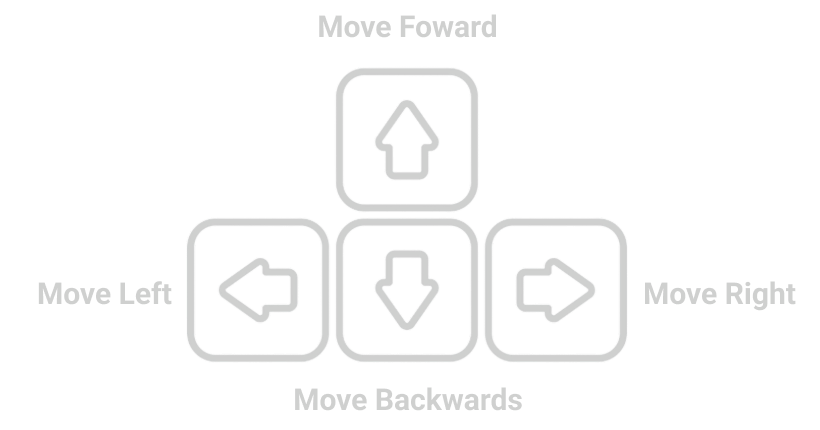
Similar to Unreal Engine navigation, this mode allows the user to move around the scene using the arrow keys and mouse. Use the arrow keys to move forward, left, backward, and right, similar to the controls in many first-person games. Scrolling the mouse wheel zooms in and out, and holding the right mouse button rotates the camera.
You can learn more about navigation in Unreal Engine here.
When in Fly mode, you can pass through objects in the scene.
How to fly
|
Control |
Action |
|
LMB + Drag |
Moves the camera forward and backward and rotates left and right. |
|
RMB + Drag |
Rotates the viewport camera. |
|
LMB + RMB + Drag |
Moves up and down. |
|
RMB + Drag |
Pans the viewport camera. |
|
F |
Focuses the camera on the selected object. |
Combined with:
Fly Parameters
By clicking on the navigation bar menu, you can adjust the navigation and rotation speed in Fly mode.
Walk Navigation
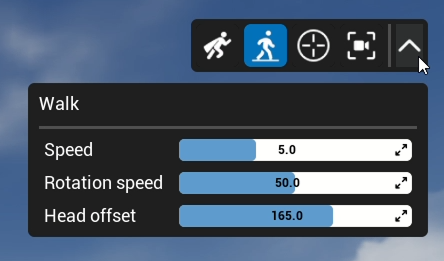
Walk mode works the same way as Fly mode, with the added constraint that the user remains aligned with the floor while moving around the scene. The default height of the user’s pawn in Walk mode is set to 1.65 m.
In Walk mode, the user collides with any object higher than 30 cm from floor.
|
Control |
Action |
|
All movements |
Same as Fly but fixed to ground |
|
User's Height |
Distance from floor to users' viewpoint |
|
Z - fix |
When activated user can override floor distance and fix a new floor, also useful to not "fall" into CAD holes when walking |
|
F |
Focuses the camera on the selected object. |
Walk Parameters
By clicking on the navigation bar menu, you can adjust the speed, rotation and height of the user's pawn.

CATIA V5 Navigation
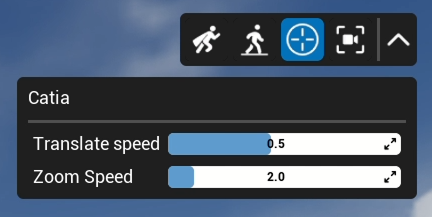
The CATIA V5 navigation mode is very similar to the mouse navigation used in CATIA software. It allows you to zoom, pan, and rotate your point of view in the simulation using the mouse.
|
Control |
Action |
|
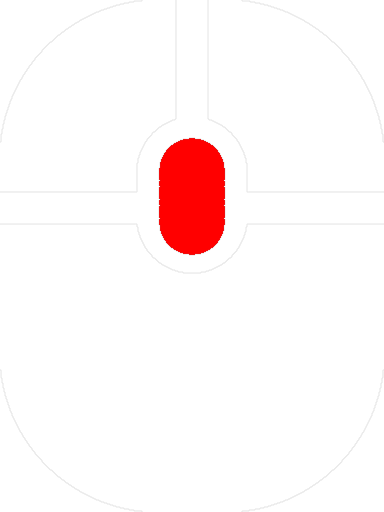
Hold the middle mouse button and drag to pan parallel to the screen |
|
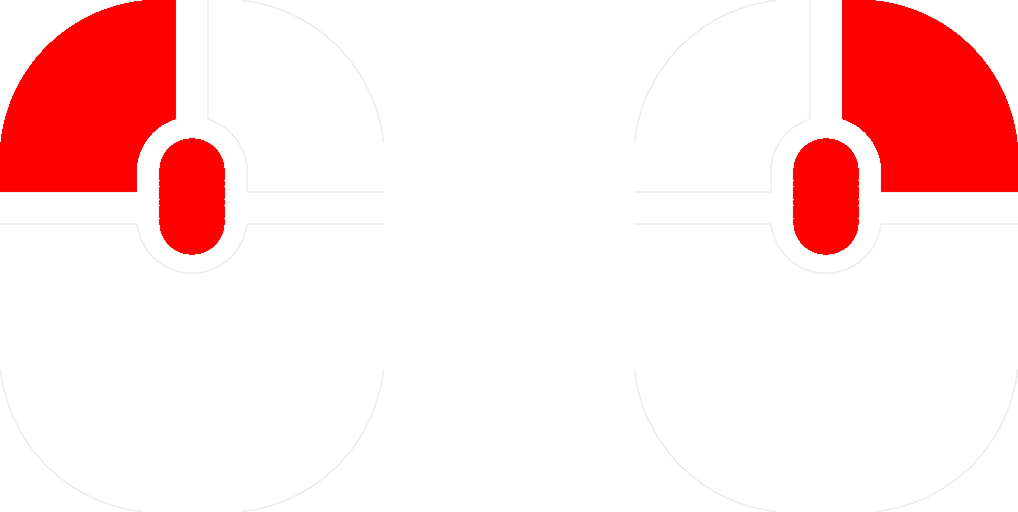
Hold the middle + left (or right) mouse buttons and drag to rotate around a point. |
|
|
Hold the middle mouse button, click the left or right button once, then drag up (zoom in) or down (zoom out) |
|
|
Click the middle mouse button to center an object on the screen |
CATIA V5 Parameters
By clicking on the navigation bar menu, you can adjust the translate and zoom speed.
Snap To View
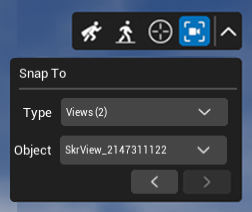
The snap view mode snaps your viewport to another user or camera view in real time. It works as the Picture in Picture but in full screen.
|
Control |
Action |
|
Type |
Select the view type (views, manikins or players in collaboration mode) |
|
Object |
View object |
|
Arrows |
Navigate between views |
⚠ When using Snap To we can navigate just by selecting objects in the combo box, User's movements are blocked.
VR Navigation Modes
Navigation in VR mode is performed using the VR controllers.
There are three types of navigation modes. These commands can be accessed from the default Navigation submenu and tablet’s tab.
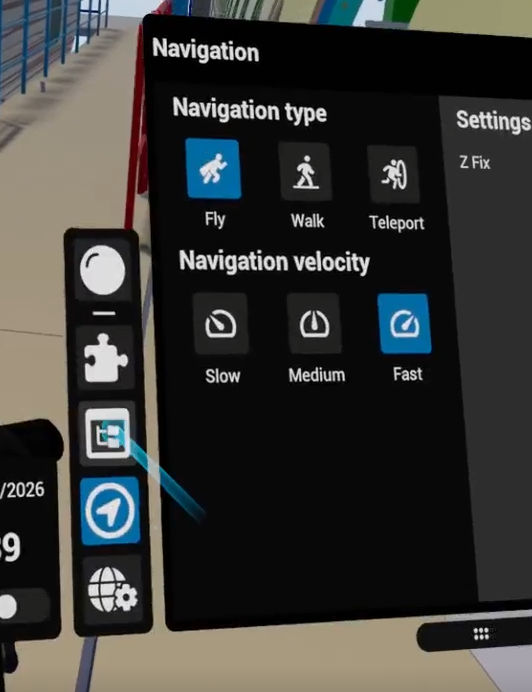
Fly
Fly navigation is the most flexible navigation mode. In this mode, the user is not attached to the ground and does not collide with objects.
To move forward, push the navigation pad forward and point the laser in the direction you want to go.
Note: If the laser is angled downward, the user will move down; if it is angled upward, the user will move up.
To move sideways, push the navigation pad to the left or right. The user will move in the corresponding direction.
To turn around in VR, create a 90-degree angle between the controller and your head (to the left or right), then push the navigation pad forward or backward.
Walk
Walk navigation attaches the user to the ground and enables collision with objects. This navigation mode enhances user immersion in the simulation.
Teleport
Teleport navigation is useful for users having trouble with motion sickness. There a small delay before the command is ready to prevent from accidental teleports.
-
Push the navigation pad in any direction. This will give the direction in which you are looking once you teleport.
-
Use your controller to move the spot where you wish to teleport.
-
Release the navigation pad to teleport to your selected position and orientation..
Fixed Floor (Z Fix)
Once activated, the Z Fix switch button overrides the "floor position" on the Z-axis of the scene and determines a new one based on the user's position. This button changes the behavior of all navigation options:
-
In Fly mode: Z Fix allows normal flight, but the user cannot go lower than the new Z "floor position."
-
In Walk mode: it sets a new floor position for the user.
-
In Teleport mode: it also sets a new floor position for the user.
Navigation Velocity
This command allows the user to change and set the speed at which they move in VR.
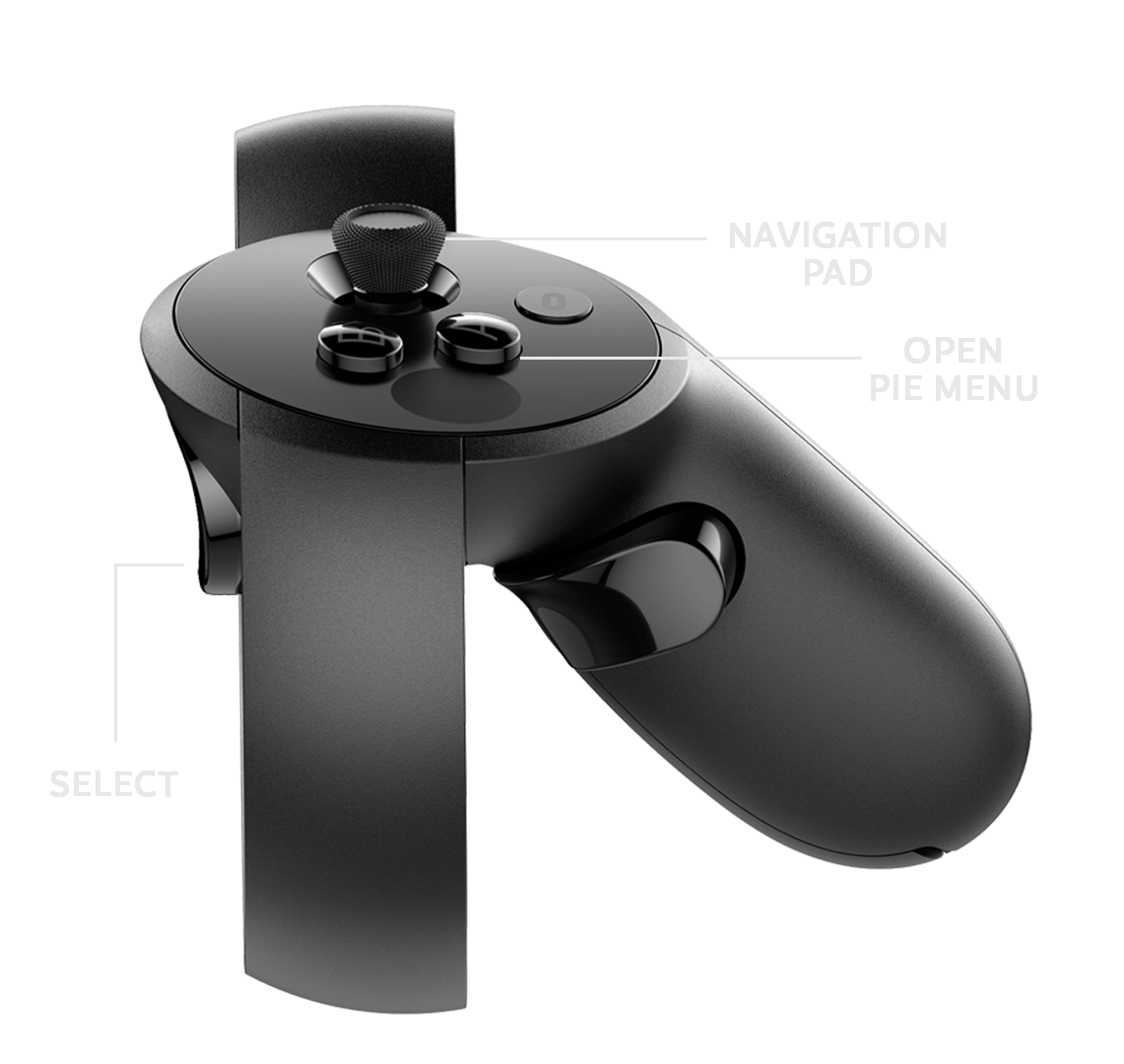
Controller Button Mapping
Skyreal VR is compatible with most VR controllers.
The button mapping is the same for both the left and right controllers and includes:
-
One trigger to select parts in your simulation
-
One button to open the pie menu
-
A pad/joystick to move in VR
-
A grip button for special actions (fast grab, activate tools)
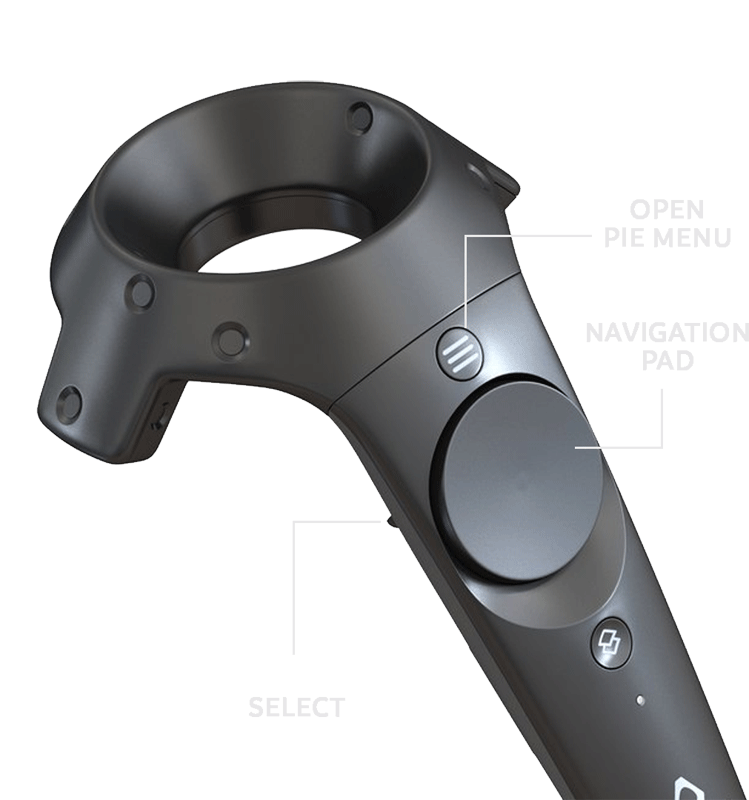
The location of these buttons is indicated below for each type of controller.
Vive Controllers
Vive Focus 3 and XR Elite
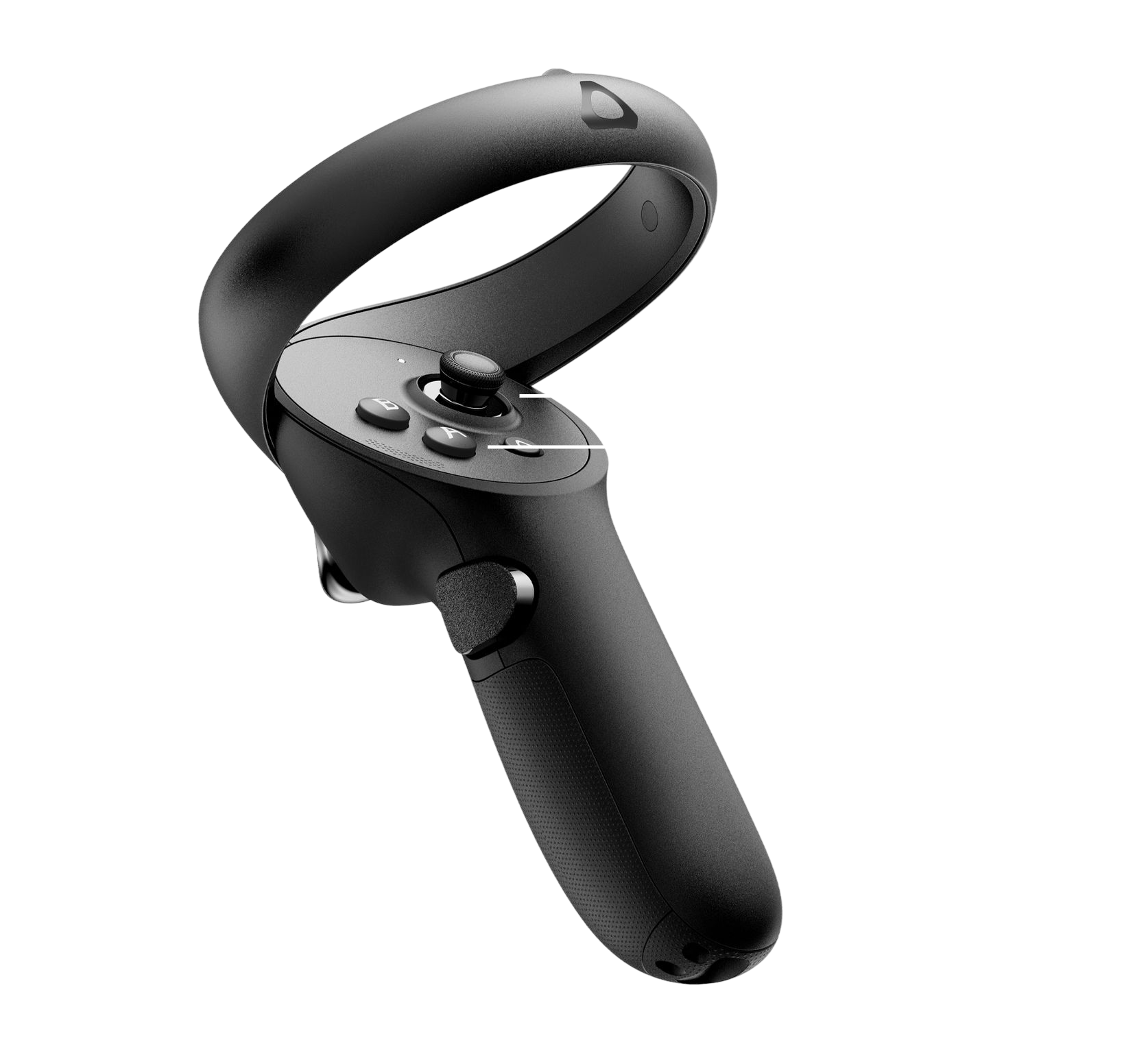
Oculus Rift
Meta Quest
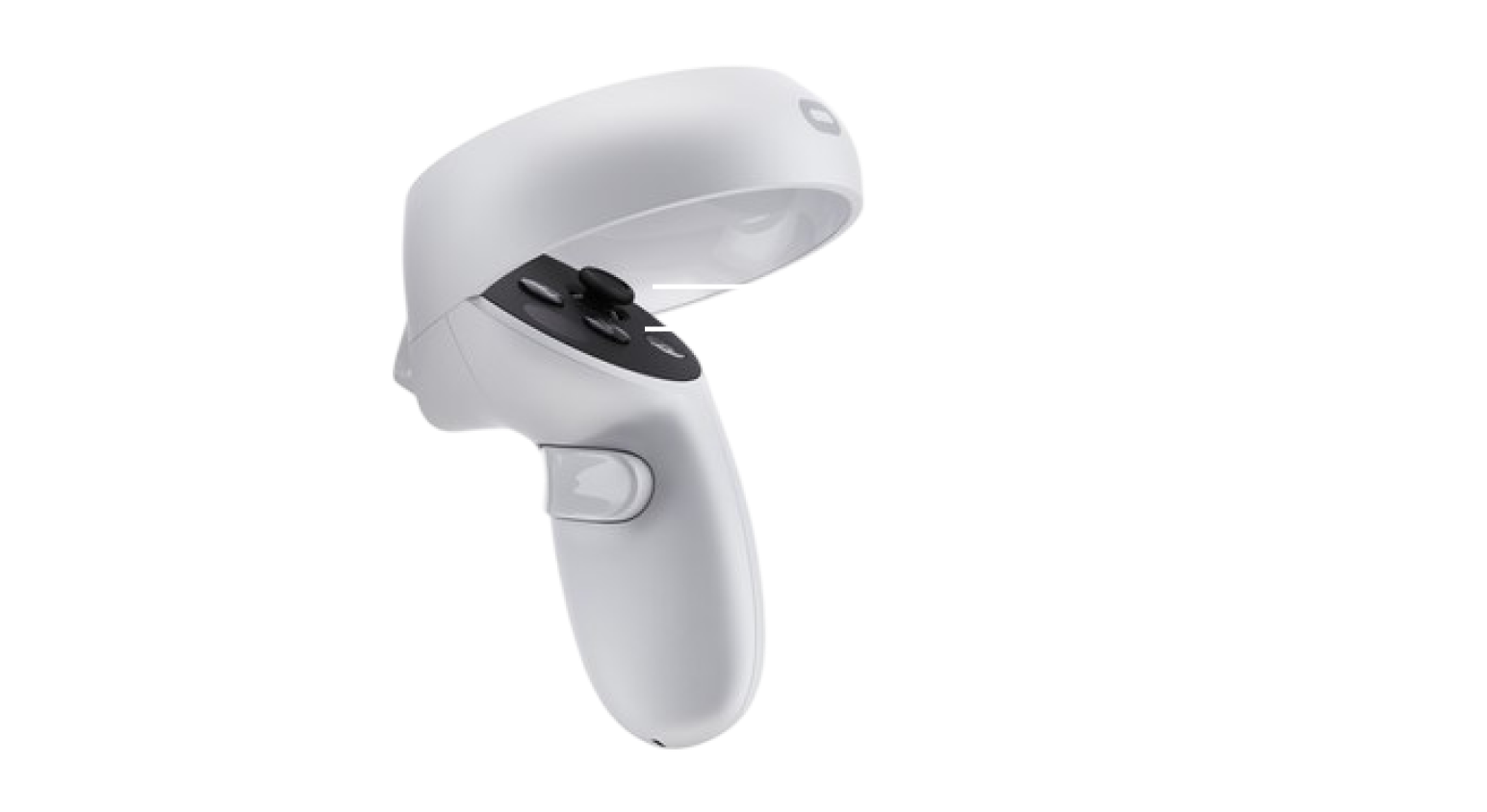
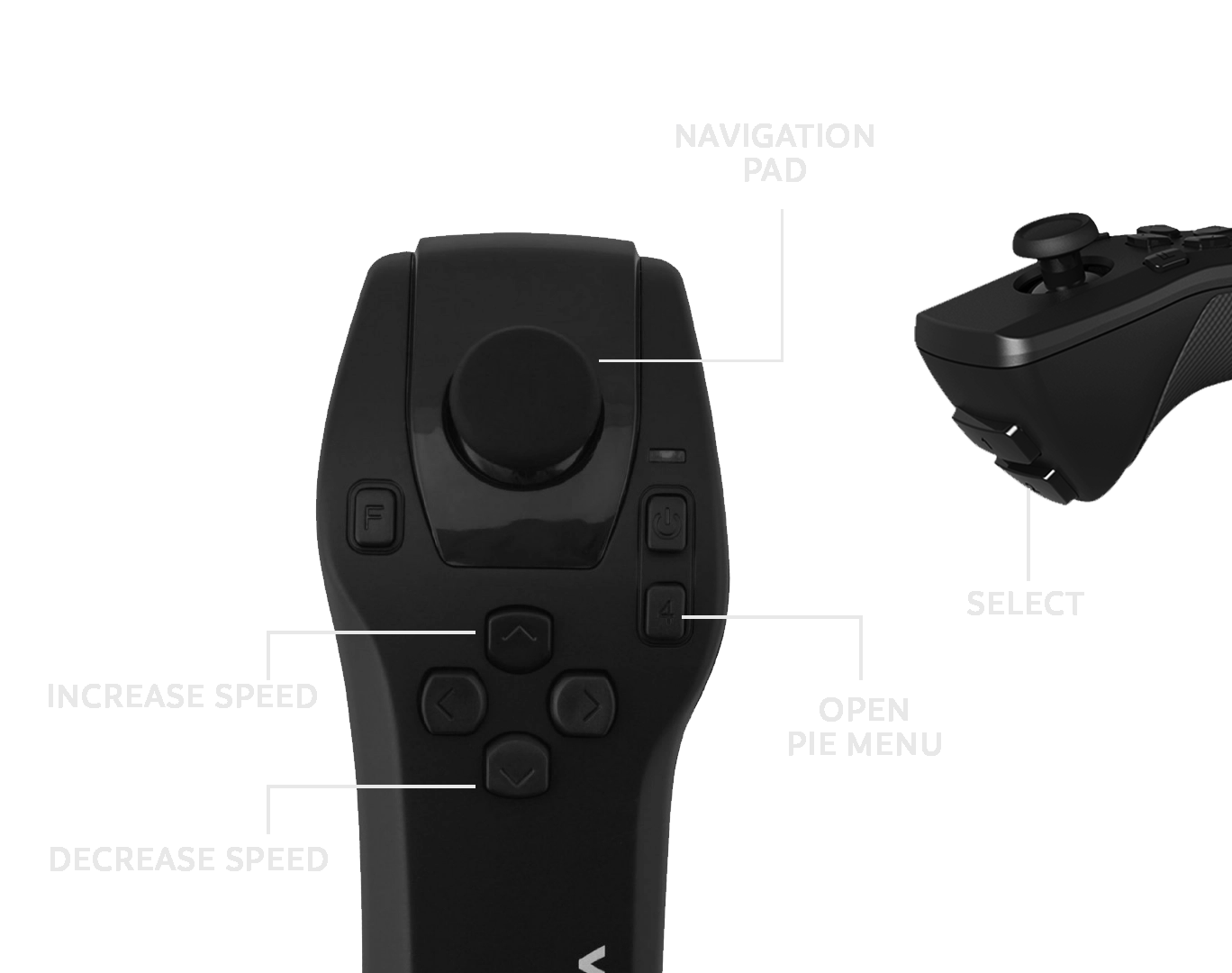
VenomX