
Managing Your 3D Data
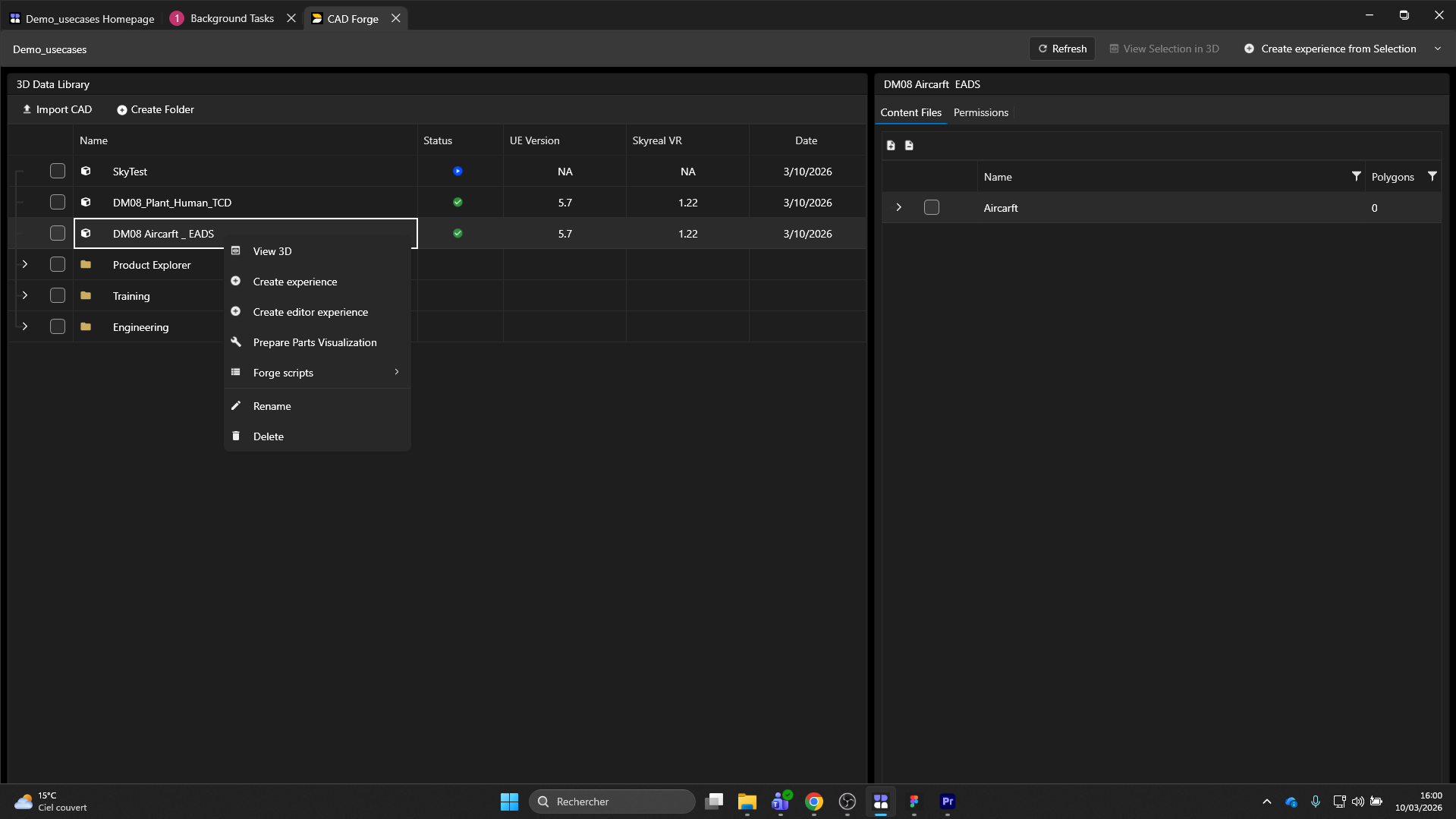
Right-click on any CAD file in the 3D Data Library to access the following actions:
|
Action |
Description |
|---|---|
|
View 3D |
Opens the 3D viewer to display the selected CAD |
|
Prepare Parts Visualization |
Triggers preparation of parts for VR viewing |
|
Rename |
Renames the CAD file (does not affect product structure) |
|
Delete |
Removes the CAD file (Owner permission required) |
|
Create Folder |
Creates a folder for organizing your 3D Data Library |
You can create folders and use drag-and-drop to organize your CAD files within the 3D Data Library.
CAD Not Matching Your Unreal Version
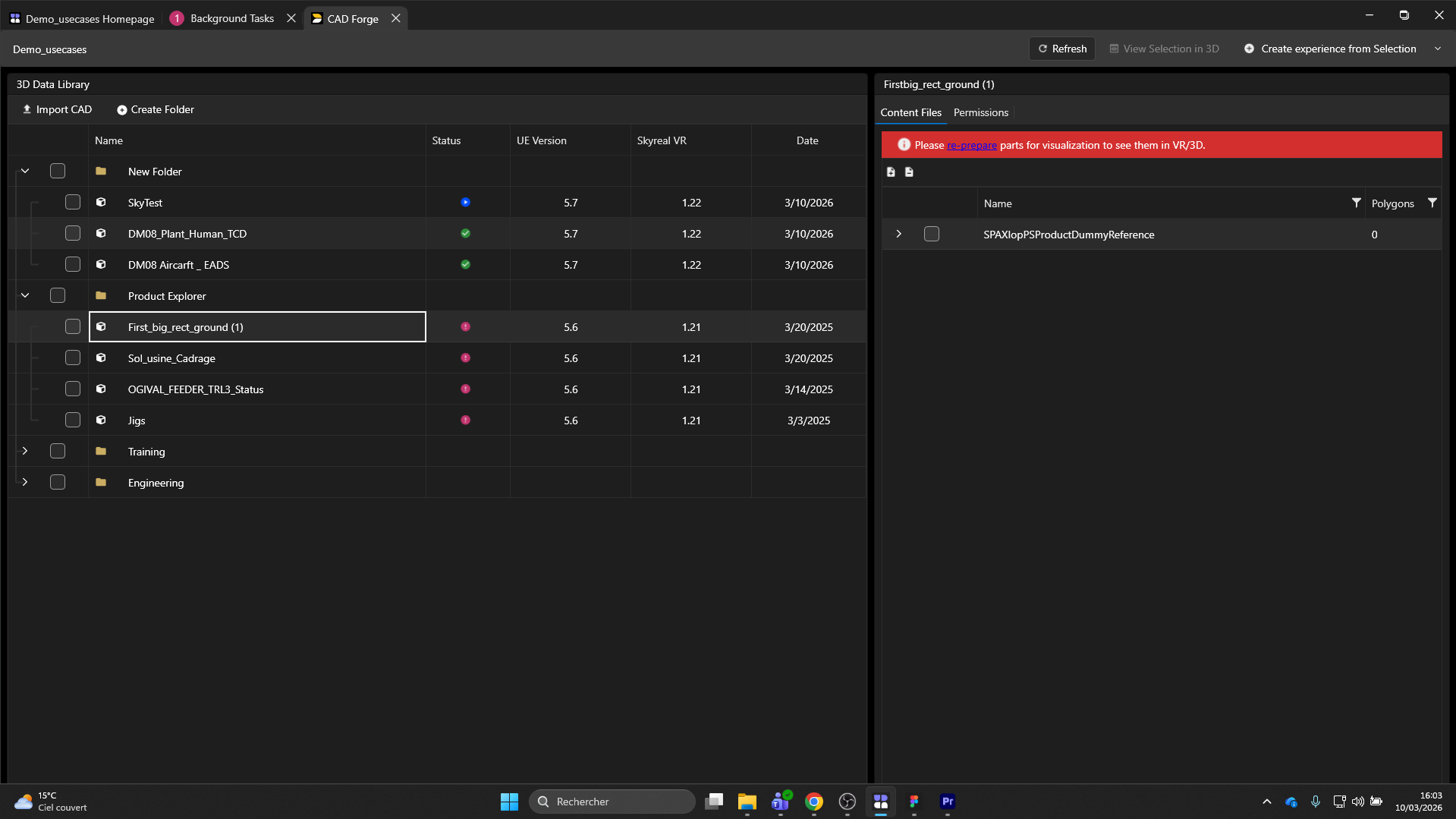
A red banner indicates that your 3D Unreal assets are not up to date with your Unreal Engine version. While the product structure is still loaded, you cannot use the 3D data in VR or in the 3D viewer. To fix this, click the Re-prepare button in the banner or right-click your CAD and select Reprepare.
CAD Visibility
You can manage your CAD's visibility to control access:
|
Role |
Permissions |
|---|---|
|
Member |
Can view the CAD in the 3D library but cannot delete it or change settings |
|
Contributor |
Can view the CAD in the 3D library and edit its settings |
|
Owner |
Has full control, including the ability to delete the CAD |
When you import a CAD, you are automatically designated as its Owner.
Import Settings
|
Setting |
Description |
Recommendation |
|---|---|---|
|
SAG |
Surface Approximation tolerance for tessellation |
— |
|
Deduplicate Instances |
Deletes duplicated instances (same parts at the same position) |
— |
|
Use Multi-Process Import |
Enables spatial import parallelization (beta) |
can improve import speed |
|
Use Legacy Mode |
Matches SkyPrep settings for improved stability |
Try if standard import fails |
|
Discard Visu PMI Processing |
Discards product manufacturing information (faster, especially for CATIA V5) |
Recommended |
|
Discard Import Edges (.jt only) |
Discards visualization data for edges, improves performance (JT format only) |
Recommended |
How do I improve import quality?
Adjust the SAG (Surface Angular Gap) value during import. Lower values produce finer mesh tessellation (higher quality) but result in larger files and poorer performance in Skyreal VR. The default value provides a good balance for most use cases.
What does the "deduplication" option do?
When enabled, deduplication identifies identical geometries in your model and instances them (shares the same mesh data). This significantly reduces memory usage and improves performance for models with repeated components.
What is Legacy mode?
Legacy mode uses an older import pipeline. Enable it if you encounter issues with the standard import process — some older CAD formats or non-standard files may import more reliably with Legacy mode.
How do I import point cloud data?
Warning : This feature is only available in Editor Experience
-
Enable the LiDAR Point Cloud Plugin in Unreal Editor (Edit > Plugins)
-
Restart Unreal Engine
-
Drag and drop your point cloud file into the Content Browser
-
Adjust the data source columns and import settings
-
Drop the point cloud asset into the viewport
Supported formats: XYZ, PTS, TXT, LAS, E57.
Can I import non-CAD 3D data?
Non-CAD 3D data, is a 3D object not derived from conventional CAD software
In the Unreal Editor, you can:
-
Use Datasmith to import 3ds Max, SketchUp, and Revit files
-
Import Point Cloud data (XYZ, PTS, TXT, LAS, E57) using the LiDAR Point Cloud plugin
Directly into CAD forge, you can :
-
Import FBX files
What does "version mismatch" mean in CAD Forge?
This status indicates the data was prepared with a different version of the preparation tools. Re-import the data with the current version to resolve this.