
These commands let you get and set somes properties of your parts.
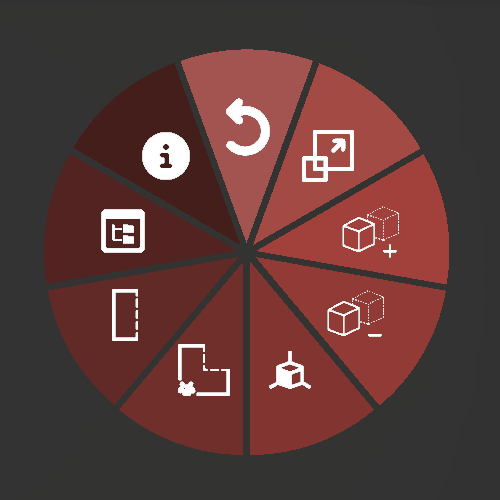
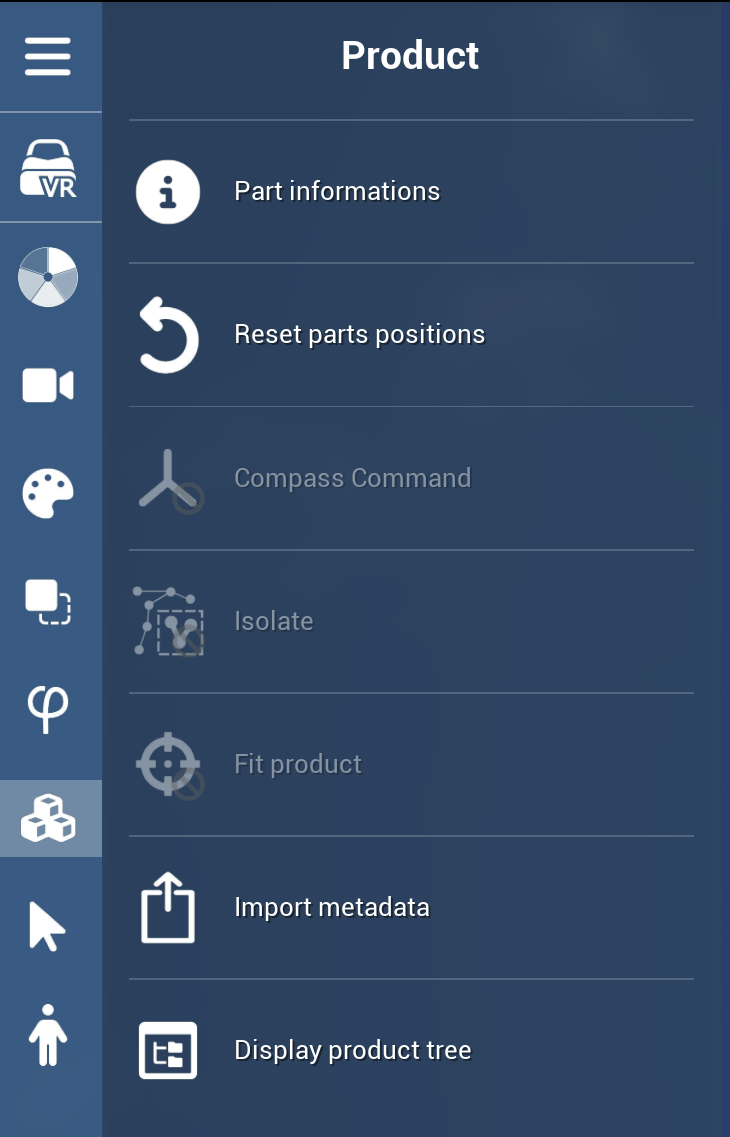
You will find these commands in the default Product sub menu:
In VR interface :
In desktop interface:
Part Information
When activated, your controller's laser or your mouse will allow you to view a part's specific information (part number, instance name, metadata...). To use it, simply point your controller's laser at a part which's information you wish to view, and a small window will open in your vision area, displaying the information.
Custom Parameters
|
Parameter |
Description |
|---|---|
|
Display Metadata |
[Show metadata for the selected part] |
|
Display Hierarchy Metadata |
Show the metadata of the [parent parts] |
|
Scale Factor |
Size of the window: Small, Normal, Large, Huge |
|
Update Only On Click |
By default[,] update is done on hover |
|
Hide Empty Metadata |
Hide metadata with empty values to improve readability |
Set Display Name

When used, this command lets you write a new name for the selected part.
Note: If several parts are selected, they will all receive the same display name.
Reset Parts Position

When used, this command will reset the position of all selected objects to their original position (i.e., the position they were in when you launched the SkyReal VR simulation).
Note: If no objects are selected when activating this command, the positions of all of the objects in the simulation will be reset.
Compass Manipulation
The Compass Manipulation command lets you move parts from the desktop interface. You can also choose an absolute position, increment the position, and more.
See the dedicated Compass Manipulation section in the Manipulation page for more details.
Isolate

This command isolates the selected parts and focuses the view on them. This means that all unselected parts are hidden.
To leave isolation mode, you can either re-execute the command (without any selection) or click on the exit button in the desktop interface.

This command is also accessible from the context menu of the product tree in the Hierarchy menu.
Fit Product

This command makes the camera fill the viewport with a view fitted to the selected objects (i.e., it zooms in on the selected objects).
Resize

Note: This command will only be usable if you have selected one or more objects.
When activated, this command will allow you to resize the selected objects using the controller.
Display Product Tree

This command spawns a product tree window in front of you.
Custom Parameters
|
Parameter |
Description |
|---|---|
|
VR Window Distance |
Distance from the user in VR |
|
Desktop Window Distance |
Distance from the user in Desktop |
|
Window Height |
[Height of the product tree window] |
|
Window Width |
[Width of the product tree window] |
Tips
-
Use Part Information during design reviews to quickly inspect metadata without leaving the VR environment.
-
Isolate is especially useful when working on complex assemblies, allowing you to focus on specific components without visual clutter.
-
Use Fit Product after selecting a part to quickly center your view on it, particularly helpful in large-scale models.
-
Reset Parts Position with no selection is a quick way to restore the entire scene to its original state.