
Introduction
Advanced Physics with XDE is the SKYREAL module that turns a static CAD scene into a physically simulated assembly. It lets you:
-
group CAD parts into Rigid Bodies that carry mass, material and collision properties;
-
connect Rigid Bodies with Joints (hinge, prismatic, ball, fixed, …) to build kinematic chains;
-
define Snaps, i.e. positions where one Rigid Body clicks into place on another;
-
save and reload States of the assembly;
-
play the physics and manipulate the assembly in VR or on desktop, with gravity, collisions and constraints respected;
The module is built on the XDE physics engine (developed by CEA). SKYREAL wraps it in a dedicated tree view, the Physics Scene Tree, so that all physical objects are created, edited and deleted from one place, without leaving the SKYREAL experience.
Typical uses are assembly / disassembly feasibility studies: checking that a part can be mounted, that a mechanism moves as designed, that an operator can reach and install a component, that nothing collides along the way.
Key concepts and glossary
Object types, icons and colors

|
Term |
Meaning |
|---|---|
|
Physics Scene Tree |
The tree panel, always docked on the left of the screen, that contains every physical object of the scene. Everything physics-related is created and edited from here. |
|
PBS |
The Product Breakdown Structure. Parts are added to the Physics Scene Tree from the PBS. |
|
Part |
A CAD component added to the Physics Scene Tree. Carries visual properties (color, transparency, visibility) and a collidable flag. |
|
Folder |
An organizational container in the tree. No physical role. |
|
Rigid Body (RB) |
A group of parts that behaves as a single solid object when physics runs. Has mass, material, collision settings and a freeze status. |
|
Joint |
A mechanical constraint between two Rigid Bodies (parent → child). Restricts relative motion to specific degrees of freedom (hinge, slider, ball…). |
|
World Joint |
A joint whose parent is the world (fixed reference). |
|
Snap |
A connection point between two rigid bodies. It attaches one part to the other when they’re close enough |
|
World Snap |
A snap whose receiving body is the world (a fixed position in space). |
|
State |
A snapshot of a folder or rigid body and their children: properties, statuses and positions of the objects in its scope. Reloadable at any time. We can’t create states as a child of another state. |
|
Status |
A toggle shown as an icon at the end of a tree line (Active, Selectable, Collidable, Freeze, Lock, Snapped). Click to flip. |
The Physics Scene Tree
Principles
-
Every physical object can created, edited and deleted from the tree (right-click menus).
-
Selecting an object in the tree selects its 3D counterpart. Its properties appear in the right panel, Selection tab.
-
Most objects are static: once created they cannot be moved in the tree. Only folders and folders within Rigid Bodies accept the Add to button to receive parts from the PBS. Moving items with a Move to button is disabled in the current release. You can add several folders inside a Rigid Body
-
Deleting an object removes all its instances in the tree (a joint or snap appears twice, under each Rigid Body, and both instances go). Removing a Part only removes it from the tree; the geometry is not deleted.
-
Hovering a line in the tree, highlight the item so you can read the status icons on the right of the row.
Arrangement rules
Under a Rigid Body, children are automatically sorted in this order:
-
States
-
World Joints
-
Joints
-
World Snaps
-
Snaps
-
Parts (in a Parts folder)
A new item is inserted as the last of its sub-list. Folders are appended at the end of the list.
Other structural rules:
-
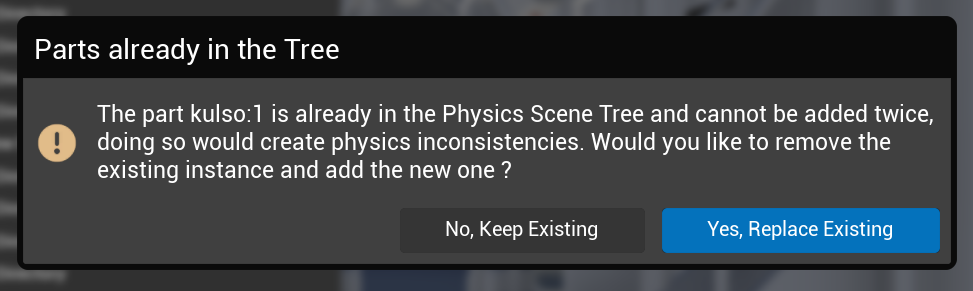
A Part can only appear once in the whole tree. Adding a part that is already under another Rigid Body raises an error modal (Parts already in the Physics Scene Tree) offering to move it or cancel.
-
A Rigid Body can sit under a Folder, as long as that folder is not itself inside a Rigid Body.
-
A Joint and a Snap appear twice: once under each of the two Rigid Bodies they connect.
-
A World Joint and a World Snap appear once, under their Rigid Body.
-
A State can be under a Rigid Body or a Folder, but not under a Rigid Body whose parent Folder already contains a State (and vice versa).7.
Running the simulation
-
Make sure every kinematic chain has a root. Otherwise the Missing Kinematic Root dialog appears.
-
Click Start Physics (top-right of the 3D view). The button turns into Stop / Pause Physics.
ADD IMAGE -
While physics runs:
-
frozen bodies stay still until grabbed.
-
unfrozen bodies are subject to external forces.
-
snaps engage when a body enters a trigger zone.
-
locked joints block the link in the actual position, so they move bodies together.
-
-
Click Stop Physics to stop. Positions reached during the simulation are kept in the scene; load a State to return to a saved situation.
Troubleshooting and FAQ
Everything falls when I start physics. The chain has no root. Add a Fixed World Joint on the base body, or keep at least two bodies frozen (§12.1).
I cannot click the Freeze icon on a body. A fixed single joint was added to it; Freeze is now computed automatically (§12.2).
"Parts already in the Physics Scene Tree". The part is already in another Rigid Body. Choose Yes, replace it to move it, or No, keep existing.
The "Create Rigid Body from selection" button is greyed. It only works with a selection made in the 3D view or in the PBS, not in the Physics Scene Tree.
My joint is the wrong way round. Select it and use the ⇅ button in the right panel to swap Parent and Child. World joints cannot be swapped.
The snap box does not move with my body. Only the Receiving body carries the box. Swap Receiving/Installed if needed.
I cannot pull a snapped part off. Either set Snapped = OFF in the tree, or mark the snap Breakable before playing.
Clicking a part in 3D selects the whole Rigid Body. That is the default in XDE mode; use Shift+click to select the part.
Some bodies are not selectable while physics runs. Their Selectable status is OFF, or they are parts outside a Rigid Body.
I cannot create a State here. Check the State placement rule (§6.8): States cannot be nested under both a folder and one of its Rigid Bodies.
Mass looks wrong / error on volume. The volume could not be computed from the geometry. Check the part geometry or type the mass manually.
The tree is greyed out. A command (Compass, Place Constraint) is running. Finish or cancel it.