Tracking
The Tracking sub-menu allows you to modify parameters regarding tracker behavior in your simulation. Tracking is essential for linking physical objects to their virtual counterparts and for managing tracker visibility in VR.
Accessing Tracking Commands
Tracking commands are available from the default Tool sub-menu in the VR pie menu.
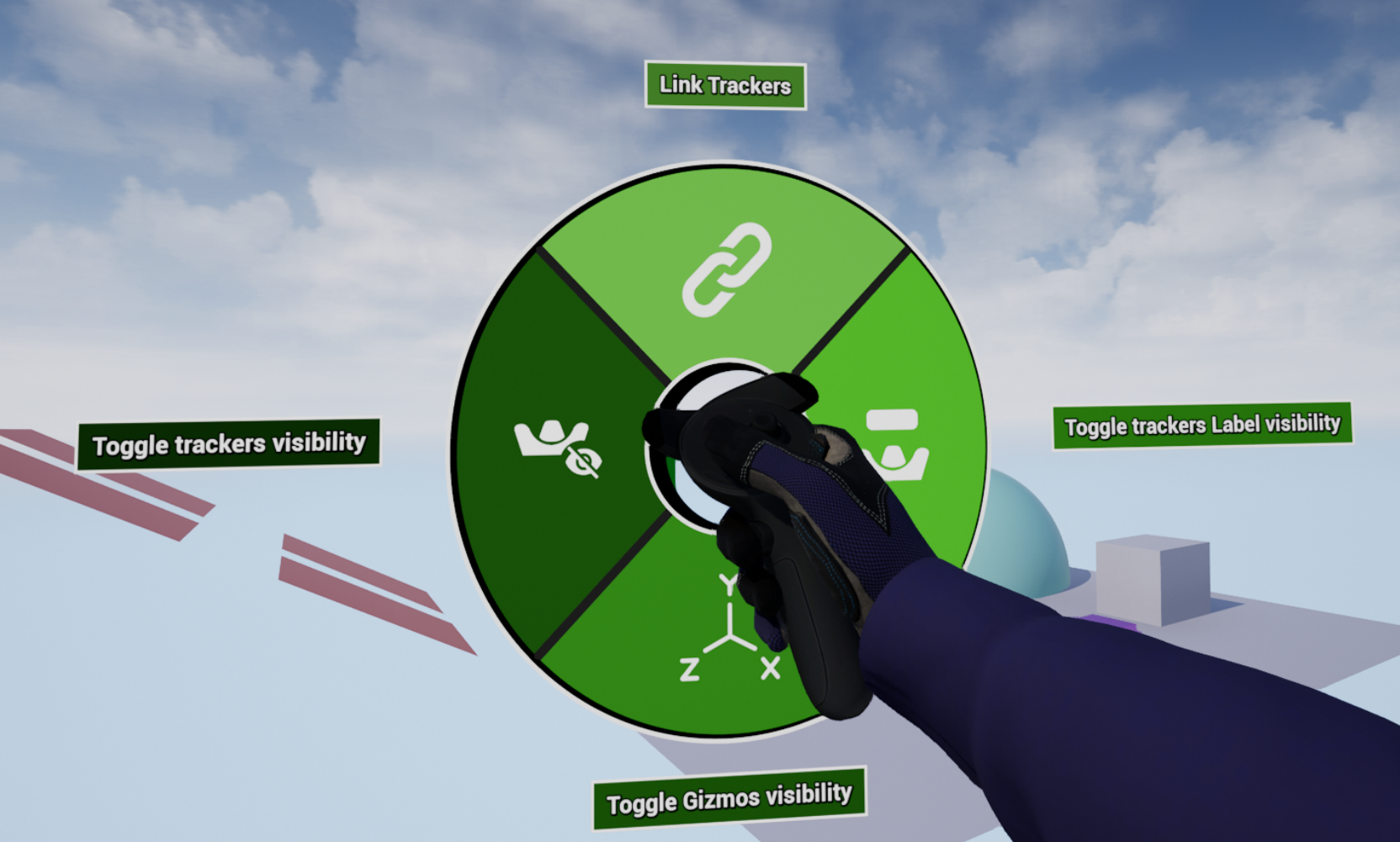
Link Trackers to Object
This command allows you to link a virtual object to its real-world counterpart. You attach a tracker to the physical object and select it in VR. Skyreal VR automatically syncs the tracker, mirroring real-world movements in the virtual environment.
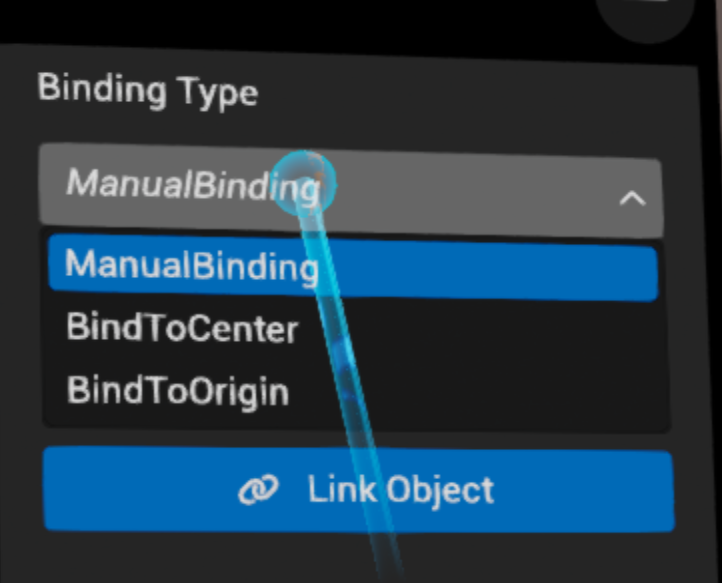
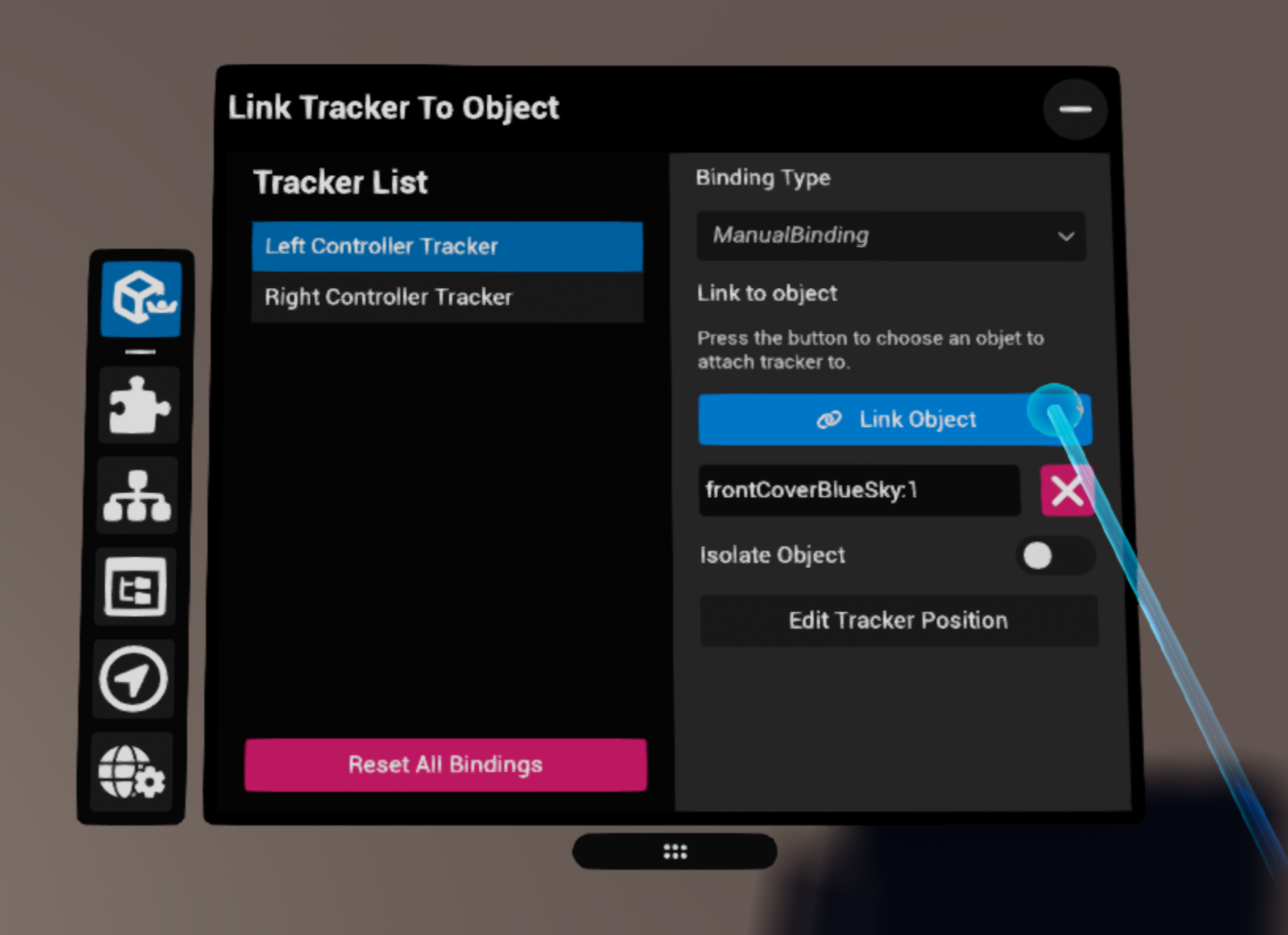
Check on the tablet’s left list the active trackers, and choose the one you wish to bind. Once the tracker is selected, select a binding type and press on the "Link object" button.
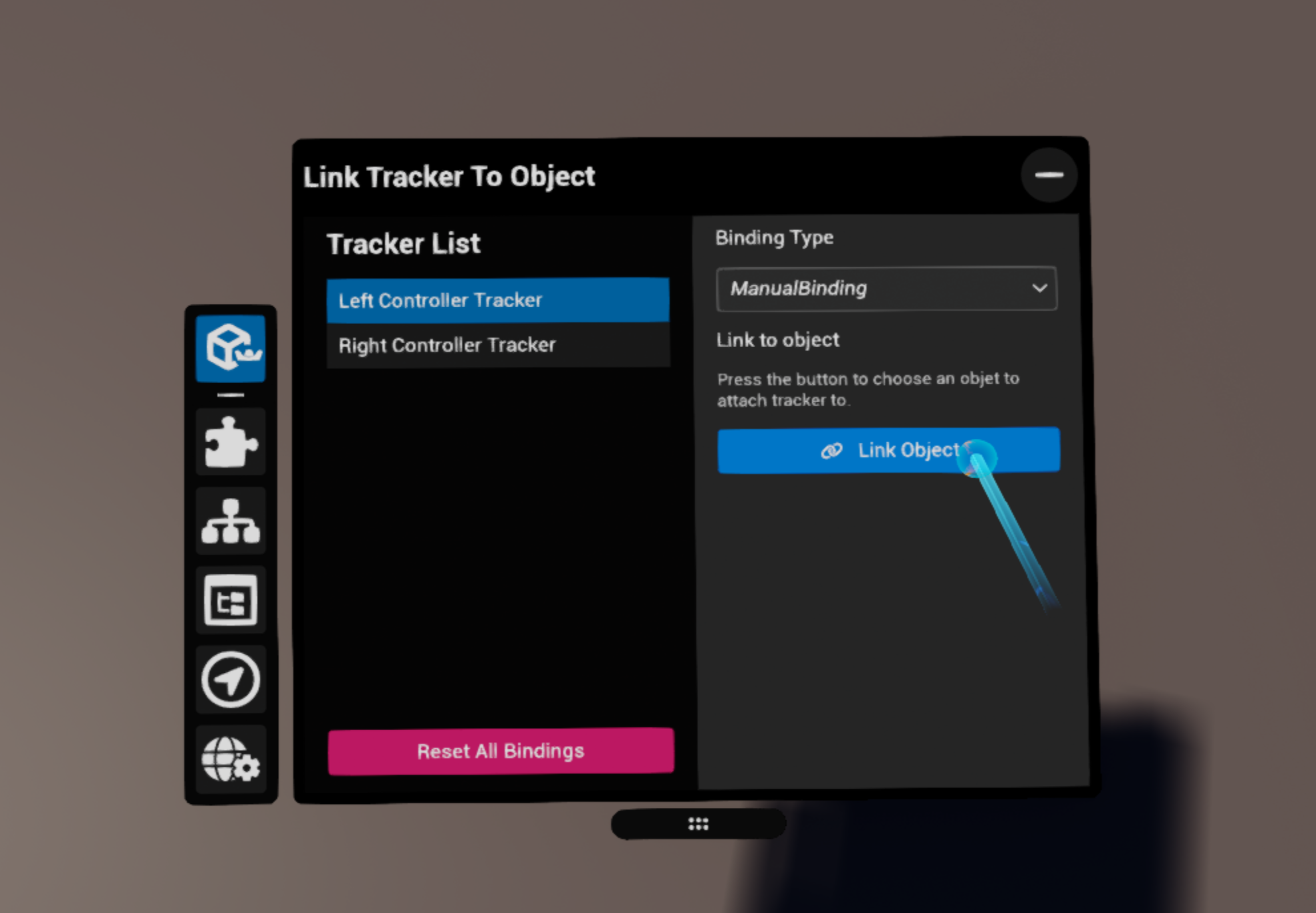
Binding Options
-
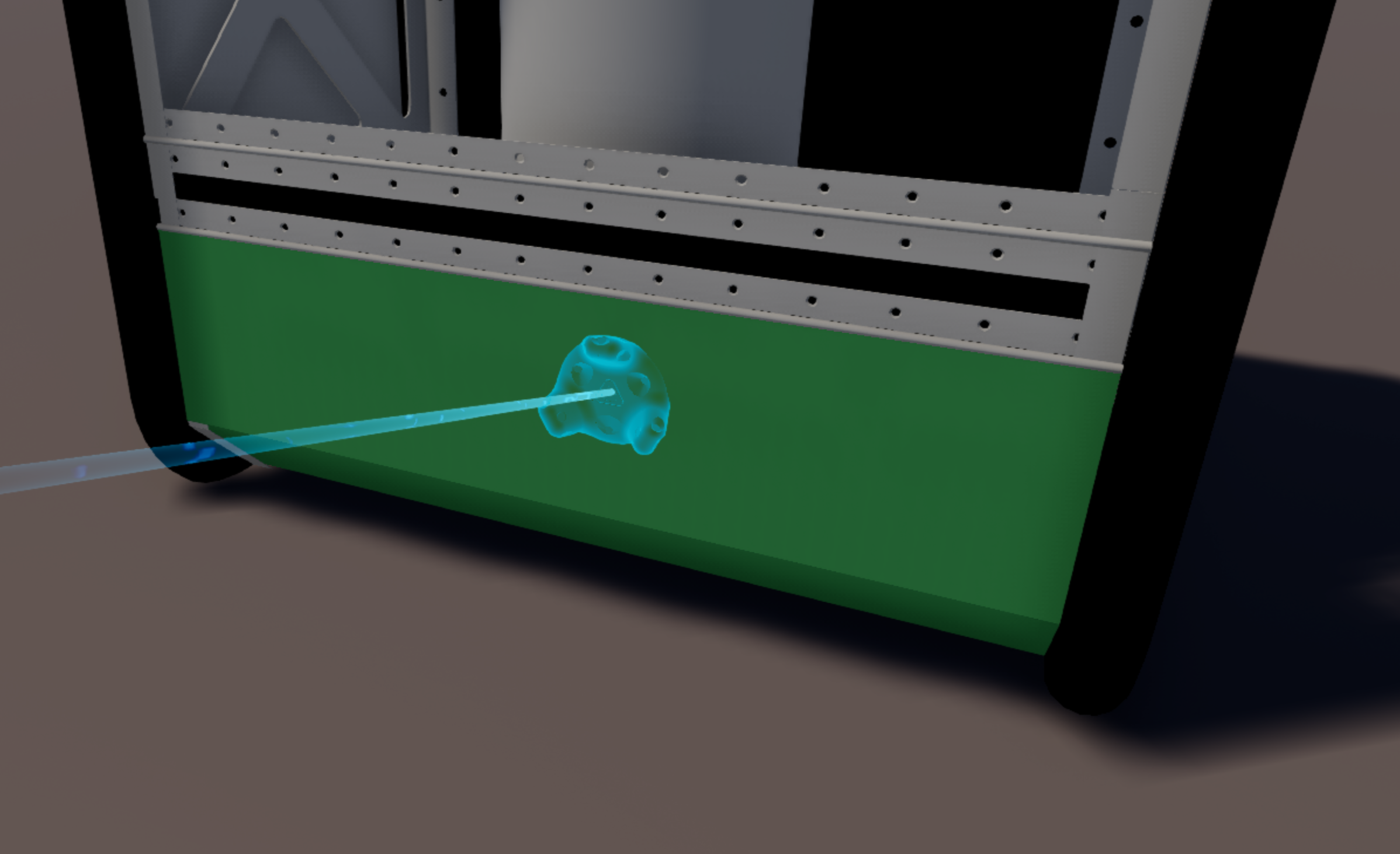
Manual Binding: To help you accurately place your tracker on the desired object, a blue tracker "ghost" appears at the tip of your laser. When you press the controller trigger to bind the tracker, it will attach to the object with the exact position and orientation of the tracker ghost.
-
Bind to Origin: Place automatically the tracker to the part's origin (also know as "pivot point").
-
Bind to Center: Place automatically the tracker to the part's center of mass.
Once the object is bound, bracelet will change to "detach object" mode to give the possibility of reset the binding.
Edit Tracker position
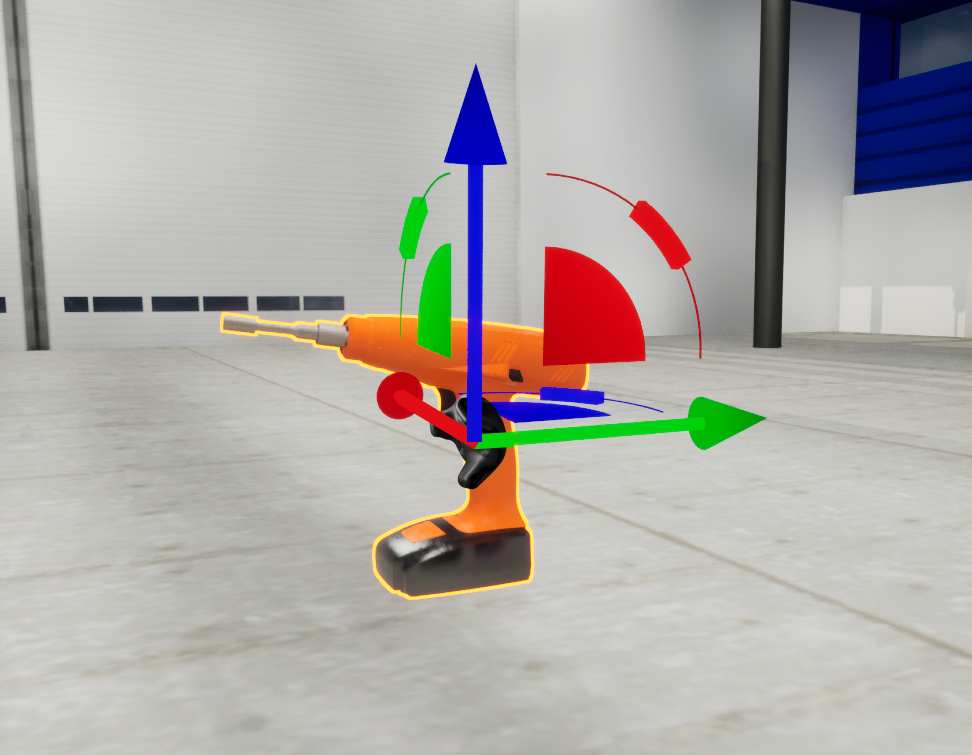
Once an object is linked, if the position or orientation of the tracker is not the desired, we have the option to improve tracker's position and rotation by clicking on the button "Edit Tracker Position" and use the bracelet's UI to correct his position.
Toggle Tracker Labels Visibility
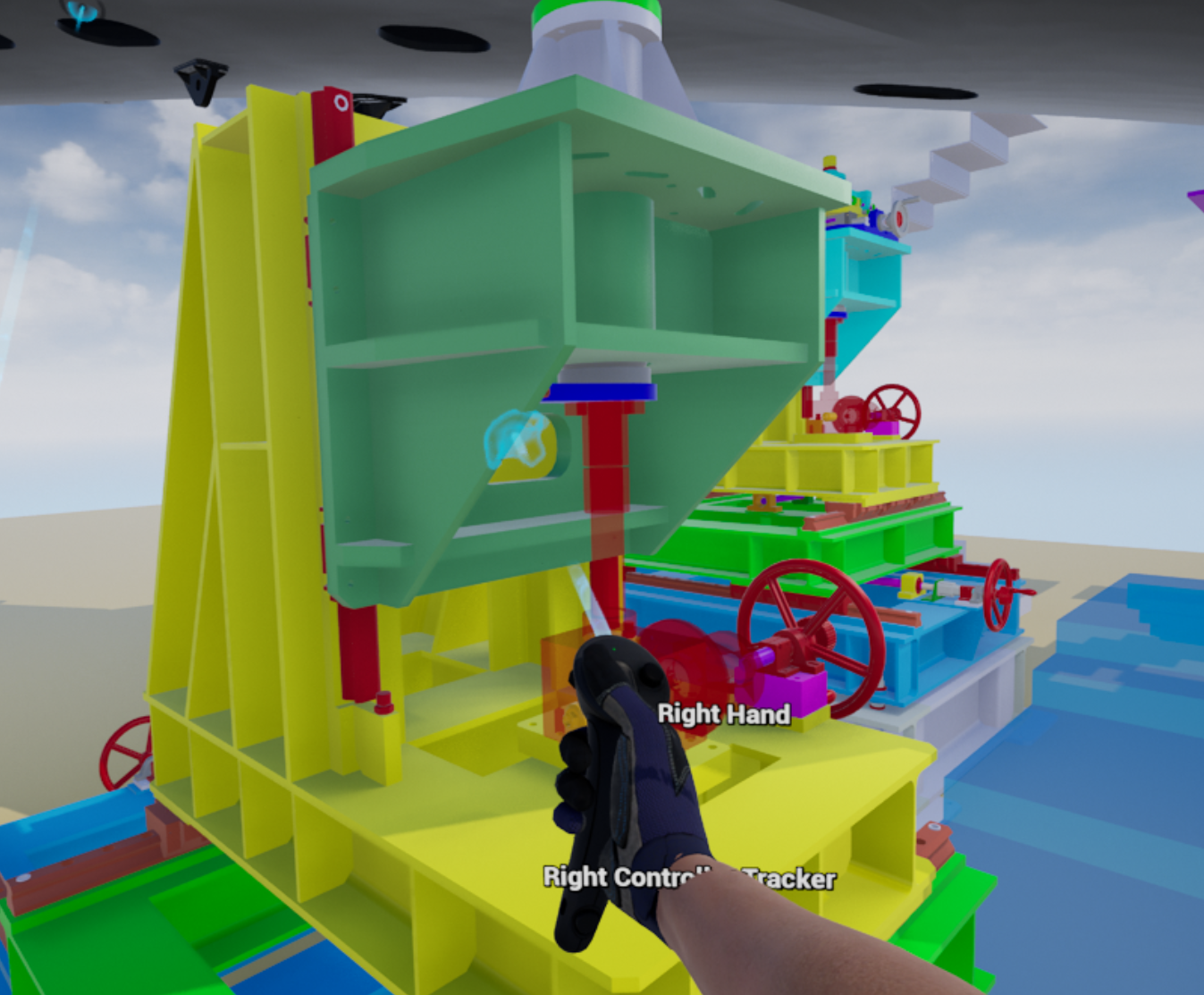
Activating this command displays all tracker and controller names as labels in the scene, helping you identify which tracker is which.
Toggle Gizmos Visibility
This command shows the coordinate axes (X, Y, Z) associated with each tracker and each controller, useful for verifying orientation and alignment.
Anchor
Anchor is a Skyreal VR plugin that allows you to calibrate your position in the virtual world according to your real environment. This is useful for aligning physical and virtual spaces precisely.
Once in VR, user can launch the command and the tablet is going to show the two steps process to set up an anchor.
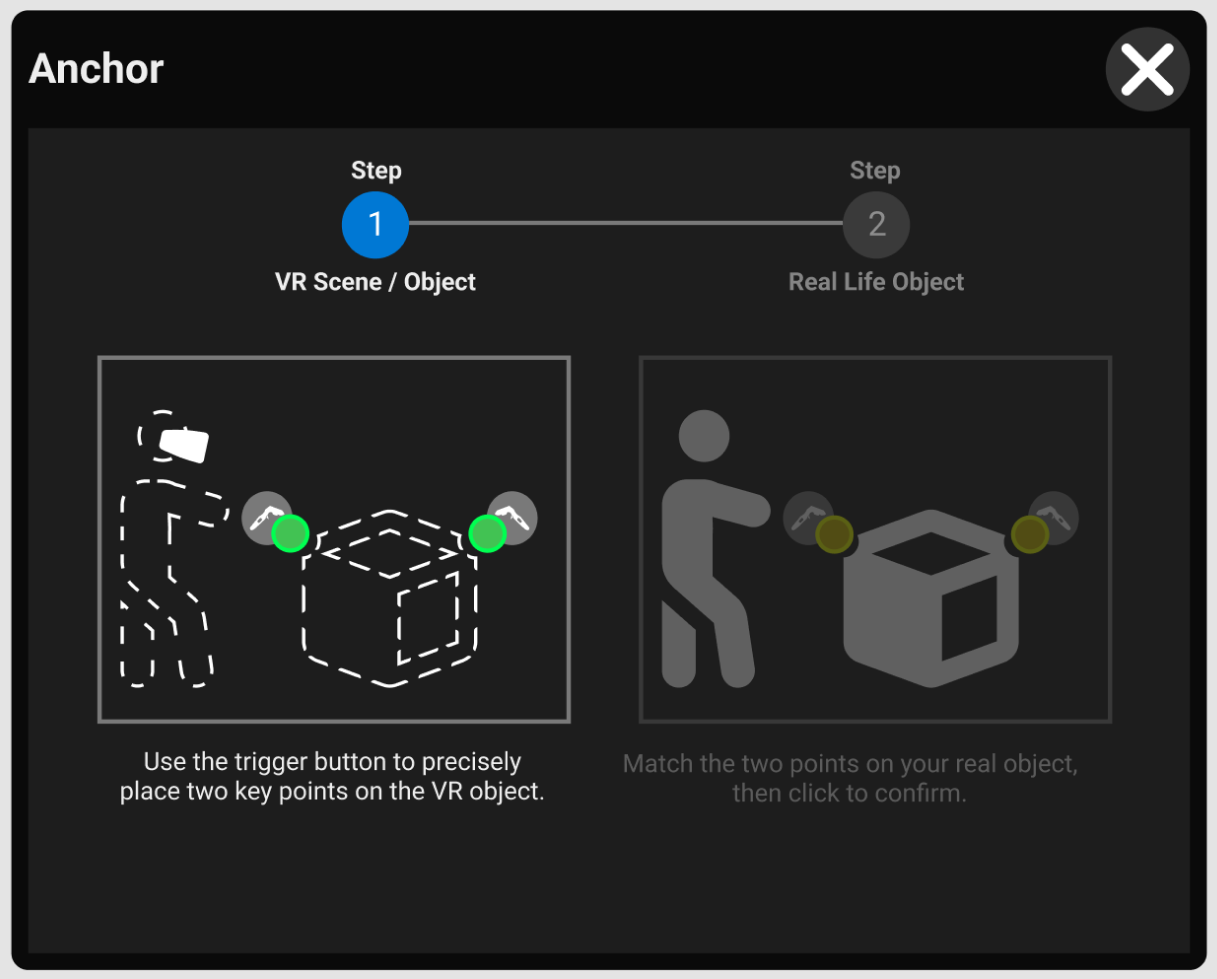
Move your controller to a point in the area of the 3D object that is going to be the anchor and click the trigger button. A green sphere is going to appear as a marker. Move your controller to a second point of the object and place your second -and last- marker.
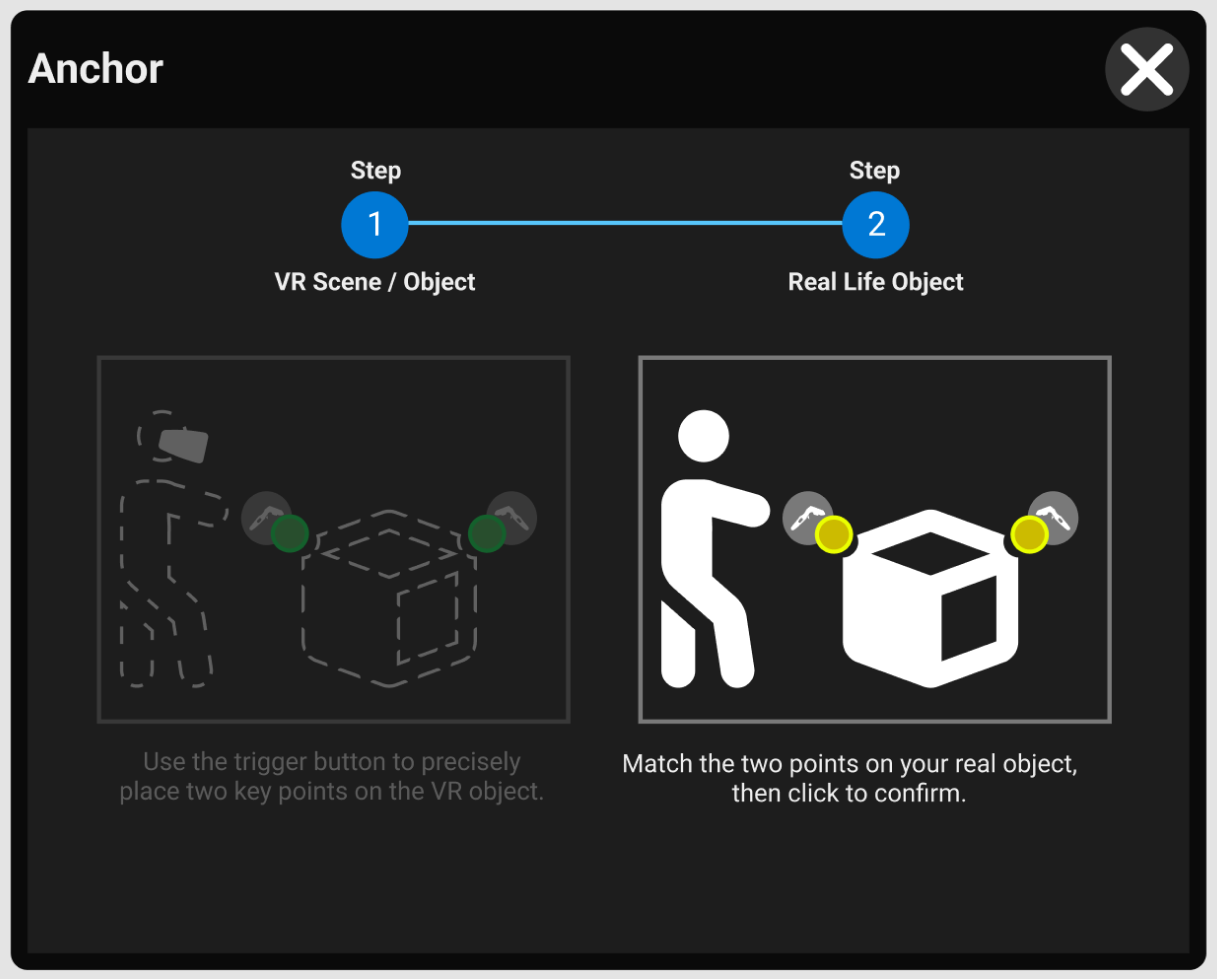
Remove slighlty enough your headset to see in the real world your object. Simulate the exact same order and position where did you place your markers in VR. A yellow sphere will appear each time you press the trigger button and should be placed in the exact position than the green sphere
Anchor Considerations
Once the second marker is placed the scene and user will be reoriented to match real world distances. Markers should be placed in the same order. Once an anchor is set, navigation is disable and user can just walk normally. To deactivate an anchor, launch the command one more time and it would be automatically disable.
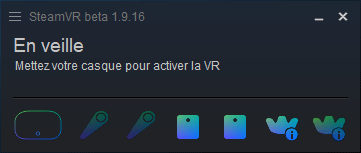
Using Vive Trackers
Vive Trackers allow you to track parts of your body and enhance your VR experience. [Since version 1.19, Skyreal VR also supports Vive Ultimate Trackers.]
Prerequisites
-
Vive Trackers supported by your HMD
-
SteamVR installed and configured
Installation
-
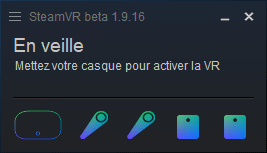
Open SteamVR (assumes your HMD, controllers, and base stations are already set up).
-
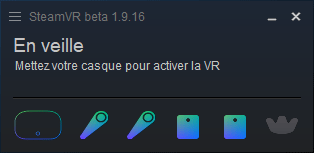
Plug in the tracker dongle (wireless USB stick) provided with your tracker.
-
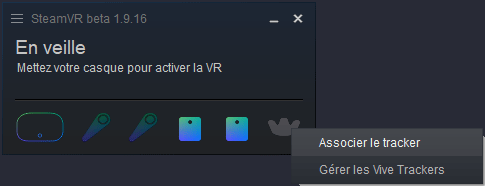
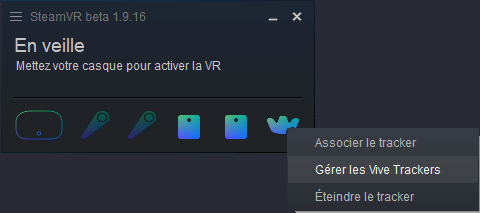
Right-click the tracker icon and select Associate Tracker.
-
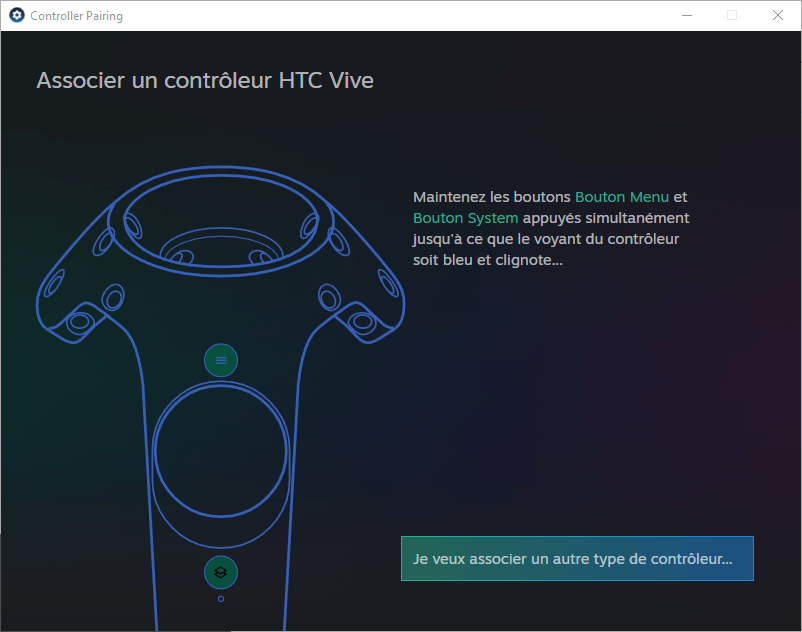
Click I want to associate another type of controller.
-
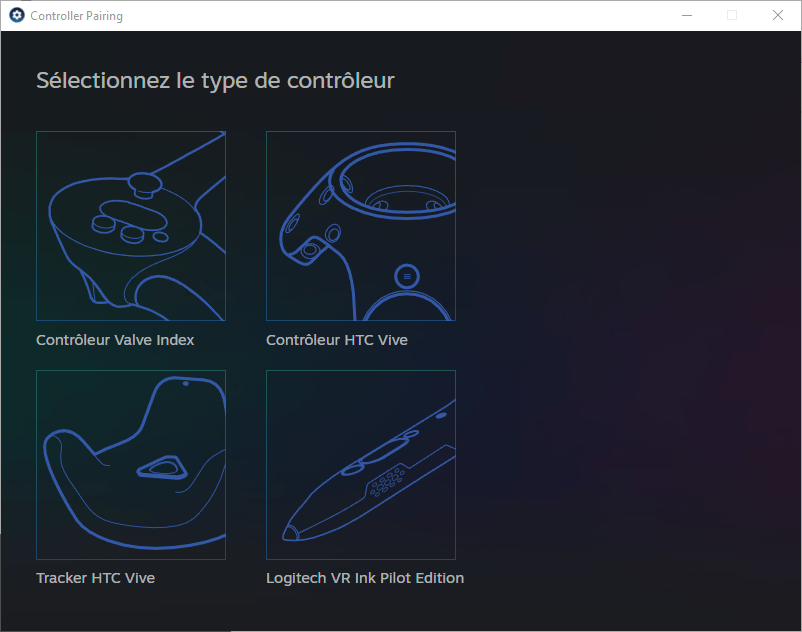
Select HTC Vive Tracker.
-
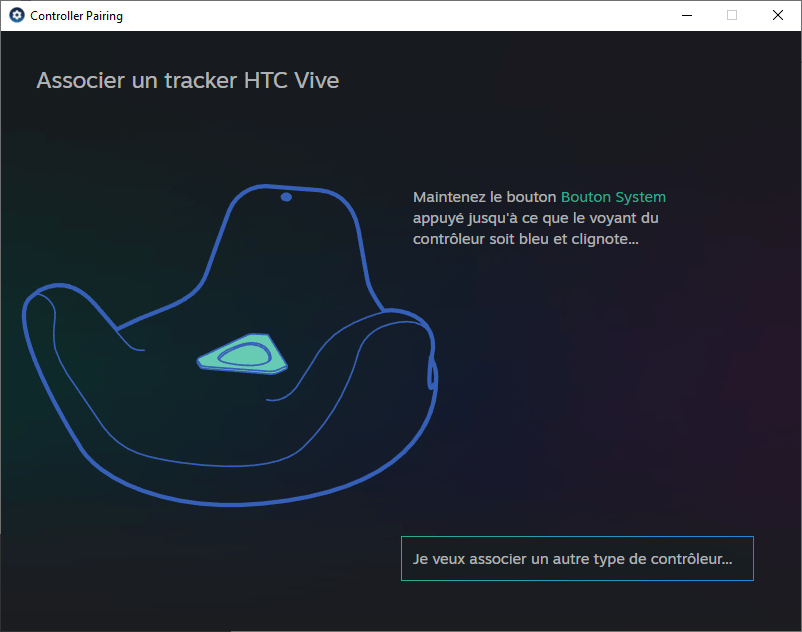
Follow the on-screen instructions to connect your tracker.
-
Once connected (icon turns blue), right-click the tracker icon and select Manage Vive Trackers.
-
In the Vive Tracker Role dropdown, select a role for each tracker. Ensure no tracker is set to Disabled and no two trackers share the same role. The role you choose does not need to match its future use — Skyreal VR will automatically detect and adjust it.
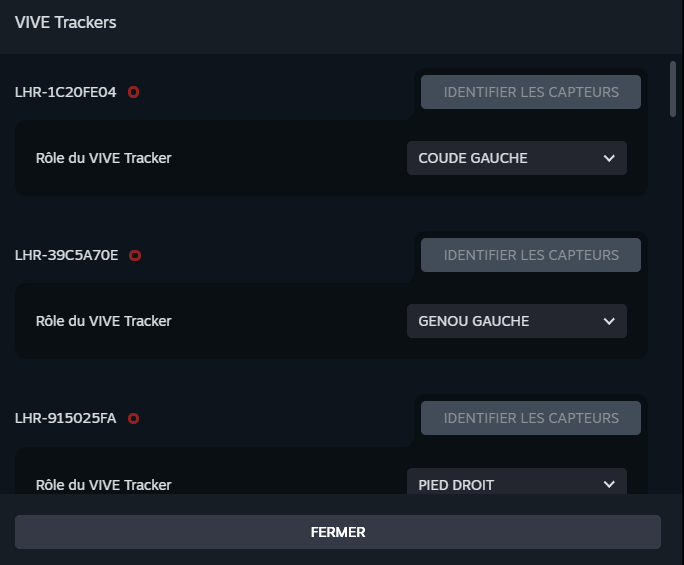
for better binding make sure you selected one of the following roles:
-
Chest
-
LeftShoulder
-
RightShoulder
-
LeftElbow
-
RightElbow
-
Waist
-
LeftKnee
-
RightKnee
-
LeftFoot
-
RightFoot
-
Gun
-
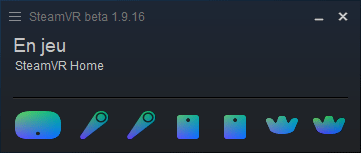
Repeat the steps above for additional trackers. Your SteamVR UI should display the correct number of tracker icons.
-
If tracker icons show exclamation marks, they need a firmware update. Right-click the tracker icon, select the update option, and follow the on-screen instructions (USB connection required).