
Tools Commands
The tools commands allows you to spawn different objects into your simulation. This command is very handy, as it allows you to further customize your Skyrealexperience and simulation by adding in tools which might be needed in your workspace or for your product.
When creating a new experience, the extension tools basic will be automatically added from the Marketplace
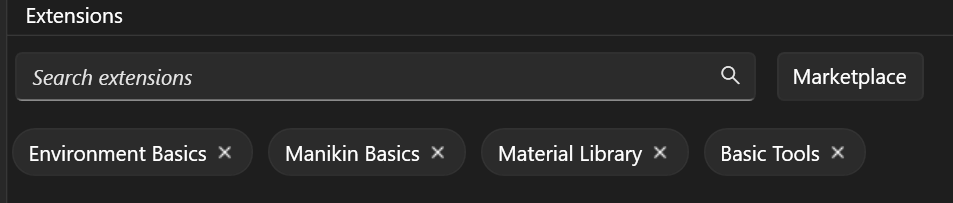
To add more tools, you can find everything else under the Tools tab in the experience marketplace, you can check the extensions list.
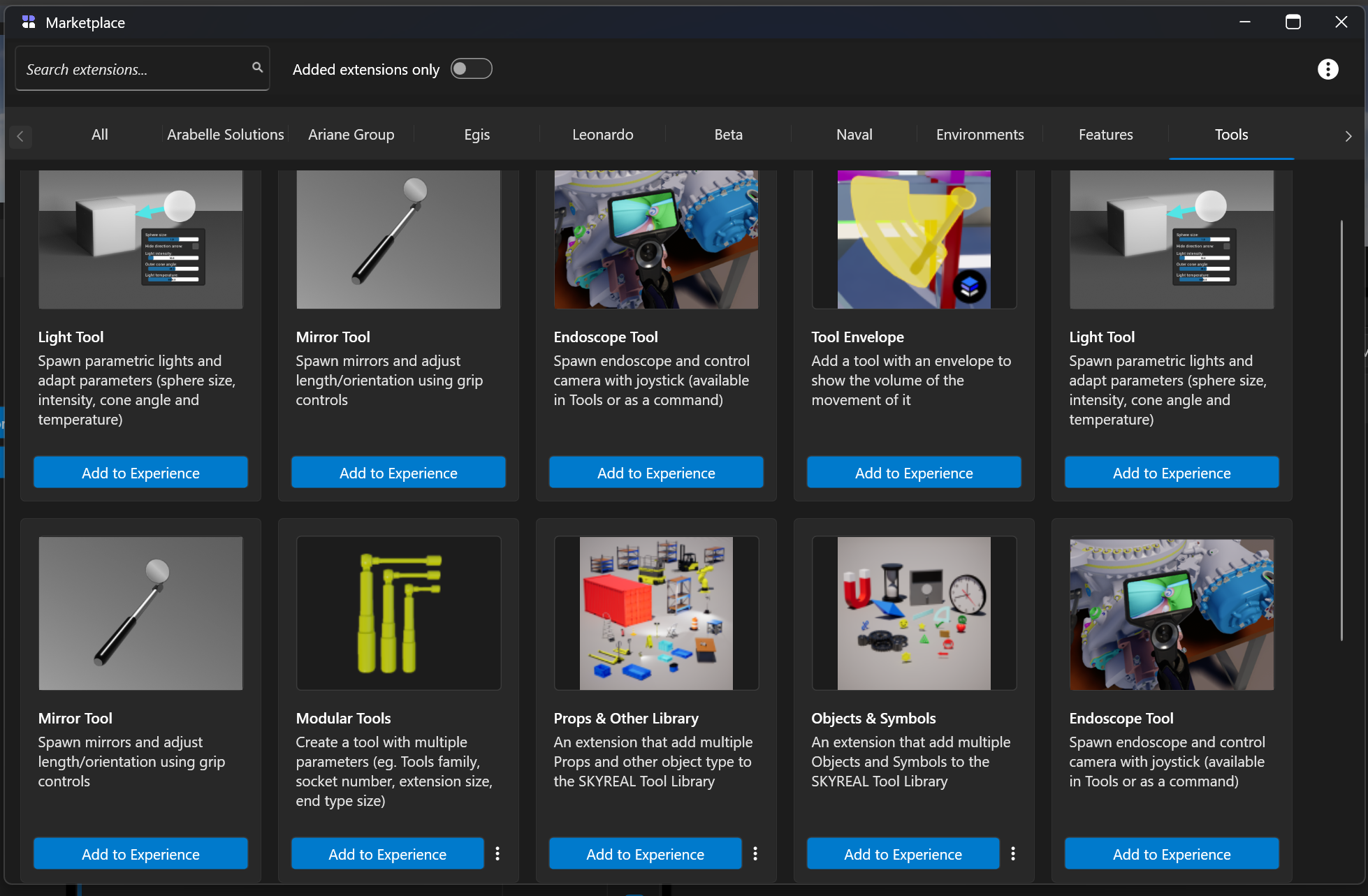
How to Use in Desktop
The Tools command can be accessed from the Add to scene menu in the left side menu.
Click on any tool, this will spawn the tool the tip of the mouse pointer to place it in the scene.
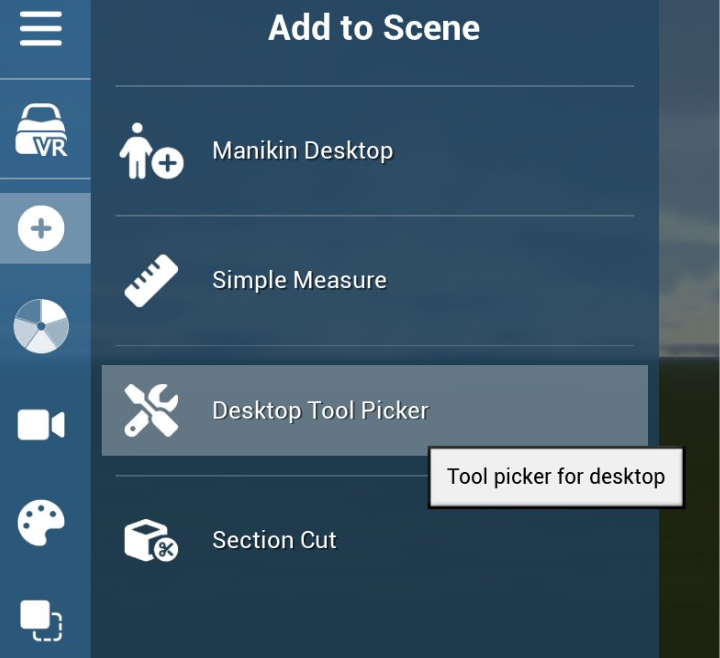
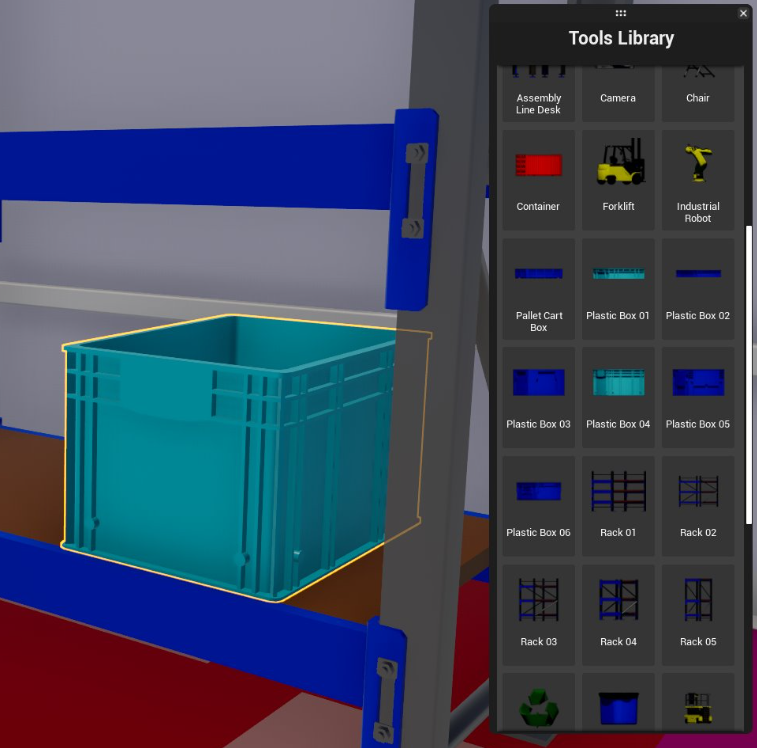
When this command is activated, a floating menu appears in the top-right corner of the screen. You can click on any tool and this will spawn the tool at the tip of the mouse pointer so you can place it in the scene.
How to Use in VR
The Tools command can be accessed through the default Tools sub-menu in VR.
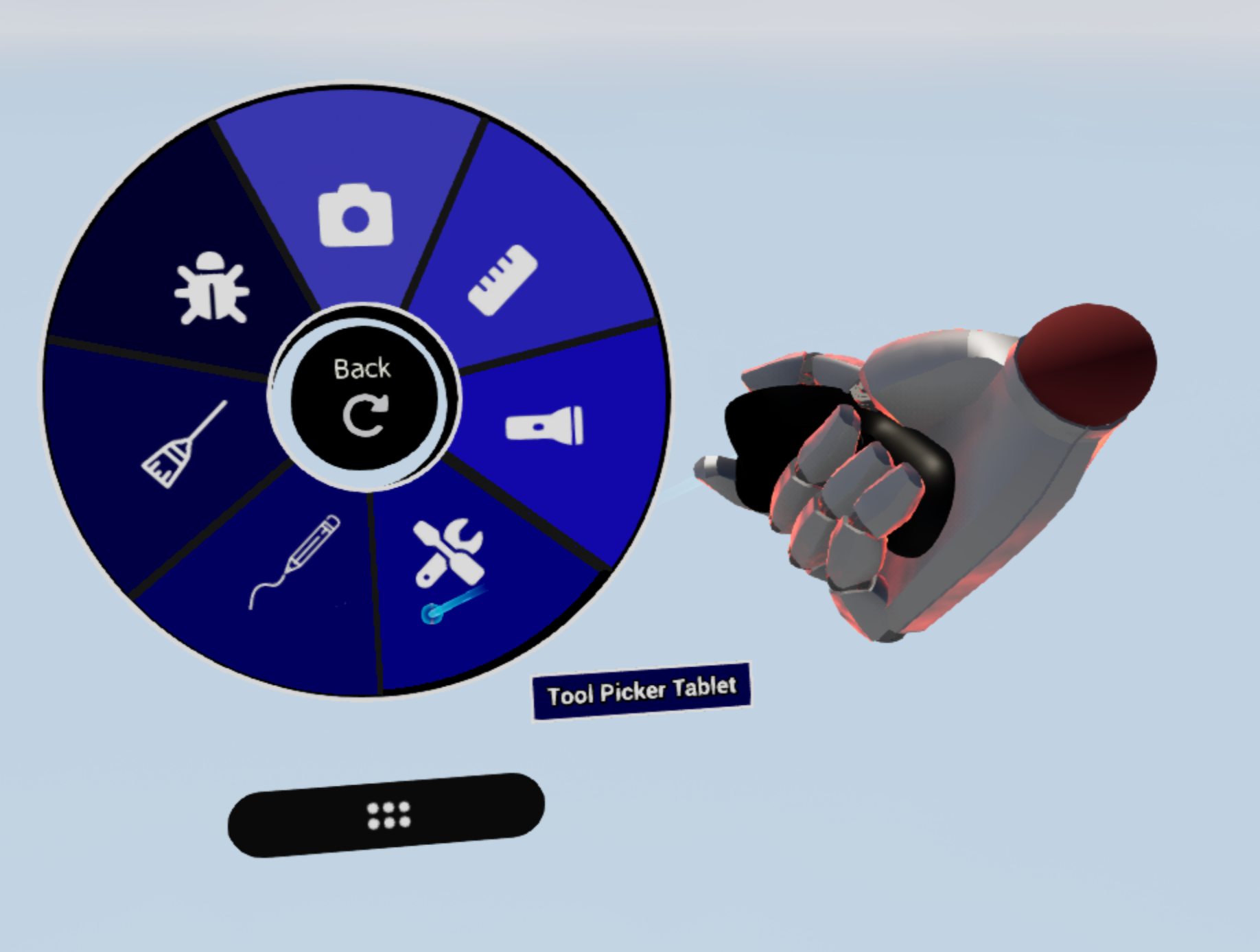
Tool Collection
The tool collection list will open in the tablet. Navigate the user interface until you see the desired tool, then click on it.
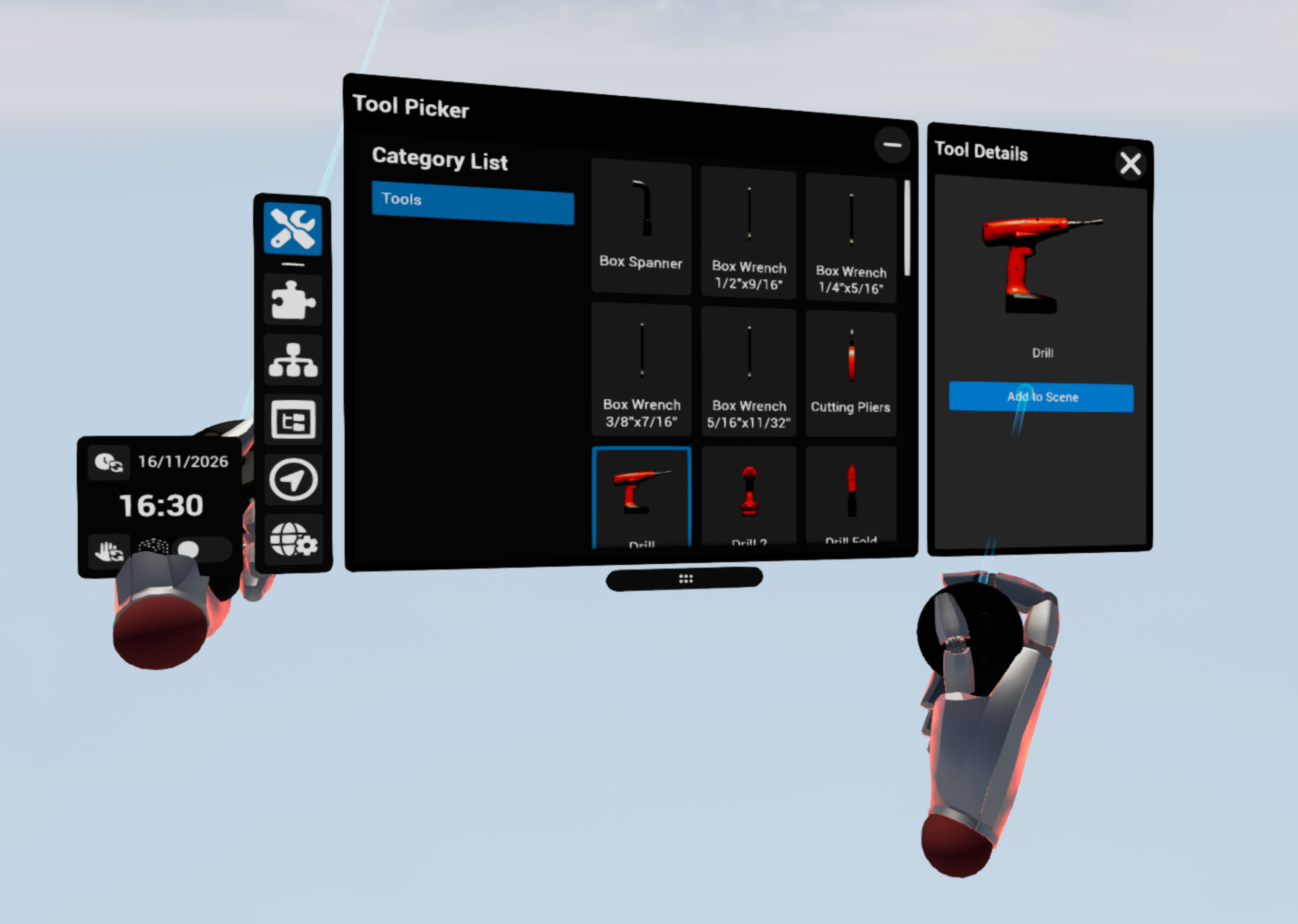
Adding Custom Tools
It is possible to create custom categories in Unreal Engine to organize your tools. To do so, open the editor map and set the category name for each SkrTool.
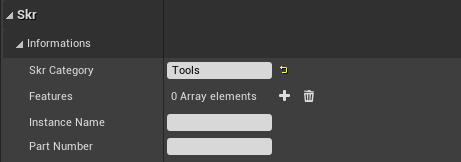
You can register new SkrTool assets in the controller.
Tools and manikins
Any Dropped tool in the scene can be attached to a manikin hand and use it to perform any actions with it. Most Tools have sockets that will automatically adjust to manikins hands.
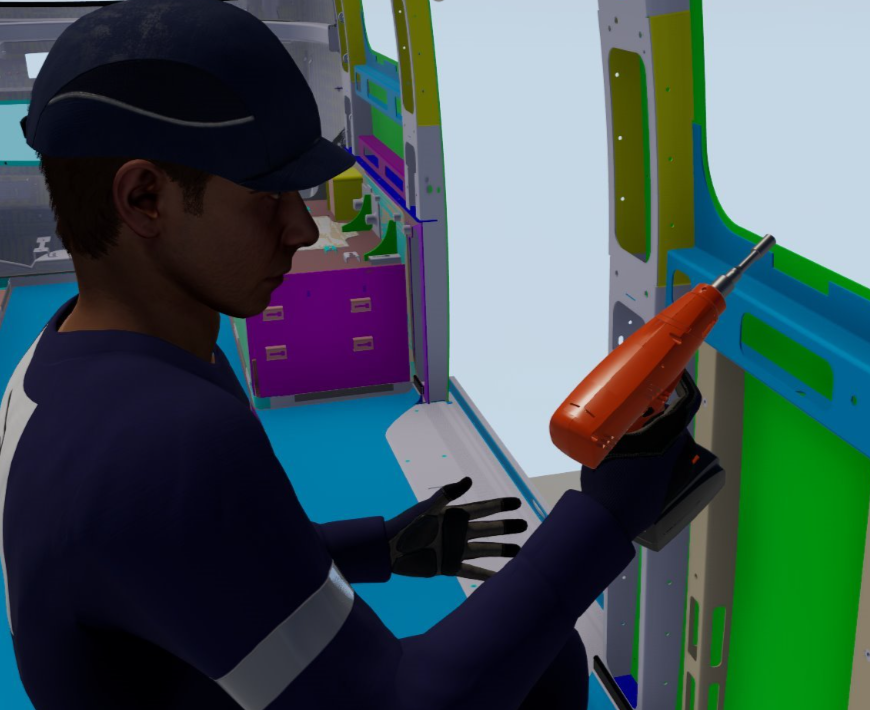
Interactive tools
Some tools are interactive and can be activated by the user, while others are also interactive but can automatically attach to the manikin’s hands.
|
Name |
Binding |
|
Floodlight and Portable FloodLight |
Enable / Disable : RightGripButton |
|
Container |
Open / Close : RightGripButton |
|
Fire |
Activate / Deactivate : RightGripButton |
|
Cutting Pliers |
Open / Close : RightGripButton |
|
Drill |
Start / Stop : RightGripButton Change Direction : LeftGripButton |
|
Drill Fold |
Start / Stop : RightGripButton |
|
Mirror |
Extend / Retract : RightGripButton Mirror Rotation : LeftGripButton |
|
Monkey Wrench |
Change Opening distance : RightGripButton |
|
Ratchet Wrench Bi-direction |
Right / Left : RightGripButton |
|
Zip Tie Gun |
Open / Close : RightGripButton |
Tips
-
Organize your tools into custom categories in Unreal Engine to keep the carousel manageable and easy to navigate.
-
In VR, use the joystick to scroll through pages.
-
In Desktop mode, the floating menu provides quick access to all available tools without needing to navigate through VR menus.
-
You can install the desktop extension to access Tools commands without entering VR mode.