
Interface overview
When you launch a SKYREAL experience in XDE mode, the layout is:
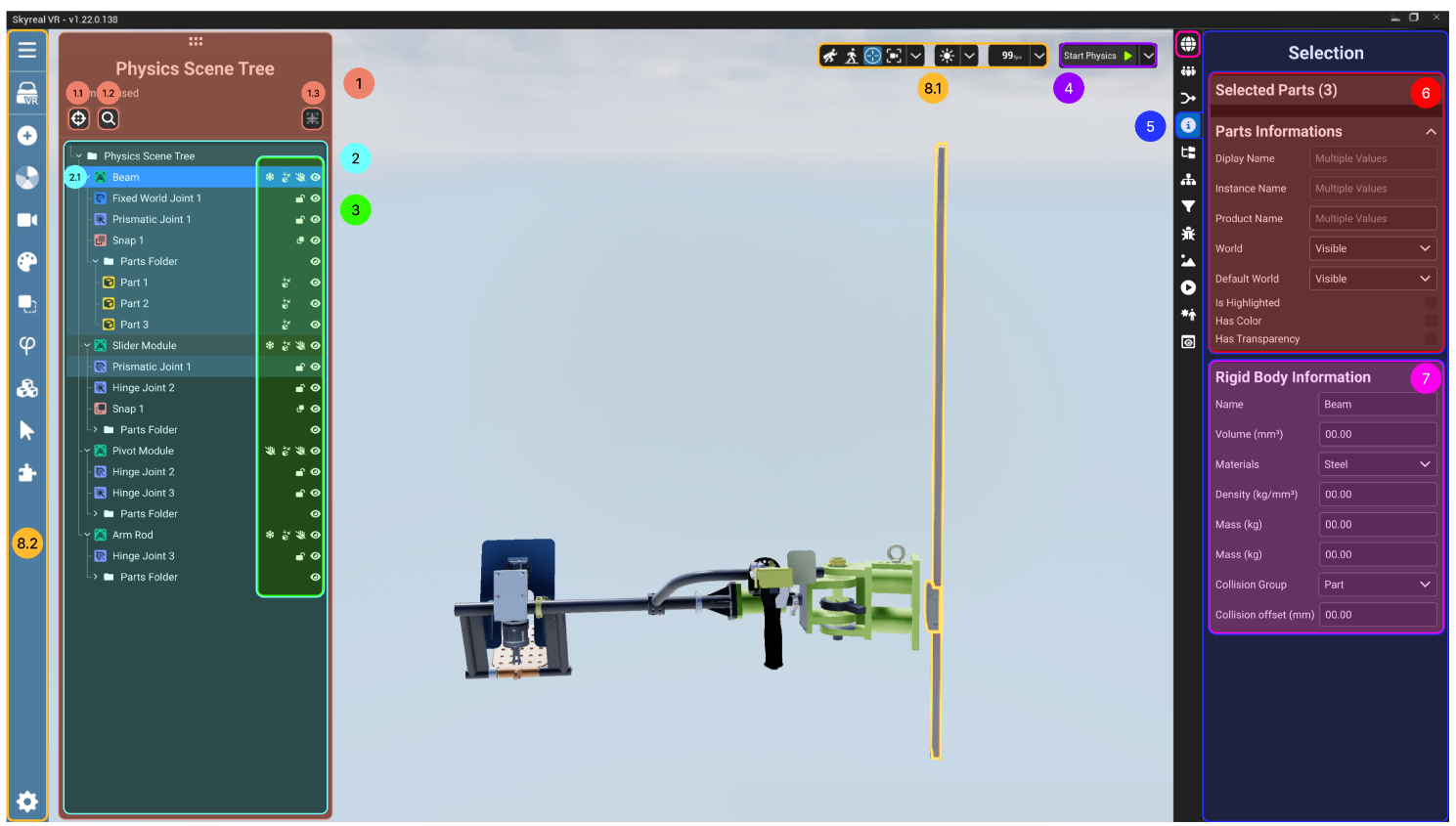
|
# |
Zone |
Description |
|---|---|---|
|
1 |
Left floating window |
Always open on the left. Contains the Physics Scene Tree. |
|
1.1 |
Focus button |
Centers the tree on the currently selected item. |
|
1.2 |
Search button |
Search inside the tree. |
|
1.3 |
Create Rigid Body from selection |
Creates a new Rigid Body from parts selected in the 3D view or in the PBS. Disabled when nothing is selected outside the tree. |
|
2 |
Physics Scene Tree |
The hierarchy of physical objects. |
|
2.1 |
Object icon |
Each object type has its own icon and color (see §5). |
|
3 |
Status icons |
Toggle buttons at the end of each line (Active, Selectable, Collidable, Freeze, Lock, Snapped). |
|
4 |
Start Physics button |
Plays / stops the simulation. Top-right of the 3D view. |
|
5 |
Right panel — Selection tab |
Shows the properties of the focused tree item. |
|
6 |
Selected parts information |
Standard SKYREAL part properties. |
|
7 |
Focused item information |
Physics properties of the selected object (Rigid Body, Joint, Snap…). |
|
8.1 / 8.2 |
SKYREAL features |
Standard SKYREAL toolbars (navigation, rendering, commands). |
Right-click menu
Every action is always listed in the context menu; actions that do not apply to the clicked item are greyed out.
|
Action |
Available on |
Effect |
|---|---|---|
|
Create Folder |
Folder, Rigid Body |
New folder as last child |
|
Convert into Rigid Body |
Folder containing parts |
Folder becomes a Rigid Body, keeps its name; parts go into a Parts sub-folder |
|
Create State |
Folder, Rigid Body |
New state as last state under the item |
|
Create World Joint ▸ type |
One Rigid Body |
Joint between the world and the Rigid Body |
|
Create Joint ▸ type |
Two Rigid Bodies |
Joint between the two Rigid Bodies |
|
Create World Snap |
One Rigid Body |
Snap between the world and the Rigid Body |
|
Create Snap |
Two Rigid Bodies |
Snap between the two Rigid Bodies |
|
Show / Hide, Isolate, Fit to |
Any |
Standard SKYREAL visibility and camera commands |
|
Remove from parent |
Any |
Deletes the item and everything below it (all instances for joints/snaps) |
[IMAGE: Rigid Body.png (context-menu inset) — Right-click menu on a Rigid Body]
Selecting objects in the the scene 3D
In Advanced Physics mode, the 3D view selects Rigid Bodies, not parts, by default:
|
Action |
Result |
|---|---|
|
Click |
Selects the Rigid Body containing the part |
|
Second Click on a selected Rigid Body (Double Click) |
Selects the part directly |
Tree selection rules are unchanged from SKYREAL: any object can be selected at any time.
Physics ON: only Rigid Bodies with Selectable = ON can be picked in 3D. Physics OFF: all Rigid Bodies are selectable.
[IMAGE NEEDED: 3D hover outline on a Rigid Body vs. Shift+click on a single part]
Moving objects: Grab and Compass
Two commands move objects: Grab (hand in VR, mouse on desktop) and the Compass (axis/plane manipulator). Their behavior depends on whether physics is running.
Physics OFF (editing the scene)
Grab: moves the Rigid Body (or part) freely, in the plane on desktop and in space in VR, ignoring joints and snaps.
Compass: moves the object along X/Y/Z or in the XY/XZ/YZ planes, ignoring joints and snaps.
In both cases:
-
if the body is the Receiving body of a snap, the snap's bounding box moves with it; if it is the Installed body, the box stays;
-
if the body is the parent of a joint, the joint axis moves with it; if it is the child, the axis stays.
Physics ON (simulating)
Grab and Compass: moves the object respecting joints and snaps, unfreezes the body while grabbed and refreezes it on release, applies force. VR grab supports two hands, overlap, laser and selection grab.
[IMAGE NEEDED: grabbing a Rigid Body in VR with physics running]
Spectator view (Spec View)
[IMAGE: Slide 16_9 - 16.png — Spectator View with XDE]
The Spec View is what a desktop user sees while another user is in VR. With the Advanced Physics module active:
-
the Physics Scene Tree is displayed on the left;
-
the Start Physics button is displayed top-right;
-
the VR Spectator View Shortcuts panel is shown;
-
a picture-in-picture (bottom-right) shows the VR user's point of view.
From the Spec View the desktop user can:
-
enable / disable physics on the Rigid Bodies of the tree;
-
select an object and use the Compass (the Compass is visible to all users);
-
play and stop physics;
-
select / load a State;
-
right-click objects in the tree to create new ones.