
Left Menu Commands
The command menu is located on the left side of the desktop interface. It is always visible, but you can expand it to view the submenu names by clicking the Expand/Collapse button at the top of the bar. The default command menu should look like the screenshot below; however, it is fully customizable.
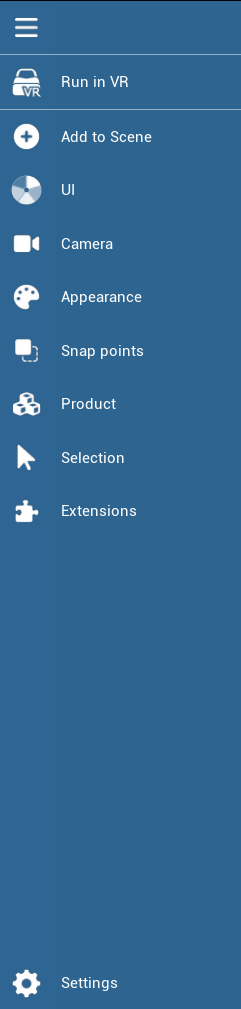
The default Command menu contains the following tabs:
|
Icon |
Menu |
Content |

|
Run in VR |
It is from here that you can launch the VR mode by clicking on Run in VR |

|
Add To Scene |
Drop different types of Skyreal’s elements into the scene. |

|
UI |
Change Desktop and VR interfaces, hide/show the watch |

|
Camera |
Take screenshots, create views or add Picture in Picture windows to the viewport |

|
Appearance |
Modify some appearance features of actors in your simulation, and also provides some global appearance settings. |

|
Snap Points |
Create features, which will allow you to snap back objects to their original position after having moved them. |

|
Product |
Display object information, as well as load and save your simulation. |

|
Selection |
Use some selection tools. Selections and groups created in this menu will remain active if you enter VR mode. |

|
Extensions |
See all extension’s features added to the experience (Desktop tab will show only desktop commands and VR tab only VR commands) |

|
Settings |
The Skyreal VR options, you can customize user interfaces to your liking. |