
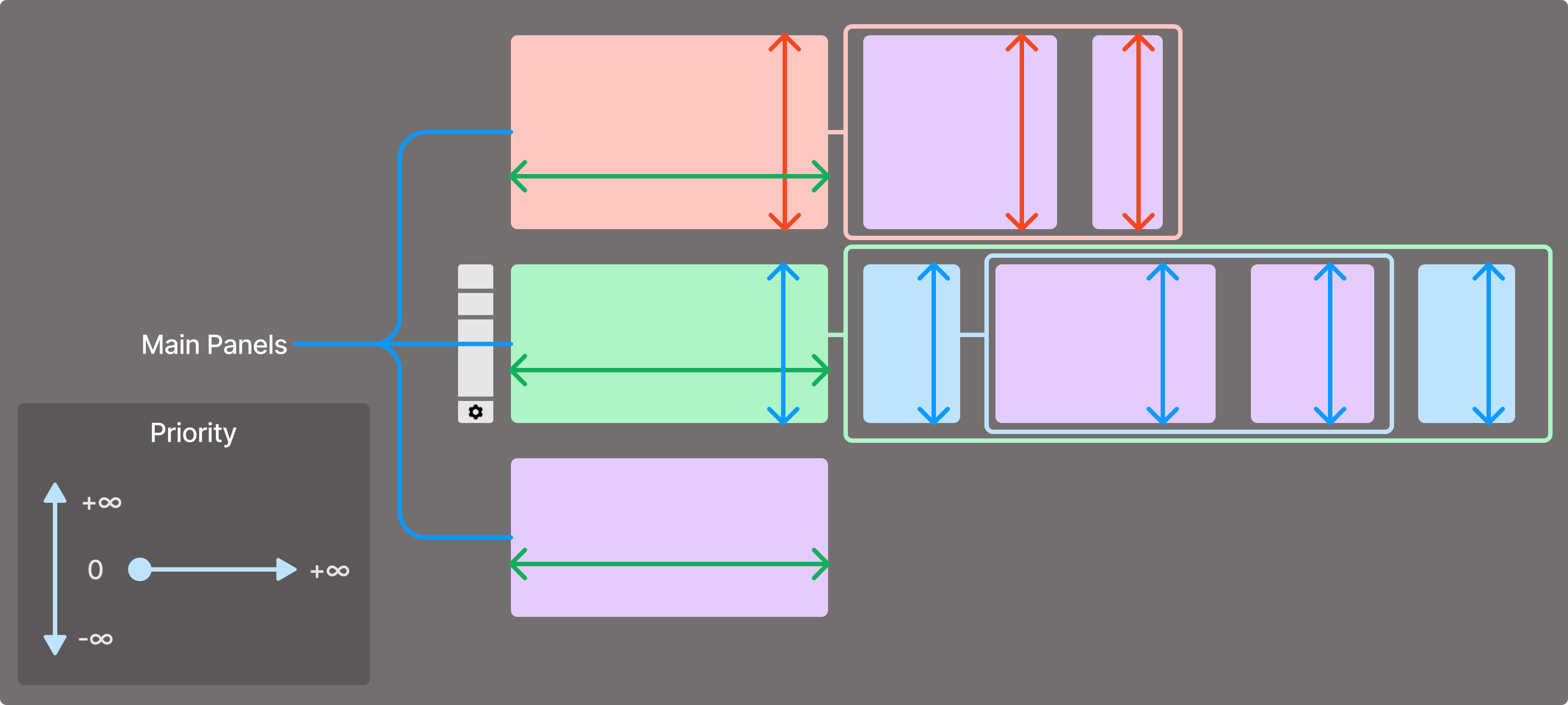
Tablet is the substitute for the old Bracelet. You’ll learn on this page how the tablet works, and how to create your own Panels for it. In this example, we’ll assume the default layout of vertical main panels and horizontal contextual panels expanding to the right, though it can be changed by any layout the user may want to create.
Definitions
Tablet : the main system, holding a prioritized list of MainPanels to display, and a list of TabBars, each mapped to a given MainPanel position.
Panel : an object holding a widget you want to display. It also contains a prioritized list of ContextualPanels to display.
TabBar : placed at a given position, it manages the MainPanel besides it, and thus the entire associated row. It is made of a list of ActiveTabs in the upper part, and a list of SystemTabs in its lower part, allowing to switch between tabs.
ActiveTab : an ActiveTab is a dynamic tab that can be minimized & has its state memorized by the TabBar.
SystemTab : a SystemTab is a tab that will always be present, but cannot be minimized, as re-opening it would recreate it from the ground. Useful for things like settings.
Layout : a layout is an object responsible for arranging all tablet’s components. Here, it tells main panels to be represented vertically from bottom to top, contextual panels horizontally from left to right, and it defines the spacement between all objects.
Base framework
This first part will cover the basics of Tablet Framework, such as creating custom panels, adding them to the tablet, and customizing your panels.
Create a new widget inheriting from WBP_SkrTabletBasePanel
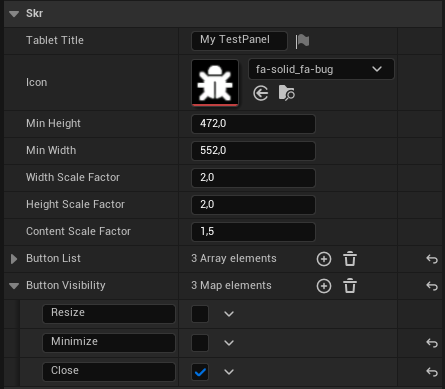
The easiest way to create a panel in the tablet is to extend either WBP_SkrTabletMainPanel or WBP_SkrTabletContextualPanel (these mainly setup default size and top buttons used respectively in Main/Contextual panels). From there, you’ll be able to configure a few things :
-
Tablet Title : will be shown in the panel and as the ActiveTab tooltip.
-
Icon : will be used as ActiveTab icon.
-
Min Height/Min Width : Min size acceptable for your widget to render properly. Will be used by the layout to determine what size to apply to each panel of a row/column.
-
Width/Height Scale Factor : multiplicator used when clicking Resize button.
-
Content Scale Factor : used to scale up all content when resizing a panel.
-
Button List : list of buttons present in top right corner.
-
Button Visibility : automatically constructed from Button List identifiers, used to hide unwanted buttons.
You should prefix your widget with MTP when it’s supposed to be used as a Main TabletPanel, or CTP if it’s destined to be a Contextual TabletPanel. For a main settings panel, it would give us WBP_MTP_Settings.
Add a top right icon
You can add/customize top right buttons on any widget inheriting from WBP_SkrTabletBasePanel.
Add a top right icon
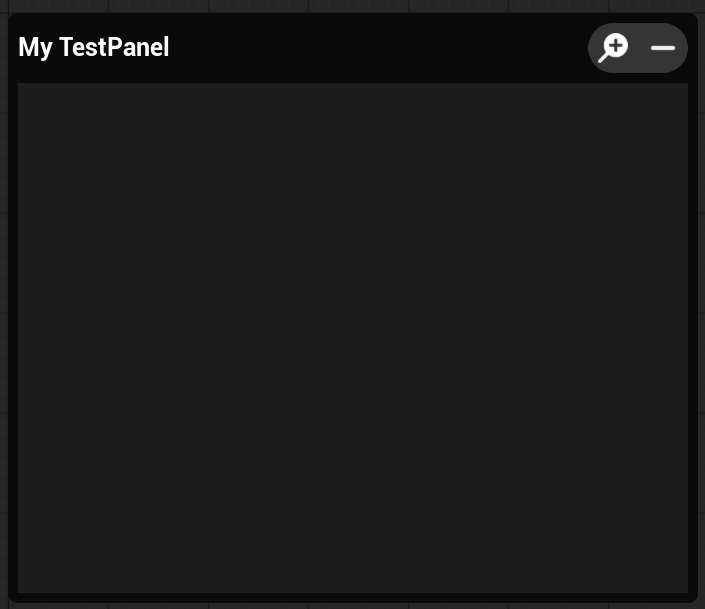
Let’s add a top right button to zoom-in content in any tab, like this :
First, go to Class Defaults, Button List, and duplicate an existing button.
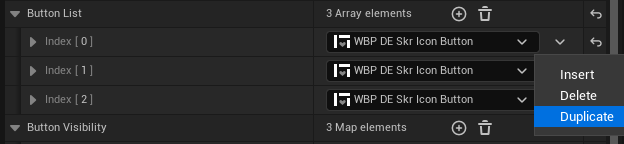
From there, the only thing you need is to set Identifier and Left Icon.
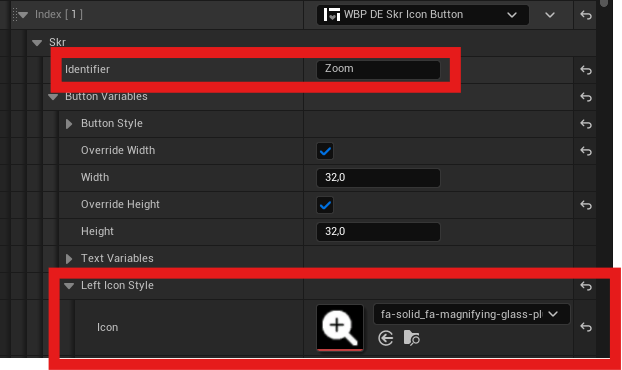
At last, add your logic based on identifier :

Use an existing widget as a panel
If you already have a Widget that you’d like to display in the tablet, you have two options. The easiest, if you can, is to add SkrTabletPanelWidget interface to the given widget :
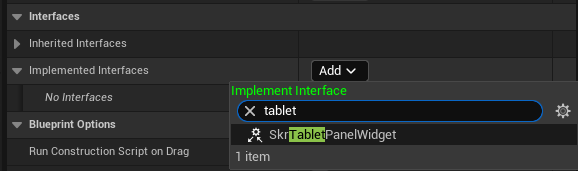
and to implement its functions :
-
float GetMinWidth()/float GetMinHeight() : Min size acceptable for your widget to render properly. Will be used by the layout to determine what size to apply to each panel of a row/column.
-
SetWidth(float InWidth)/SetHeight(float InHeight) : called by layout to resize panel to match its rules
-
float GetWidth()/float GetHeight() : what’s the current size of the panel, used by the layout to properly place elements
-
UserWidget* GetWidget() : proper widget reference.
-
Texture2D* GetIcon() : used for ActiveTab
-
FName GetName() : used for ActiveTab tooltip
-
SetTabletPanelModel(USkrTabletPanelModel* InTabletPanelModel) : use it to keep a reference to corresponding PanelModel
If you cannot or do not want to change your Widget, you can implement this interface in any other BP owning a reference to this widget, as soon as you return it in GetWidget().
Add a Main Panel
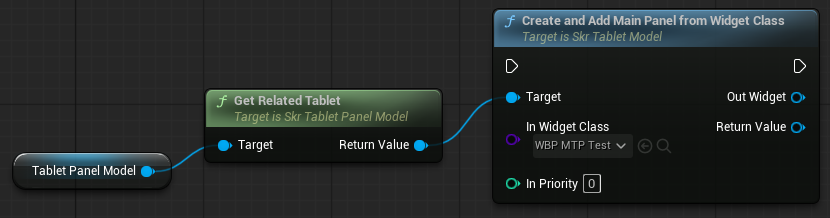
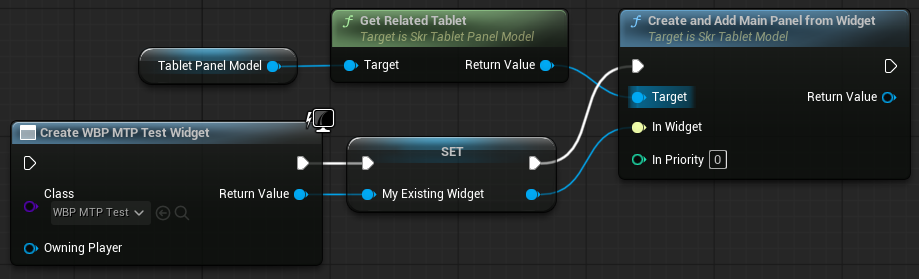
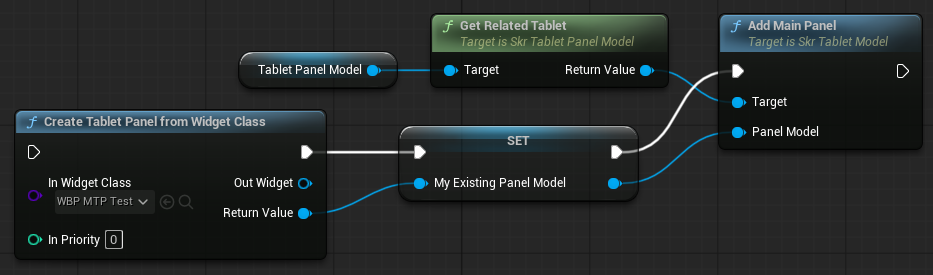
There are three ways of adding a MainPanel to your Tablet. First, you need a reference to the tablet model you want to add a main panel to. In the default layout, priority 0 correspond to the center panel, positive priority goes upward and negative downward (see diagram).
Click to expand...
From a UserWidget Class (must implement SkrTabletPanelWidget)
From an existing SkrTabletPanelWidget reference
From an existing SkrTabletPanelModel
Add a Contextual Panel
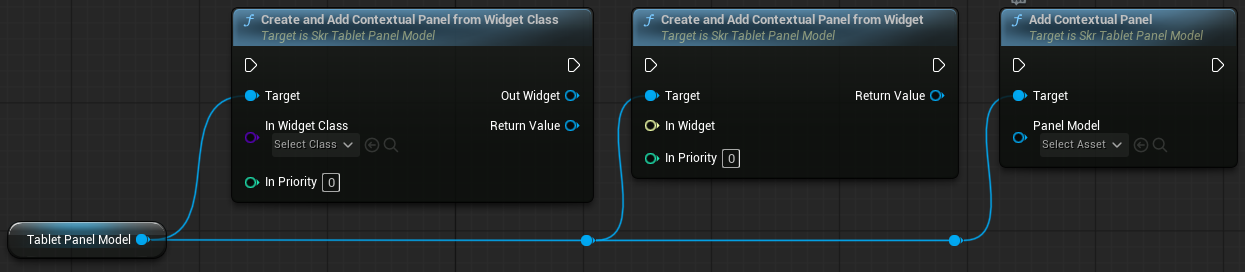
Just like MainPanels, there are three ways of adding a ContextualPanel to another Panel. First, you need a reference to the panel model you want to add a contextual panel to. In the default layout, the higher the priority the farther from parent panel (see diagram).
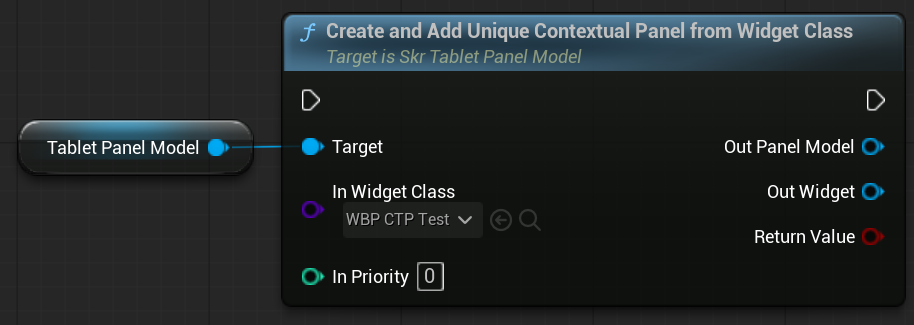
Additionnaly, you may want to create a contextual panel, only if it isn’t already opened. To prevent you from doing this logic everytime, you may call CreateAndAddUniqueContextualPanelFromWidgetClass.
Close a Panel
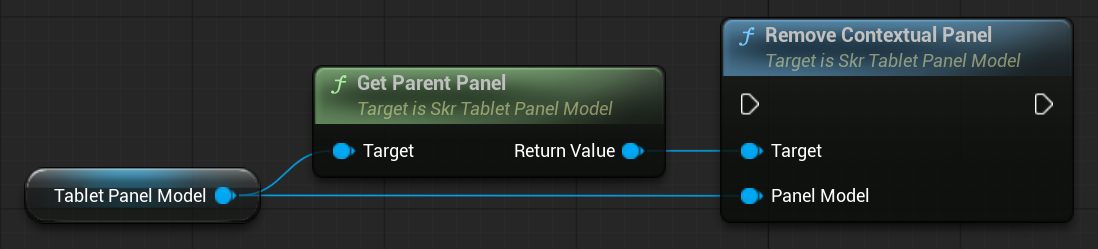
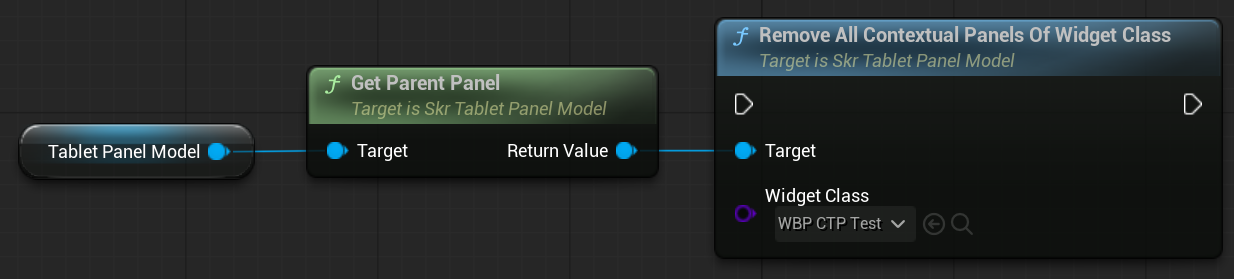
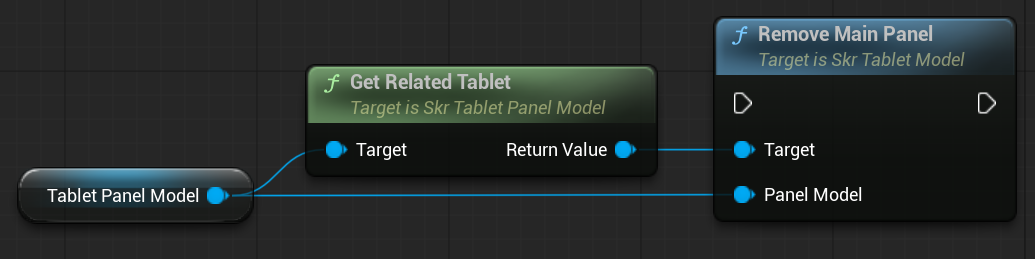
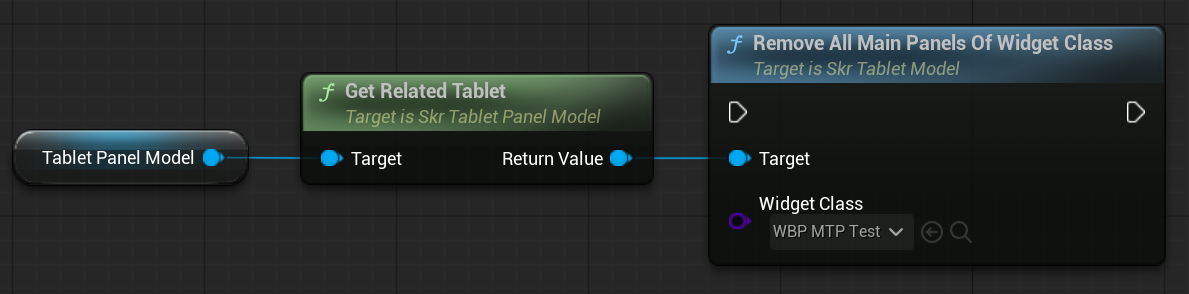
There are several ways of closing a panel.
Click to expand...
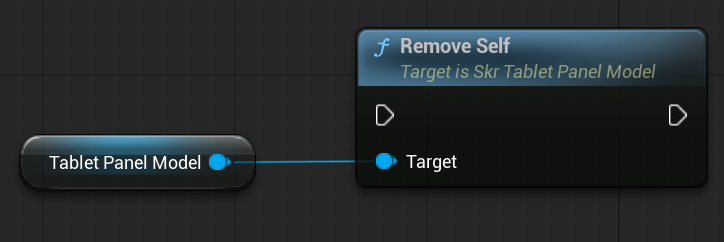
The easiest is to call RemoveSelf on a PanelModel, which will either remove it from its parent panel’s contextuals or from its owning tablet’s main panels.
Close a Contextual Panel from a reference
Close a Contextual Panel from its WidgetClass
Close a MainPanel from a reference
Close a Main Panel from its WidgetClass
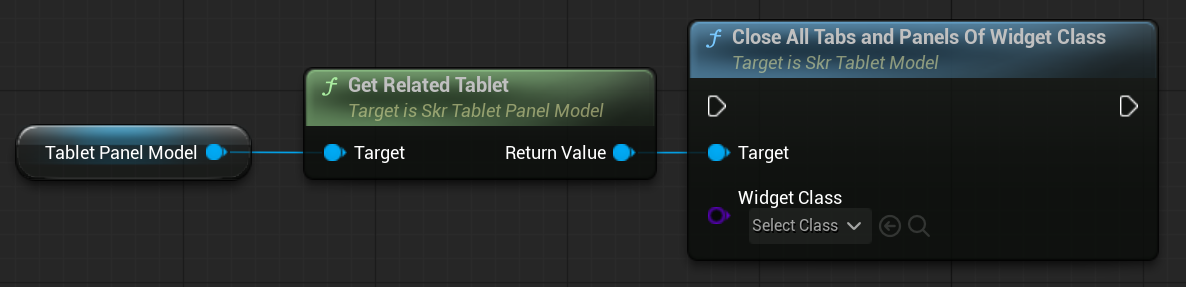
Close all ActiveTabs or MainPanels of a WidgetClass
While removing an opened MainPanel will also close its associated ActiveTab, the removal won’t be possible if the ActiveTab was minimized and thus the Panel not currently in the tablet.
This function provides a way to close even minimized MainPanels, without having to reach an eventual TabBar.
Tab Bar
Add a System Tab
SystemTabs are meant to be pre-defined and can be modified directly in the editor from BP_SkrWatch (for the main Skyreal Tablet). All you need is to create a DataAsset SkrTabBarItem, filled with an Icon, a Name, and a reference to the class it should spawn (must be a UserWidget & implement SkrTabletPanelWidget), and then reference it in the desired TabBar.
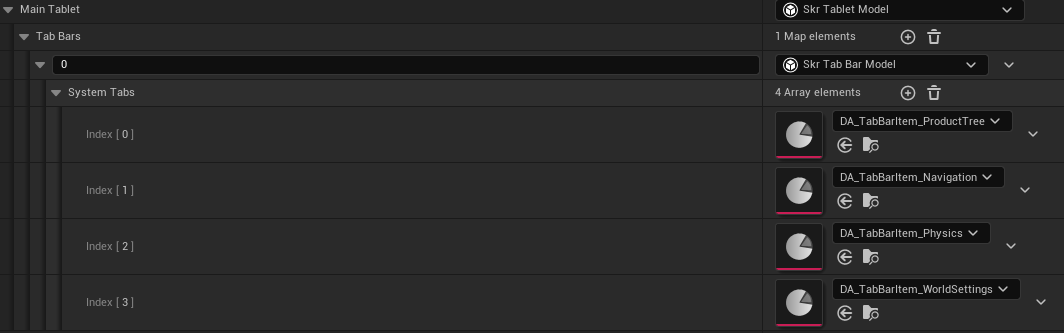
You can also add a SystemTab dynamically if needed, by getting a reference to the TabBarModel you want to add it to.

Add an Active Tab
Natively, ActiveTabs are automatically deduced from the panel beside their TabBar. Since their is a TabBar in position 0 by default in Skyreal (see diagram), any MainPanel added in position 0 will transpire as an ActiveTab in our TabBar. The only exception is when the MainPanel is created from a SystemTab.
If you want to add a minimized tab to ActiveTabs, you can manually retrieve the TabBar to add your existing panel.

Other TabBar functions
You may also manually call on a TabBar :
void SwitchToActiveTab(USkrTabletPanelModel* InActiveTabPanel);
void SwitchToSystemTab(USkrTabBarItem* InTab);
void MinimizeCurrentTab();
void CloseCurrentTab();
void CloseActiveTab(USkrTabletPanelModel* InActiveTabPanel);
void CloseActiveTabsOfWidgetClass(const TSubclassOf<UUserWidget>& WidgetClass);
Commands
We’ve seen how to use Tablet Framework before, now we’ll see how you can create a Tablet UI for your command. There are two ways to connect a Widget to your command, depending on the granularity you want.
Creating your Command Panels
If you want a UI that looks like Skyreal’s command panels, the easiest way is to inherit from MTP_Command. Skyreal doesn’t enforce you to use MTP_Command, but you need to inherit at least from C++ class USkrTabletBasePanelWidget, which provide an event RefreshUI you should implement and a function RequestRefreshUI usually called by commands after some data has changed.
Inherit directly from MTP_Command
If you inherit from MTP_Command, all you have to do is to follow 1.1. Create Panel to configure your panel (title, size, icon, …), then :
-
Override function SetCommand, don’t forget to call Parent function, then keep a casted reference to your command and RequestRefreshUI

-
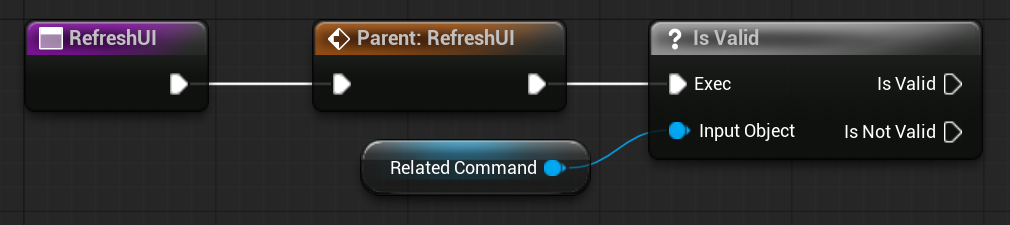
Override function RefreshUI, so that your UI builds itself perfectly from what it can gather from your RelatedCommand. You should first call Parent function, and check RelatedCommand validity.
Inheriting from MTP_Command skips the need to add SkrCommandHolder interface, to bind RequestRefreshUI to your command’s OnSkrRefreshUI event, and to propagate the command to your ContextualPanels. For your command’s MainPanel’s contextual panels, you should use CTP_Command.
Inherit from another USkrTabletBasePanelWidget
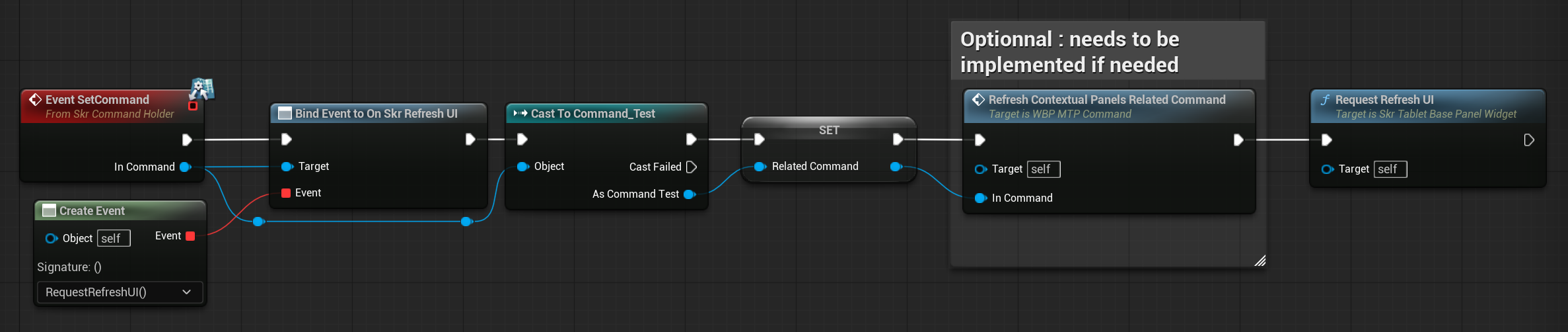
Inheriting from a simple USkrTabletBasePanelWidgetwill require a few more steps. First, you’ll need to add the SkrCommandHolder interface, from your widget’s Class Settings :
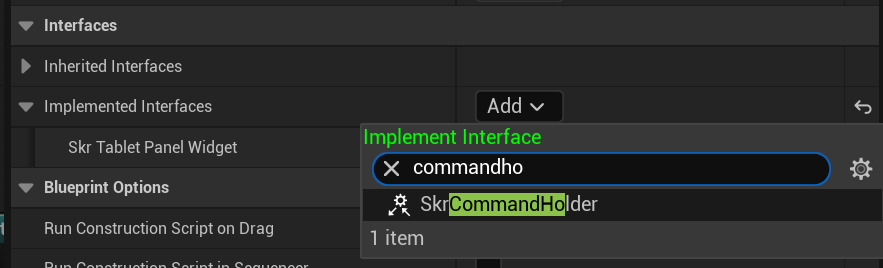
Then, implement the SetCommand function to bind RequestRefreshUI event, keep a reference to your command, optionnally propagate your command to ContextualPanels, and RequestRefreshUI.
Linking your Command Panels
You can easily link any USkrTabletBasePanelWidget to your commands. To do so, open your command BP and locate Skr Tablet Widget Class. This field will contain the main panel ou want for your command, use it as the entry point for your UIs.

After this, Skyreal will spawn this class as a MainPanel of priority 0, and call SetCommand if your widget does implement SkrCommandHolder. When your command is closed, Skyreal will then remove all MainPanel/ActiveTabs matching your WidgetClass.