
Skyreal represents a Work Breakdown Structure (WBS) as a functional Virtual Product Structure. An extension can provide its own directory type, visual appearance, information panel, and contextual actions while reusing the standard Skyreal tree behavior.
Create your own directory
First, create your own blueprint inheriting from SkrVirtualProductStructureDirectory.
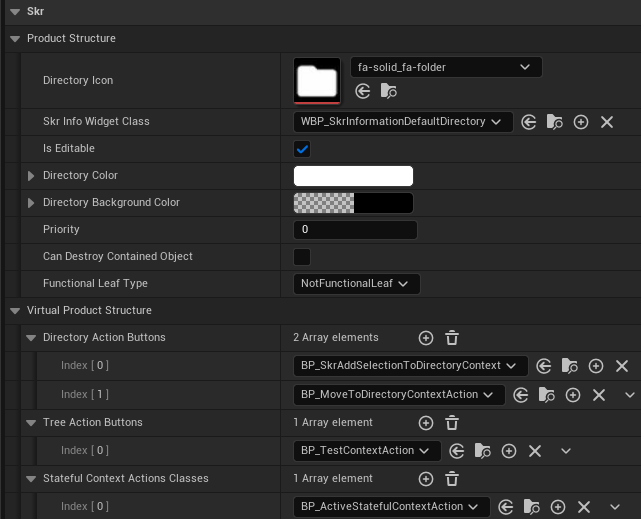
You can customize several things:
-
Style variables: icon, color, background color.
-
Functional variables:
-
Priority: sets the directory’s position in the tree.
-
Editable: turns default editing of the directory on or off.
-
Can Destroy Contained Object: handles the destruction of contained objects automatically.
-
Functional Leaf: improves performance by stopping the search from going deeper into this directory, or into anything selected inside it.
-
-
Info Widget Class: the widget shown in the selection panel.
-
Action Buttons (see the Context Actions section).
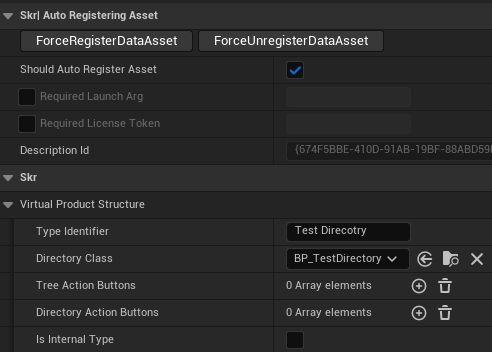
This directory must be registered with a Data Asset inheriting from SkrAutoRegisteringDirectoryType.
-
Type Identifier is a unique name used to save your directory.
-
In Directory Class, set your newly created directory Blueprint.
-
Is Internal Type lets you create directories that are not shown when creating a WBS.
Important: Do not change the Type Identifier after the type has been used in saved content. Skyreal uses this value to find the correct directory class when loading the structure.
The DirectoryActionButtons and TreeActionButtons property on the registration Data Asset are deprecated. Configure directly in the Class Defaults of your directory Blueprint.
Your directory should now appear in the WBS creation popup.
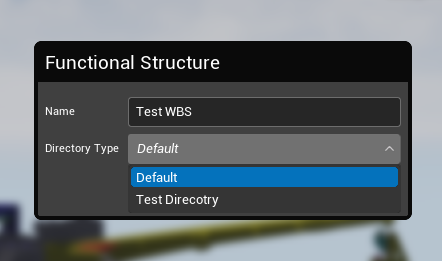
Selection Panel
Your info widget class will appear in the selection panel when your directory is focused.
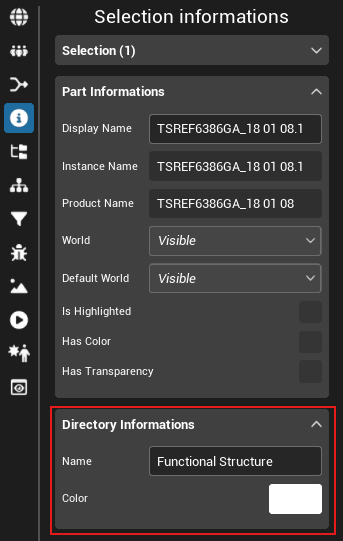
For your widget info panel you must inherit from SkrSelectionInformationWidget. You can access to SkrEditSelectionViewModel that cashes by type the different focused directories when selection is changed.
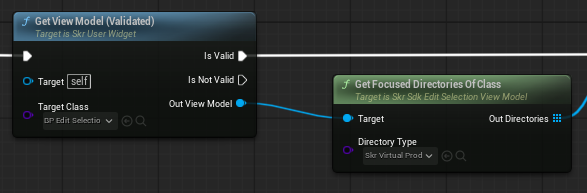
Context Actions
Context actions are classes that check whether they are supported and then run a specific action.
Context actions in the context menu
The context menu contains all the context actions available for the focused nodes. It checks every registered context action. To create your own, first create a Blueprint inheriting from SkrContextAction, then create a Data Asset inheriting from SkrAutoRegisteringContextAction. In your Data Asset, use the Context Action Class variable to register the class you just created. Use TargetTreeDefaultDirectoryClass to register a context action for a specific tree only: enter the class of that tree’s root directory (the one you select in the WBS creation popup).
You can override a context action by inheriting directly from the Blueprint class you want to override and using the same identifier. Don’t forget to register your class. The override can be done on specific tree using the TargetTreeDefaultDirectoryClass property.
Tree action buttons
Tree action buttons use the same class as context actions. Register them in the directory class at the root of your tree, and they will appear as buttons directly in the tree.
Directory action buttons
Directory action buttons are shown on the directory’s entry when it is hovered. Be careful: directory action buttons do not have direct access to the view model.
Stateful context actions
Stateful context actions are directory action buttons with an on/off state. They can be shown at all times, even when the entry is not hovered.
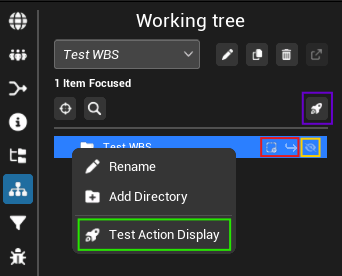
To sum up: violet is a tree action button, red are directory action buttons, yellow is a stateful action button and green is a context action.
Managing the WBS in Blueprint
Introduction to VPS classes
Skyreal has three main tree UIs: the Scene Tree, the Physics Tree (only available with an XDE license) and the WBS.
Most of the logic for each tree is handled in C++ by a class named VirtualProductStructureViewModel. The WBS uses FunctionalStructureViewModel, which inherits from VirtualProductStructureViewModel. This view model has many useful functions for managing trees. For example, call GetSelectedVps to get the current VPS, or NodeClicked to simulate a click.
The view model is accessible in context actions but not in DirectoryContextAction.
Tree selection is handled by the VirtualProductStructure itself. If you need it, you can get it through the view model or by calling GetVirtualProductStructure on a node.
The VirtualProductManager contains all existing VPSs.
VirtualProductHelper is a Blueprint Function Library of static functions that retrieve things from the tree, so you don’t have to write recursive logic yourself.
Overriding existing directory classes
If needed, you can override an existing directory class. Inherit from the directory you want to override and register your class with SkrAutoRegisteringDirectoryType, using the same identifier as the one you are overriding. Skyreal then uses the class that is lowest in the inheritance hierarchy.
Physics Tree: if you need to override the default directory of physics you will need to overrride also the class of the tree and the class register in main container. To do that create a new bp that inherit from BP_PhysicsVps and change the directory class. Then you have to create an AutoRegisteringClasses data asset put both your directory and new physics tree classes and put your priority (by default skyreal classes have a 0 priority so all above number are correct)
Persistence and extension content
Skyreal automatically serializes the standard directory information required to restore the WBS, including its registered type, color, hierarchy, and supported metadata.
Variables added only to your directory blueprint are not automatically persisted. Store persistent extension-specific values in the directory metadata or implement them using an appropriate Skyreal system.
All assets used by the directory, such as icons and information widgets, must be included in the extension or one of its declared dependencies.
Common issues
The directory type is not available
Check that the registration Data Asset is inside RegistrableAssets, the extension is listed in SkrExtensions.json, and Is Internal Type is disabled for a user-selectable type.
Directory actions are not displayed
Check where the action was registered. Actions in the context menu (right click) need to be registered, while tree, directory and stateful actions belong to the directory Blueprint.
Custom values are lost after reloading
Blueprint variables are not automatically serialized with the WBS. Use directory metadata or another supported persistence mechanism for values that must be restored.
Icons or widgets are missing
Verify that the referenced assets are stored in the extension or in one of its declared dependencies.