
Animation Commands
The Animation commands allow you to give movement to objects in your simulation.
These commands are useful if you wish to simulate a product in action and enhance the VR immersion experience.
In the desktop interface, you should use the animation panel from the right menu.
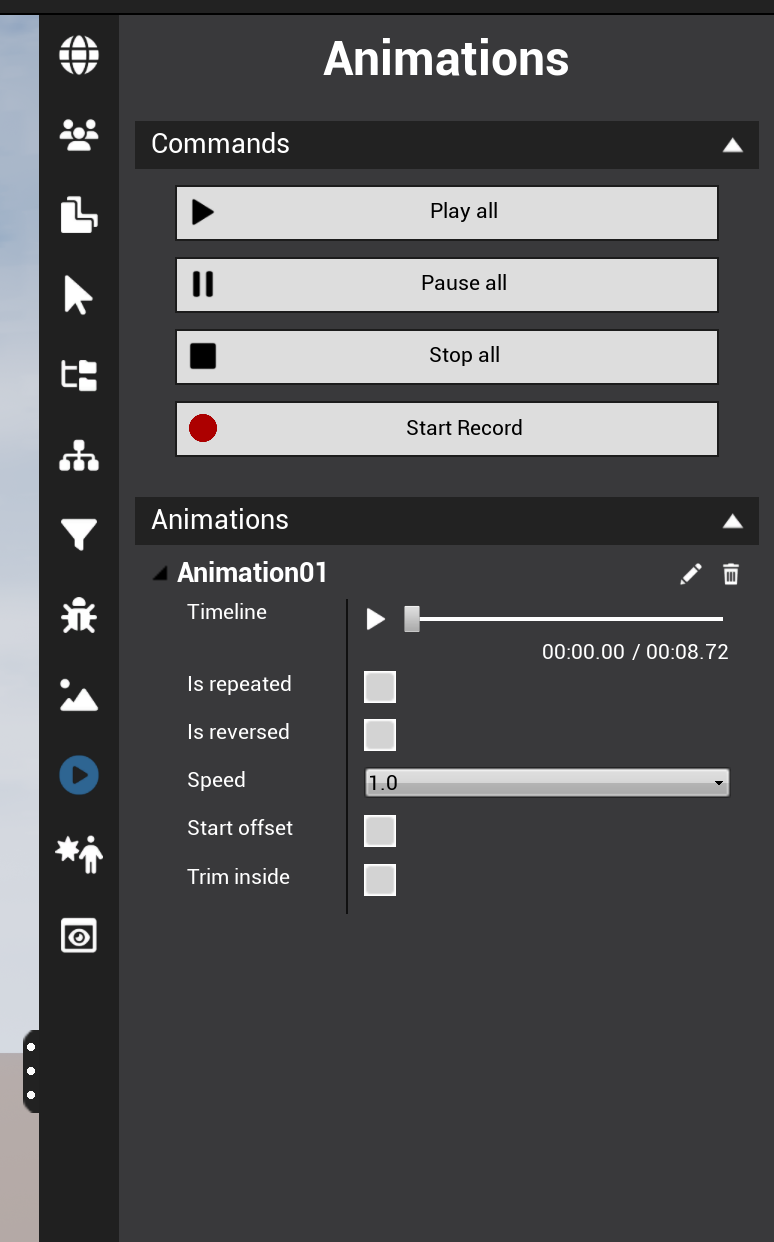
Start Recording an Animation
Once recording has started, perform your animation freely. While this mode is active, any object movement will be recorded. You can move objects using the Grab commands.
When you’re done, stop the recording using the Stop Recording button.
Your animation will then appear in the list.
Basic Animation Actions
|
Hierarchy Folders |
Information |
|---|---|
|
Play |
Play the animation. The animation will start from the timestamp where it was last pause (this will be 0 by default if the animation has not been played already). |
|
Stop |
Stop the selected animation and reset its timestamp to 0. |
|
Pause |
Stop the selected animation and keep it at its current timestamp. |
|
Speed |
Edit the animation speed. |
|
Is Repeated |
Loop the animation. |
|
Is Reversed |
Play the animation backwards. |
|
Edit Animation Offset |
Adjust the starting delay of the animation. |
|
Trim Animation inside |
Skip all inactive (without animation) frames |
Note: you can double-click on a timestamp to edit it and jump to a specific time.
Animations in VR
To create animations, use the quick access Record Button option from the pie menu (Bottom slice) or open the tablet (Top Slice)
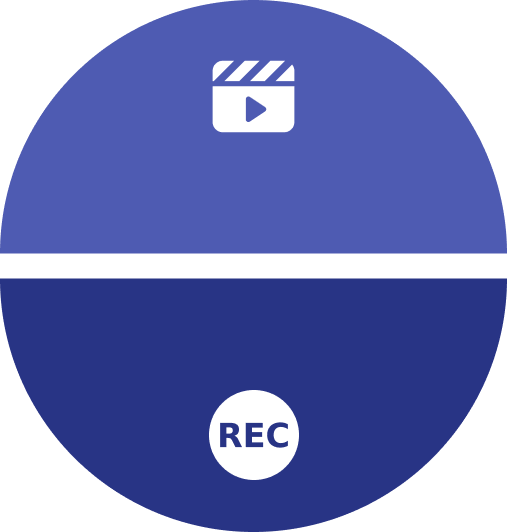
Like in Desktop, once recording has started, perform your animation freely, any object movement will be recorded.
When you launch the command, the tablet menu will open.
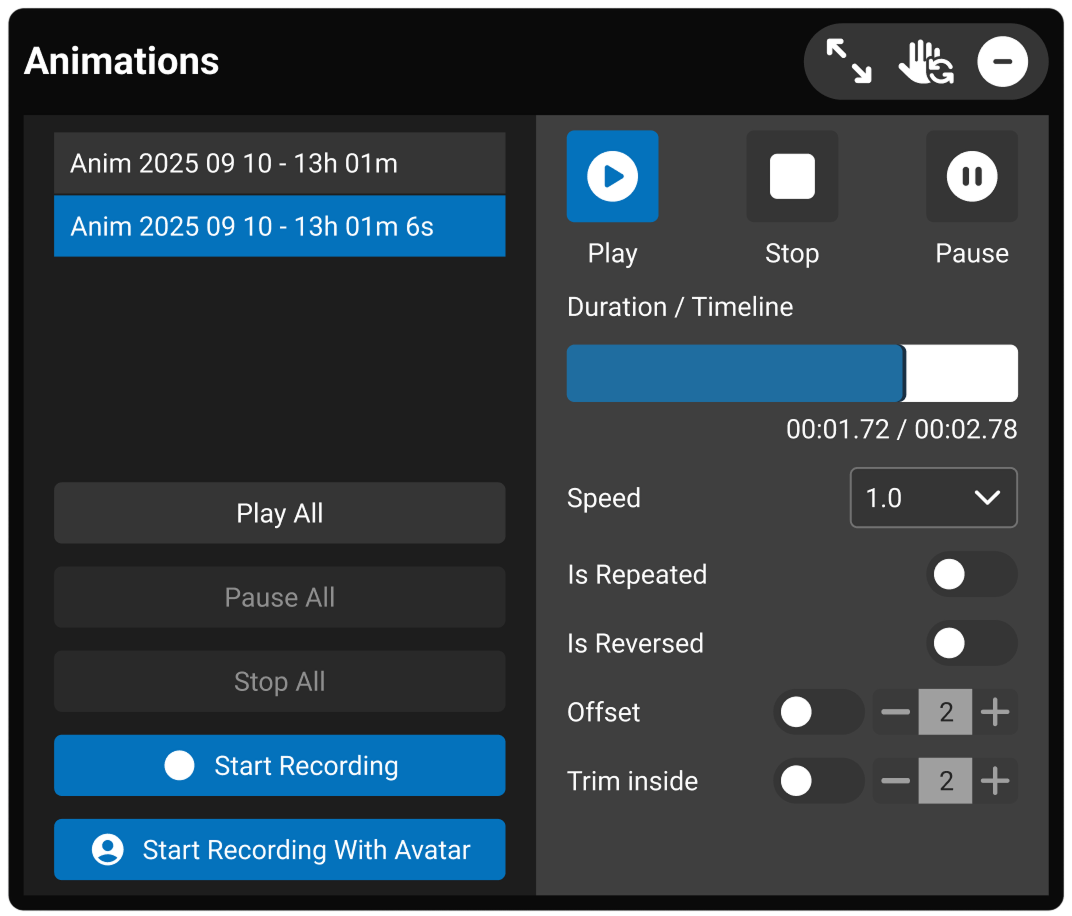
If you open the tablet, you can find on the left side you can select any animation already recorded and once selected edit its settings in the right side before playing it
You can also:
-
Start/Play/Stop All: Control all animations at once.
-
Start Recording with Avatar: This button captures your avatar’s movements. In this case, the recording starts at the very moment you trigger the command.
Playing back the recording will spawn a temporary avatar in the scene.
Tips
-
For smooth movements while recording animations in VR, use the Compass Manipulation command to grab and move objects.
-
Use Is Repeated to create looping animations for continuous mechanical motions (e.g., rotating gears, opening and closing doors).
-
The Record Avatar feature is excellent for capturing user workflows or assembly procedures for training purposes.
-
Adjust the Speed setting to slow down or speed up animations for detailed review or quick overviews.