
Tools Commands
The tools commands allows you to spawn different objects into your simulation. This command is very handy, as it allows you to further customize your Skyrealexperience and simulation by adding in tools which might be needed in yourworkspace or for your product.
It is possible to add custom tools by creating custom categories inUnreal Engine.
In future versions of Skyreal, you will be able to import tools directlyinto the 3D library via CAD Forge.
How to Use in Desktop
The Tools command can be accessed from the Add to scene menu in the left sidemenu.
Click on any tool, this will spawn the tool the tip of the mouse pointer to place it inthe scene.
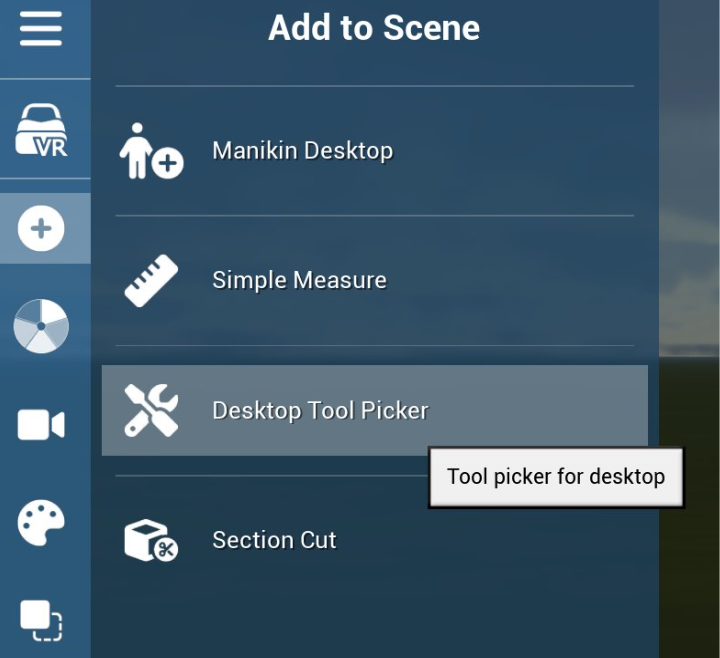
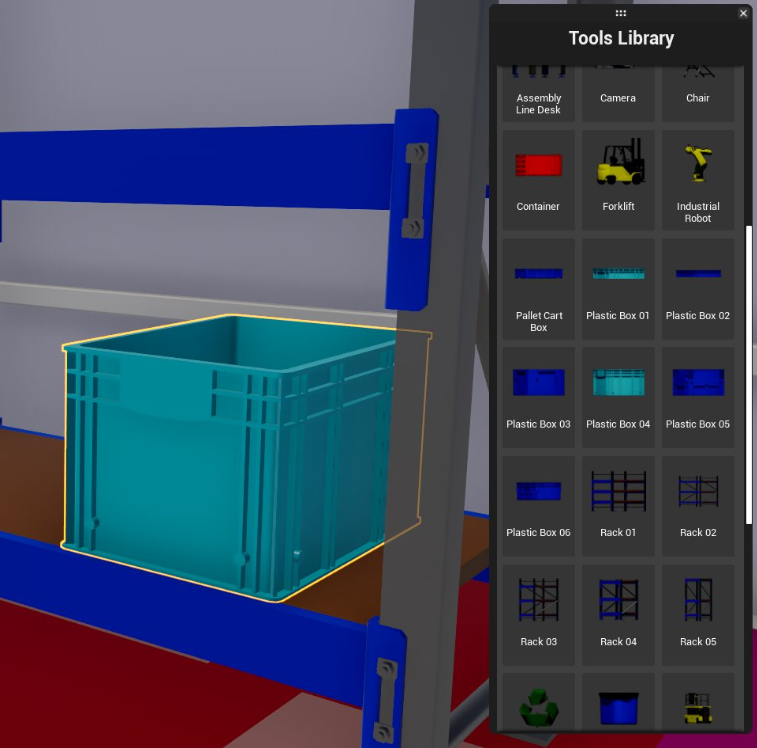
When this command is activated, a floating menu appears in the top-right corner of the screen. You can click on any tool and this will spawn the tool at the tip of the mouse pointer so you can place it in the scene.
How to Use in VR
The Tools command can be accessed through the default Tools sub-menu in VR.
Tool Collection
[IMAGE: Tool collection carousel — original at /pictures/v1.20/tools-carrousel.png]
The tool collection picker, like the 3D symbol picker, is a carousel of parts. When you add tools during preparation, they are automatically stored in one category of the carousel. If there are more than 9 parts, the category will contain multiple pages. You can scroll through the pages using the controller's joystick (up and down).
When you activate the command, you will be able to select and spawn a custom tool.
Adding Custom Tools
It is possible to create custom categories in Unreal Engine to organize your tools. To do so, open the editor map and set the category name for each SkrTool.
[IMAGE: Tool category in Unreal Engine — original at /pictures/all_v1.12_skyreal_command_tool_category.png]
You can register new SkrTool [assets] in the controller.
Tools and manikins
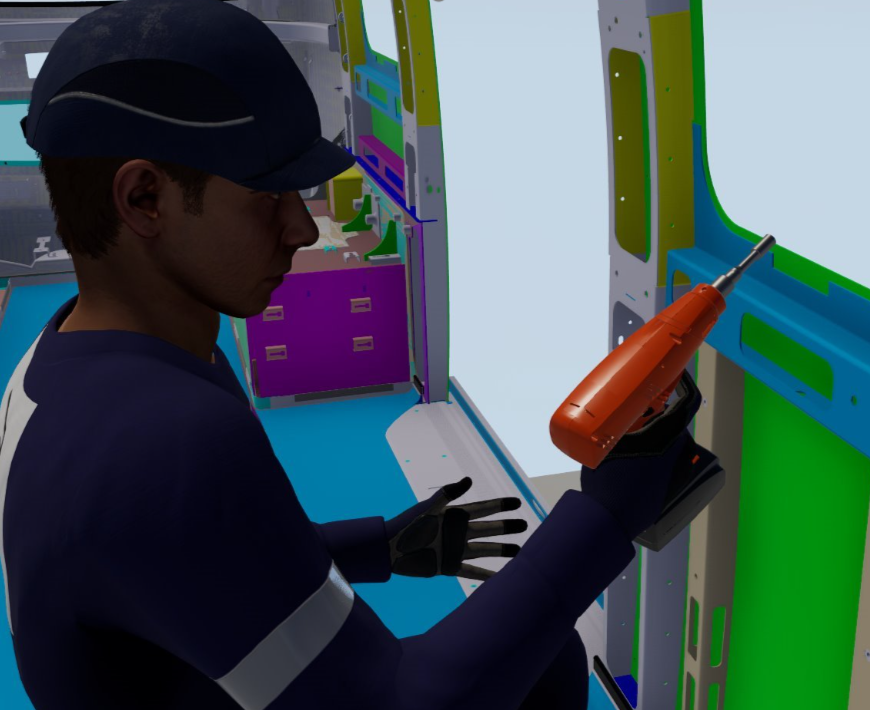
Any Dropped tool in the scene can be attached to a manikin hand and use it toperform any actions with it. Most Tools have sockets that will automaticallyadjust to manikins hands.
Interactive tools
Some tools are interactive and can be activated by the user, while others are alsointeractive but can automatically attach to the manikin’s hands.
|
Name |
Binding |
|
Floodlight and Portable FloodLight |
Enable / Disable : RightGripButton |
|
Container |
Open / Close : RightGripButton |
|
Fire |
Activate / Deactivate : RightGripButton |
|
Cutting Pliers |
Open / Close : RightGripButton |
|
Drill |
Start / Stop : RightGripButton Change Direction : LeftGripButton |
|
Drill Fold |
Start / Stop : RightGripButton |
|
Mirror |
Extend / Retract : RightGripButton Mirror Rotation : LeftGripButton |
|
Monkey Wrench |
Change Opening distance : RightGripButton |
|
Ratchet Wrench Bi-direction |
Right / Left : RightGripButton |
|
Zip Tie Gun |
Open / Close : RightGripButton |
Tips
-
Organize your tools into custom categories in Unreal Engine to keep the carousel manageable and easy to navigate.
-
In VR, use the joystick to scroll through pages if a category contains more than 9 tools.
-
In Desktop mode, the floating menu provides quick access to all available tools without needing to navigate through VR menus.
-
You can install the desktop extension to access Tools commands without entering VR mode.