
Issue Reporting / Ticketing
During a design review, this command lets you report an issue from VR. You can pin a 3D ticket in your scene and write the content of the issue using a virtual keyboard.
All the tickets correspond to a file containing the position, the status, and the description of the issue. You can find them in [SimulationFolder]\\SkrRessources\\Ticket.
It is a collaborative command — multiple users working on the same map can see issue edits in real time. You can combine both VR and Desktop methods to create and edit issues collaboratively.
Accessing Issues in Desktop
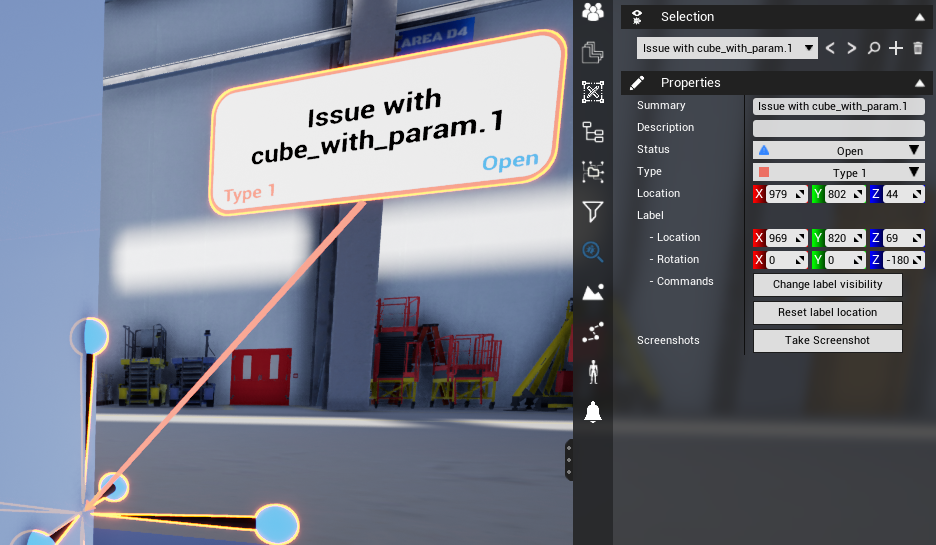
The desktop interface provides the same editing capabilities, allowing you to manage issues without being in VR mode.
Accessing Issues in VR
This command is available from the default Tool sub-menu in the VR pie menu and from the desktop right menu.
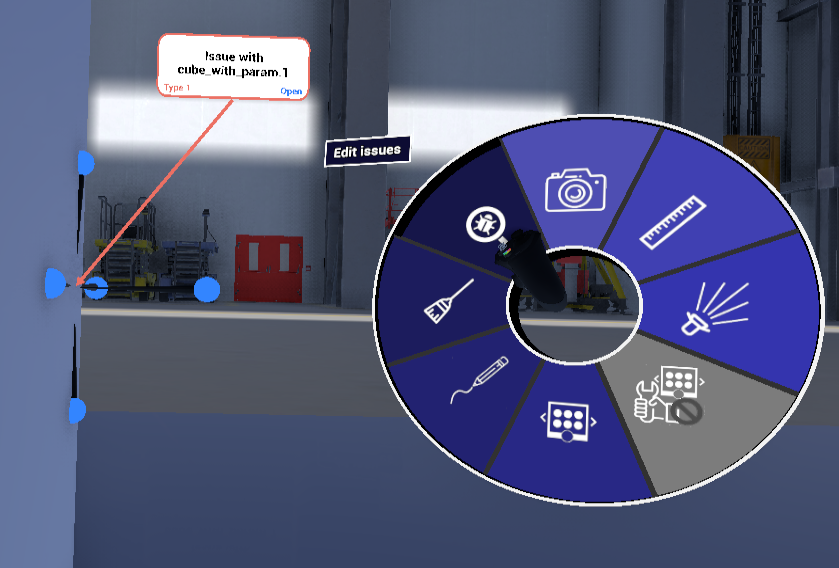
Each issue ticket has the following information (editable when selected):
|
Field |
Options |
|---|---|
|
Title |
Free text |
|
Description |
Free text |
|
Status |
Open, Resolved, Reopen, In Progress, Closed |
|
Type |
Type 1, Type 2, Type 3, Type 4, Type 5 |
The right side panel provides quick access to actions:
-
Create new ticket — Add a new issue
-
Focus on selected ticket — Navigate to the ticket's location in the scene
-
Hide selected ticket — Toggle ticket visibility
-
Delete selected ticket — Remove the ticket
Tips
-
Issue Reporting tickets are saved to files, making them easy to export and track outside of the VR session.