
In Skyreal, the WBS feature allows you to create a new, custom hierarchy built from the elements of your existing product structure. Rather than being bound to the original CAD assembly tree, you can define an entirely new arborescence by cherry-picking and reorganizing components to suit your specific needs.
This means you can build multiple WBS views from the sameproduct structure, each serving a different purpose:
-
A functional breakdown grouping components by system ordiscipline
-
A review-focused structure highlighting only the parts relevant to a specific session
-
A stakeholder-oriented view tailored for engineering, design, or client presentations
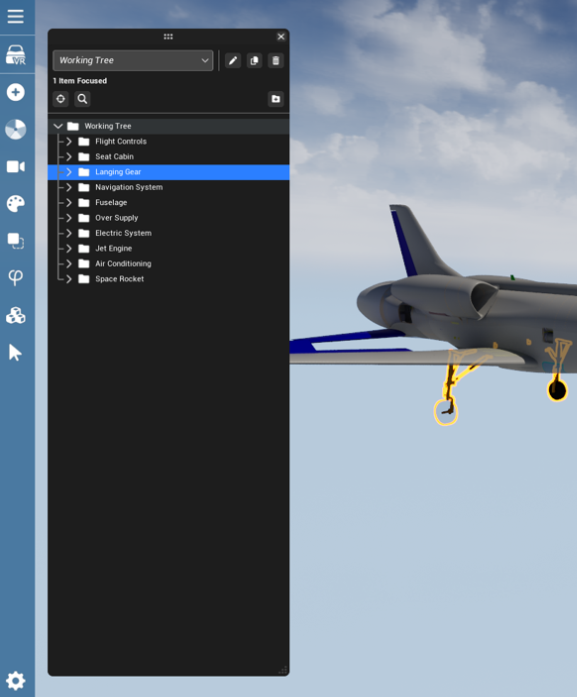
The original product structure remains untouched — the WBS is an independent layer that references your components without altering the source data. This gives teams the freedom to work with complex assemblies in a way that is meaningful to them, directly within the VR environment.
Open a WBS
-
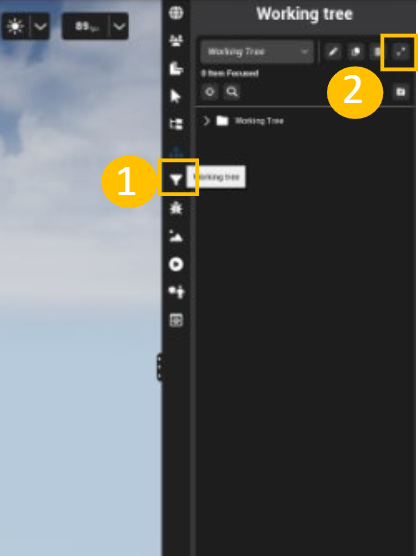
Go to the Working Tree tab in the right menu.
-
Click the expand button in the top right corner.
-
The Working Tree opens as a floating panel on the left, allowing you to freely navigate between the tabs in the right menu. This way, you can have the Product Structure and the Working Tree visible at the same time.
Create a WBS
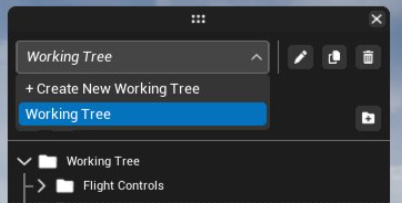
You can have multiple WBS in your experience and switch between them using the combobox at the top of the WorkingTree panel. To create a new one, open the combobox and select "Create new WBS".
Rearrange a WBS
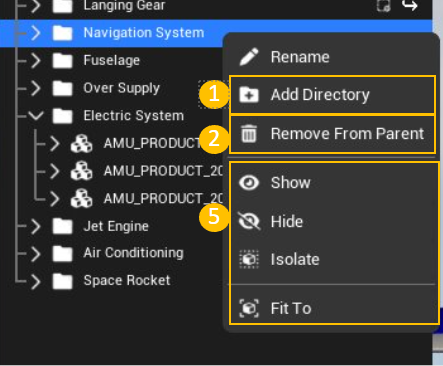
You can use the following actions to build and organize yourWBS.
-
Create a Directory: Right-click on a folder and select Add Directory. This adds a directory under that folder.
-
Remove from parent : Right-click on a folder or a part in the WBS and select Remove from Parent. This removes the item from the WBS hierarchy but does not delete it from the experience.
-
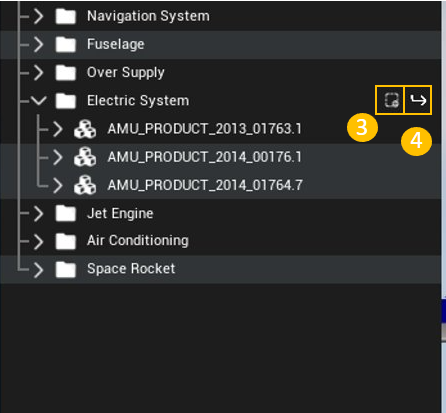
Add Selection : Select parts either in the 3D viewport or in the Product Structure, then hover over a folder and click the Add Selection icon that appears. The selected parts will be added under that folder.
-
Move to : Select parts within the WBS, then hover over a target folder and click the Move to icon that appears. The selected parts will be moved under that folder.
-
You can also rename a directory, and show/hide/isolate/fit to its content
Edit metadata
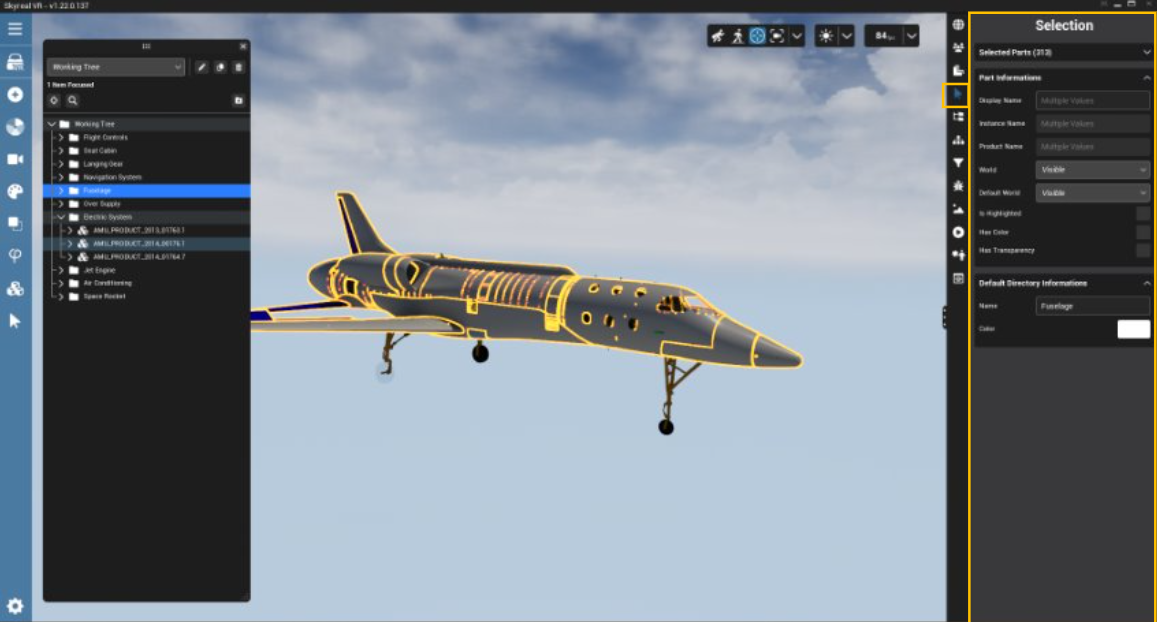
You can edit metadata directly from the WorkingTree by opening the Selection Panel in parallel. When you click on a folder in the Working Tree, the Selection Panel updates with the following information:
Selected Parts Displays the list of all parts included in the selected folder.
Part Information Shows properties of the selected parts that can be directly edited, such as the color or the world (visibility state : visible, hidden, or trashed).
Directory Information Displays the metadata ofthe selected folder, allowing you to edit properties such as its name or color.