
Save / Load Commands
The Save and Load commands allow you to create and come back to a new state in your simulation. They are useful if you wish to make modifications to your scene yet keep older versions that existed prior to making these changes.
Save / Load in Desktop
These commands can be accessed from the World Tab in the default Right Menu:
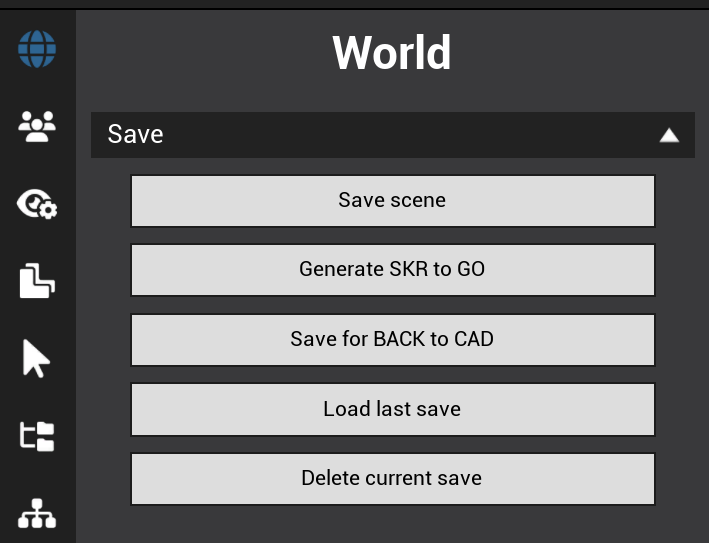
Save Scene
When used, this command will save your experience in its current state. Any modifications made to parts (position, rotation, scale, and appearance) will be saved. Moreover, any measures, annotations, designs (spheres, boxes, cables, and pipes), 3D symbols, or static manikins will also be saved.
This save will be loaded automatically at startup.
Load Last Save
Use this command to reload the last save and override your most recent changes. If you would like to have several saving points, we recommend using the Configurations feature.
Configuration in Desktop
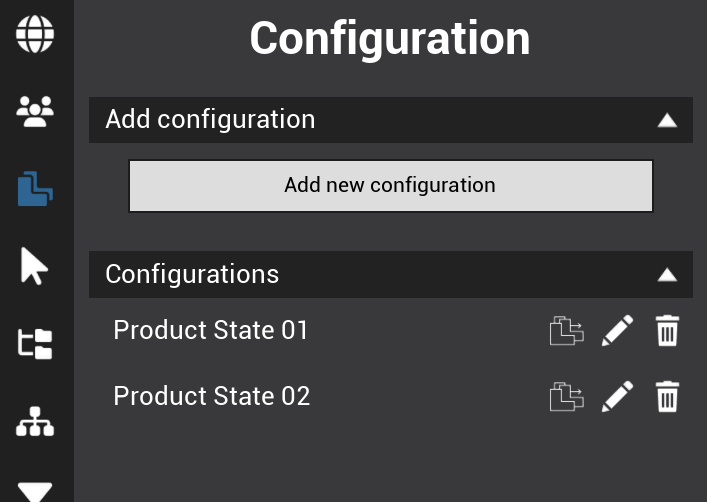
A configuration is a specific setup of your mock-up that you want to work with during your session. You can create as many configurations as you want.
You can create, load, and edit configurations from the right panel.
Save/Load in VR
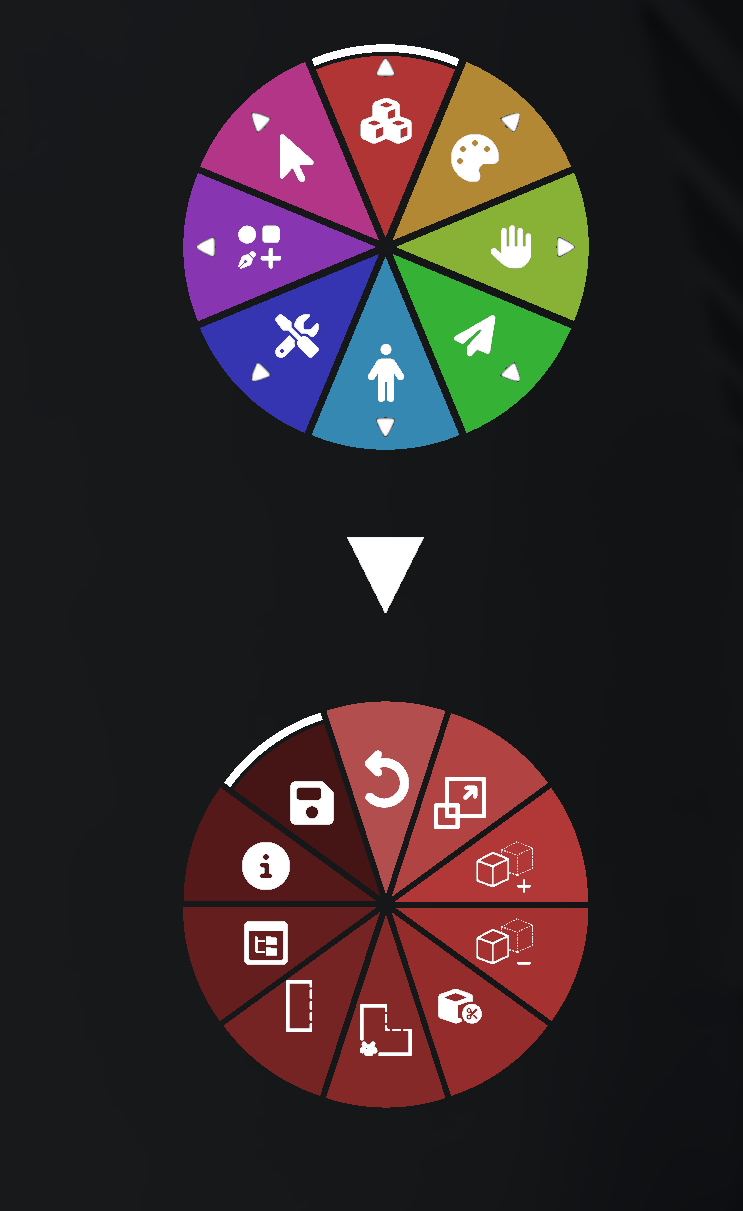
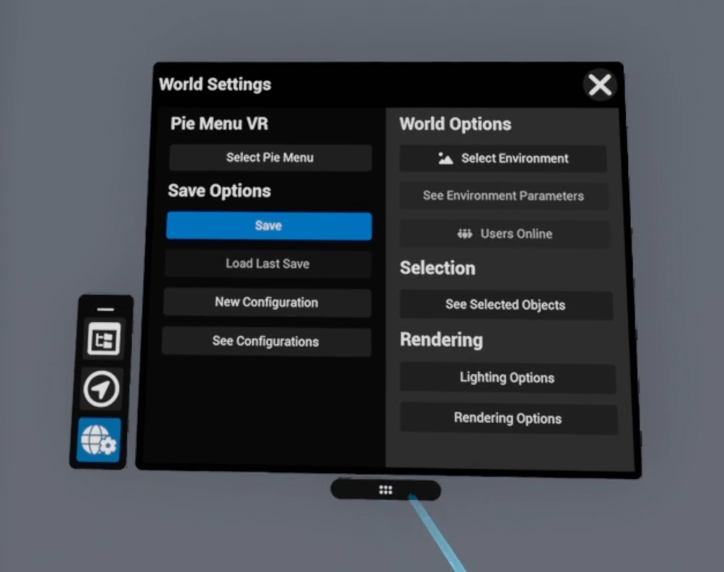
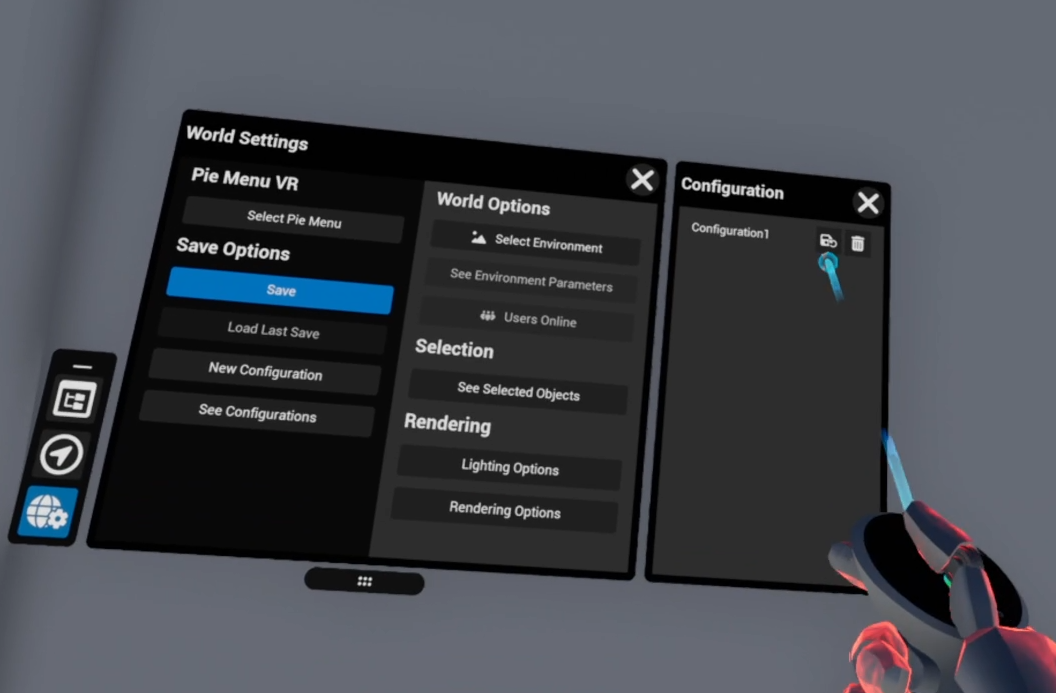
These options are quickly accessible from the World tab in the Tablet UI. The Save and Load Last Save commands are executed immediately when you click their respective buttons. you can also find them in the pie menu inside the product slice.
Configuration in VR
To load a new configuration in VR, click the See Configurations button in the World Settings tab. This will open a side panel with the list of available configurations.
Click on the Load icon to automatically apply the selected configuration.
Tips
-
Use configurations to maintain multiple setups of your mock-up and switch between them during a session.