
Section Cut and Cutting Geometry
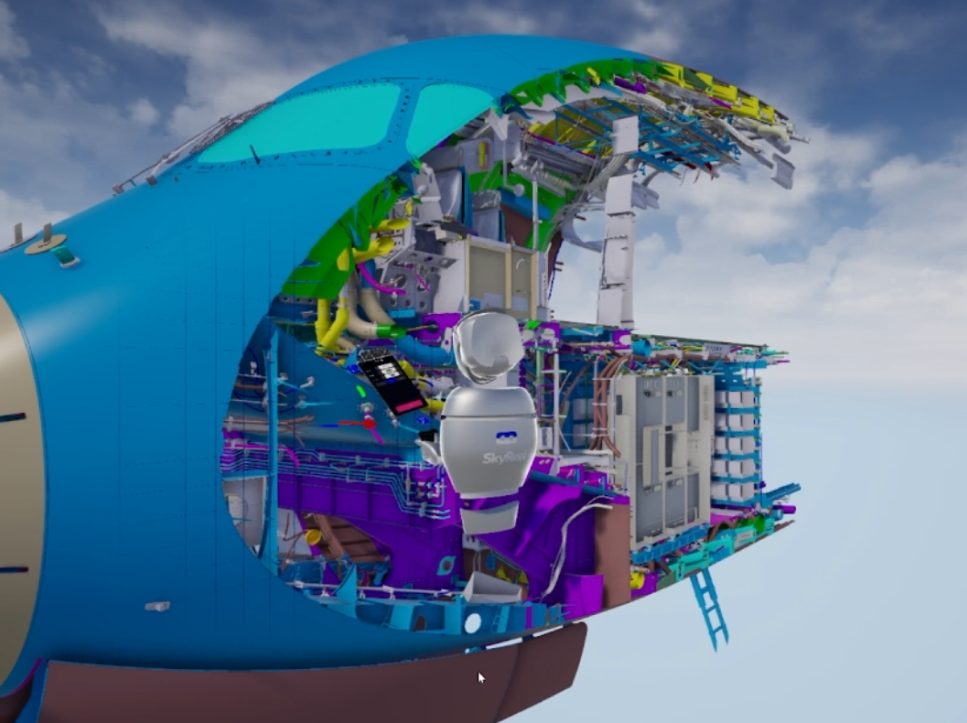
If you need to see through meshes, you can use SkyReal's set of Cutting Geometries. This set includes a sphere, a cube, and a plane that allow you to create a dynamic hole in the meshes so that you can see what is inside.
This set of commands allows you to visualize the inside of assembled products without having to take them apart.
Note: Cutting Geometries can affect the overall performance of your simulation. When a cutting geometry is no longer needed, make sure to remove it.
How to Use on Desktop
Section Cut
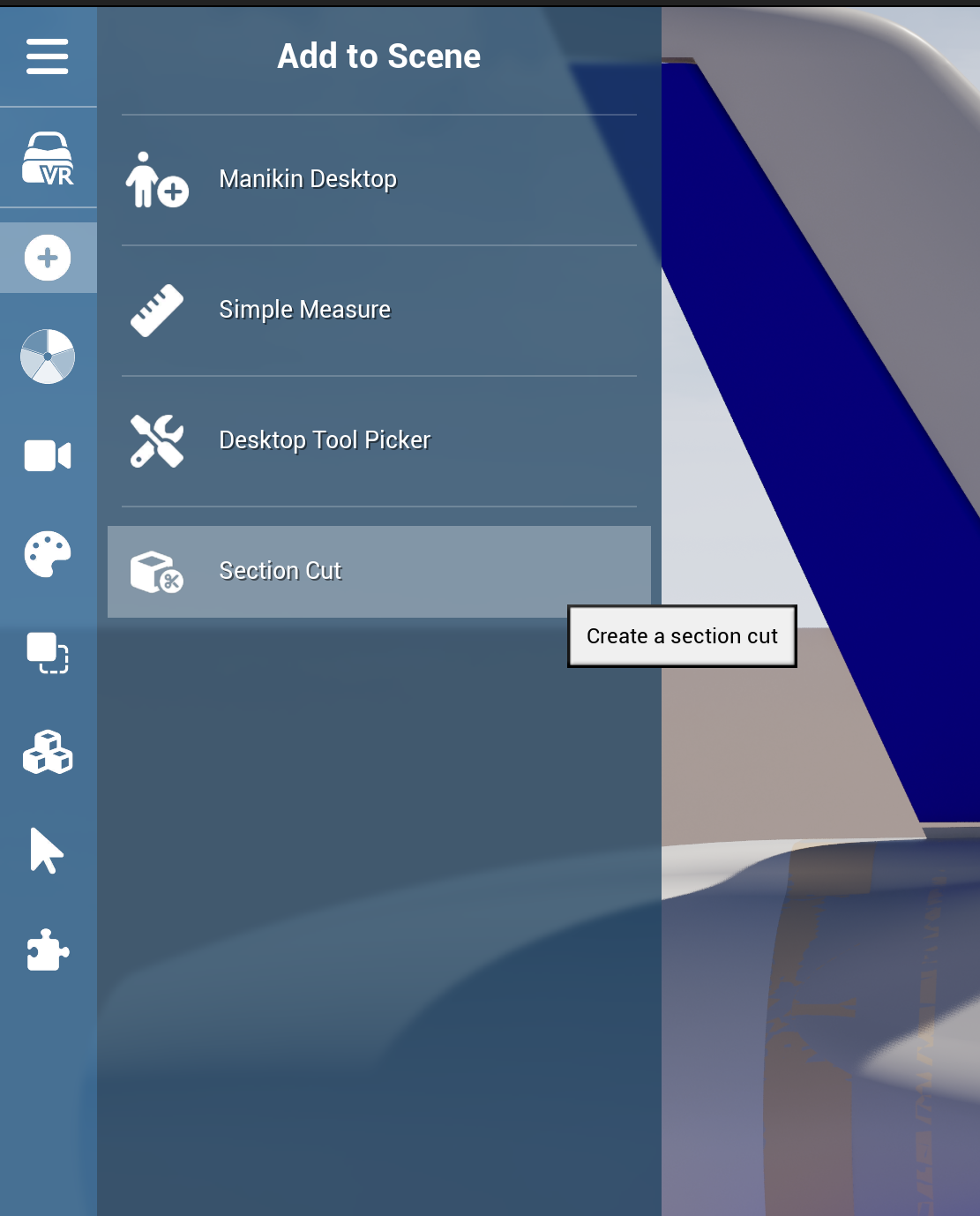
The Section Cut command can be accessed from the Add to Scene menu in the left side menu.
This opens the Section Cut floating menu, which offers the ability to create a new section cut and then place and edit it.
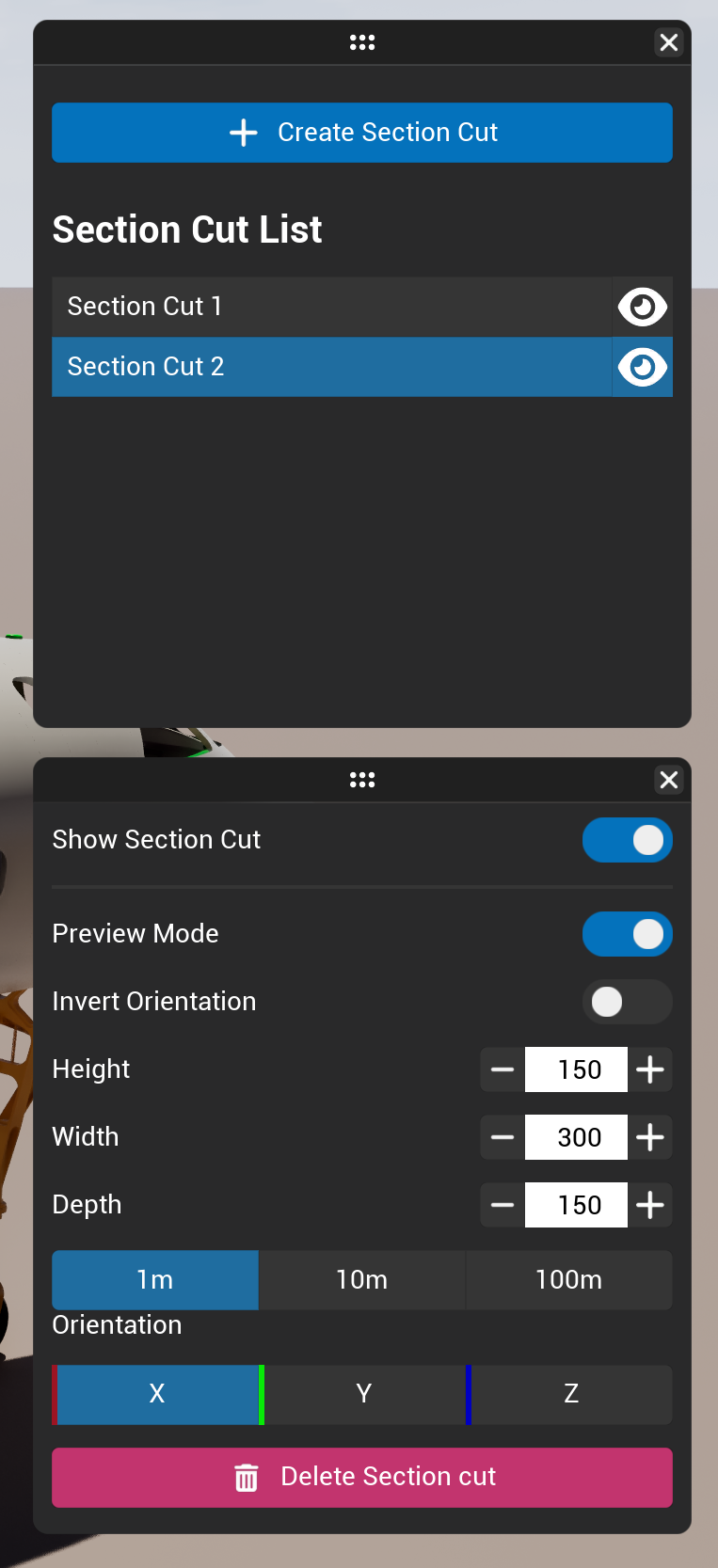
Click on Create Section Cut. The section cut will display a grid along the selected axis with a compass arrow to move it forward, backward, or rotate it. You can select any section cut already created in the section cut list to edit it.
Settings
If you want to edit a Section Cut, you must enable it first.
-
Preview Mode: Hides the Section Cut preview and applies the cut directly to the scene.
-
Invert Orientation: Flips the compass to the opposite side of the section cut.
-
Height, Width, Depth: Adjust the dimensions of the section cut; the unit selector below sets the incremental step value.
-
Orientation: Change the orientation of the selected section cut.
How to Use in VR
Section Cut VR
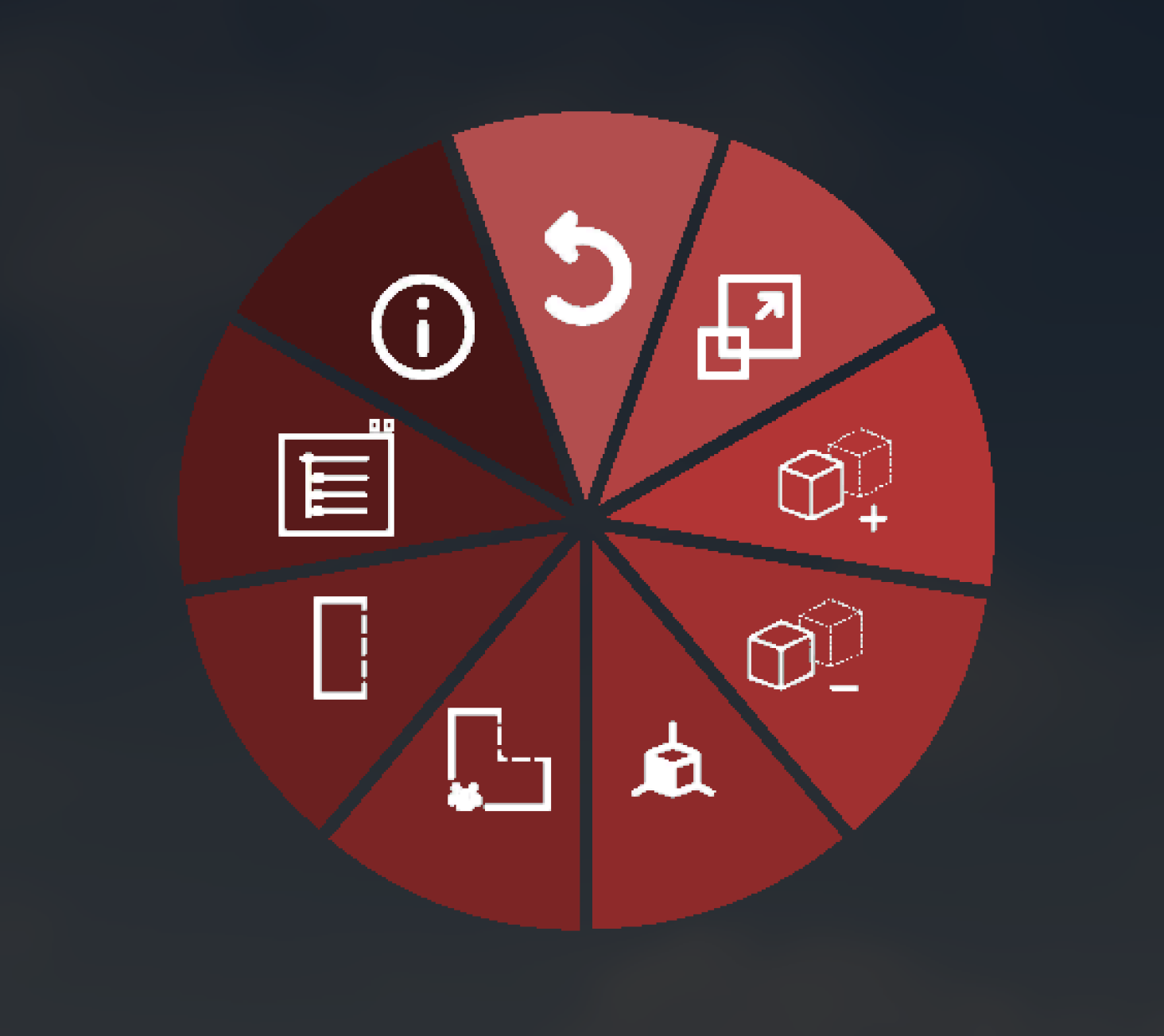
When you launch the command, the tablet menu opens and asks you to create a new section, choose its orientation, or select one already created from the list.
Once created, the section cut displays a grid along the selected axis with a compass arrow to move it forward, backward, or rotate it. From here you can also modify the size of the section or delete it.
If you want to edit a Section Cut, you must enable it first.
-
Preview Mode: Hides the Section Cut preview and applies the cut directly to the scene.
-
Invert Orientation: Flips the compass to the opposite side of the section cut.
-
Height, Width, Depth: Adjust the dimensions of the section cut; the unit selector below sets the incremental step value.
-
Orientation: Change the orientation of the selected section cut.
Cutting Sphere
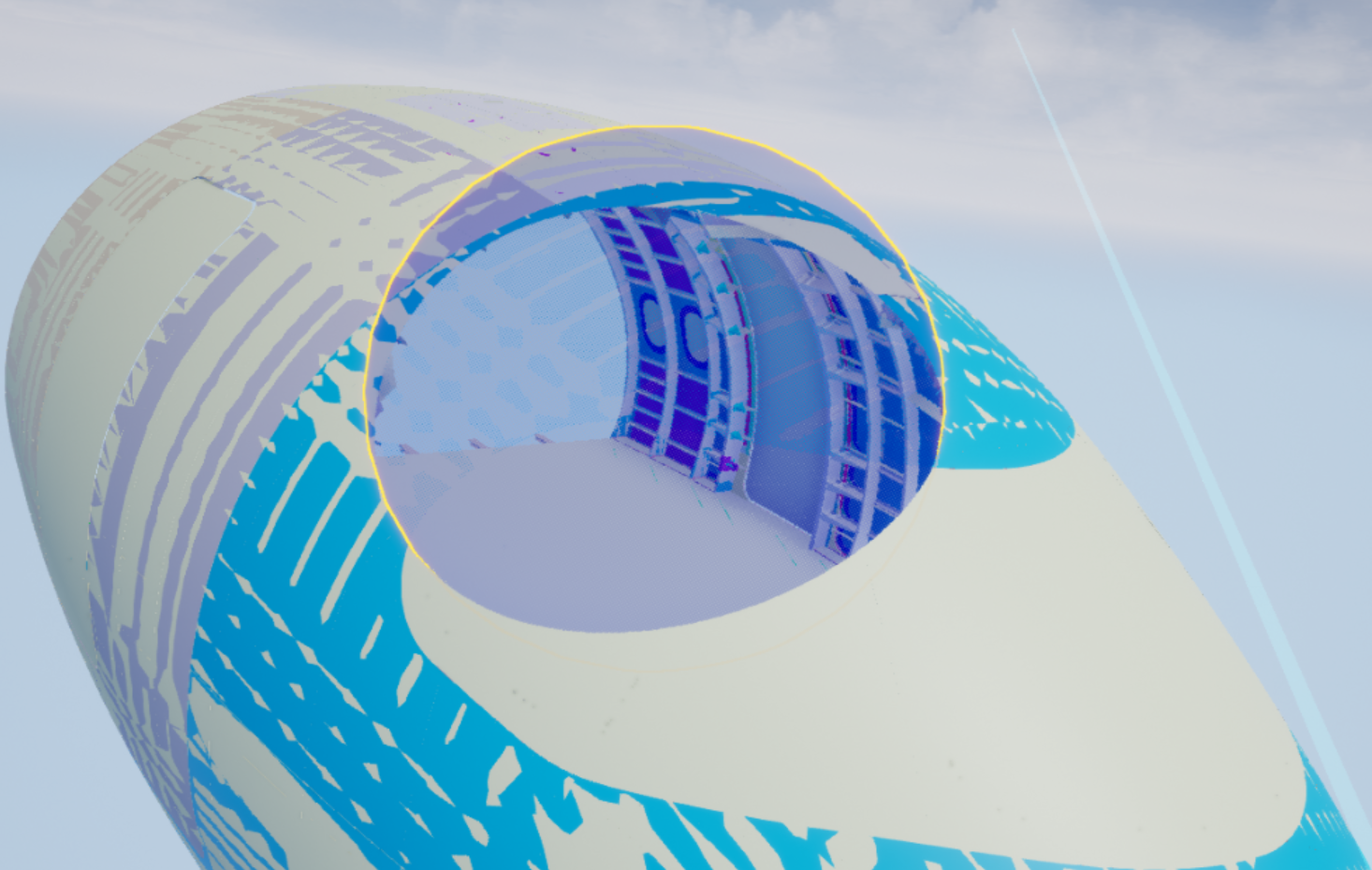
When you activate the command, press the trigger to set the center of the sphere, and then hold the trigger and move your controller to choose the sphere's radius. When you release the trigger, the Cutting Sphere will be spawned.
This sphere is collaborative: your collaborators will see it.
Everyone can interact with it: the sphere can be selected, moved, resized, and its color can be changed by all users in the simulation.
While the Cutting Sphere command is activated, you can spawn as many spheres as you want. The spawned spheres will remain after you exit the command.
Cutting Box
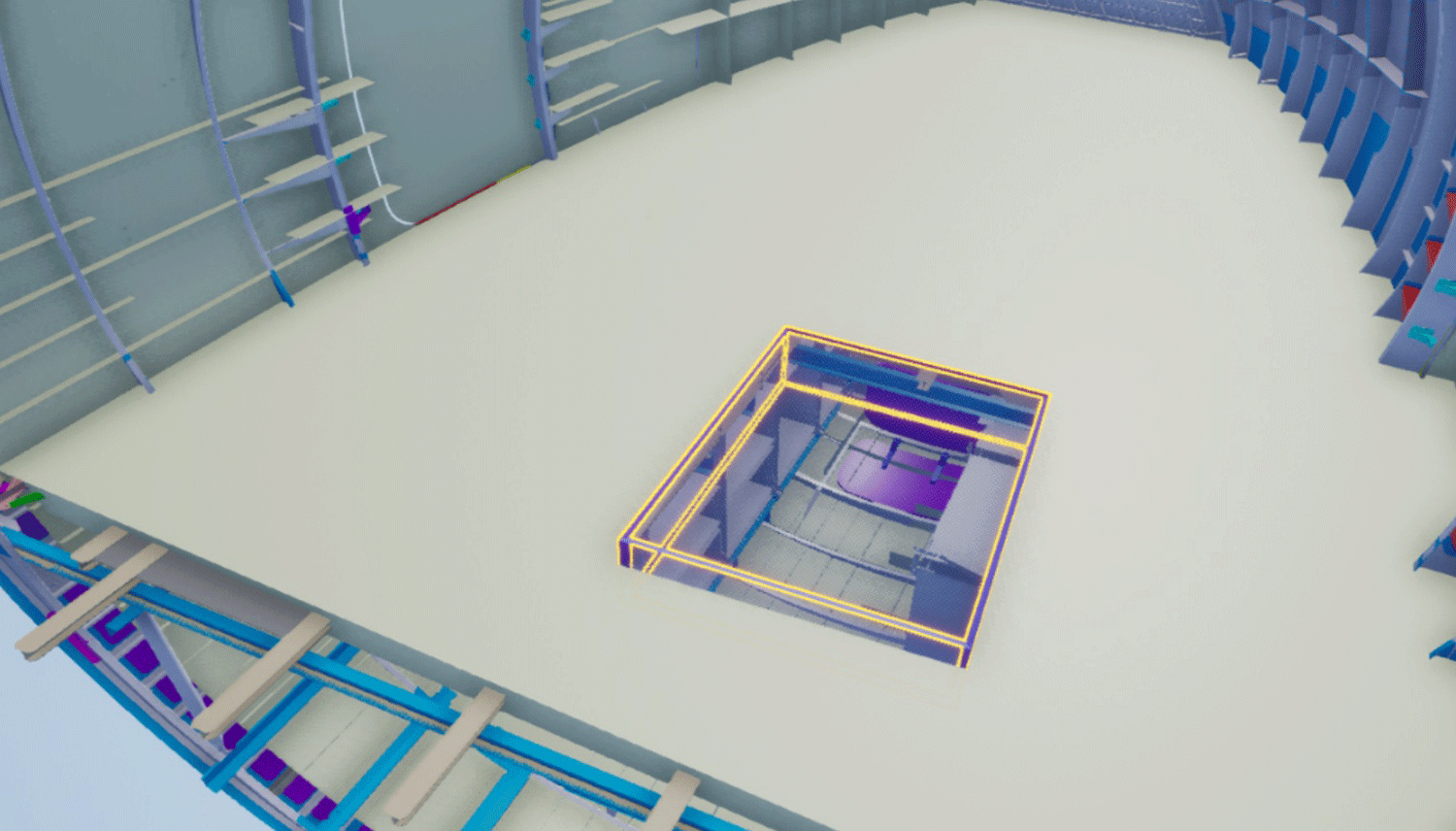
When you activate the command, press the trigger to set a corner of the box, and then hold the trigger and move your controller to create the desired volume. When you release the trigger, the Cutting Box will be spawned.
This box is collaborative: your collaborators will see it.
Everyone can interact with it: the box can be selected, moved, resized, and its color can be changed by all users in the simulation.
While the Cutting Box command is activated, you can spawn as many boxes as you want. The spawned boxes will remain after you exit the command.
Local Cutting Plane
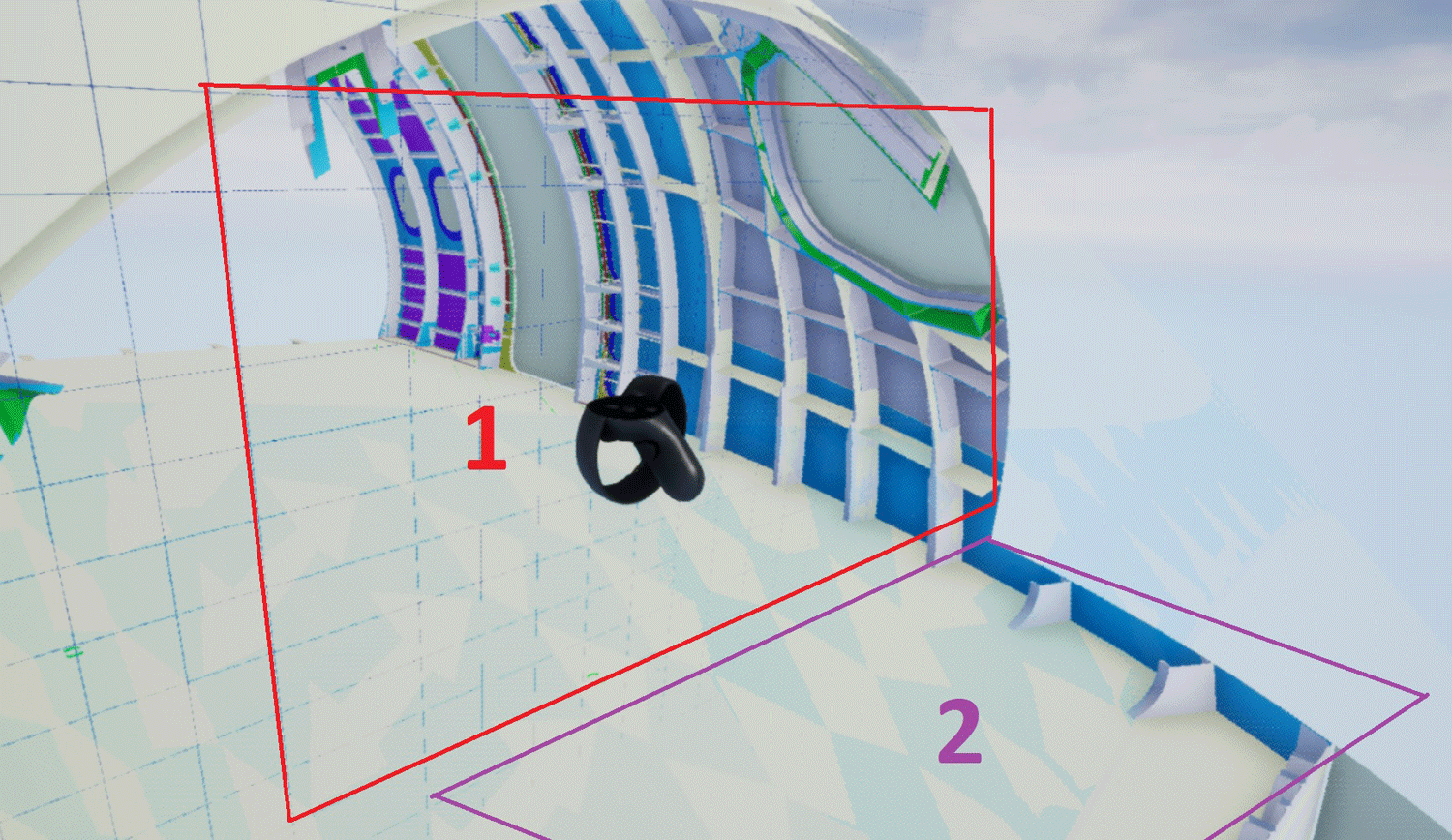
This command creates an infinite Cutting Plane attached to your controller. When you exit the command, the plane disappears.
This plane is not collaborative: your collaborators will not see it.
You can choose the distance of the plane from the controller in the command's custom parameters.
Warning: This cutting plane will never cut the floor beneath you.
Local Cutting Sphere
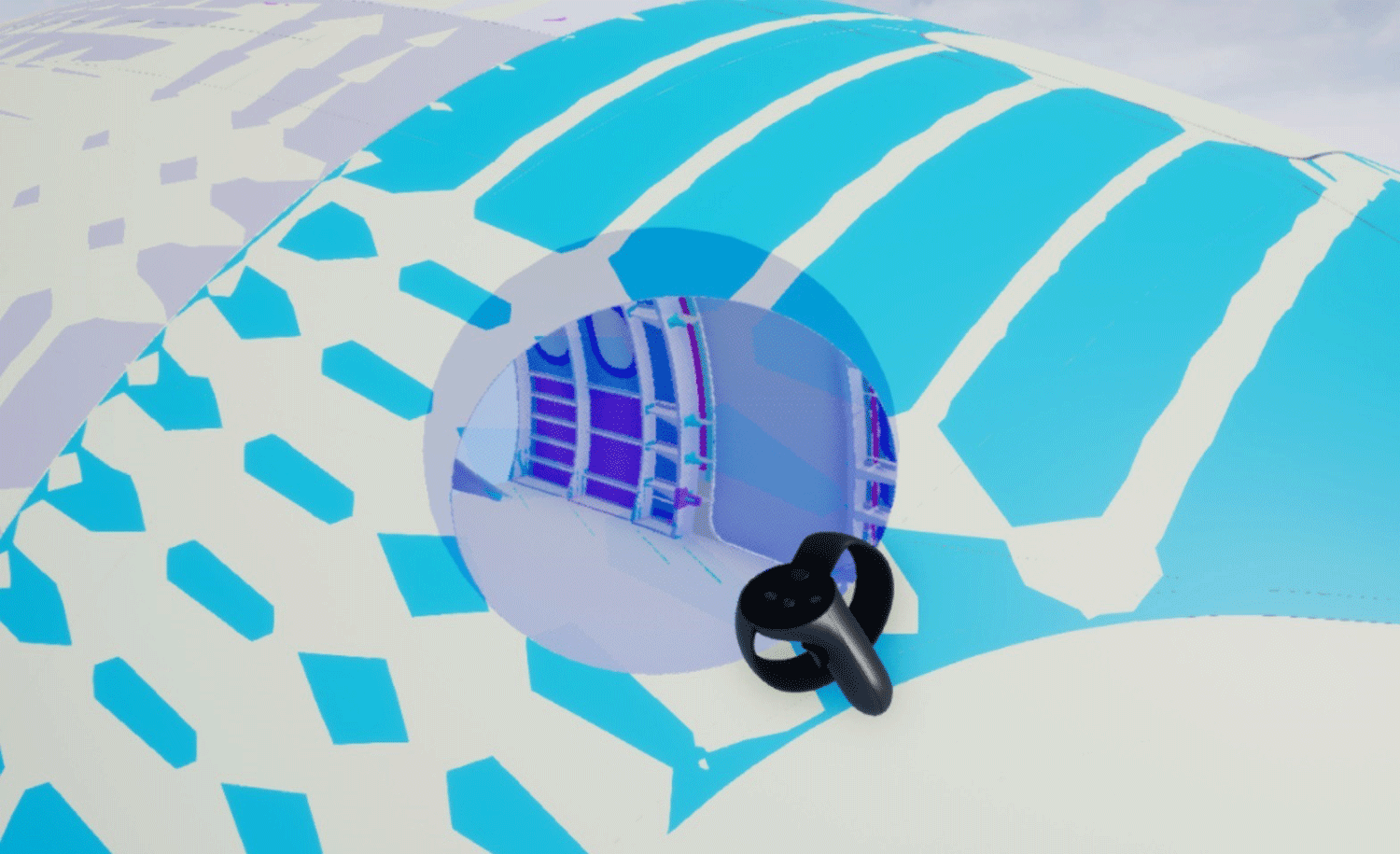
This command creates a Cutting Sphere attached to your controller. When you exit the command, the sphere disappears.
This sphere is not collaborative: your collaborators will not see it.
You can choose the radius of the sphere and its distance from the controller in the command's custom parameters.
Clean Cutting Geometries

When used, this command deletes the selected collaborative Cutting Geometries from your simulation.
Warning: If no Cutting Geometries are selected when you activate this command, all Cutting Geometries in the simulation will be deleted.
Options and Settings
Custom Parameters VR
|
Command |
Parameters |
|---|---|
|
Cutting Sphere |
- |
|
Cutting Box |
- |
|
Local Cutting Plane |
Plane Distance from Controller |
|
Local Cutting Sphere |
Sphere Radius, Sphere Distance from Controller |
|
Clean Cutting Geometries |
- |
Tips
-
Use Section Cut for precise cross-section views along a specific axis. This is ideal for inspecting internal assemblies.
-
Cutting Sphere and Cutting Box are collaborative, making them great for team reviews where everyone needs to see the same cutaway.
-
Local Cutting Plane and Local Cutting Sphere are personal tools that only you can see, which makes them useful for quick individual inspections without affecting other users.
-
Always remove Cutting Geometries when you no longer need them to maintain simulation performance.