
Lights
These commands allow you to use different types of lights in your simulation. They can help you illuminate dark areas of your simulation and contribute to making the VR experience more immersive.
Two light commands change the scene light parameters. Using these commands is equivalent to setting the light options in the right menu. The three other light commands are dynamic lights.
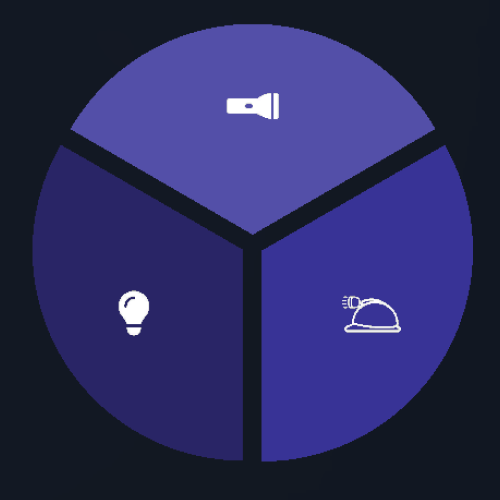
How to Use
Set Sunlight Intensity
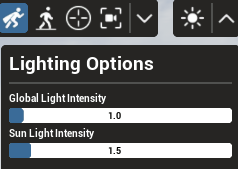
Set the intensity of the sunlight. This light produces contrast and shadows.
Set World Light Intensity
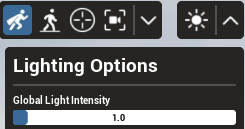
Set the intensity of the world illumination. This corresponds to the light emitted from the parts. It produces no shadows.
Flashlight
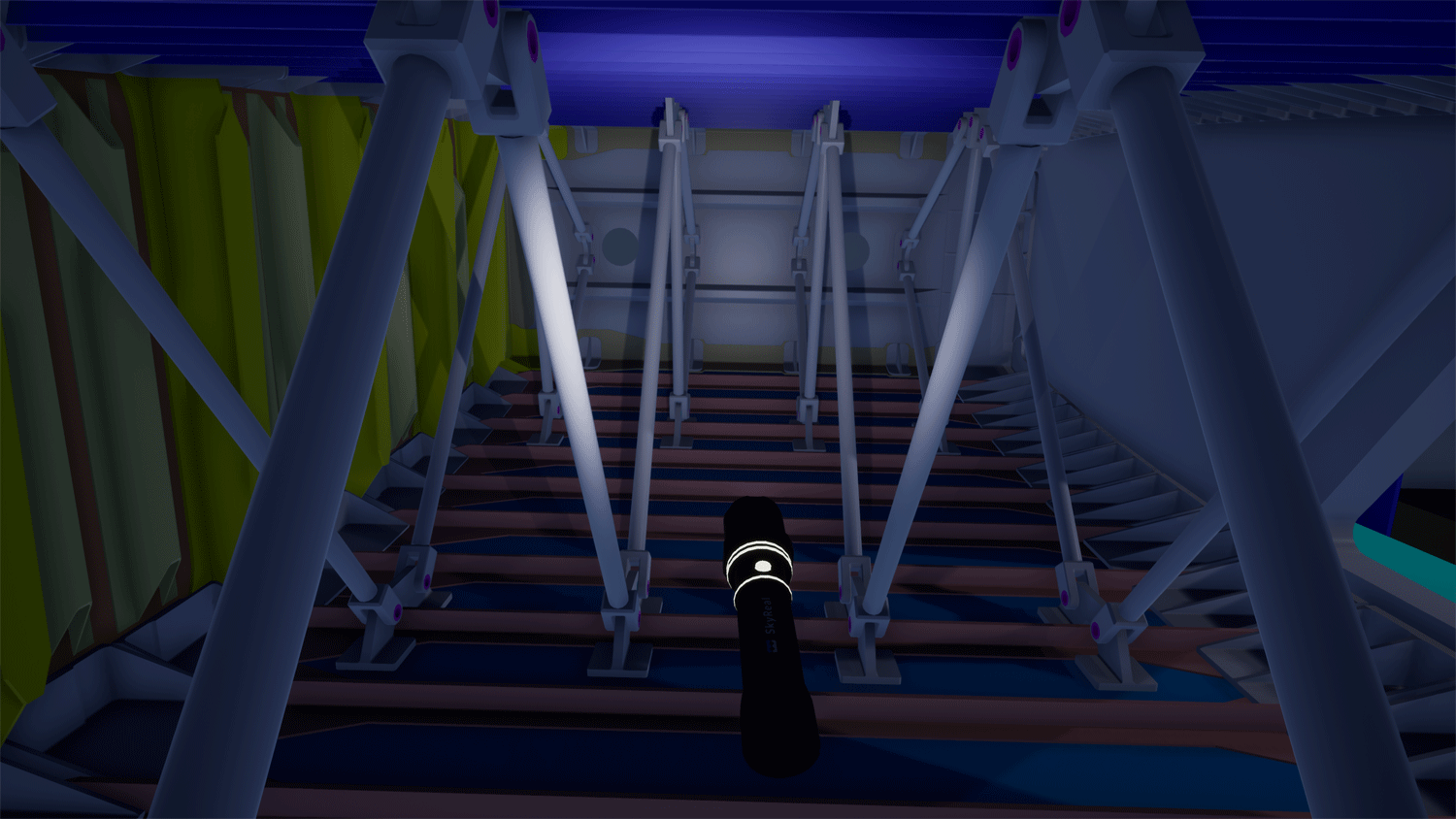
When activated, this command gives you a torch attached to the controller that you used to launch the command. The torch disappears when you exit the command.

Headlamp
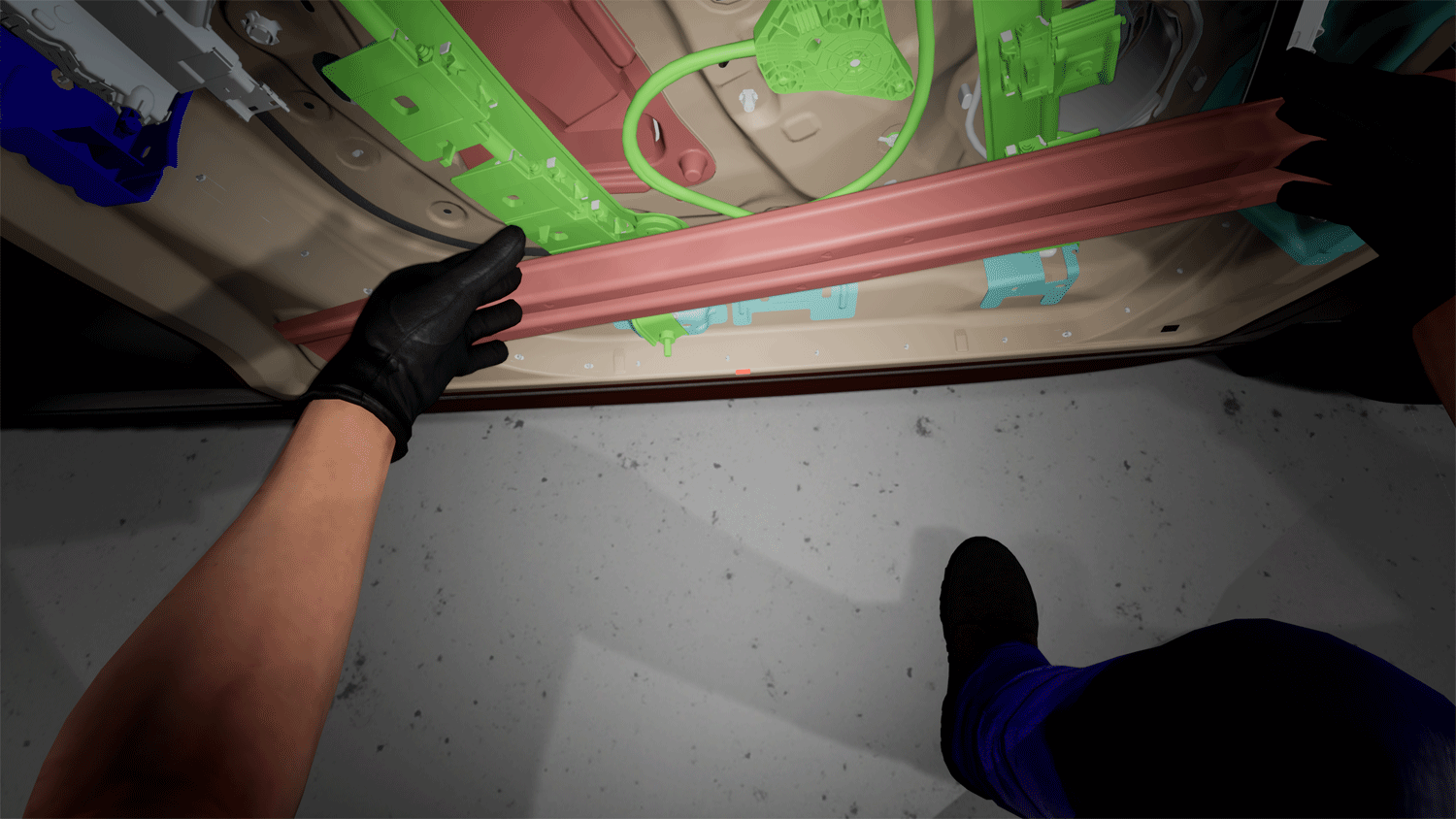
When activated, this command attaches a lamp to your head, lighting up what you are currently looking at. The lamp disappears when you exit the command.
Spawn Light
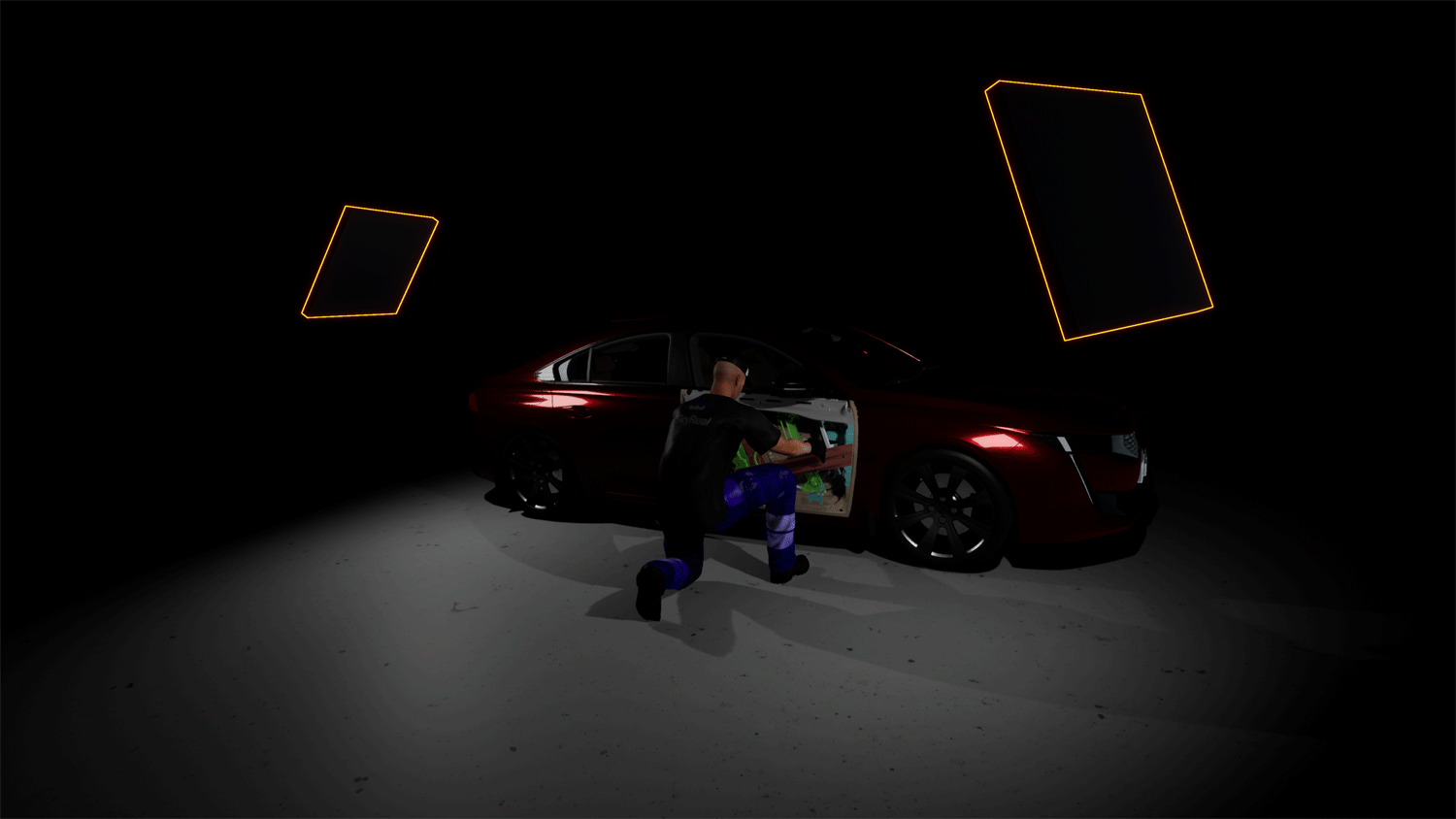
When used, this command gives you a choice between three different types of lights to spawn:
-
Point Light: A sphere diffusing light in every direction around it (like a lightbulb).
-
Spot Light: A cylinder diffusing light from its base in one direction. You can change this direction by moving the spot light using the Grab commands.
-
Rectangular Light: A rectangle diffusing light from one of its sides in one direction. You can change this direction by moving the rectangular light using the Grab commands.
Video Example
Tips
-
Use the Flashlight or Headlamp for quick inspection of dark areas without permanently altering the scene lighting.
-
Spawn Light is ideal for setting up persistent lighting in specific areas of your simulation. Remember that spawned lights remain after you exit the command.
-
Adjusting Sunlight Intensity and World Light Intensity affects the entire scene and is visible to all collaborators.