
Snap Points Commands
The Snap Points commands allow you to add and remove snap points for the objects in the simulation. Snap points act as saved positions for objects, to which you can snap the objects back to.
Snap points are useful if you wish to take a part out of an assembled product to show what is inside, but want to be able to place the part back in its original position.
The Create and Remove snap point commands can be accessed through the default Snap Points menu (Desktop) and the Product sub-menu (VR)
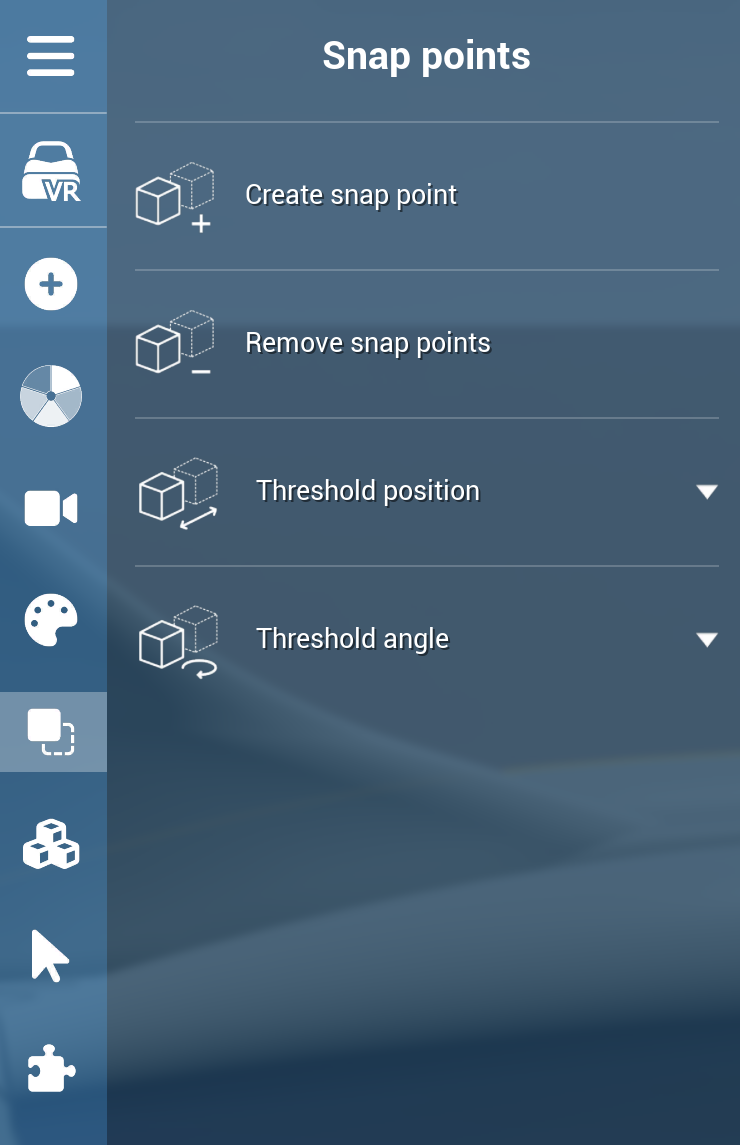
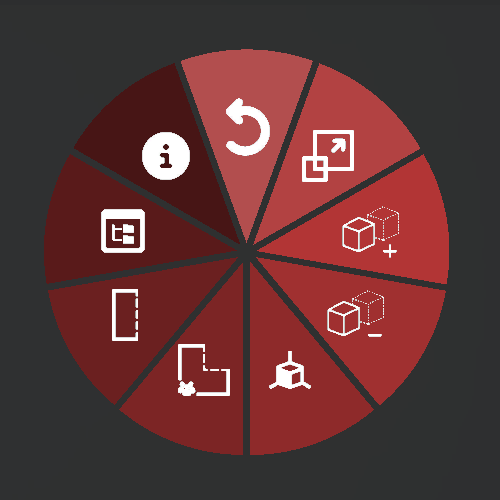
Create Snap Point
Note: This command will only be usable if you have selected one or more objects.
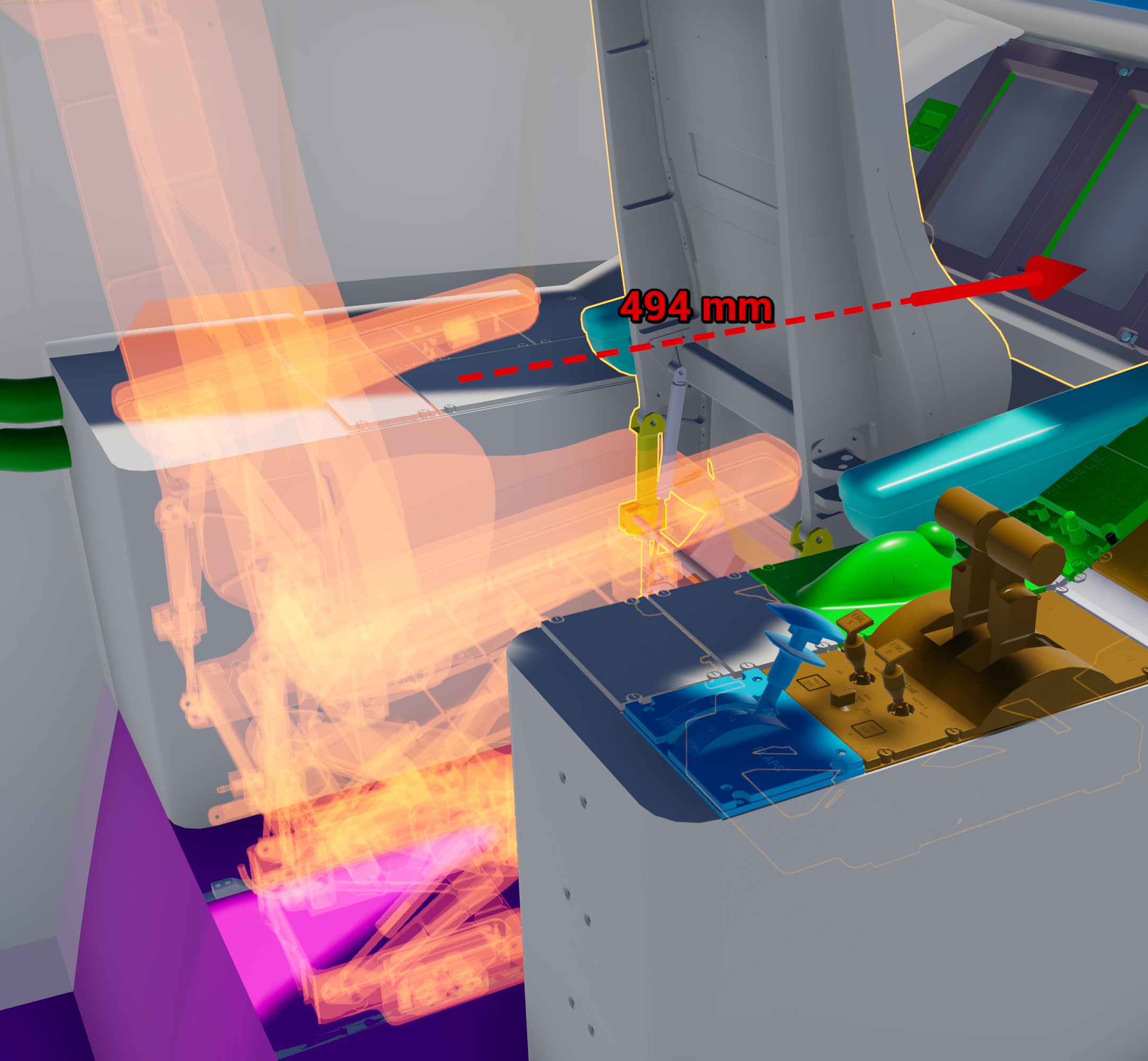
When used, this command will create a snap point for each selected object at its current location. Once the snap points are created, if you move one of the objects for which you have created, you will see that a "ghost" version of the object you have just moved, remains at the original spot of the object. This is the snap point.
If you wish to place the object back in its original position, simply bring it close to the snap point, and, if done correctly, it should snap back to its original position. You can edit the threshold angle and position for snapping in the Snap Points section of the Command menu.
Remove Snap Points
Note: This command will only be usable if you have selected one or more objects.
When used, this command will remove snap points for the selected object(s).
Threshold Position (Desktop)
Set the threshold position at which an object will snap back to its snap point. This threshold will be used if you have selected either Fit position or Fit position/angle in Snap Point Fitting.
Threshold Angle (Desktop)
Set the threshold angle at which an object will snap back to its snap point. This threshold will be used if you have selected Fit position/angle in Snap Point Fitting.
Snap Point Fitting (Desktop - not listed by default)
Choose which type of snapping you wish to use when working with snap points. There are three options you can choose from:
-
Fit position
-
Fit position/angle
-
Don't fit
Tips
-
Snap points are automatically created when you use the Expand Product Tree command, so you can always reassemble expanded products.
-
Use Fit position/angle for the most accurate snapping, especially when parts need to be oriented correctly (e.g., bolts, connectors).
-
Adjust the Threshold Position and Threshold Angle values to make snapping easier (larger thresholds) or more precise (smaller thresholds) depending on your needs.
-
The green "ghost" visual indicator makes it easy to see where a part belongs, which is helpful during training or assembly demonstrations.