
Rendering
These commands allow you to set the graphics parameters of SkyReal VR. They can be useful for optimizing performance ; for instance, toggling off SSAO will increase FPS.
You can find these commands in the Rendering options on the top bar.
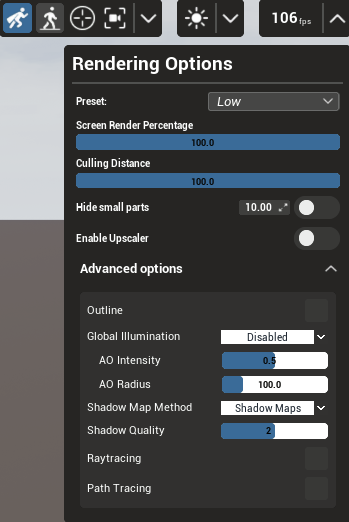
How to Use
Anti-Aliasing (AA)
Anti-aliasing refers to the smoothing of aliased, or jagged, lines when displayed on a screen. In SkyReal VR, there are several anti-aliasing options you can choose from: FXAA and TXAA.
-
FXAA (Fast Approximate Anti-Aliasing): A post-processing technique that smooths edges with minimal performance cost.
-
TXAA (Temporal Anti-Aliasing): A more advanced technique that uses temporal data to reduce flickering and produce smoother edges.
SSAO
Toggle Screen Space Ambient Occlusion. SSAO is an effect that approximates the attenuation of light due to occlusion. This is generally best used as a subtle effect, in addition to standard global illumination, that darkens corners, crevices, or other features to create a more natural, realistic look.
Auto Exposure
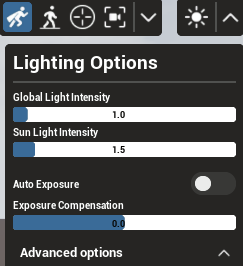
Toggle auto exposure (also known as eye adaptation). This feature causes the exposure of the scene to automatically adjust to recreate the effect you experience as your eyes adjust when going from a bright environment into a dark environment or vice versa.
Toggle Shadows
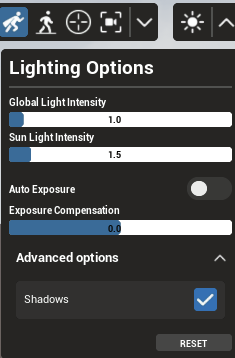
Activate or deactivate shadows in your scene.
Tips
-
If you are experiencing low frame rates, try toggling off SSAO and Shadows first, as these are the most performance-intensive rendering features.
-
Auto Exposure can help make transitions between differently lit areas of your simulation feel more natural and immersive.
-
Choose FXAA for better performance or TXAA for higher visual quality when configuring anti-aliasing.