
Minimap
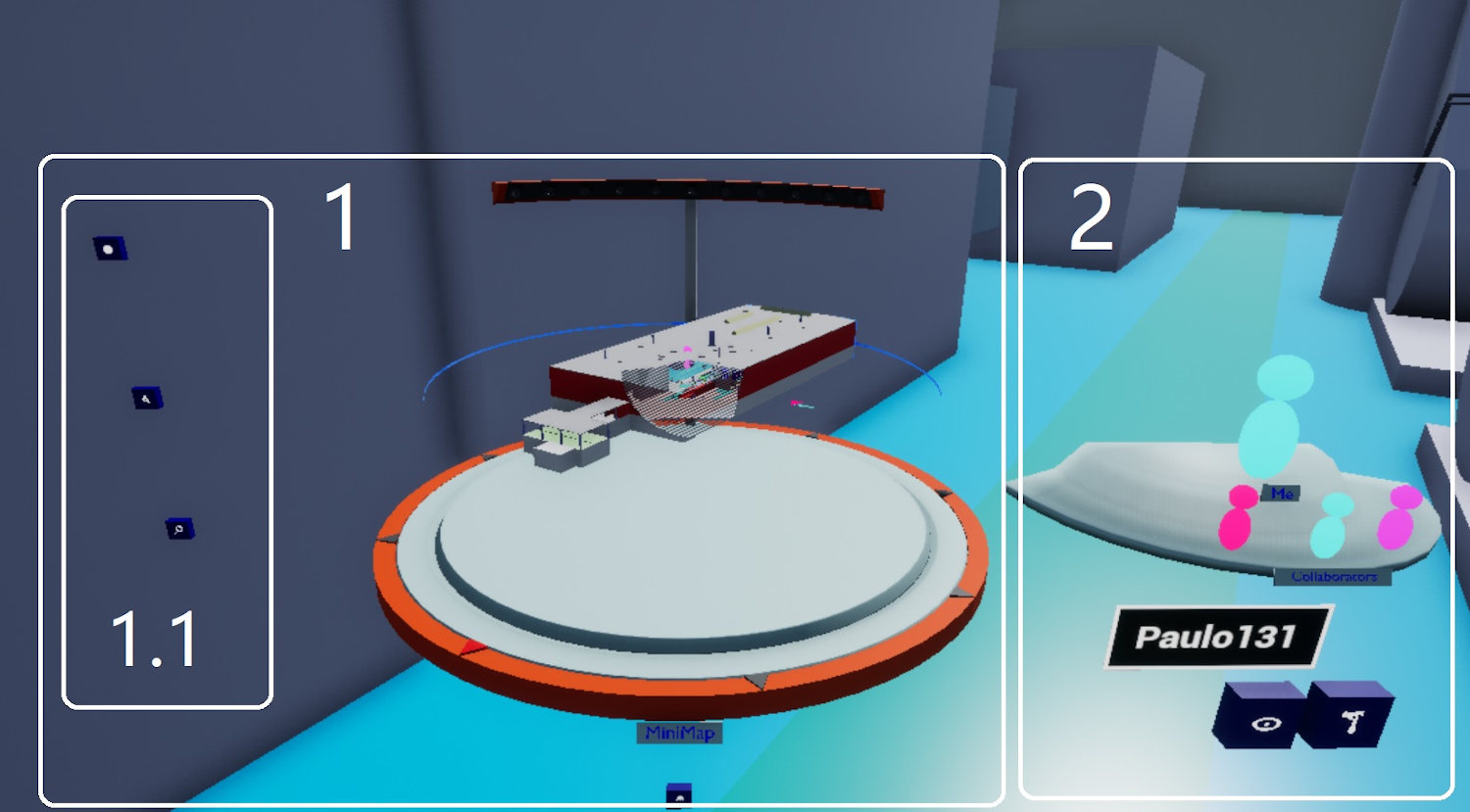
This command creates a dynamic reduced model (Minimap) of the simulation in front of you. You are the only one [who can] see it.
The Minimap can help you find out where you and your collaborators are located in the simulation. It also allows you to teleport yourself to your collaborators (and vice versa).
You can find this command in the default Navigation sub menu.
How to Use
Layout
When you launch this command, the Minimap appears in front of you. The launch might take a few moments (~0.5 s), depending on the size of your simulation. There are two parts to distinguish:
-
The left side (1) is a display cylinder in which the reduced model of the simulation is rendered. Your location and that of all users currently in collaboration with you are displayed in real time by a MiniPawn.
-
The right side (2) is a plate on which you can view all of the MiniPawns of users currently in [collaboration]. You are the biggest pawn, on top.
Basic Functionalities
Hover over a MiniPawn (anywhere in the Minimap) to display the name of the associated user.
Click on a MiniPawn to select it. The name of the selected MiniPawn remains on a label on the right side. Below this label, you can perform the following actions using buttons:
-
Show in Minimap: Centers the Minimap on this MiniPawn. The Minimap will keep focusing on it until you choose another MiniPawn or you move the Minimap manually.
-
Teleport MiniPawn: After clicking this button, click anywhere in the display cylinder to teleport the selected MiniPawn to the location you clicked.
-
Teleport Toward: Teleports you to the selected MiniPawn's location.
-
Invite: Teleports the selected MiniPawn to your location.
On the left side, you can see some smaller buttons (1.1). Hover over them to enlarge them. Depending on the [custom] parameters you chose, you can:
-
Toggle Opaque / Transparent Minimap: It is easier to visualize positions with an opaque Minimap.
-
Toggle Relative / North Orientation: With relative orientation, the Minimap orientation matches your pawn's orientation (feels more natural). With North orientation, the Minimap stays oriented in the same direction.
-
Toggle Big / Local View: Big view shows all of the simulation in the Minimap, while Local view shows a view closer to your pawn.
Advanced Functionalities
There is another small button below the display cylinder. Click and hold it to move the whole Minimap (1 & 2) on your screen.
The height of the display cylinder can be changed by grabbing the orange part on the back.
The display cylinder can be rotated by grabbing the orange ring.
Click and hold on the display cylinder to move the Minimap. The focus on the selected MiniPawn will stop.
Click and hold with two hands on the display cylinder to rotate and rescale the Minimap.
Options and Settings
-
Is Mesh Number Dynamic: If you are experiencing performance issues with the Minimap, enable this option. It adjusts the number of meshes rendered depending on your FPS.
-
Is Default Orientation Relative (recommended): Enable this to start the Minimap with a relative orientation.
-
Show Orientation Button: Enable this to display a button allowing you to switch between relative and fixed Minimap orientations.
-
Show Transparent Button: Enable this to display a button allowing you to switch between an opaque and a transparent Minimap.
-
Show Collab Disk (recommended): Enable this to access collaborative Minimap commands. The Collab Disk (2) is necessary to perform actions related to you and your collaborators (teleport, focus). [If you do not wish to display it, you can disable this option.]