
In this sub-menu, you can view the tree of your experience.
The Hierarchy panel contains all elements in the scene (Annotations, Designs, Tools, Groups, Views, Tickets, Manikins, Measures, and Cutting Geometries). Each object type has its own icon and folder.
By default, when an experience is created and no elements have been added, only the Product Structure folder contains items; all other folders are present but empty.
In Desktop
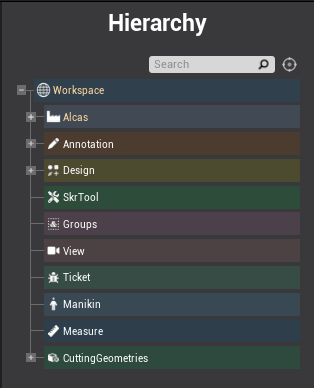
Product Tree
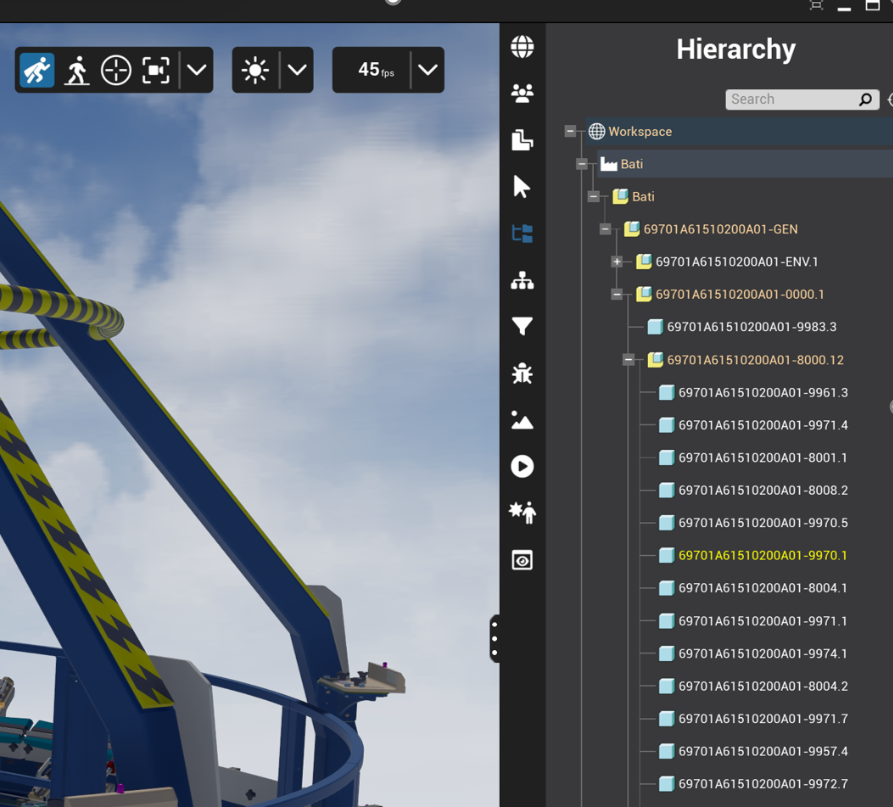
At the top of this tree, you will find all of the different 3D parts and products that you prepared in CAD forge. The product tree is the same has the one in your root CAD product.
The parts selected in the product tree are selected automatically in the viewport. This way you can quickly select whole subproducts.
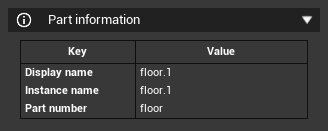
You can find information relative to the selected element at the bottom of the menu:
Product Tree Actions
A context menu is available on right click. You can access basic commands:
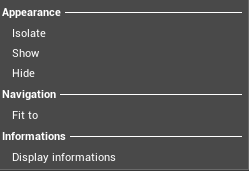
Right Click: Select (single or multiple parts)
-
Isolate: 3D scene hides everything except the part(s) selected(s)
-
Hide/Show: Toggle visibility in viewport
-
Fit To: Viewport 3D translate to focus on part
-
Display Information: change the panel to display detailed properties
-
Rename: Change component name (double-click to edit names in line)
|
Hierarchy Folders |
Information |
|---|---|
|
Annotations |
Under Annotations, you will find all of the 3D annotations, arrows and symbols that you have added to your simulation using the Skyreal VR annotation tools. |
|
Designs |
Under Design, you will find all of the 3D items that you have added to your simulation using the Skyreal VR design tools. |
|
Tools |
List of tools added to the scene |
|
Groups |
Contains all the groups you have created with different parts or objects in your scene. |
|
Views |
Under Views, you will find all the views created in your simulation using the Skyreal VR View tool. These views are also accessible from the navigation bar under the Snap To option, allowing you to quickly navigate between them. |
|
Tickets |
The Tickets section lists all tickets created using the Ticket command. |
|
Manikins |
This section lists all manikins placed in the scene. You can also edit them directly using the Edit Manikin option in the right-hand menu. 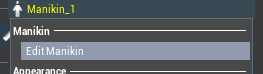
|
|
Measure |
The Measure section lists all measures created using the Measure command. You can also edit them directly using the Edit Measure option in the right-hand menu. 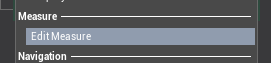
|
|
Cutting geometries
|
This section includes all cutting geometries added to the scene. Only section cuts can be edited via the right-click submenu. 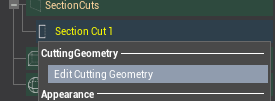
|
In VR
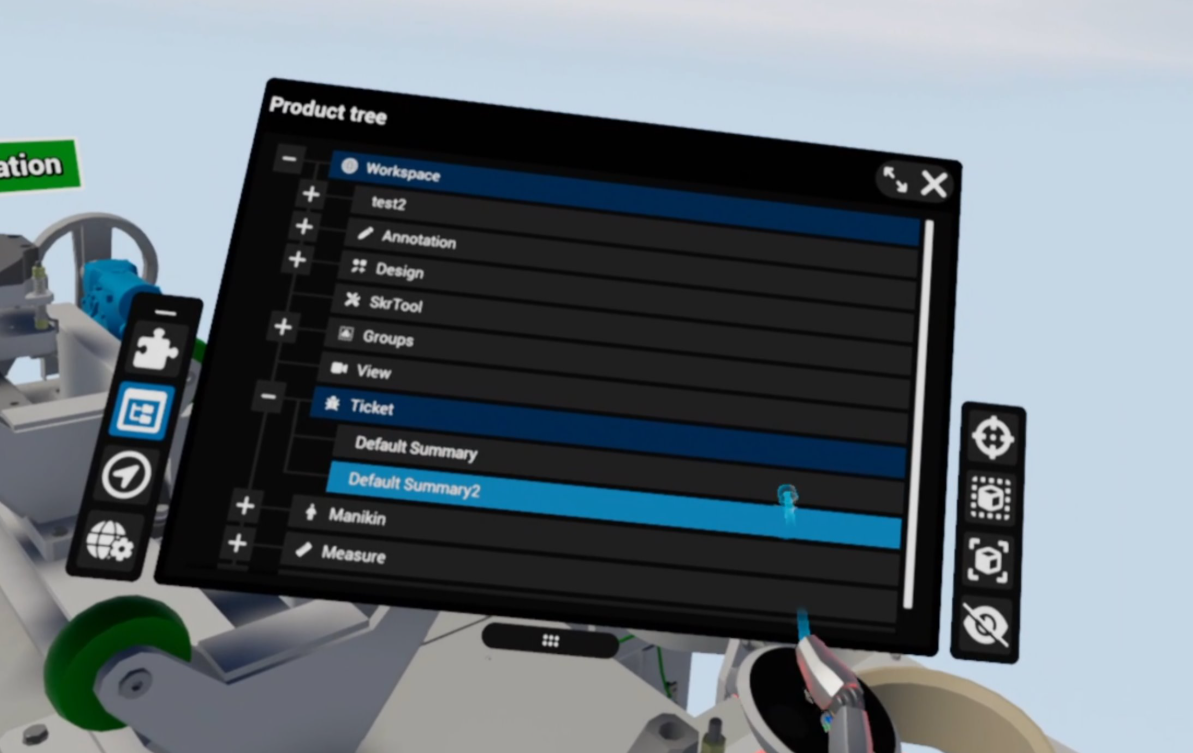
The Hierarchy Panel – Product Tree is accessible from the Product Tree tab in the main tab bar.
Contextual buttons update based on the selected element, providing quick actions adapted to each item.
Related Product Tree Commands
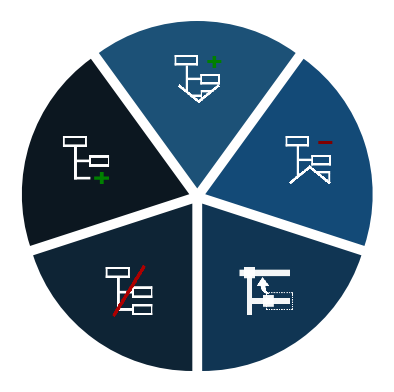
|
Command |
Action |
Custom Parameter |
|---|---|---|

Expand Product Tree
|
To expand the product, select a part and launch the command. The product is opened from the root product of the product tree, following the branch that leads to the selected part. Each time you execute the command, the product is opened further in the direction of the selected part. All These commands let you explore your product by unfolding it according to the product tree. When you expand the product, snap points for the parts are automatically created to let you reconstruct the product. |
Expansion Factor: The distance between the exploded parts and the center of the product. |

Collapse Product Tree
|
The Collapse command does the opposite of Expand; each time you execute it, you close one level of the hierarchy. |
None |

Exit Product Tree
|
Exit Product Tree will remove the snap points associated with the parts and block the ability to collapse the product. |
Reset Part Position: All the parts of the product return to their original position. |

Add Product Tree Node
|
If you select multiple parts, all children of the same product, this command allows you to create a sub-product that contains these parts. It can help you envision other organizations of the product hierarchy, without modifying the original product tree. |
Expansion Factor: The distance between the exploded parts and the center of the product. |
Tips
-
Use Expand Product Tree to progressively disassemble a product along its hierarchy for step-by-step review.
-
The automatic creation of snap points during expansion means you can always reassemble the product by snapping parts back into place.
-
Add Product Tree Node is useful for creating custom groupings during a review session without permanently altering the original product structure.
-
Use Exit Product Tree with the Reset Part Position parameter enabled to cleanly return to the assembled state.