
Design Commands
The Design commands allow you to add simple geometries directly to your simulation, including boxes, spheres, cables, and pipes. You can use these commands while in VR mode to create and refine objects in your scene.
Examples of use:
-
Adding pipes to your simulation is much easier in SKYREAL VR than in CAD software such as CATIA. You can create pipes using the Pipe command and then, using the Save for Back to CAD command, save those pipes for export to a CAD file.
-
Adding cubes can be useful for defining a workspace and establishing the boundaries of an area of study.
How to Use in VR
There are five types of Design commands:
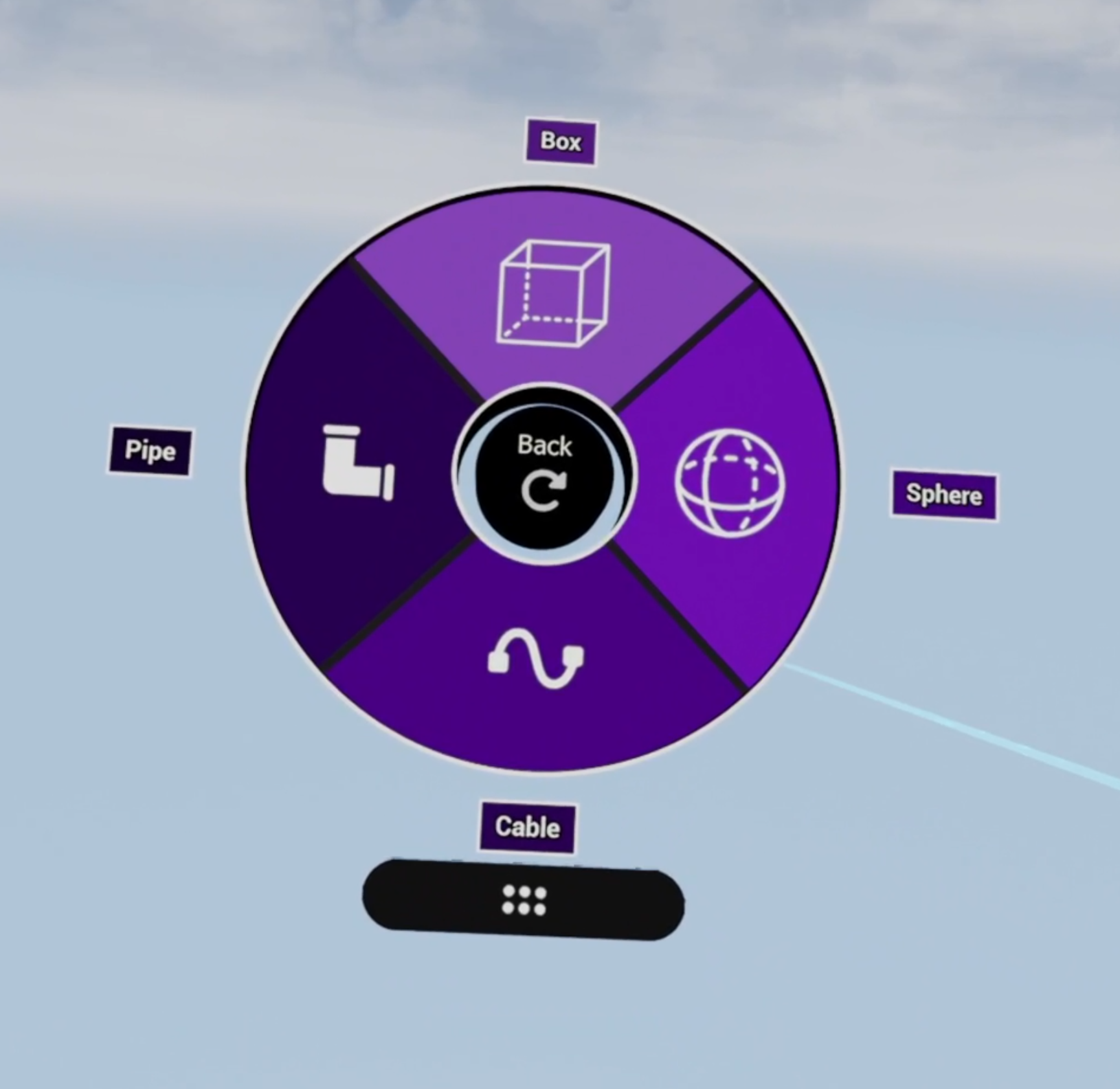
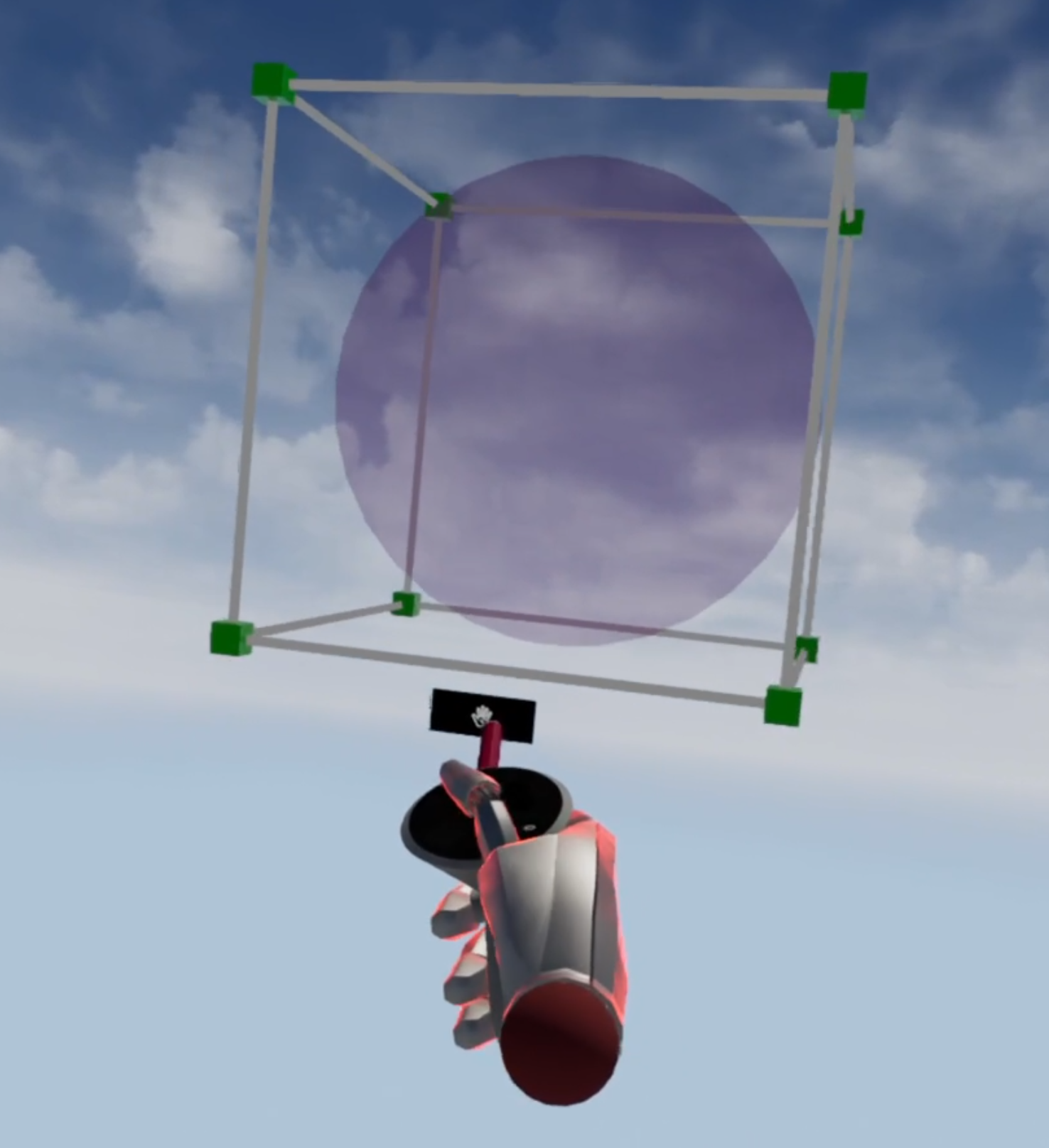
Box / Sphere
Press the trigger, move your hand to determine the size of the bounding box, and release the trigger. You can also edit any point of the bounding box, or grab and move it.
Pipe / Cable
To create a pipe or cable, press the trigger and drag your hand to define the diameter, then click to create control points.
Continue adding points to shape the path, and click again on the last control point to finish the pipe or cable.
To add a control point later, place the controller on the curve until a + symbol appears, then click to insert a new point on the curve. To remove a control point, select it and move it toward a connected point; when a − symbol appears, release to delete the point.
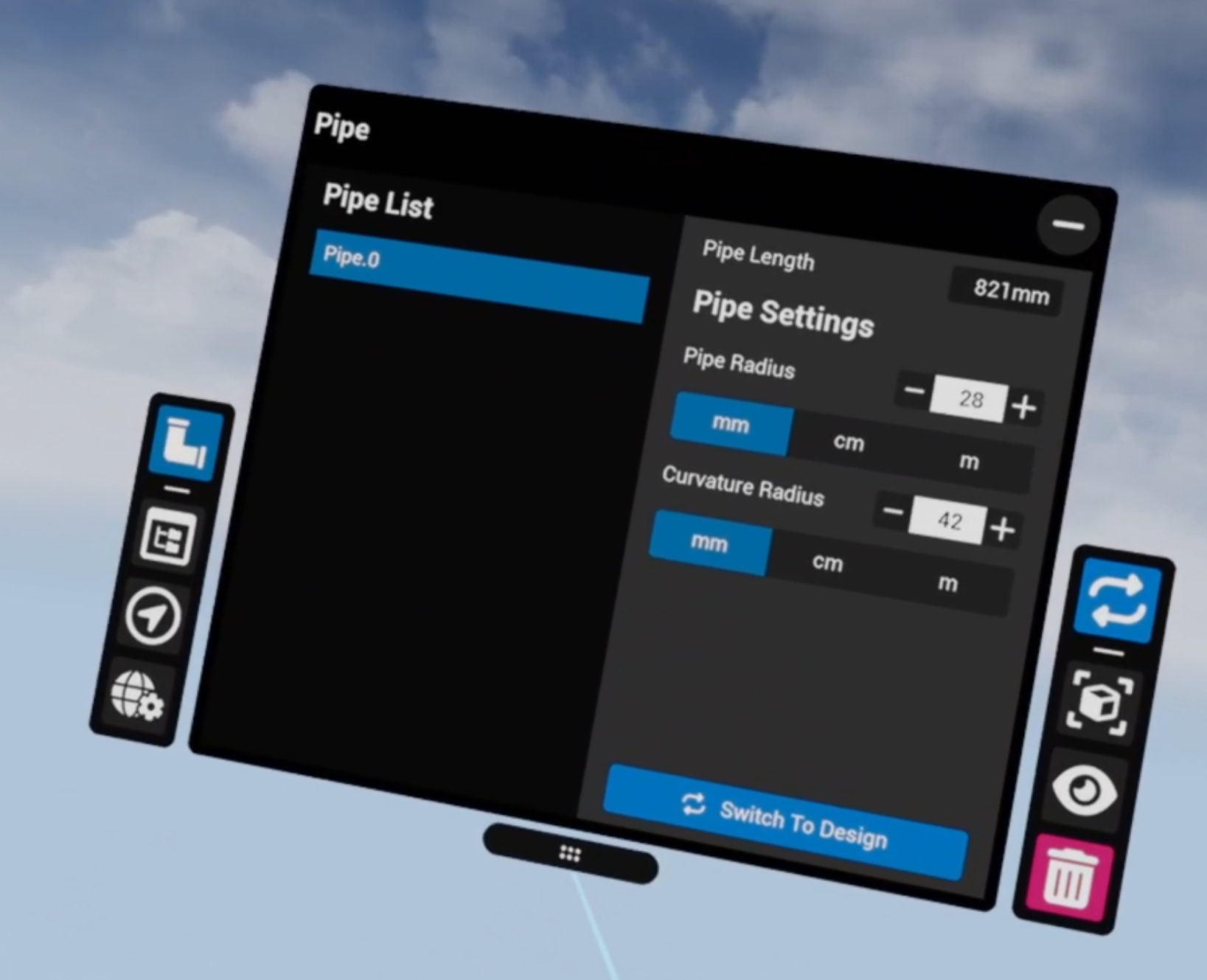
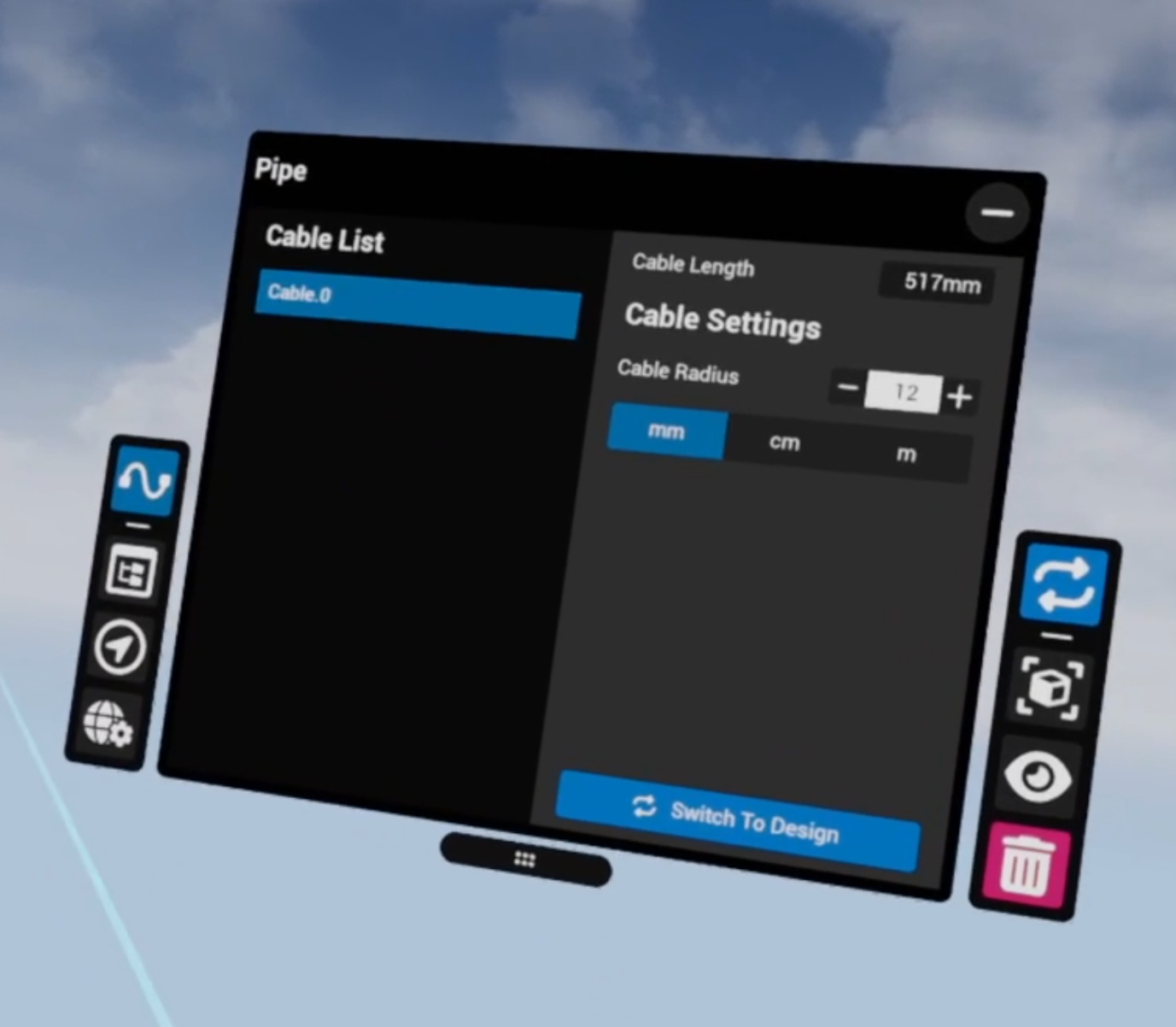
Interactions with the Pipe / Cable tablet
With the Pipe or Cable command, the tablet opens in two different states. The Design state is displayed when no pipe or cable is selected, allowing you to interact with the scene and create new pipes or cables. When a pipe or cable is selected, the tablet switches to the Selected state, where you can edit properties of the selected element, such as its radius and curvature.
Custom Parameters
|
Command |
Parameters |
|---|---|
|
Box |
Minimum delete length |
|
Sphere |
Minimum delete length |
|
Plane |
Minimum delete length |
|
Cable |
|
|
Pipe |
|
Tips
-
Use the Pipe command in VR for fast cable or pipe routing, then export your work back to CAD using the Save for Back to CAD command.
-
Leverage the tablet interface to quickly switch between design commands without navigating through menus.