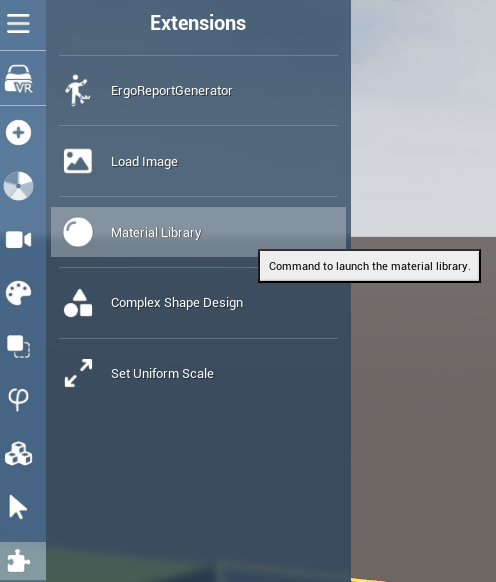
You can find the material library in the left-han menu by clicking on the button "Extensions and on the commande “Material Library”
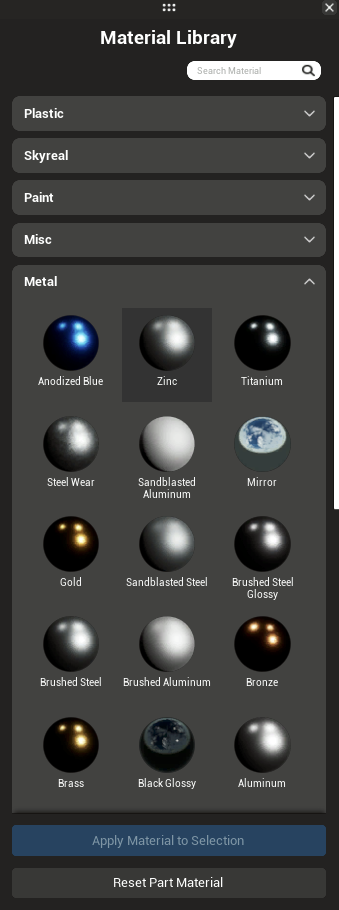
How to use Material library
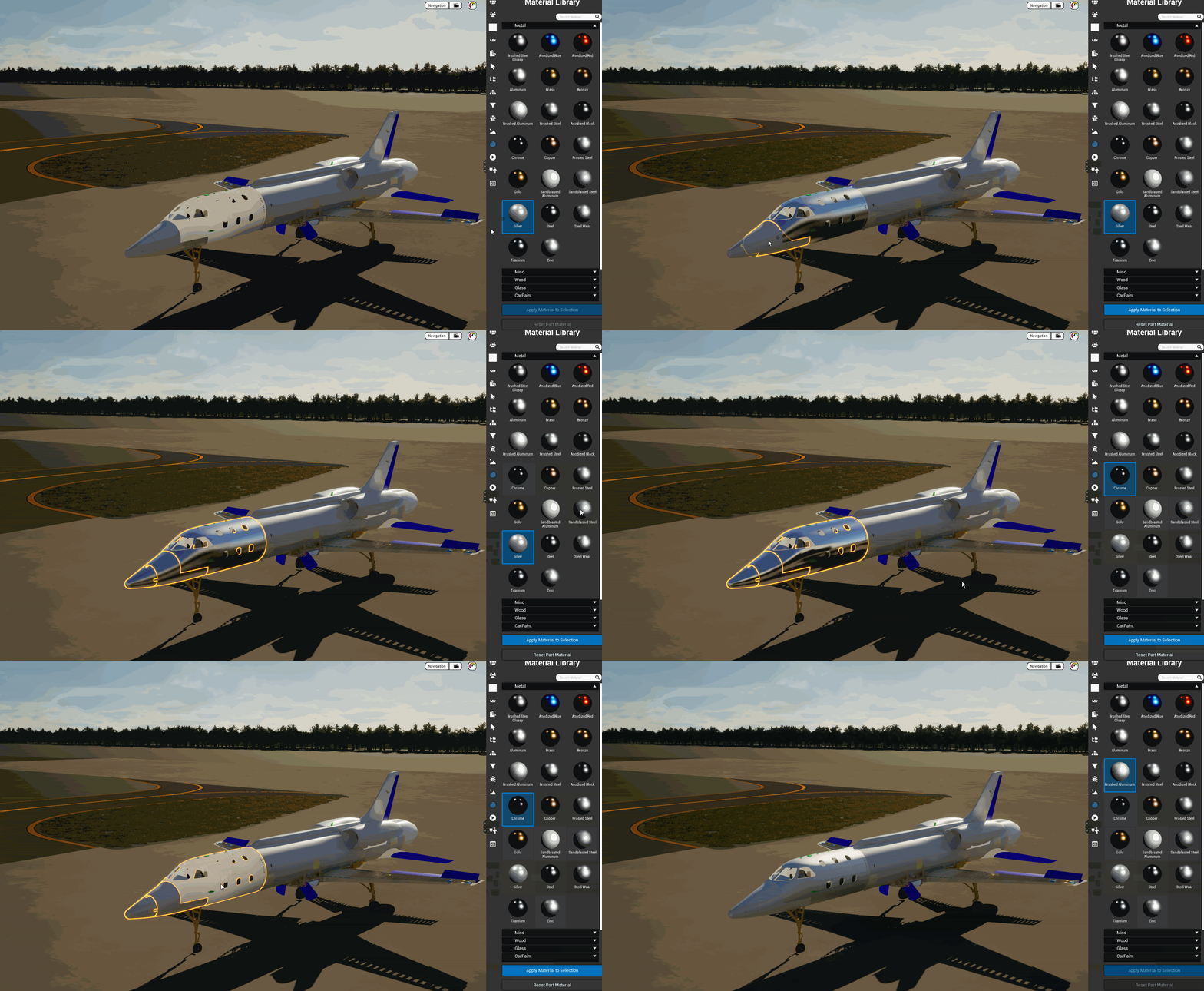
To apply a material to a part of your CAD model, simply drag and drop the material onto the desired part. To ensure you're applying the material to the correct part, first select the part to highlight it with a yellow outline, then drag and drop the material onto it. If you have selected a group of part, use the "Apply material to selection" button on the bottom of the material list.
You can also remove the applied material on the selected part with the reset part material.