
Object Manipulation
There are several methods to manipulate objects in SkyReal VR, depending on whether you wish to be precise, to freely move any part, or to use both hands.
Compass
The Compass Manipulation command allows you to manipulate objects using a Cartesian axis system. This command works in both modesm Desktop and VR.
Video Example
Specifications
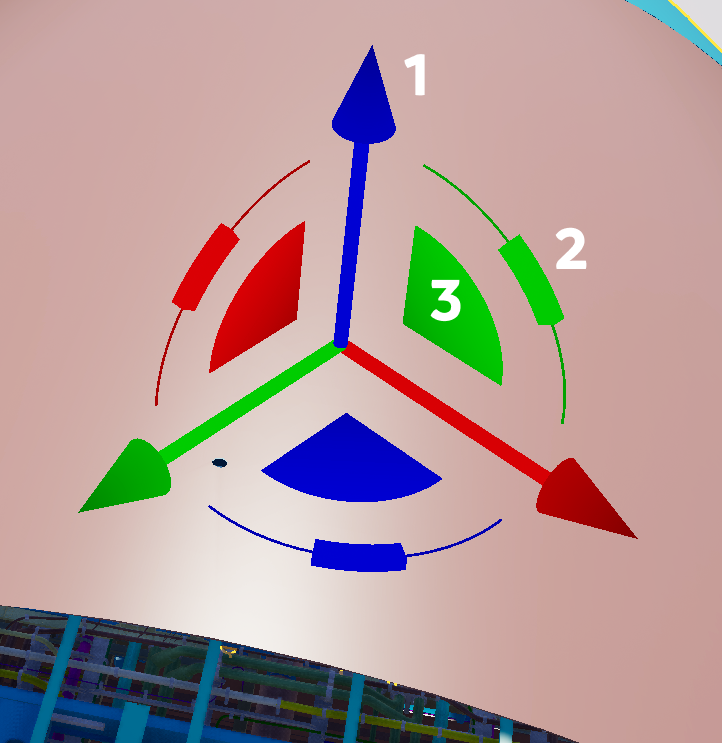
The three axes of the Compass can be used to modify the position and rotation of the selection.
-
Arrows (1): Translate on a single axis.
-
Handles (2): Rotate on a single axis.
-
Quarter circles (3): Translate on a plane (two axes) of the frame.
How to Use on Desktop
Wit] this command, you have three ways to move parts in desktop mode:
Compass
As with the VR command, a Cartesian axis system spawns at the center of the selected parts. You can translate and rotate the parts by clicking on the compass axes.
Desktop User Interface
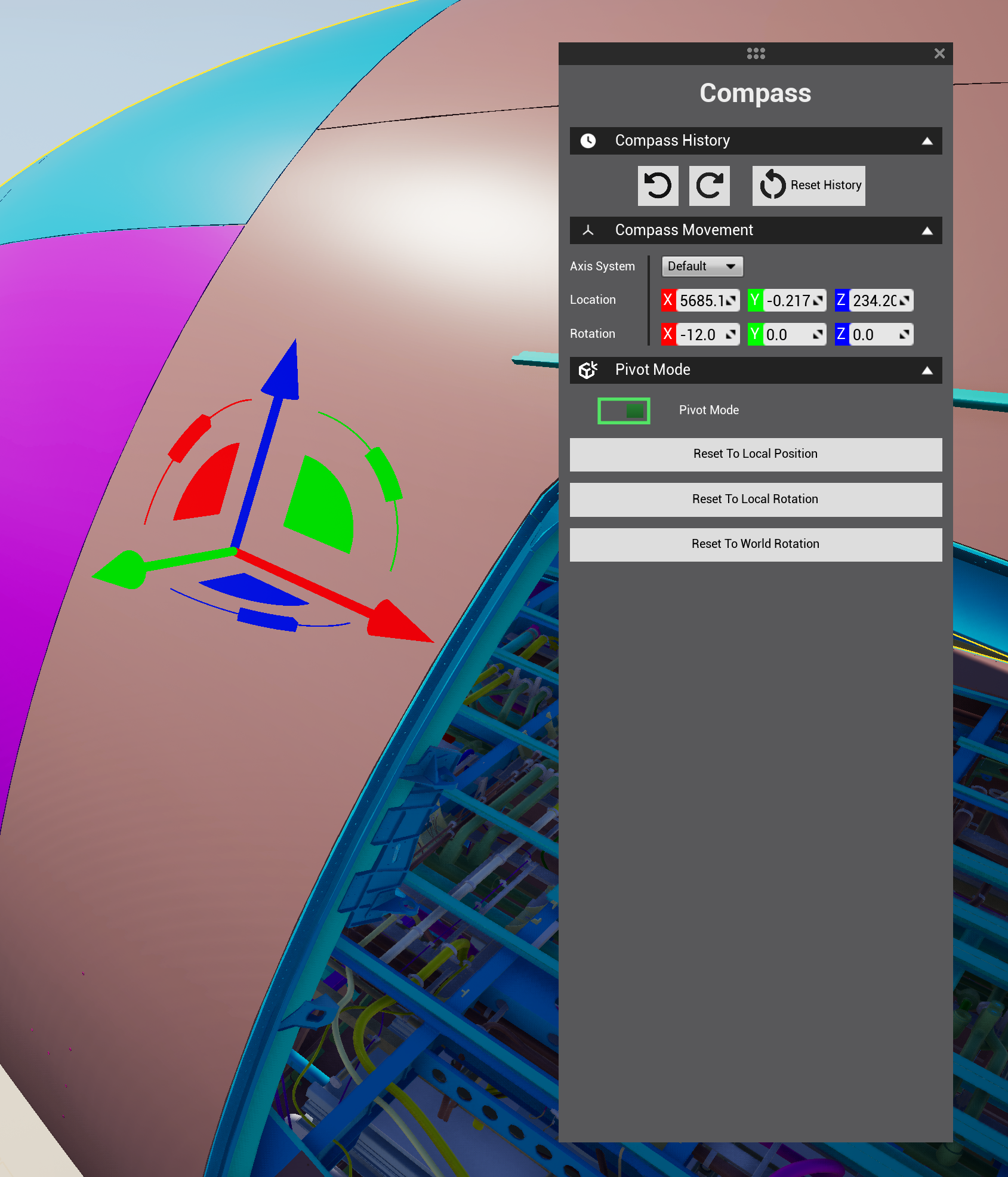
Compass History:
-
Undo Button: Allows you to reverse your last action, moving backward through the action history.
-
Redo Button: Allows you to reapply an action that was previously undone. This is helpful if you decide that the change you initially reverted should be applied after all.
-
Reset Button: Resets the compass position to the default one.
Compass Movement:
-
Axis System: The default axis system is indirect (inherited from Unreal), but you can switch to a direct axis system using the Catia system mode.
-
Location: Set incremental values of location.
-
Rotation: Set incremental values of rotation.
Pivot Mode:
When active, Pivot Mode allows you to move the compass and set it in a new position, which the part will use as a new anchor for changes, such as the point of rotation. To do so, you just need to click on the compass axes to move the compass, and then close the Pivot Mode switch button to define the new position.
You can also use the right mouse button to place a new anchor point anywhere. Keep in mind that these changes will not persist once you exit the command.
The buttons Reset to Local Position, Reset to Local Rotation, and Reset to World Rotation will reset the compass position to each specific case.
How to Use in VR
You can find this command in the default Grab sub menu (VR) and in the Product desktop menu:
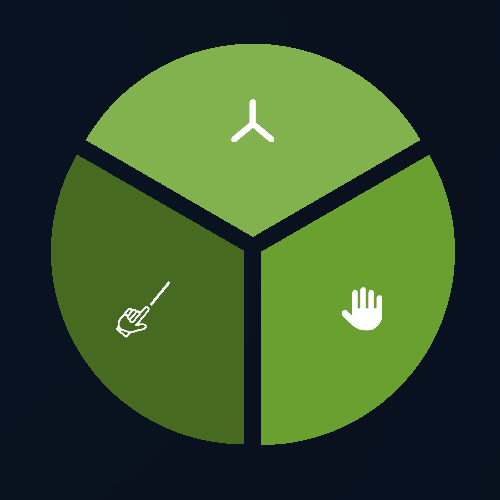
To use it, just qim your laser at the arrows, handles or quarter circles that you wish to execute, press and hold the trigger, and then move your controller to translate or rotate the selected object(s).
VR User Interface
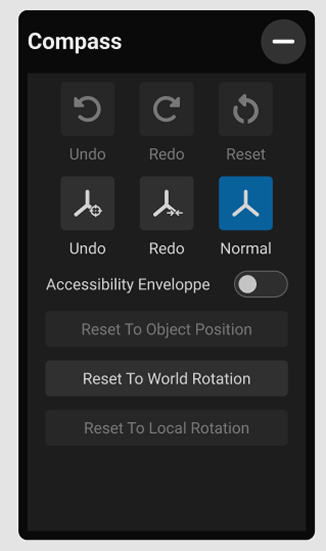
Undo, Redo, and Reset Buttons:
As in desktop mode, these buttons help you manage the history of a part's movement using the compass. The Undo and Redo buttons allow you to move backward and forward in time, while the Reset button restores the part to its original position.
The history of the Undo/Redo buttons is retained until you close the command. When you re-launch the Compass, the history resets to zero. To move a part to its initial position on the map, use the Reset Parts Position option.
Movement Pace Buttons:
-
Normal (default): The compass movement follows the controller movement.
-
Slow: The compass moves at 10% of the normal speed.
-
Precise: The compass moves at 3% of the normal speed.
Pivot Mode:
When active, Pivot Mode allows you to move the compass and set it in a new position, which the part will use as a new anchor for changes, such as the point of rotation. Once Pivot Mode is active, a blinking pyriform shape (pear-shaped form) will appear. You can grab this shape with the laser and place it anywhere in the space to define the new position.
The buttons Reset to Local Position, Reset to Local Rotation, and Reset to World Rotation will reset the compass position to each specific case.
VR Custom Parameters
The Compass command has 3 customization parameters:
-
MinScale: The minimum size in space that the compass can take when trying to maintain its apparent size on the screen.
-
PrecisionSpeed: The speed factor that the shift key will apply to the current move in Desktop.
-
Snap: Enables snapping behavior for precise positioning.
Other VR manipulation methods
Fast Grab
Fast Grab is a quick-access manipulation command that lets you move parts without opening the pie menu.
When no other command is active, you can quickly access the Grab Laser through Fast Grab. By default, hold the grip button on your controller to activate Fast Grab, then use the trigger button to grab or release parts.
Pressing the trigger button while hovering over a part will attach it to the laser. If you release the trigger, the part will be detached. If the part is part of a selection, the whole selection will be grabbed and ungrabbed.
Resetting the position of a grabbed part
You have two ways to reset a grabbed part to its original position:
-
Hold still: If you keep your hand steady for about a second, a ghost of the part's initial position will appear. Move the part to align with the ghost, and it will snap back into place.
-
Shake: Quickly shaking your controller will instantly reset the part to its starting position.
Selection Manipulation
The Selection Manipulation command lets you grab all the selected parts with one hand. You need to select a parts before launching the command.
Laser Manipulation
The Laser Manipulation command allows you to grab any part without prior selection. You just need to point at a part with your laser and keep the trigger pressed to grab it. You can grab two parts at the same time (one part in each hand).
Overlapping Object Manipulation
The Overlapping Object Manipulation command is the most realistic interaction metaphor. It also requires no selection; you just have to touch the part you want to manipulate and press the trigger to grab it.
Nearest Object Manipulation
The Nearest Object Manipulation command allows you to manipulate the closest part without selection. If both hands point at the same part, you will be able to grab it with two hands for greater precision.
Tips
-
Use Fast Grab for quick, informal repositioning of parts during a review session.
-
Choose Compass Manipulation when you need precise, axis-constrained movement or rotation.
-
Laser Manipulation is ideal when you need to quickly grab and move individual parts without pre-selecting them.
-
For the most realistic interaction, try Overlapping Object Manipulation, which lets you touch and grab parts.
-
Use the Pivot Mode in Compass Manipulation when you need to rotate a part around a specific point rather than its center.