Desktop Navigation
Skyreal VR currently offers different Desktop navigation modes: Fly, Walk, CATIA V5, and Snap To.
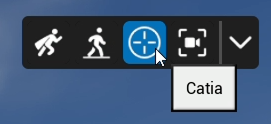
By default, Skyreal VR opens in CATIA V5 navigation mode.
To change the navigation mode, click the desired Navigation button in the top-right corner of the main viewport.
Fly Navigation
Similar to Unreal Engine navigation, this mode allows the user to move around the scene using the arrow keys and mouse. Use the arrow keys to move forward, left, backward, and right, similar to the controls in many first-person games. Scrolling the mouse wheel zooms in and out, and holding the right mouse button rotates the camera.
You can learn more about navigation in Unreal Engine here.
When in Fly mode, you can pass through objects in the scene.
Fly Parameters
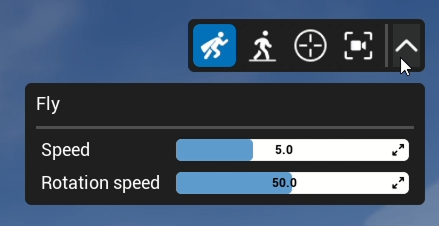
By clicking on the navigation bar menu, you can adjust the navigation and rotation speed in Fly mode.
Walk Navigation
Walk mode works the same way as Fly mode, with the added constraint that the user remains aligned with the floor while moving around the scene. The default height of the user’s pawn in Walk mode is set to 1.65 m.
In Walk mode, the user collides with any object higher than 30 cm.
Walk Parameters
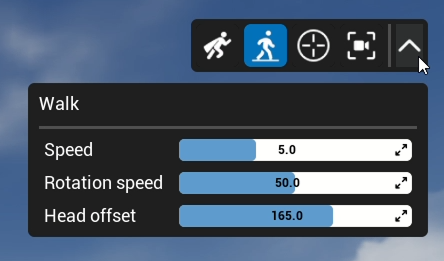
By clicking on the navigation bar menu, you can adjust the speed, rotation and height of the user's pawn.

CATIA V5 Navigation
The CATIA V5 navigation mode is very similar to the mouse navigation used in CATIA software. It allows you to zoom, pan, and rotate your point of view in the simulation using the mouse.
Panning
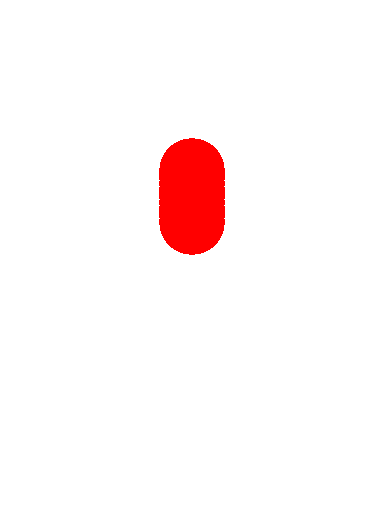
Panning allows you to move the model along a plane parallel to the screen.
To pan, click and hold the middle mouse button, then drag the mouse.
Rotating
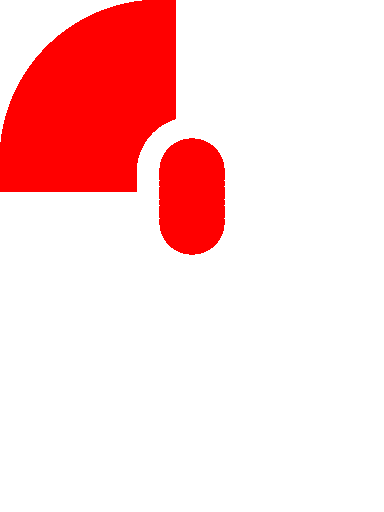
Rotating allows you to rotate the simulation around a point.
To rotate, click and hold the middle mouse button while also pressing the left (or right) mouse button, then drag the mouse.
Zooming
Zooming allows you to move closer to or farther away from the model along a plane perpendicular to the screen.
To zoom, click and hold the middle mouse button, click the left or right mouse button once, then drag the mouse upward (to zoom in) or downward (to zoom out).
Centering an Object
To center an object on the screen, simply click the middle mouse button on the geometry you want to center. The orientation and scale of the view will remain unchanged.
CATIA V5 Parameters
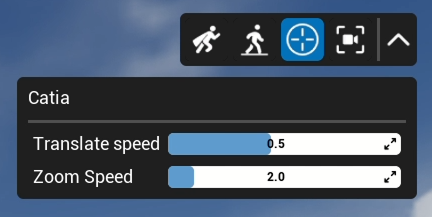
By clicking on the navigation bar menu, you can adjust the translate and zoom speed.

Snap To View
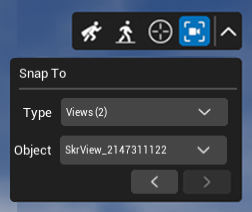
The snap view mode snaps your viewport to another user or camera view in real time. It works as the Picture in Picture but in full screen.
You can't navigate when using the snap to option.
VR Navigation Modes
Navigation in VR mode is performed using the VR controllers.
There are three types of navigation modes. These commands can be accessed from the default Navigation submenu.
Fly
Fly navigation is the most flexible navigation mode. In this mode, the user is not attached to the ground and doe
s not collide with objects.
To move forward, push the navigation pad forward and point the laser in the direction you want to go.
Note: If the laser is angled downward, the user will move down; if it is angled upward, the user will move up.
To move sideways, push the navigation pad to the left or right. The user will move in the corresponding direction.
To turn around in VR, create a 90-degree angle between the controller and your head (to the left or right), then push the navigation pad forward or backward.
Walk
Walk navigation attaches the user to the ground and enables collision with objects. This navigation mode enhances user immersion in the simulation.
Teleport
Teleport navigation is useful for users who experience motion sickness.
Fixed Floor (Z Fix)
Once activated, the Z Fix switch button overrides the "floor position" on the Z-axis of the scene and determines a new one based on the user's position. This button changes the behavior of all navigation options:
-
In Fly mode: Z Fix allows normal flight, but the user cannot go lower than the new Z "floor position."
-
In Walk mode: it sets a new floor position for the user.
-
In Teleport mode: it also sets a new floor position for the user.
Set Speed
This command allows the user to change and set the speed at which they move in VR.
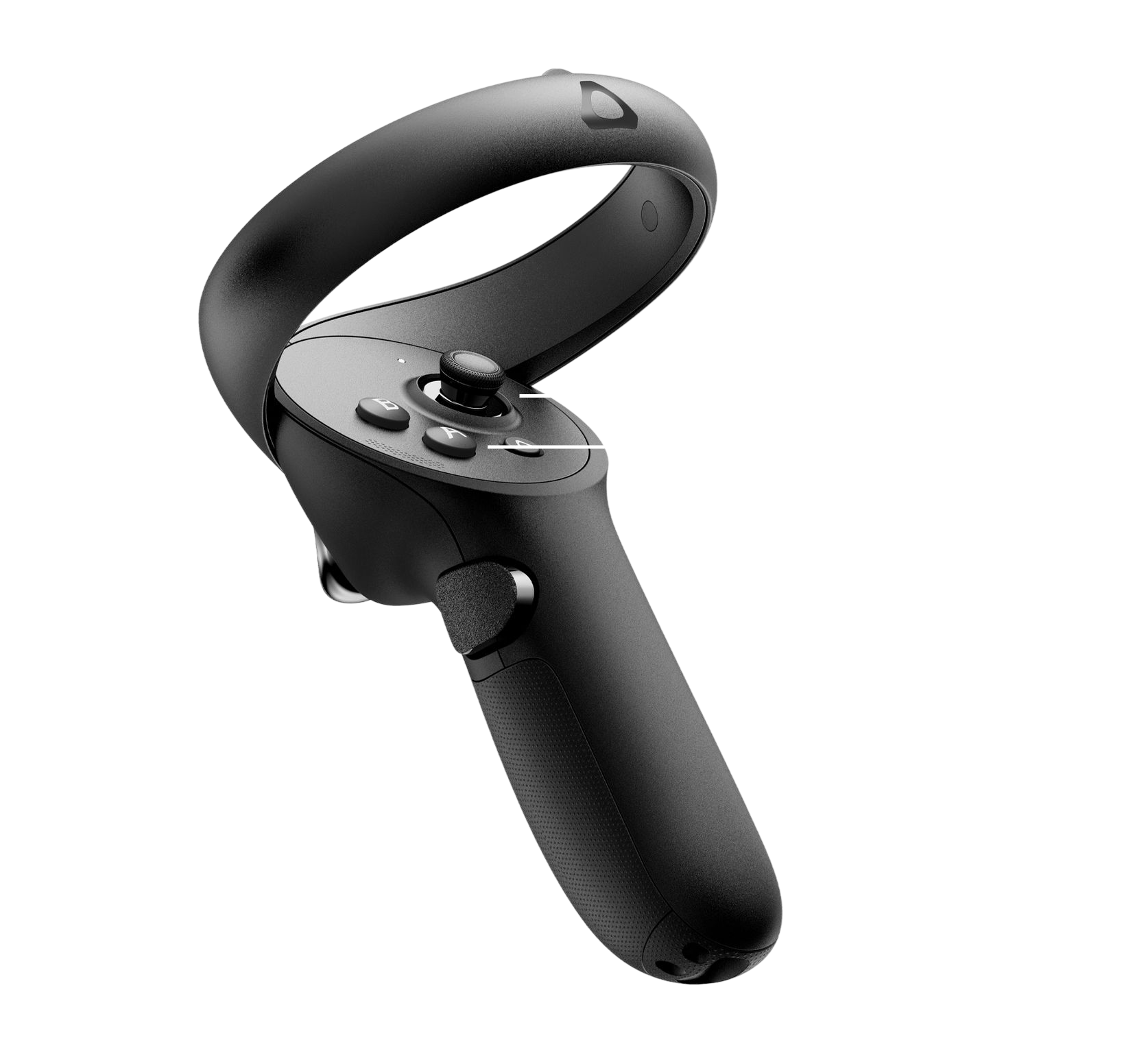
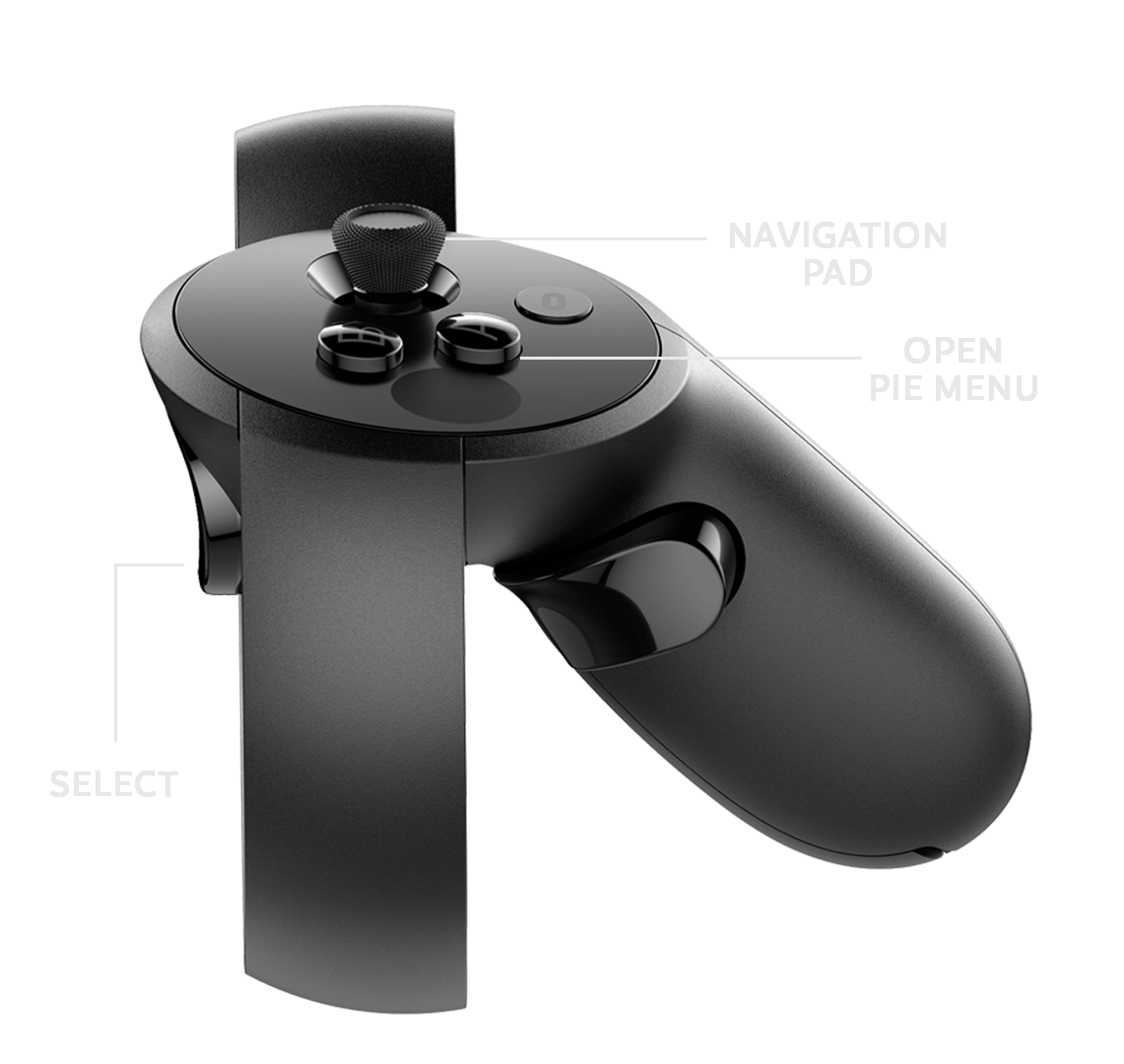
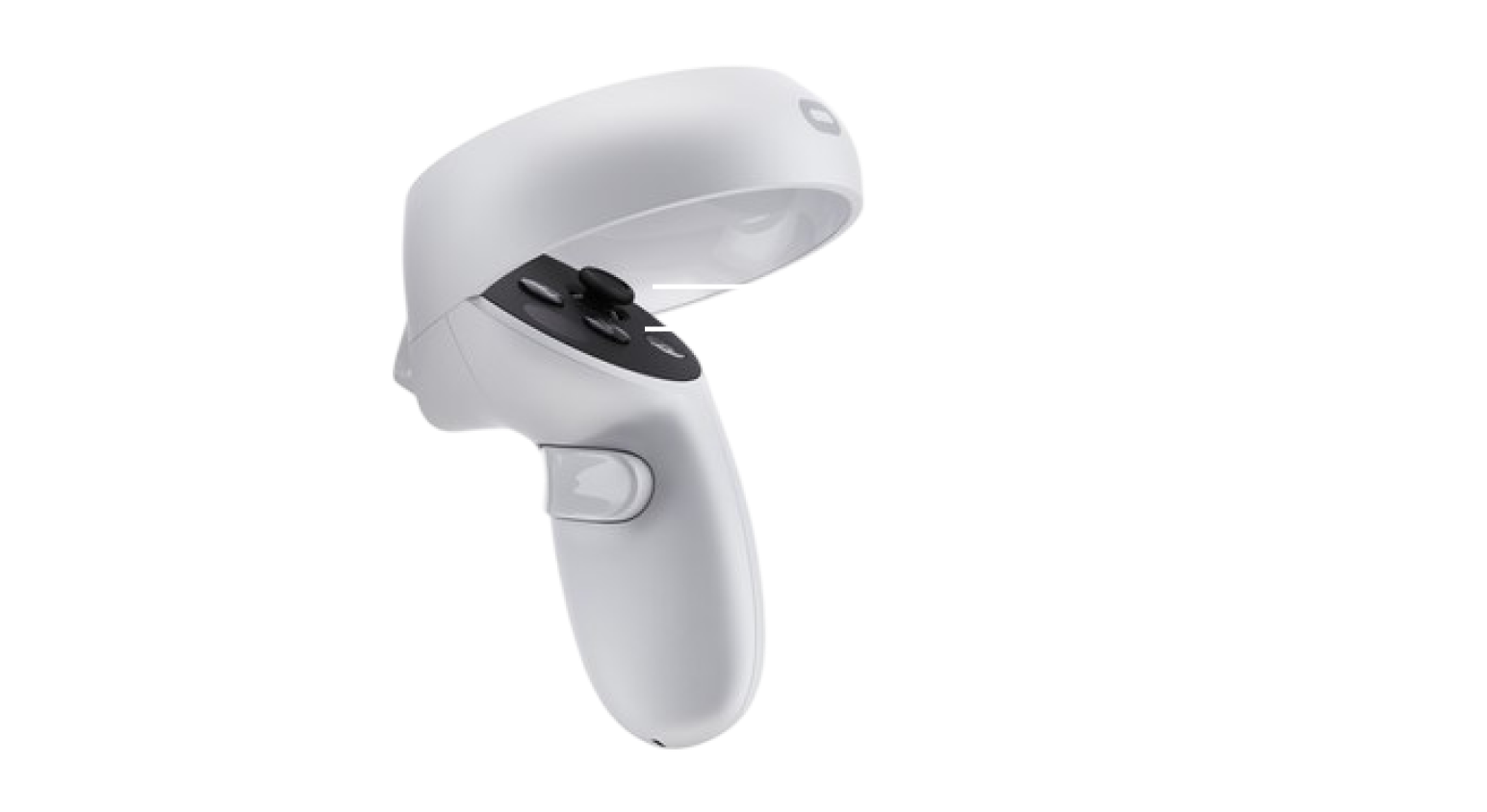
Controller Button Mapping
Skyreal VR is compatible with most VR controllers.
The button mapping is the same for both the left and right controllers and includes:
-
One trigger to select parts in your simulation
-
One button to open the pie menu
-
A pad/joystick to move in VR
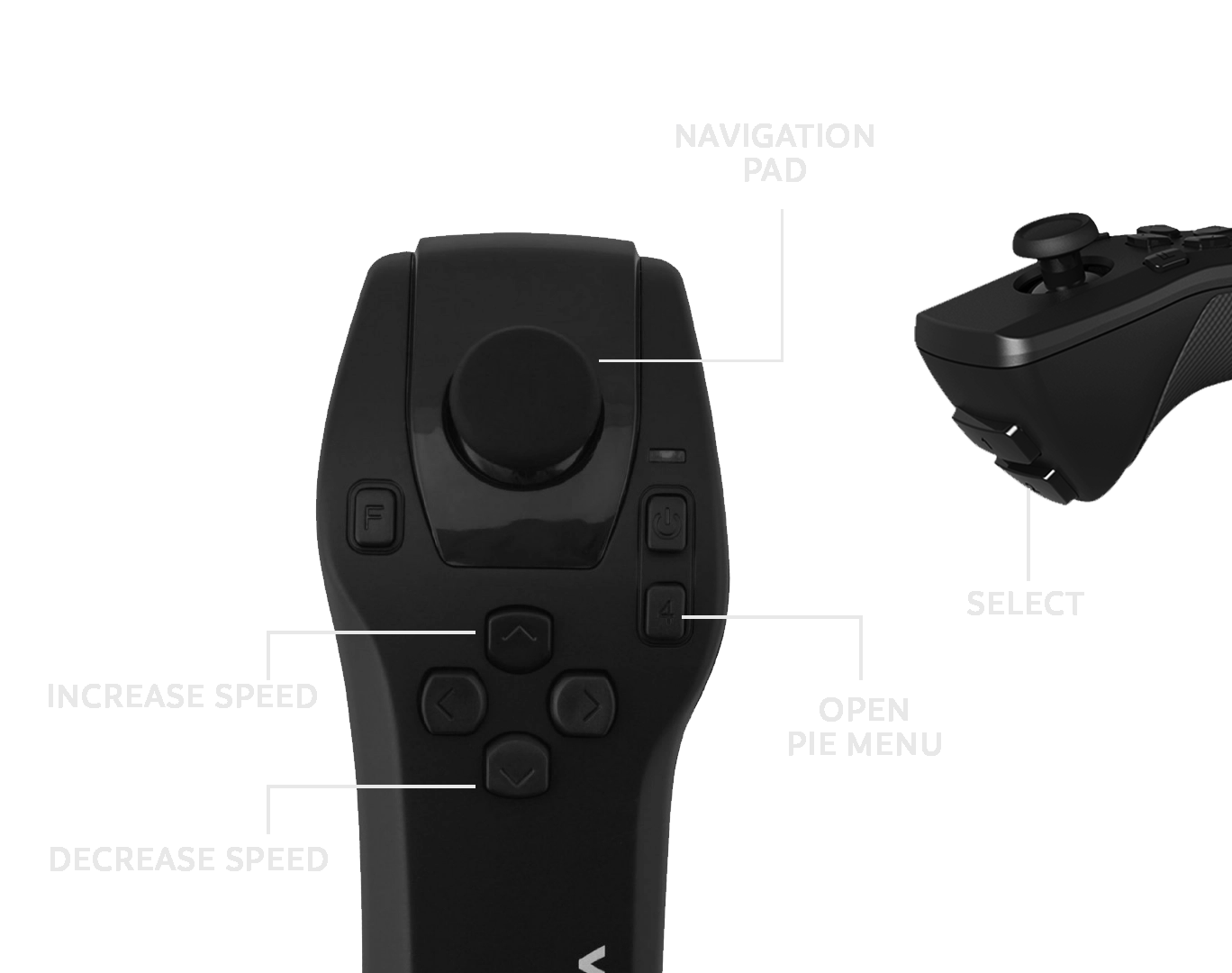
The location of these buttons is indicated below for each type of controller.
Vive Controllers
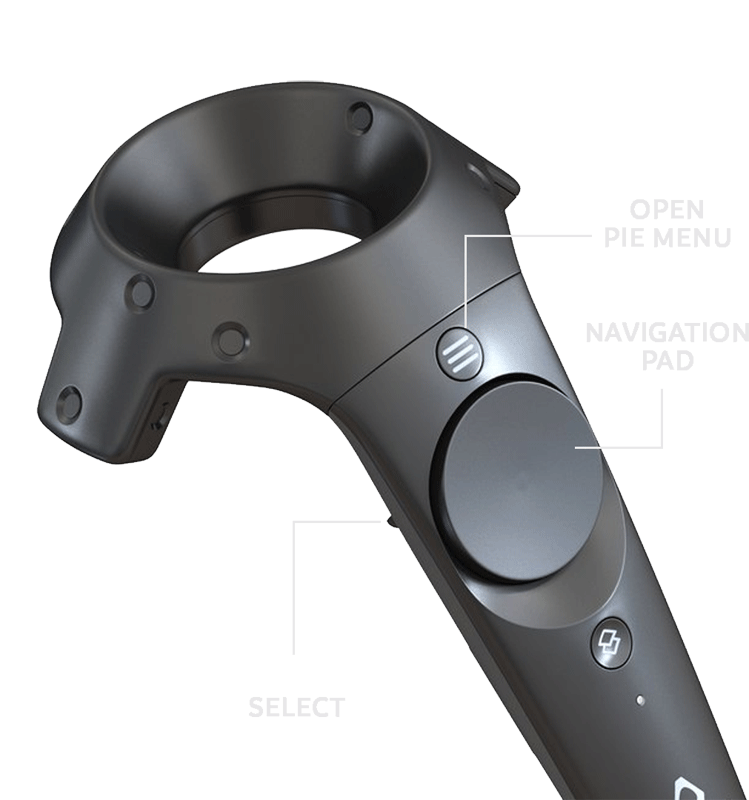
Vive Focus 3 and XR Elite
Oculus Rift
Meta Quest
VenomX